Connecting Google Workspace
The Google Workspace integration connects your Gmail and Google Calendar to Mutiny in a single step. Once connected, the Mutiny agent can draft and send email from your account, read threads to keep accounts in sync, and pull upcoming or past meetings into the context it uses while working.
Google Workspace is a personal integration. Only you have access to the details of your connected account, and nothing from your email or calendar is shared with anyone else in your Mutiny organization.
What the agent can do
- Draft and send emails you ask for, directly from Mutiny
- Read your threads to keep accounts in sync
- Draft replies through the Email replies automation
Calendar
- Pull upcoming and past meetings (attendees, company, agenda) into one-pagers, decks, and follow-ups
- Check availability
- Create calendar events on your behalf
Connecting
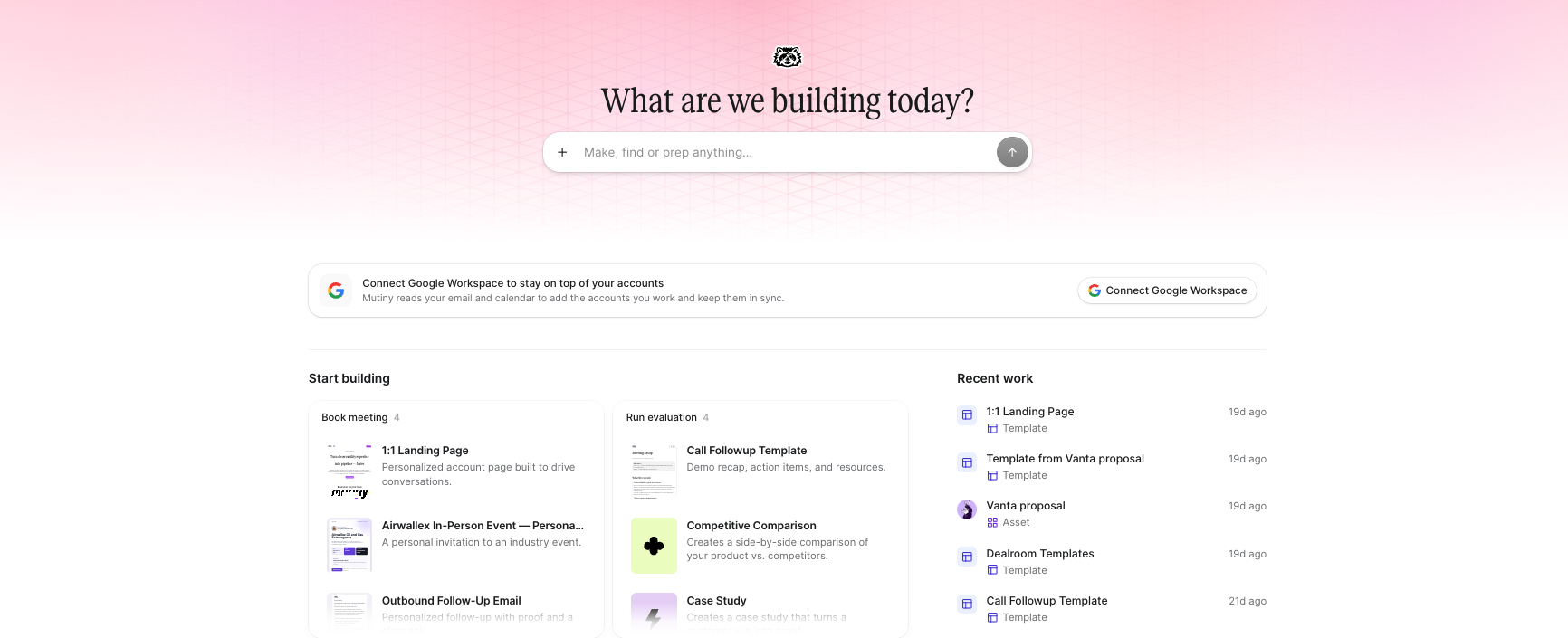
If your workspace isn’t connected, you’ll see a prompt on the Home page to connect your Google Workspace.
You can also set this up from the Integrations page. Click Connect on the Google Workspace card and complete the Google authorization flow.
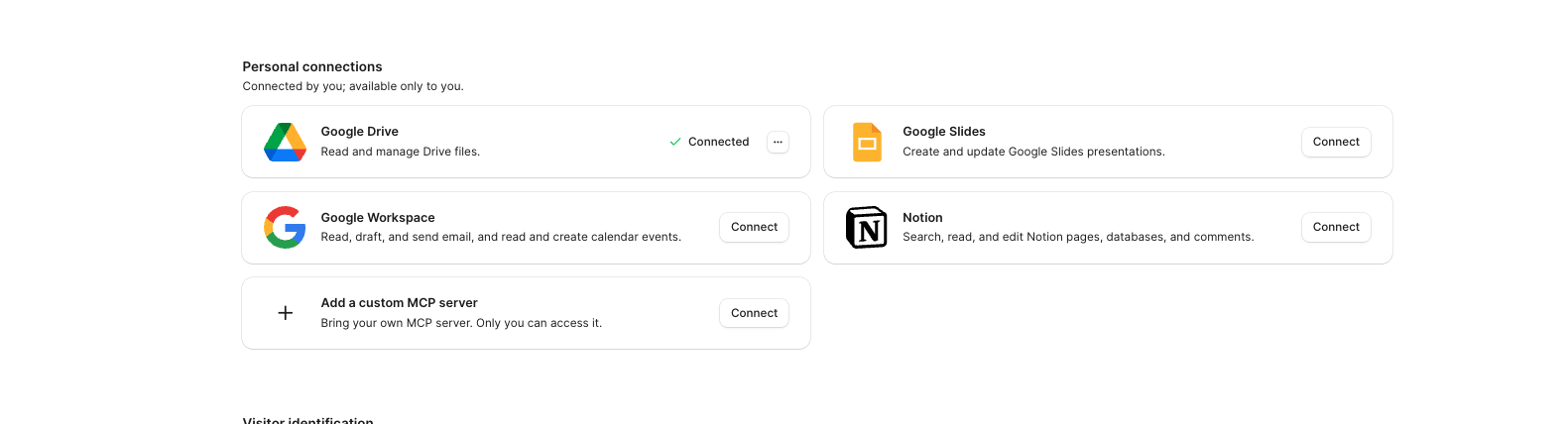
Both Gmail and Calendar will be connected to Mutiny once you finish authorizing.
If you see “Access blocked”
If your company restricts third-party apps in Google Workspace, Google will show an Access blocked screen with Error 400: admin_policy_enforced instead of the consent screen. Your Workspace admin needs to allow the app first.
Tool permissions
Choose when the Mutiny agent is allowed to use each tool.
Read-only tools
- Search Gmail
- Read Gmail message
- List calendar events
- Read calendar event
- Check calendar availability
Write tools
- Create Gmail draft
- Send Gmail message
- Create calendar event
Read-only tools default to Allowed. Write tools default to Needs approval, so the agent asks you before drafting or sending email or creating a calendar event. You can change any of these at any time on the Google Workspace integration card.
About Pipedream
Mutiny uses Pipedream to handle the secure authentication and data flow for third-party connections. You don’t need a Pipedream account, everything happens through Mutiny.
Disconnecting
To disconnect, use the three-dot menu on the Google Workspace integration card and click Disconnect. You can also remove Mutiny’s access at any time from myaccount.google.com/connections .