Creating Docs with Mutiny
You can create documents in Mutiny directly from a thread with the agent. Whether you’ve been researching an account, need materials to move a deal forward, or want to write an article to share with your team, the agent can turn that work into a polished document without you leaving the conversation.
When to Create a Document
Documents are useful any time you want to capture work in a format you can refine and share. If you’ve already built up research in a thread, such as notes on a target account or a summary of a prospect’s priorities, you can turn that context into a document in a single request. Documents also work well for deal cycle materials like follow-up summaries, business cases, and mutual action plans, as well as internal articles and briefs you want to circulate with your team.
Asking the Agent to Create a Document
To get started, ask the agent to create a document in the prompt box of your thread. You can tell the agent to use the context already in the thread, which is the fastest option when you’ve been working through research or discussion with the agent. For example:
create a document summarizing the research above for my account team.
You can also provide new context in your request. Paste in notes, describe the topic and audience, or explain the goal of the document, and the agent will use that information to build it. You’re welcome to combine both approaches by asking the agent to draw on the thread while adding new details or direction in your prompt.
Editing Your Document
Once the agent generates your document, it opens in the editor pane on the right side of the screen, next to the prompt box. From here, you can edit the content of the document directly by clicking into the text and making your changes.
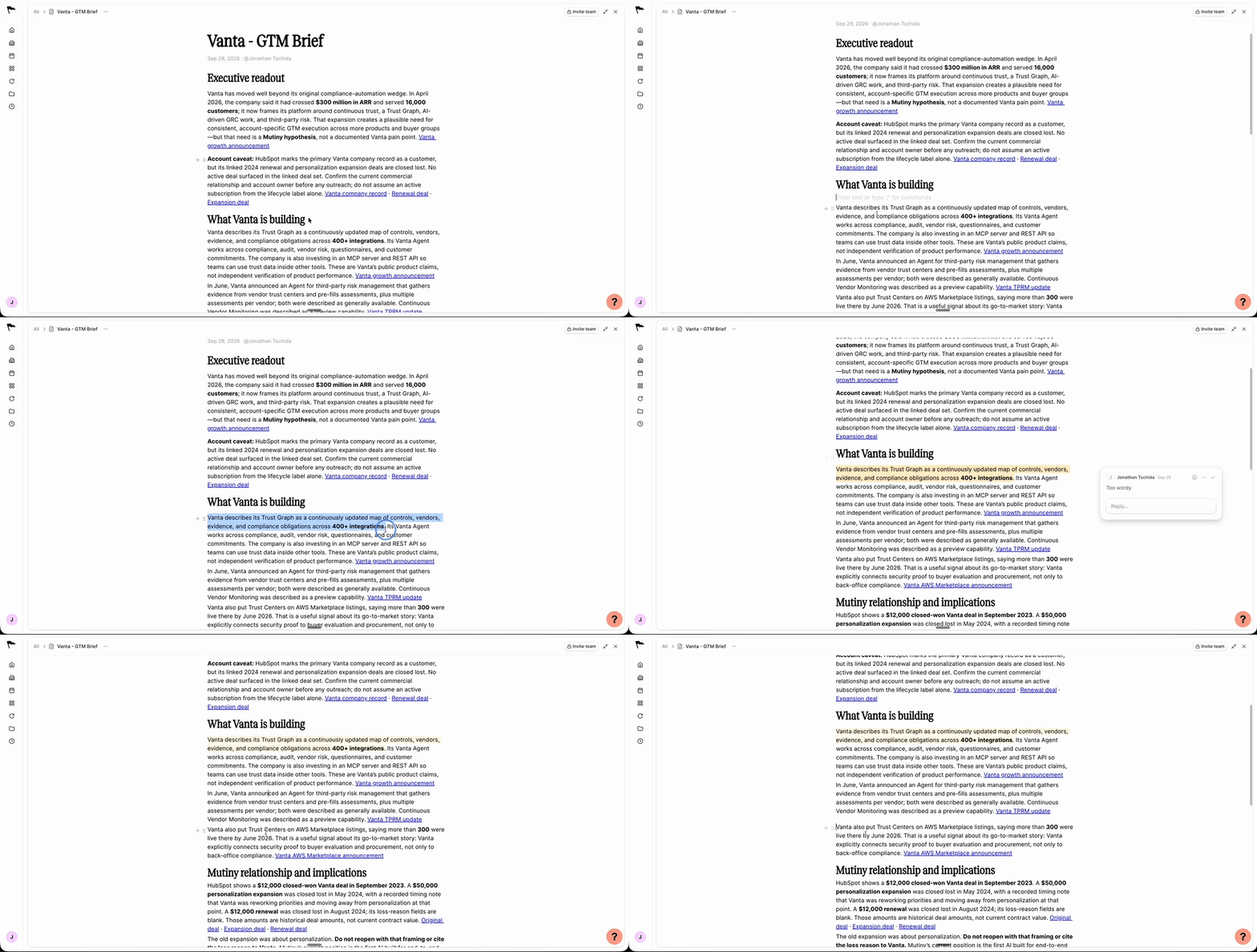
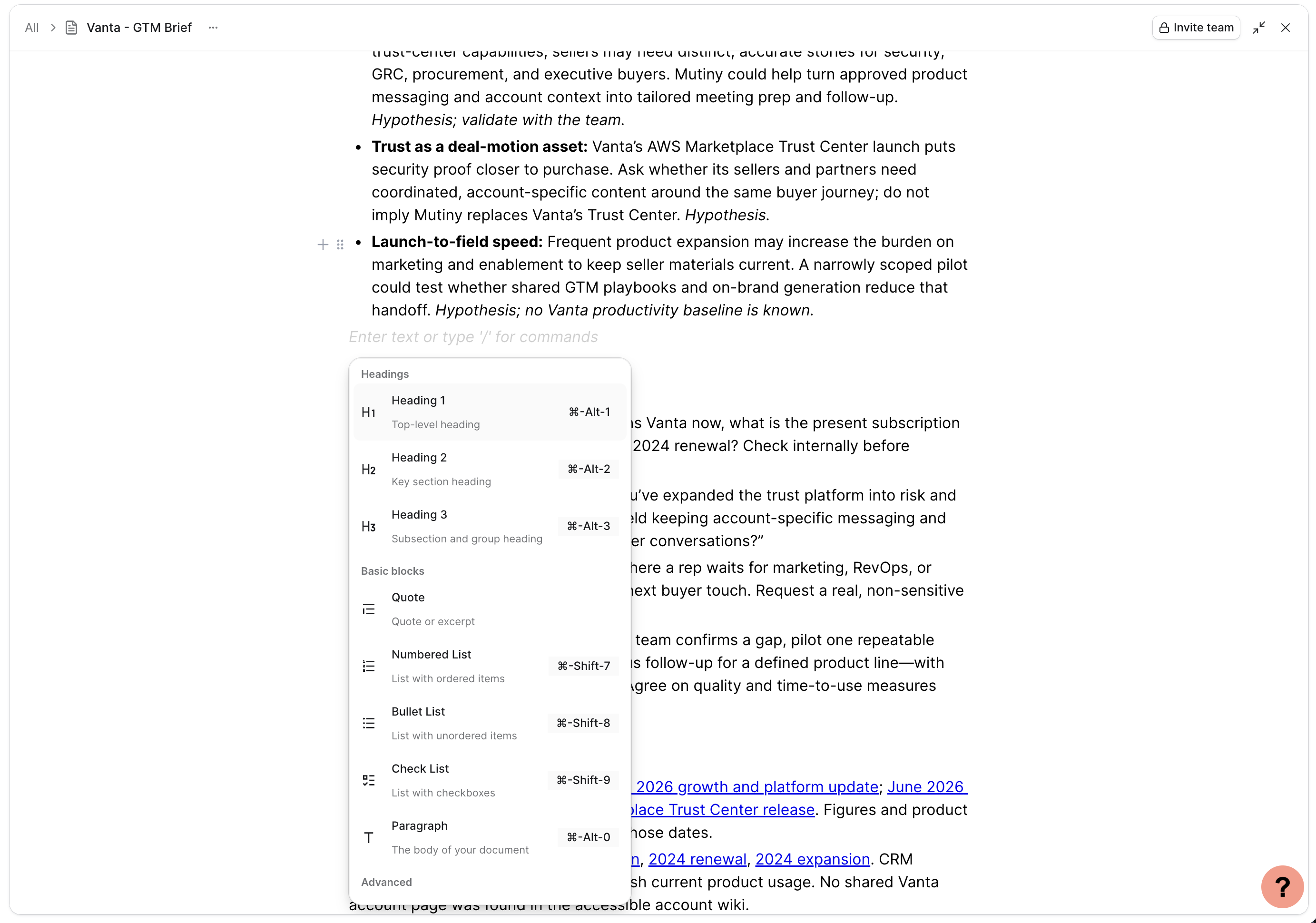
You can manually add new sections to your document by using the plus button that appears when hovering over elements in the editor
Because the editor sits alongside your thread, you can keep working with the agent while you edit. Make quick changes yourself in the editor, or ask the agent in the prompt box to revise a section, adjust the tone, or add new information.