Allowing Pipedream in Google Workspace
If your company restricts third-party apps in Google Workspace, connecting Google Workspace to Mutiny (Gmail and Google Calendar) fails until a Workspace admin allows Pipedream’s app. Share this section with your IT team.
If Pipedream isn’t allowed, users see an Access blocked screen from Google after starting the connection, ending in Error 400: admin_policy_enforced. The middle text is set by your admin, so it varies by company:
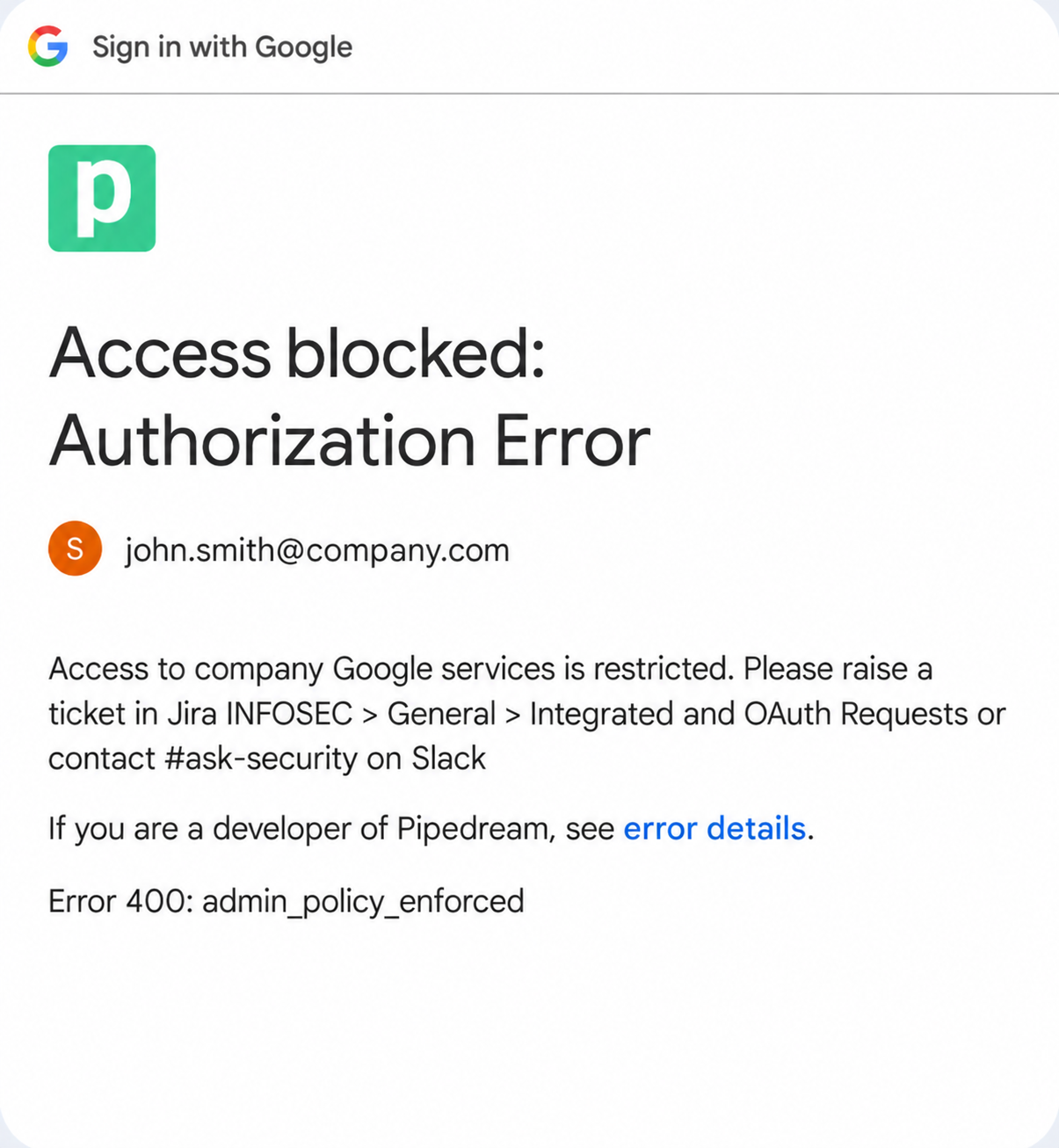
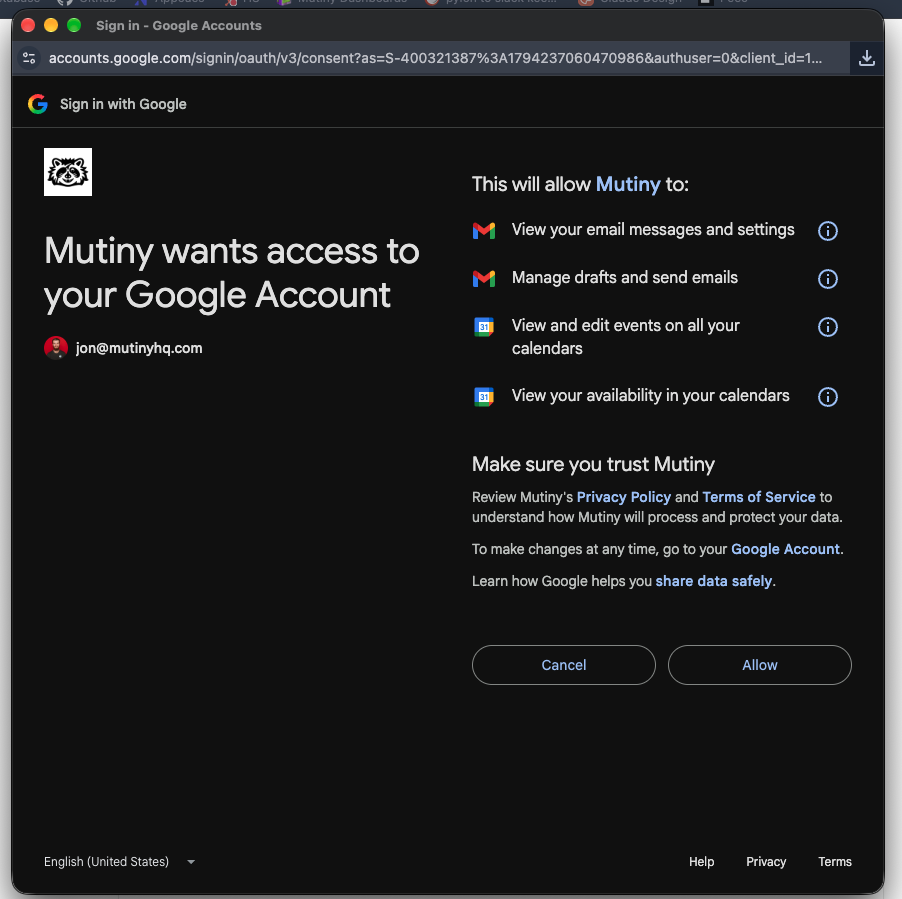
Note on naming. Google’s consent screen shows this as “Mutiny wants access to your Google Account”, but the underlying OAuth app is registered by Pipedream (Mutiny’s integration provider). In the Google Admin console, admins allowlist it by the Pipedream client ID below.
What your security team should know
- What Mutiny does with Google Workspace. The agent drafts and sends email you ask for, reads your threads to keep accounts in sync, drafts replies through the Email replies automation, and pulls Calendar events into assets like one-pagers, decks, and follow-ups.
- Per-user access only. Each user connects only their own account, and nothing from their email or calendar is shared with others in your Mutiny organization.
- Users control what the agent writes. Reading is automatic; writing (drafting email, sending email, creating calendar events) defaults to Needs approval and each user can change it to Allowed or Blocked per tool.
- Two approvals are required. The admin allows the app; each user then consents for their own account.
- Access is easy to revoke. Users can click Disconnect on the Google Workspace card or remove Mutiny at myaccount.google.com/connections . Admins can set the app to Blocked.
- Both vendors are SOC 2 Type II. Mutiny’s reports go to Enterprise customers under NDA (Mutiny Compliance Overview); Pipedream’s are available on request (Pipedream privacy and security ).
Pipedream’s Google Workspace OAuth client
| Field | Value |
|---|---|
| App name shown on Google’s consent screen | Mutiny |
| App name in the Google Admin console | Pipedream |
| Client ID | 111612082010-m7hhvbenm8go3pifu47to5kvsb6aj7vm.apps.googleusercontent.com |
Search by this exact client ID in the Admin console: several apps are registered under “Pipedream” (one per Google product), so the ID is the only unambiguous identifier. Users can also find it under Error details on the blocked screen.
Permissions requested
These are the four permissions Google shows users on the consent screen when connecting Google Workspace in Mutiny:
| Permission on Google’s consent screen | Used in Mutiny for |
|---|---|
| View your email messages and settings | Reading messages and threads so the agent can keep accounts in sync and reply in context |
| Manage drafts and send emails | Creating drafts (including Email replies) and sending email you ask the agent to send |
| View and edit events on all your calendars | Reading and creating calendar events; pulling upcoming or past meetings into assets |
| View your availability in your calendars | Checking free/busy windows when the agent proposes meeting times |
Choose an access setting
| Setting | Result |
|---|---|
| Trusted | Works. Simplest to maintain and what we recommend. |
| Specific Google data | Works only if the Gmail and Calendar scopes above are all added. |
| Limited | May fail if a required scope is classified as restricted. |
| Blocked | Fails for everyone in scope. |
Steps for Google Workspace admins
- Go to Admin console > Security > Access and data control > API controls > Manage Third-Party App Access .
- Under Configured apps, click Add app > OAuth App Name Or Client ID.
- Paste the client ID above, click Search, and select the Pipedream result whose client ID matches exactly.
- Choose your whole organization, or only the organizational units that contain Mutiny users.
- Select Trusted, then click Finish.
Changes can take up to 24 hours. If your organization uses Context-Aware Access for API access, also set Pipedream to Trusted and select Exempt from having API access blocked by Context-Aware Access levels (Google’s steps ).
After approval, users click Connect Google Workspace on the Mutiny Home page (or Connect on the Google Workspace card under Integrations) and click Allow on Google’s consent screen.
Troubleshooting
| Message | Likely cause | Fix |
|---|---|---|
“Access blocked: Authorization Error” or “This app is blocked” / admin_policy_enforced | App is Blocked or not configured | Admin adds the client ID as Trusted |
“Access blocked” / access_not_configured | App is Limited, or a required scope is missing | Admin switches to Trusted |
| Connected, but drafting or sending fails | User clicked Cancel instead of Allow, or disconnected the app | Reconnect from the Google Workspace card and click Allow |
Still stuck? Submit a ticket with the exact error, the time, the user’s email, and the client ID from Error details.