Mutiny Settings Overview
Your Mutiny workspace settings give you control over your personal account, how your organization is configured, how your assets appear and behave, and who has access to your workspace. To open settings, click your user menu in the bottom left and select Settings.
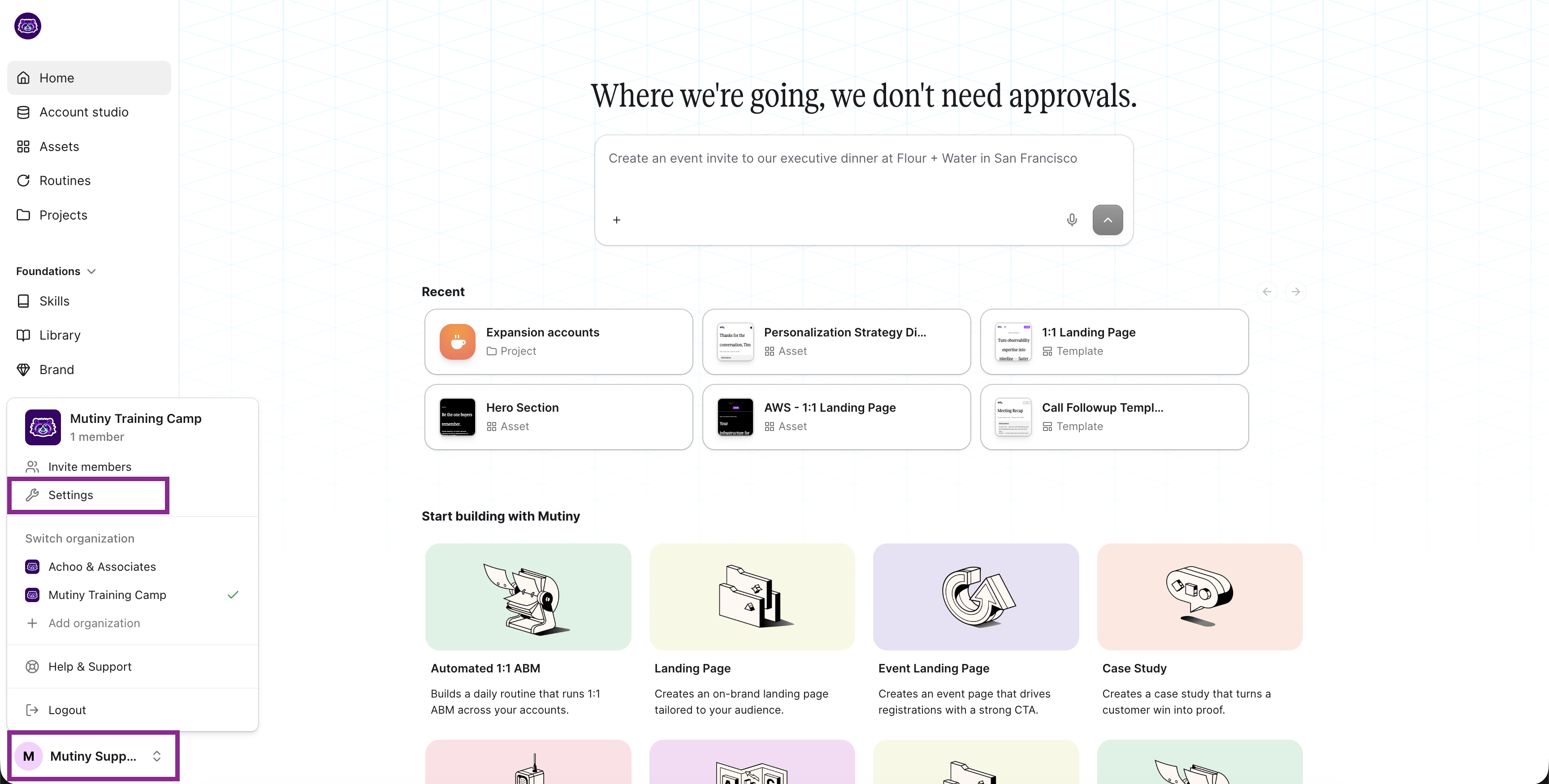
The settings page is split into two sections: Personal and Organization.
Personal
Profile
The Profile tab is where you adjust personal settings for your Mutiny account. Set your first name, last name, and change your email.
Notifications
The Notifications tab is where you choose what Mutiny alerts you about. Three groups of notifications live here:
- Asset visitor notifications alert you when someone visits content you have published. Choose between identified visitors, engaged visits (meaningful time on an asset), or all visits (including anonymous).
- Call follow-up ready alerts you when a follow-up Mutiny drafted for an account is ready to review.
- Asset notifications alert you to activity on specific assets you own.
Learn more here: Asset Visitor Notifications
Organization
General
The General tab is where you adjust your company name and company domain. It’s also where you leave or deactivate the organization on Free and Business plans. See Leaving or Deactivating Your Organization.
Brand
The Brand tab is where you manage the design system Mutiny applies to every asset: your logo, colors, fonts, typography, CTA usage, and visual guidelines. Your brand is auto-created when you create your Mutiny account; Mutiny scrapes your website to pull in your logo, colors, fonts, typography, and CTA usage, and generates visual guidelines from them. Edit any of these at any time to further align with your brand.
Learn more here: Managing your Brand in Mutiny
Assets
The Assets tab is the full set of defaults that apply to every asset you publish.
Custom Subdomain (Business plans and above) lets you serve your assets from your own company domain instead of the default Mutiny-branded domain. See Setting up Your Custom Subdomain.
Fallback URL redirects visitors to a URL you control when an asset 404s, instead of showing a default error page. See Changing Your Fallback URL.
Favicon sets the image that appears in the browser tab when someone views your asset.
Preview image is the thumbnail displayed when a page is shared on social media or messaging apps.
Default page title and page description appear in the browser title bar and in search results, and the description shows when someone previews a page URL. These can also be overridden on a per-asset basis. See Setting up Asset Metadata.
Search engine settings control how search engines and LLMs index and crawl your assets by default. These can also be changed on an asset-by-asset basis. See Managing Search Engine Settings for your Assets.
Additional code snippets is where you can add head HTML or body HTML via script tags to your assets. See Add Script Tags on a Per-Asset Level for the per-asset version of this.
Integrations
The Integrations tab shows every integration connected to your workspace, split by shared integrations available to the whole team and personal integrations scoped to your user. From here, admins can set up new shared integrations and anyone can connect their own personal ones.
Learn more here: Managing Your Integrations
Team
The Team tab shows everyone on your Mutiny team. For each member you can see their role, which teams they are on, and whether they have a credit limit set. This is also where you invite new people, if your user has the role and permissions to do so.
Learn more here: Adding New Users to Mutiny
Usage
The Usage tab (visible to admins) is a rundown of credit usage across your team, so you can see what everyone is creating in Mutiny.
Learn more here: Tracking Usage
Billing
The Billing tab (visible to admins) is where you manage your billing credentials, if your user has billing permissions.