Integrating with LinkedIn Ads
Last updated: May 15, 2026
This is an enterprise-only feature. Interested in upgrading to an enterprise plan? Email the team at mutinylovesyou@mutinyhq.com to get plan upgrade information.
Drive hyper-personalized traffic to your Mutiny assets with tailored LinkedIn ad campaigns set up in minutes, not weeks.
What is the LinkedIn Ads Integration
This integration connects your Mutiny account to LinkedIn Ads, making it simple to create and launch 1:1 ad campaigns personalized for each account you’re targeting. With it, you can:
Design eye-catching ad creatives tailored to each account
Automatically create LinkedIn campaigns for each target account
Push ads to LinkedIn in draft mode to review and launch
Adjust audience filters to meet minimum size requirements
Draft creative and messaging with AI assistance
How to set it up
This is a shared integration; only users with Admin or Owner can enable these integrations. Data from shared integrations will be available for everyone in the Mutiny instance.
1. Connect your LinkedIn Ads account
An asset must be published in order to create Ads for the asset. Whoever authorizes LinkedIn within Mutiny needs specific permissions/roles within their LinkedIn organization and Ad account to push from Mutiny to LinkedIn:
The user must have super admin or content admin roles in their LinkedIn organization
The user must have account manager or campaign manager roles in their Ad account
There are a few ways to connect to LinkedIn and kick off the LinkedIn Ads builder:
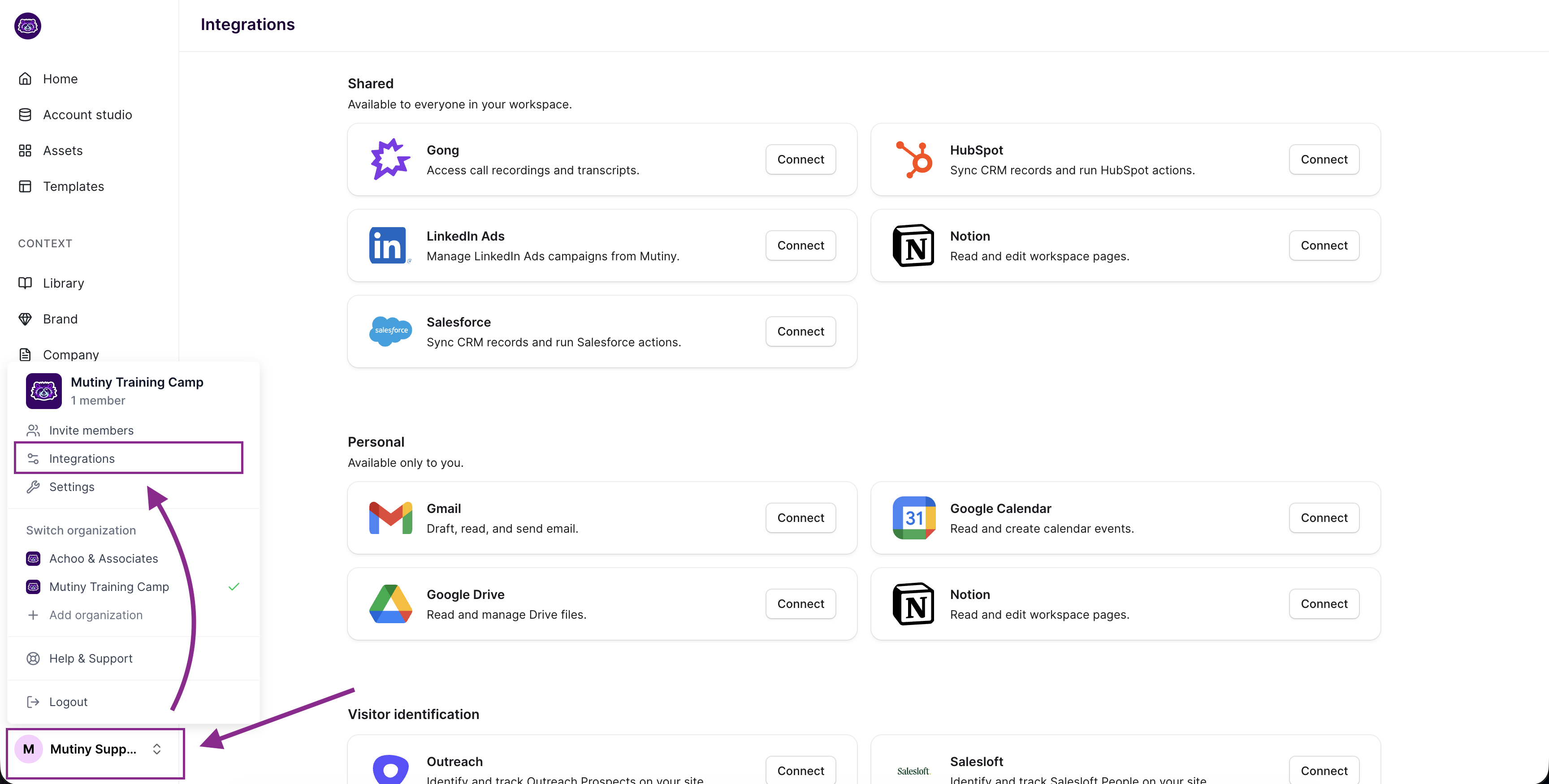
1. You can connect your LinkedIn Ads account from the integrations page. On the LinkedIn Ads integration card, click Connect
2. On a live asset, from the Share page, select LinkedIn Ads and Authorize
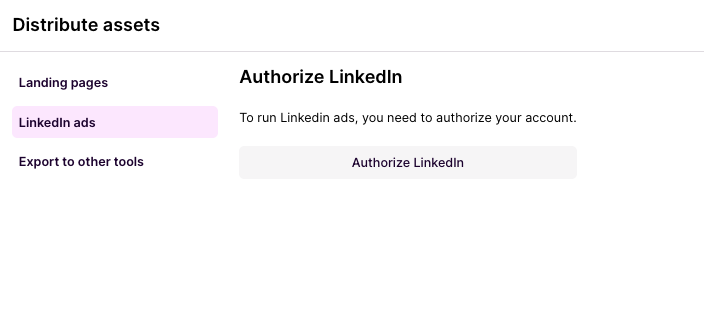
If you haven't already, this will then trigger a pop-up for you to authorize your LinkedIn account. Once you’re connected, you’ll be able to launch the ad builder using the Create Ads button shown earlier.
Note: You only need to do this once. We’ll securely store the credentials for future assets.
2. Build Your Target Account List
You can run LinkedIn ads for both 1:1 and 1:Many assets:
In a 1:1 Asset, use Account Studio to define the accounts you want to reach. Once your list is set, each account will get its own personalized campaign and ad.
For a 1:Many Assets, you can attach an Account Studio list to your 1:Many Ad to tell LinkedIn to serve the Ad to the accounts in the list. This will then create a single ad in LinkedIn that will target the accounts in the list and direct them to the 1:Many page.
3. Create Personalized Ad Creatives
Our creative builder supports LinkedIn Single Image Ads with personalized elements like:
Company name
Background image or color
including cropping to fit the selected ad format
Overlay text and CTA
Account logo
Ad Format
Landscape
Square
Vertical
You can either:
Design from scratch using our block-based editor, or
Use AI Drafting to generate copy (headline, overlay, footer) from a simple prompt
Note: The main CTA options in the Ad Editor are predefined by LinkedIn and are unable to be edited, this is a limitation set by LinkedIn.
4. Configure your LinkedIn Campaign Group
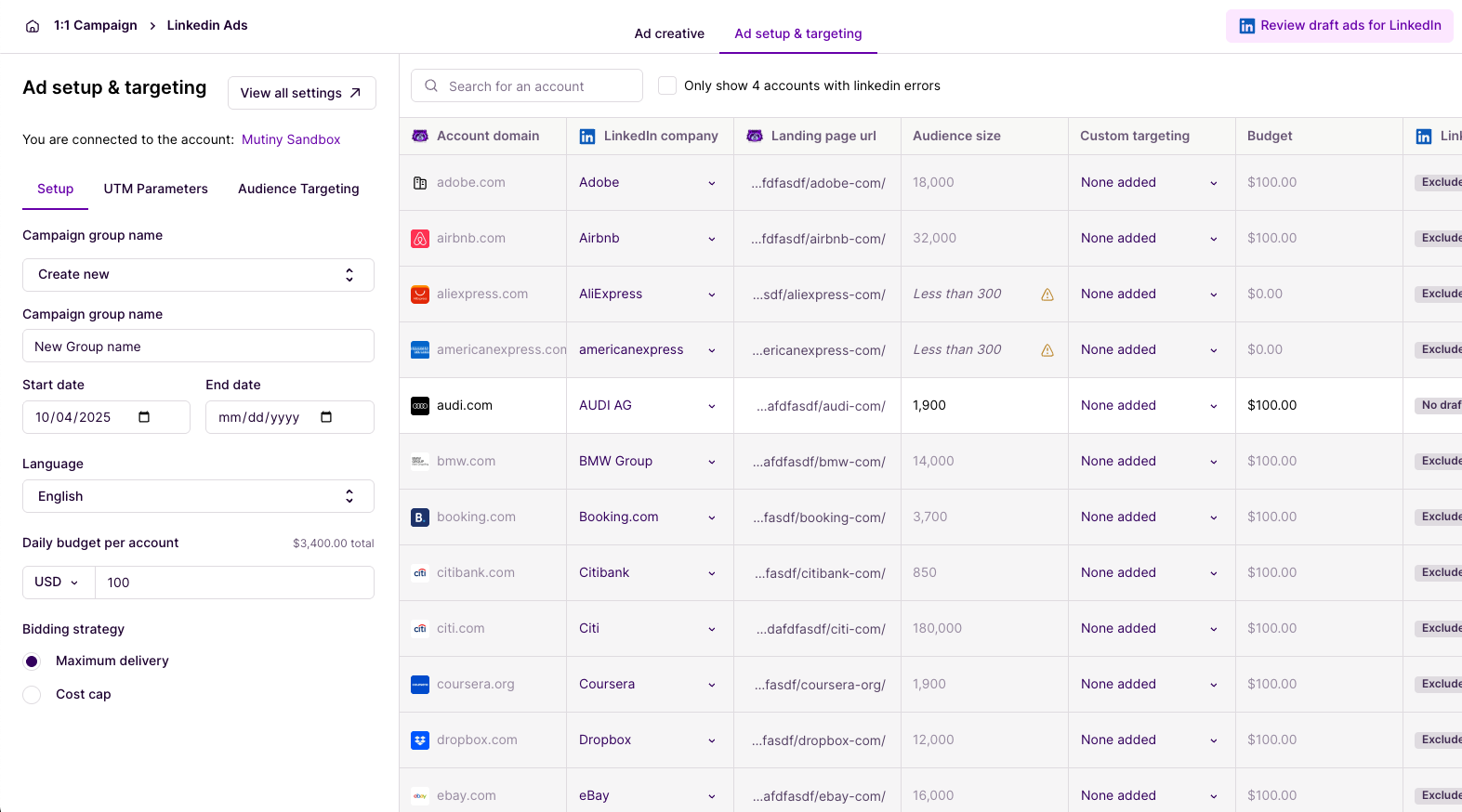
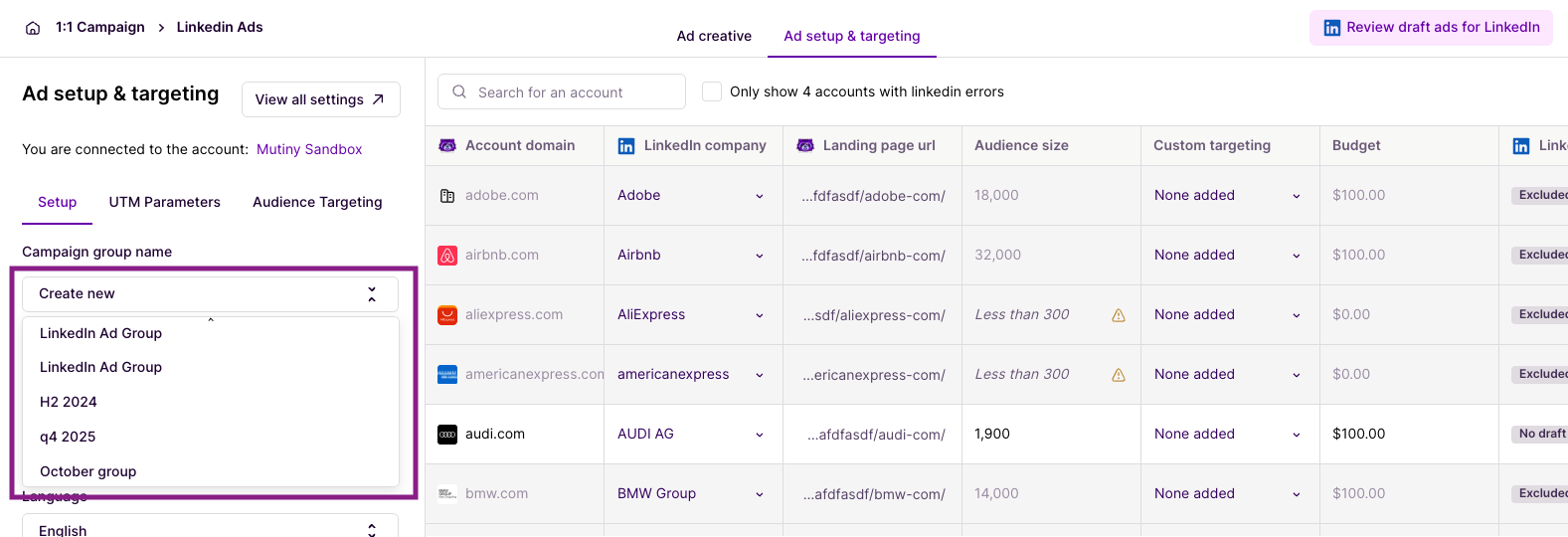
You have two options for organizing your ads. You can either select an existing LinkedIn Ad group or you can use Mutiny to create a new group.
When creating a new group, you’ll configure:
Campaign group name (defaults to Mutiny campaign name)
Start date (defaults to today)
End date (optional)
All ads will be created in draft mode so you can review and launch them directly in LinkedIn.
Creating a new LinkedIn Ads group:
Click the dropdown to select an existing LinkedIn Ads group
5. Fine-tune campaign settings per account
Setting | Value |
Objective | Awareness |
Cost type | CPM |
Bidding Strategy | Maximum delivery |
Format | Single image |
Landing page | Mutiny asset |
Budge | Set per account |
Audience | Configurable per account (Job title, Function, Seniority) |
Language / Locale | Defaults to English / US |
The LinkedIn Ads integration supports multiple budget optimization strategies:
Maximum Delivery - Optimizes for maximum reach within your budget
Cost Cap - Sets a per-account cost limit to control spending
We show real-time audience size. LinkedIn requires a minimum of 300. You can tweak filters per account or apply global defaults.
6. Push Assets to LinkedIn
Once you’re happy with your asset setup, you have two push options:
Push all to LinkedIn — drafts campaigns for all accounts
Push individually — create a draft campaign for just one account
For one-to-many assets, Mutiny will push a single ad and campaign group in LinkedIn targeting all accounts in your list.
Mutiny will append a timestamp to the campaign name if you re-push a previously created campaign, so you always know what’s fresh.
Note: This is a one-way sync. Any changes made in LinkedIn after the push won’t reflect in Mutiny.
Best practices & pro tips
Audience size matters: Adjust job function or seniority to ensure your list meets LinkedIn’s minimum size.
AI drafting: Great starting point for scalable creative—just polish the outputs before publishing.
Naming clarity: Use descriptive campaign names that include target segment or theme.
Format selection: Choose the ad format (landscape, square, or vertical) that best suits your creative assets and campaign goals.
One-to-many assets: Consider these when targeting a large set of companies that could be targeted with a single ad.
Known limitations
The main CTA options in the Ad Editor are predefined by LinkedIn and are unable to be editied, this is a limitation set by LinkedIn.
Re-pushing campaigns creates duplicates (with timestamps). Avoid pushing unless changes were made.
No two-way sync—yet. Mutiny doesn’t reflect edits made directly in LinkedIn.
Targeting is limited to job title/function/seniority in v1.
Need Help?
If you have questions or need help, the Mutiny Support team is here for you! You can submit a support ticket using the Submit a ticket button at the top of this page, or reach us at support@mutinyhq.com.