Create Closed-Lost Assets
Last updated: June 25, 2026
The following is an enterprise-only feature. Interested in upgrading to an enterprise plan? Email the team at mutinylovesyou@mutinyhq.com to get plan upgrade information.
Mutiny makes creating personalized closed-loss assets simple by leveraging existing account context to create highly personalized pages at scale. Since you already have rich data about these accounts from previous deal cycles, you can quickly build targeted assets to re-engage and win back prospects.
Creating the Asset
Start by creating a new asset from the Home tab.
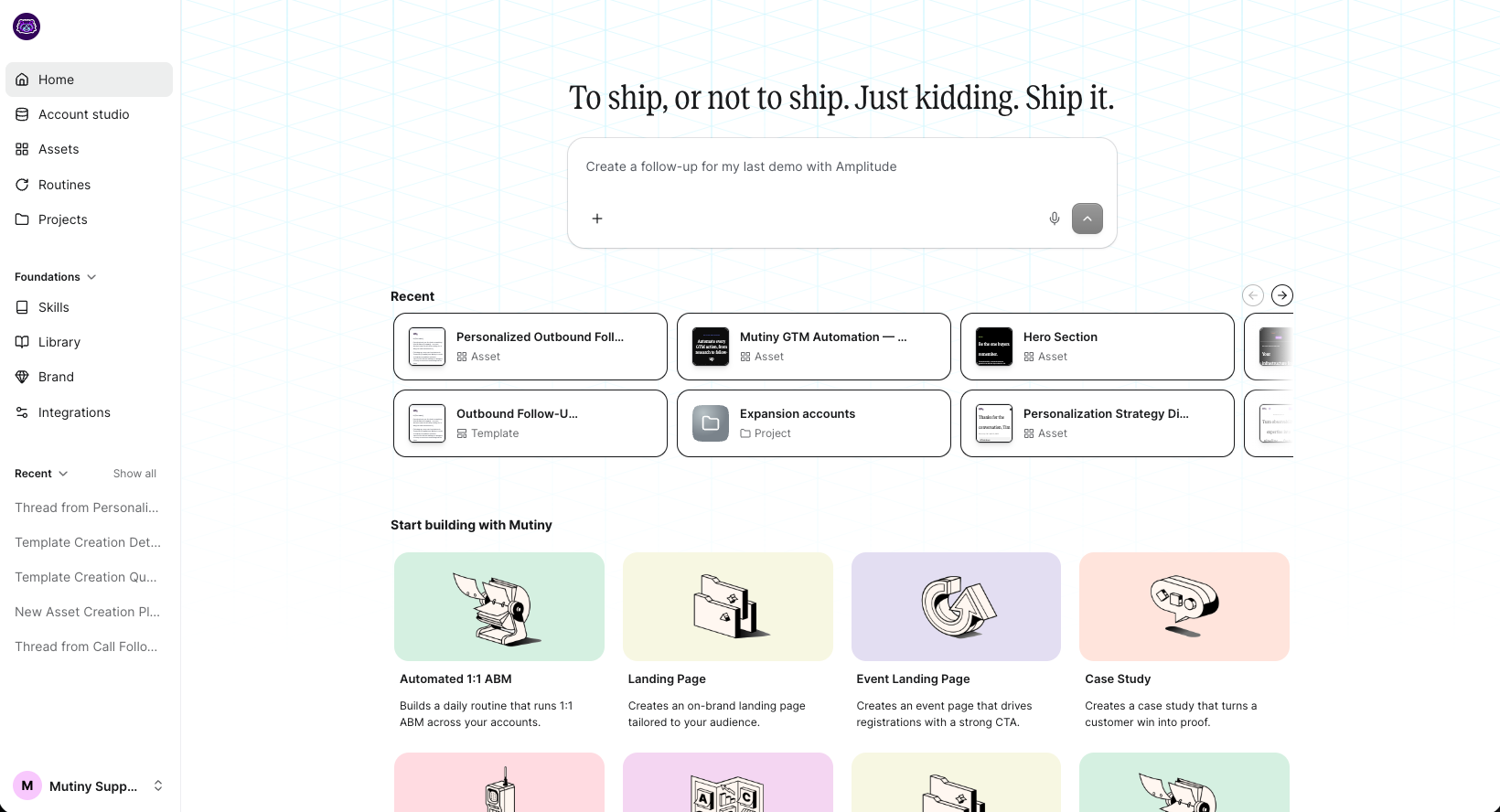
In the prompt box on the homepage, ask the agent to check your CRM for closed-loss opportunities. If a CRM integration is enabled, the agent will search your CRM for these opportunities and return what it found.
Alternatively, you can run a report in your CRM for closed-loss opportunities and upload the data to the agent using the + button in the prompt box.
An example prompt for creating this asset could look like this:
Check the most recent closed-loss opportunities in HubSpot. I want to create a personalized asset for the top 5 closed-loss opportunities.
Customizing Content and Messaging
Make manual edits to headlines to speak directly to each account's situation (like "your strategic priorities are a perfect fit for Mutiny"). Continue using the agent to insert additional data fields, such as pain points, and ask it to relate them back to how your product solves those challenges.
The agent will generate personalized copy based on your dataset while maintaining your messaging framework.
Refining and Publishing
Make any final manual adjustments to formatting or copy to ensure pages match your desired layout. Once satisfied, publish your assets to generate URLs for your sales team to distribute in outreach and paid ads.
Templatizing and Automating
You can convert the created asset into a template to use for future asset creation. You can also ask the agent to create a closed-loss asset creation skill or a routine to automatically generate assets for new closed-loss opportunities.
Need Help?
If you have questions or need help, the Mutiny Support team is here for you! You can submit a support ticket using the Submit a ticket button at the top of this page, or reach us at support@mutinyhq.com.