Integrating with HubSpot
Last updated: April 6, 2026
This is an enterprise-only feature. Interested in upgrading to an enterprise plan? Email the team at mutinylovesyou@mutinyhq.com to get plan upgrade information.
When you integrate HubSpot with Mutiny, you'll be able to create lists in Account Studio with data from HubSpot.
Setting up your HubSpot private app
Mutiny uses HubSpot Private Apps to establish a connection with your HubSpot data.
Log in to your HubSpot account as an admin.
In the Settings menu, open the "Integrations" section and click on "Legacy Apps."
Click "Create"
When prompted for the type of legacy app, choose "Private."
Complete the Basic Info by naming your app and (optionally) adding a description.
Click into the "Scopes" tab.
Select all of the read permissions within the CRM section.
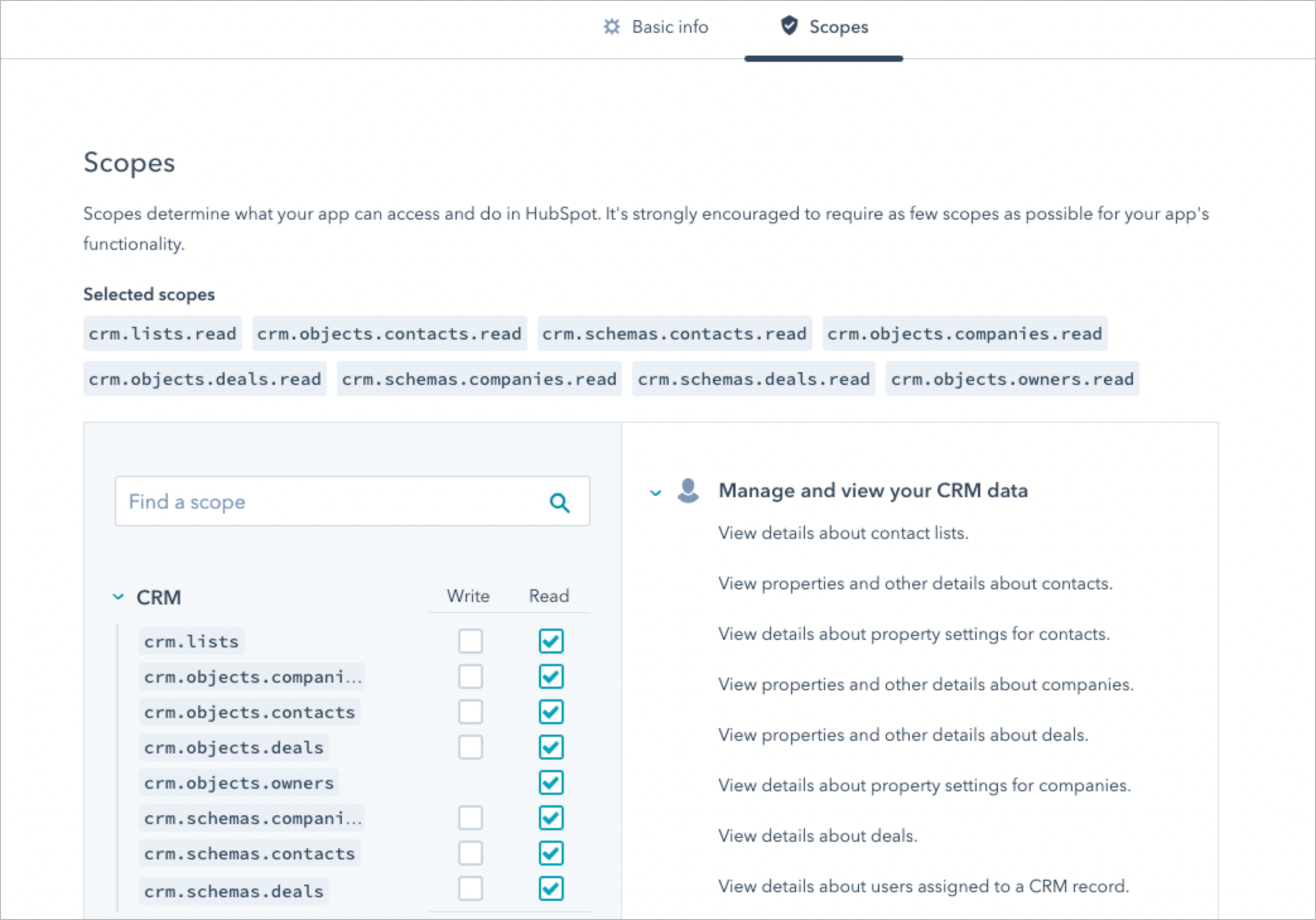
Click "Update" to apply scopes to your application.
Click "Create App" to finalize.
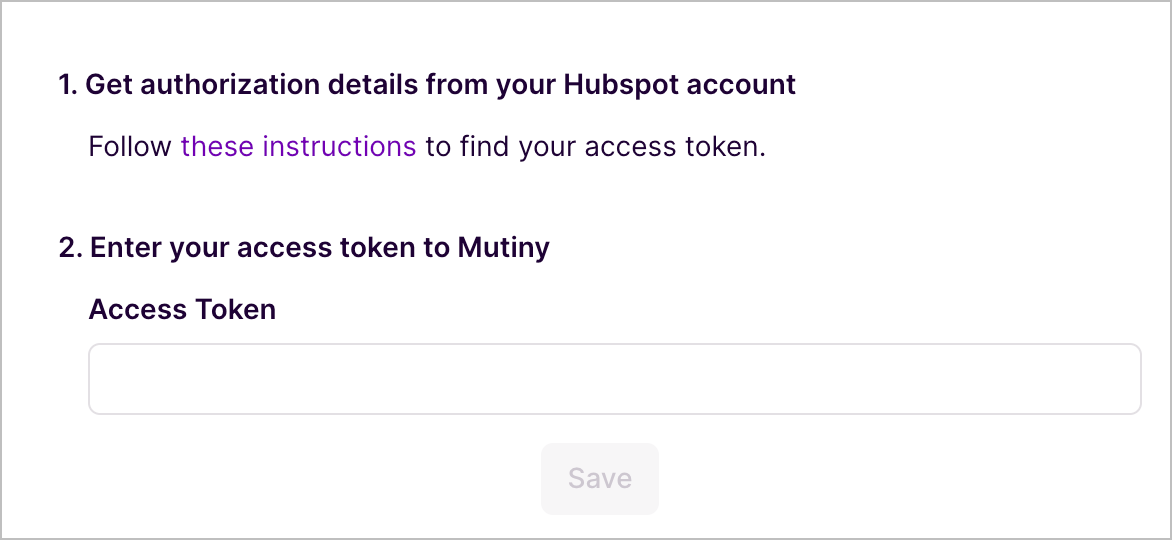
Copy the Access Token generated by HubSpot (you’ll need this in the next step).
Activate the integration in Mutiny
Navigate to https://app.mutinyhq.com/integrations.
Click on the Hubspot integration card.
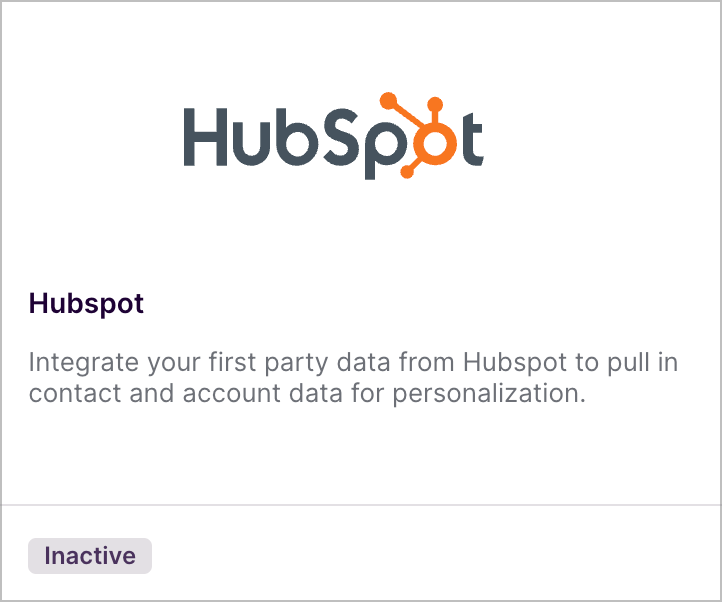
Enter your access token.
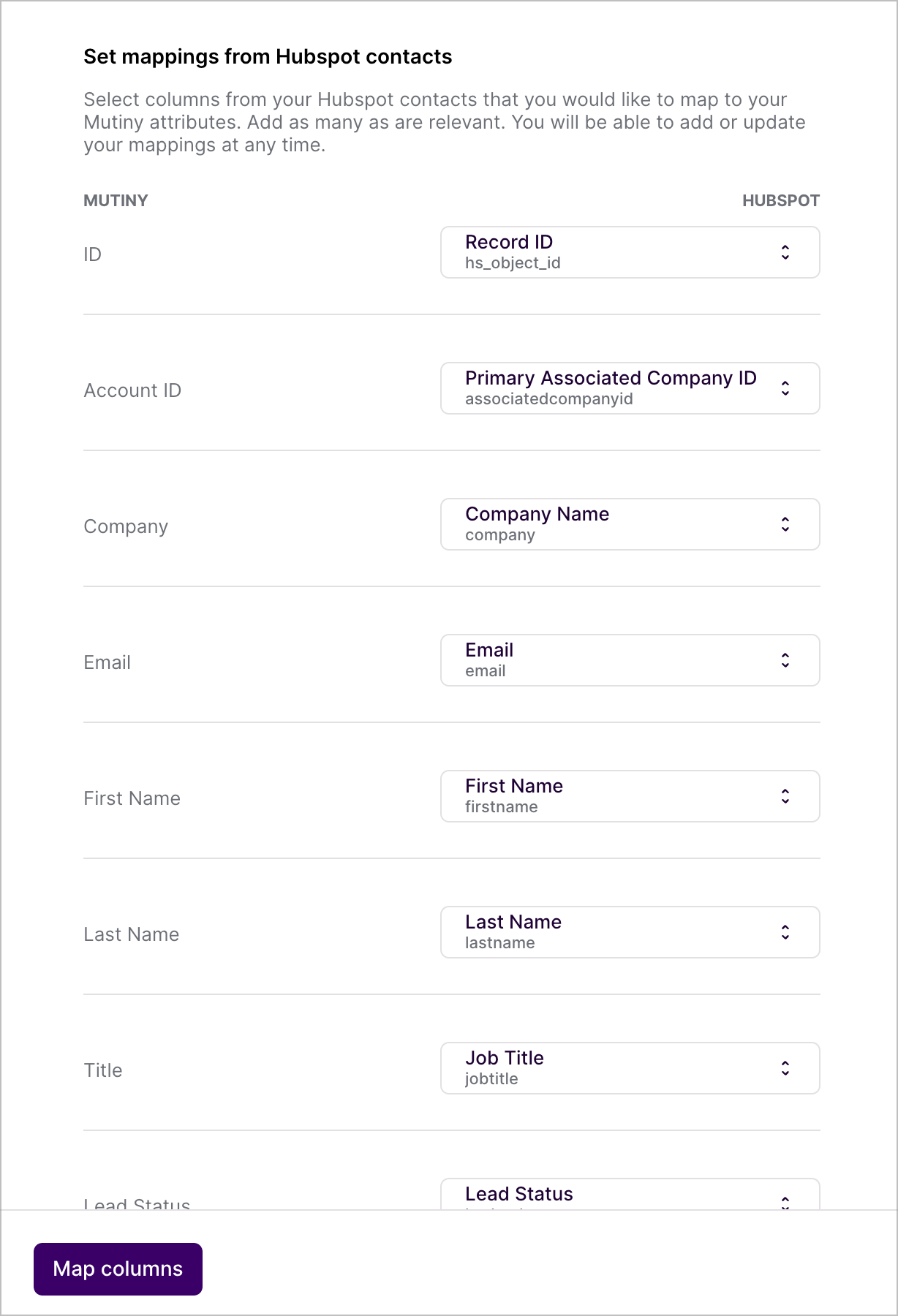
Map HubSpot Records to Mutiny
Select whichever attributes you want to have available in Mutiny. You can map columns from both your Contacts and your Accounts objects. You can add additional columns by clicking the Map another Hubspot column button at the bottom. When you are finished with your selection, click Map columns.
You can come back and edit these selections at any time
Need Help?
If you have questions or need help, the Mutiny Support team is here for you! You can submit a support ticket using the Submit a ticket button at the top of this page, or reach us at support@mutinyhq.com.