Mutiny Settings Overview
Last updated: August 26, 2026
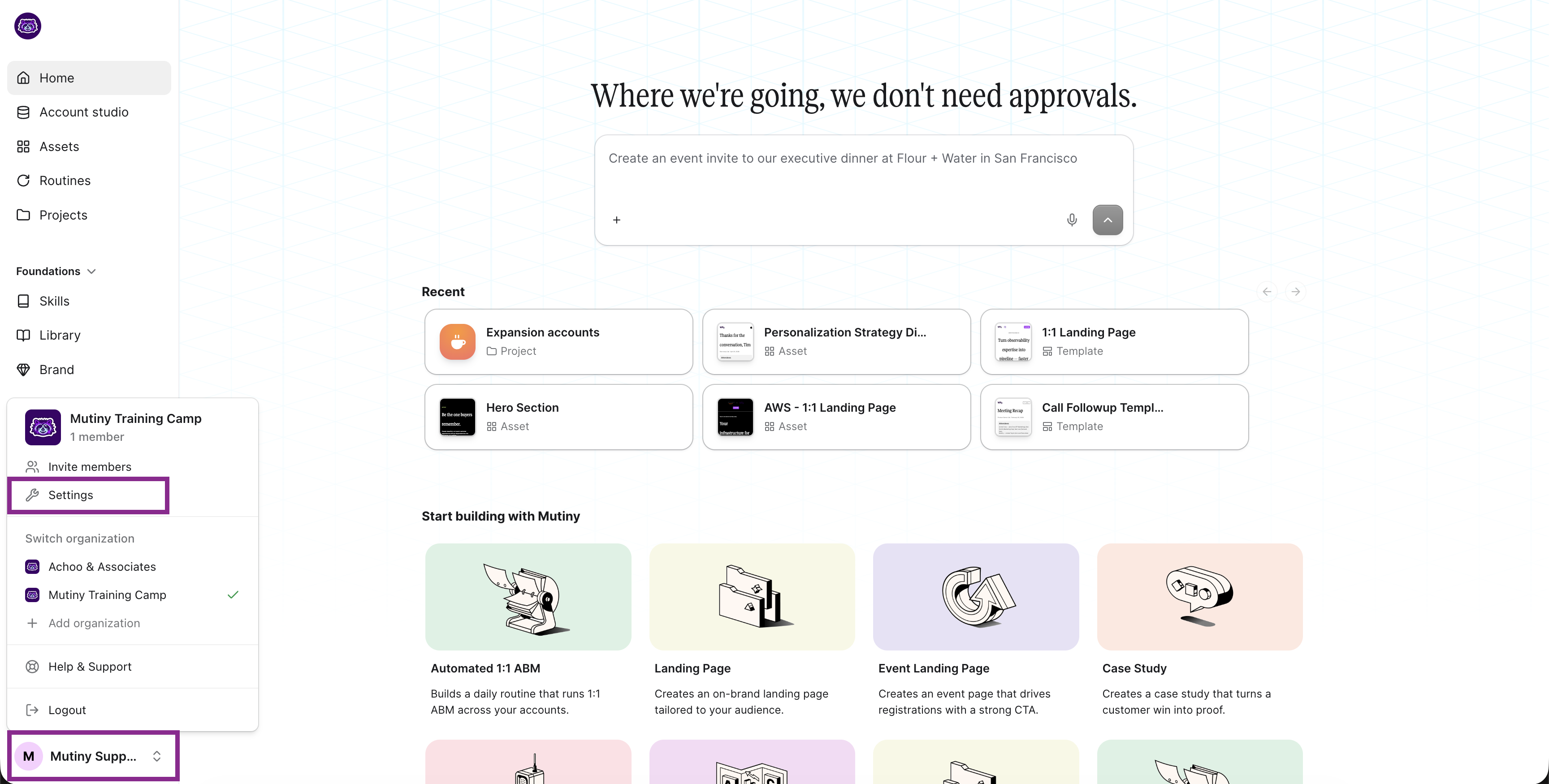
Your Mutiny workspace settings give you control over how your organization is configured, how your assets appear and behave, and who has access to your workspace. To open settings, click your user menu in the bottom left and select Settings.
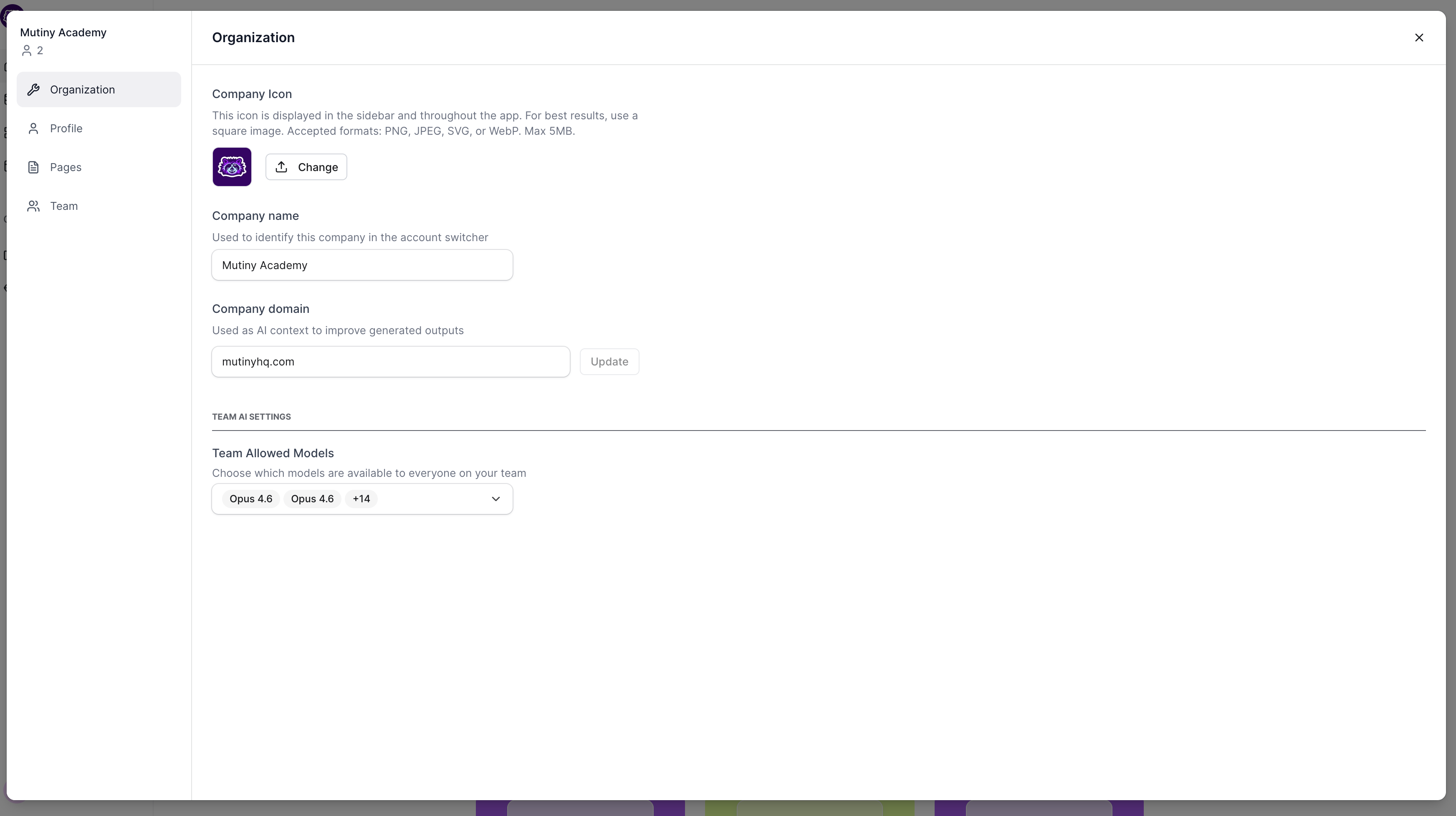
Organization
The Organization tab contains settings that apply across your entire workspace. Here you can update your company icon, company name, and company domain. You can also manage team-allowed models, which controls which AI models are available to your team. On Free and Business plans, this tab is also where you leave the organization, or deactivate it if you are the Owner and the only active user left.
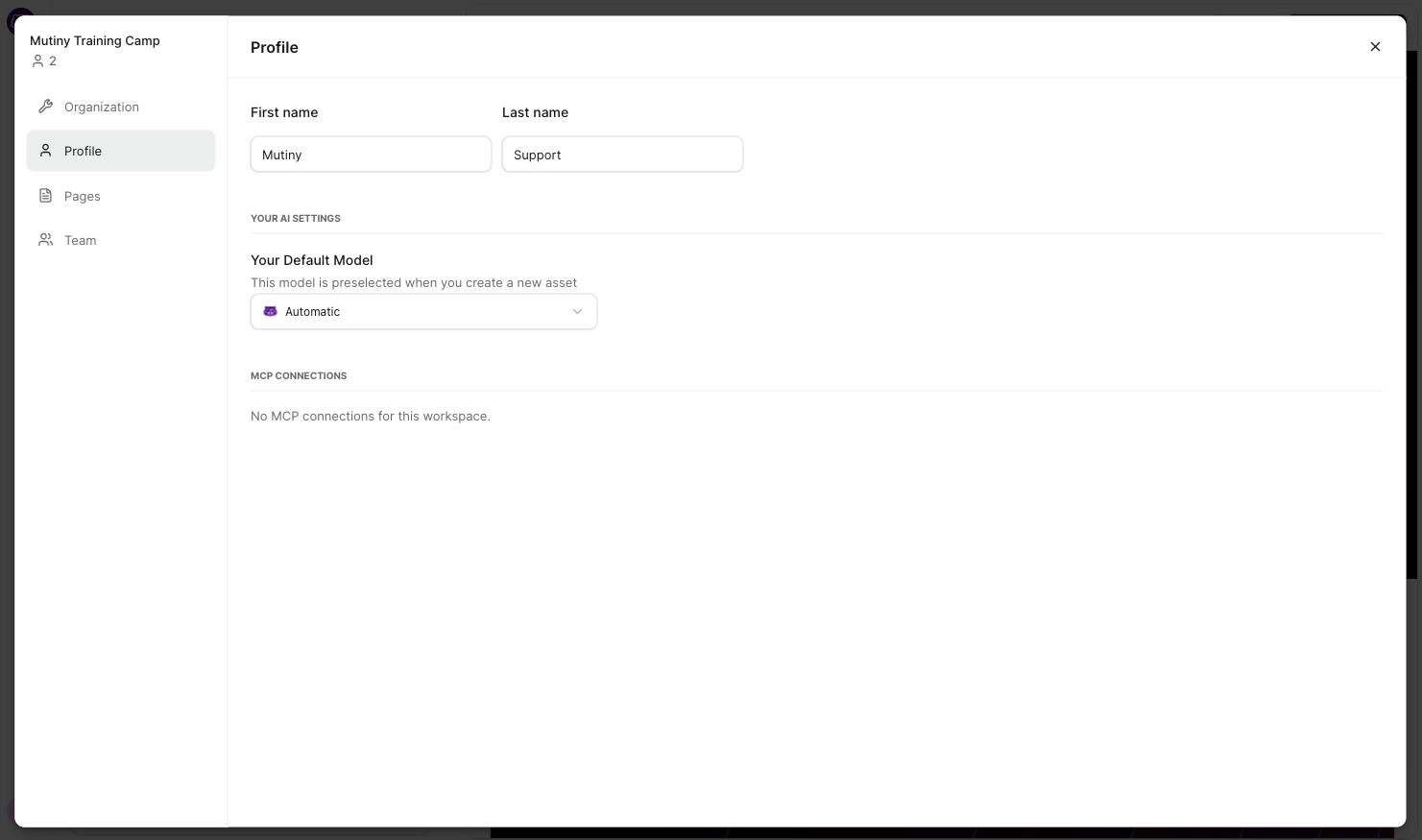
Profile
The Profile tab is where you set your personal details, including your first and last name. You can also set a preferred AI model here, though leaving it set to Automatic is recommended for most users.
Pages
The Pages tab is where you configure settings that apply to all assets you publish in Mutiny.
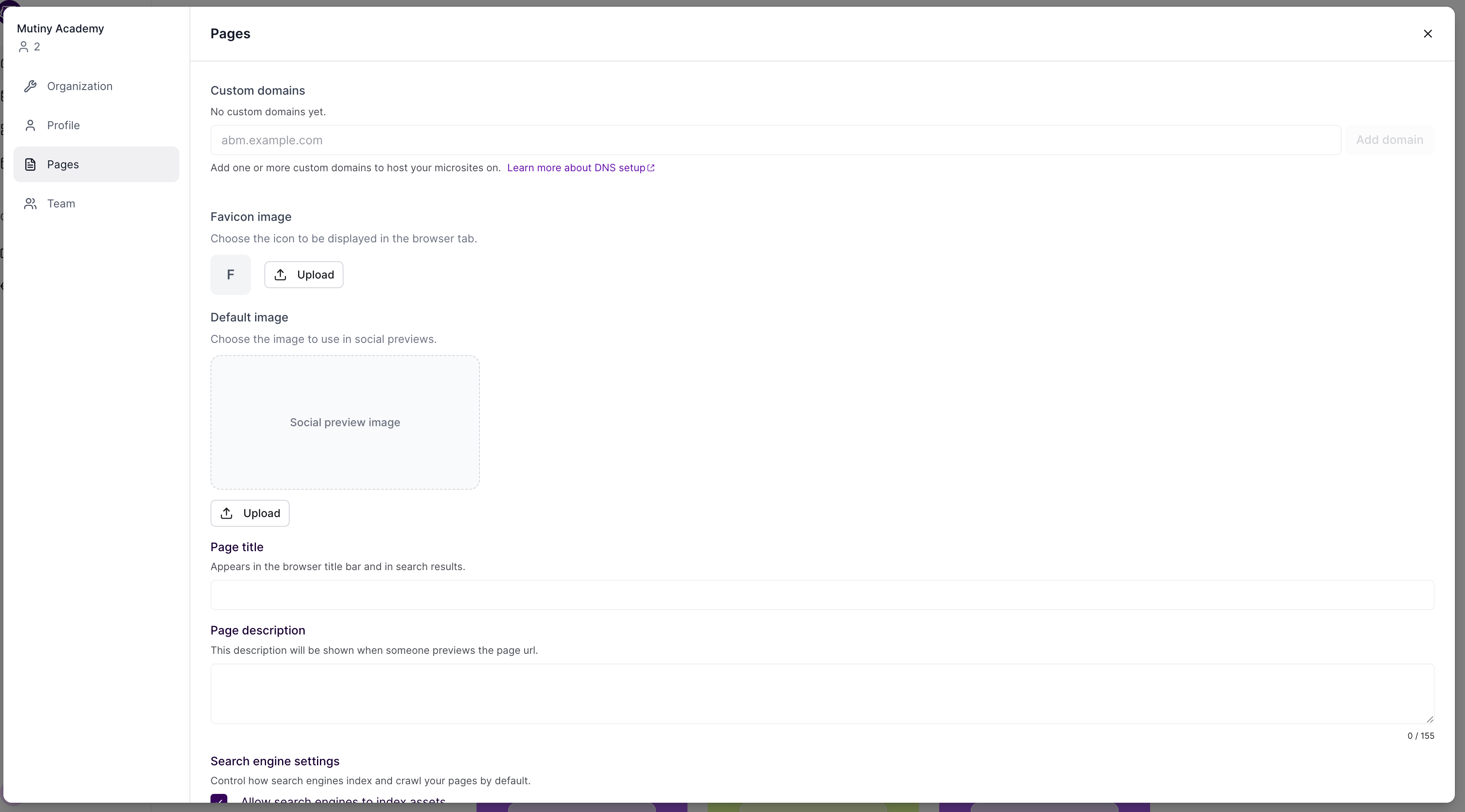
Custom Subdomain lets you serve your assets from your own company domain instead of the default Mutiny-branded domain. This is covered in detail in its own lesson.
Favicon sets the image that appears in the browser tab when someone views your asset.
Default image, page title, and page description control how your asset appears when its link is shared or previewed. These three settings are worth filling out carefully, as they determine the preview card people see when you share a link.
Search engine settings control how search engines index and crawl your assets by default.
Additional code snippets is where you add tracking scripts and other third-party code.
The head HTML field loads before the page renders, making it the right place for tools like Google Tag Manager, analytics scripts, or cookie consent managers.
The body HTML field loads after the page content, which is where you would add chat widgets, heatmap tools, or pop-up scripts. Anything added here runs automatically on every asset you publish, so you only need to configure it once.
Cookie consent, when enabled, requires visitors to opt in before Mutiny places any tracking cookies. This is recommended if your target audience includes visitors in regions with strict privacy requirements, such as the EU.
Team
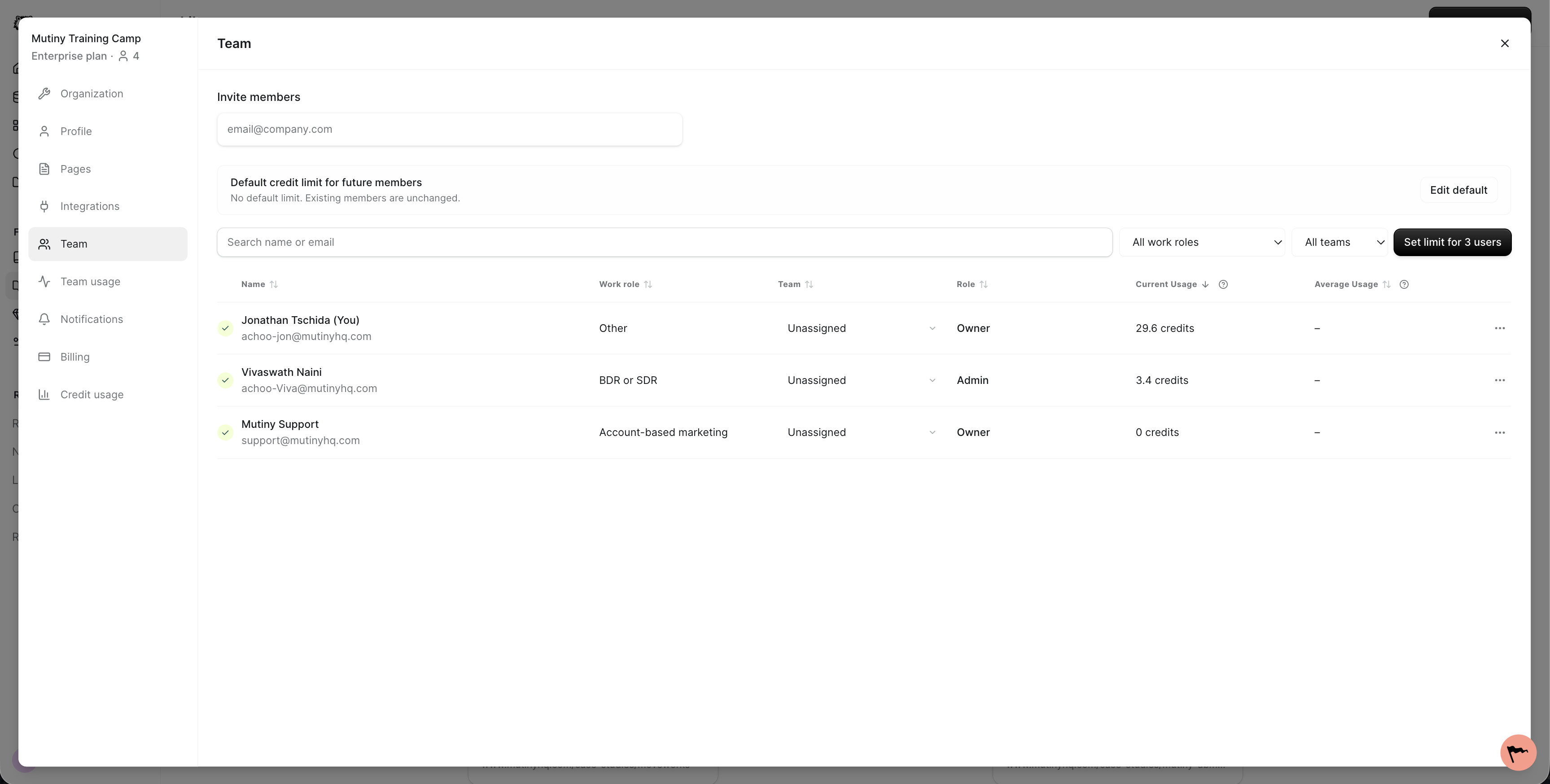
The Team tab shows everyone in your workspace, along with their current role and status
Learn more about team and billing management here:📄 Managing Your Team & Billing in Mutiny
Billing
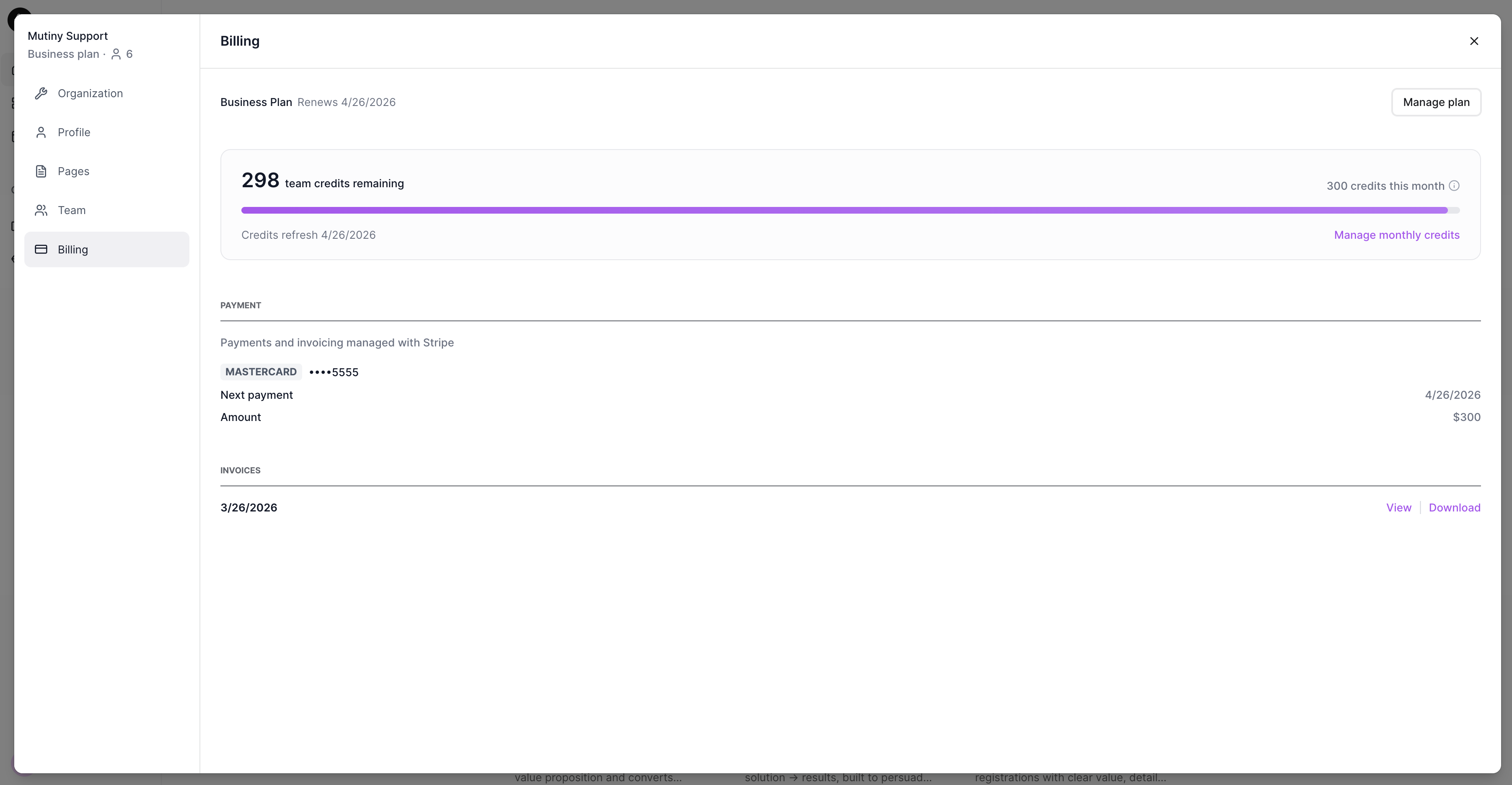
The billing tab is where you will go to manage your Mutiny plan, download recent billing invoices, and see your total monthly remaining credits.
Need Help?
If you have questions or need help, the Mutiny Support team is here for you! You can submit a support ticket using the Submit a ticket button at the top of this page, or reach us at support@mutinyhq.com.