Setting up Asset Metadata
Last updated: July 10, 2026
Asset metadata controls how your pages appear in browser tabs, search results, and link previews. You can set a favicon, a default preview image, a page title, and a page description, so your assets look polished everywhere they're shared, from Slack messages to LinkedIn DMs.
You can also adjust whether assets are indexable by search engines or not; more on this here:
Setting metadata across all your assets
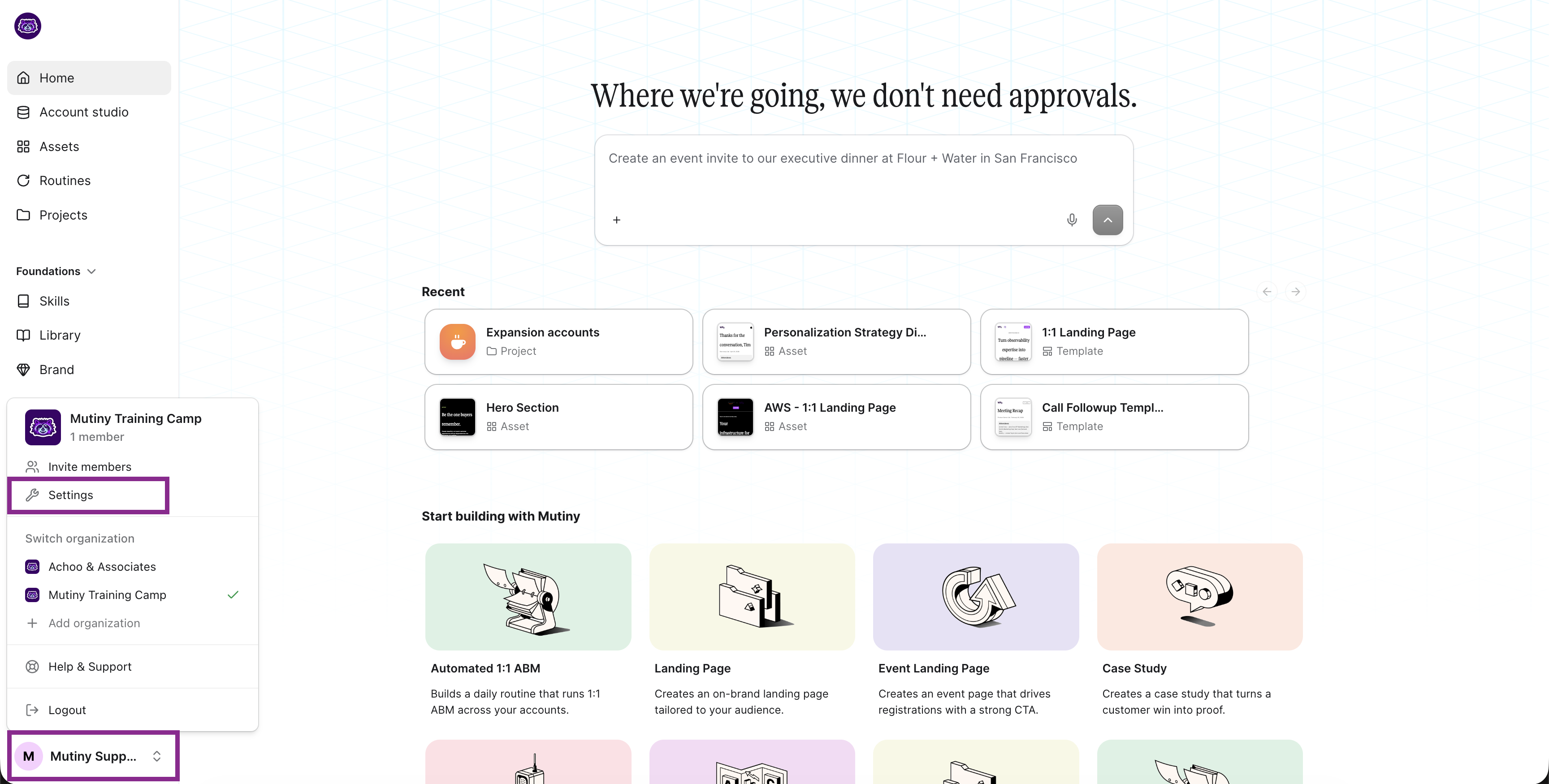
To set metadata for all of your assets, go to your Mutiny settings and open the Pages tab on the left.
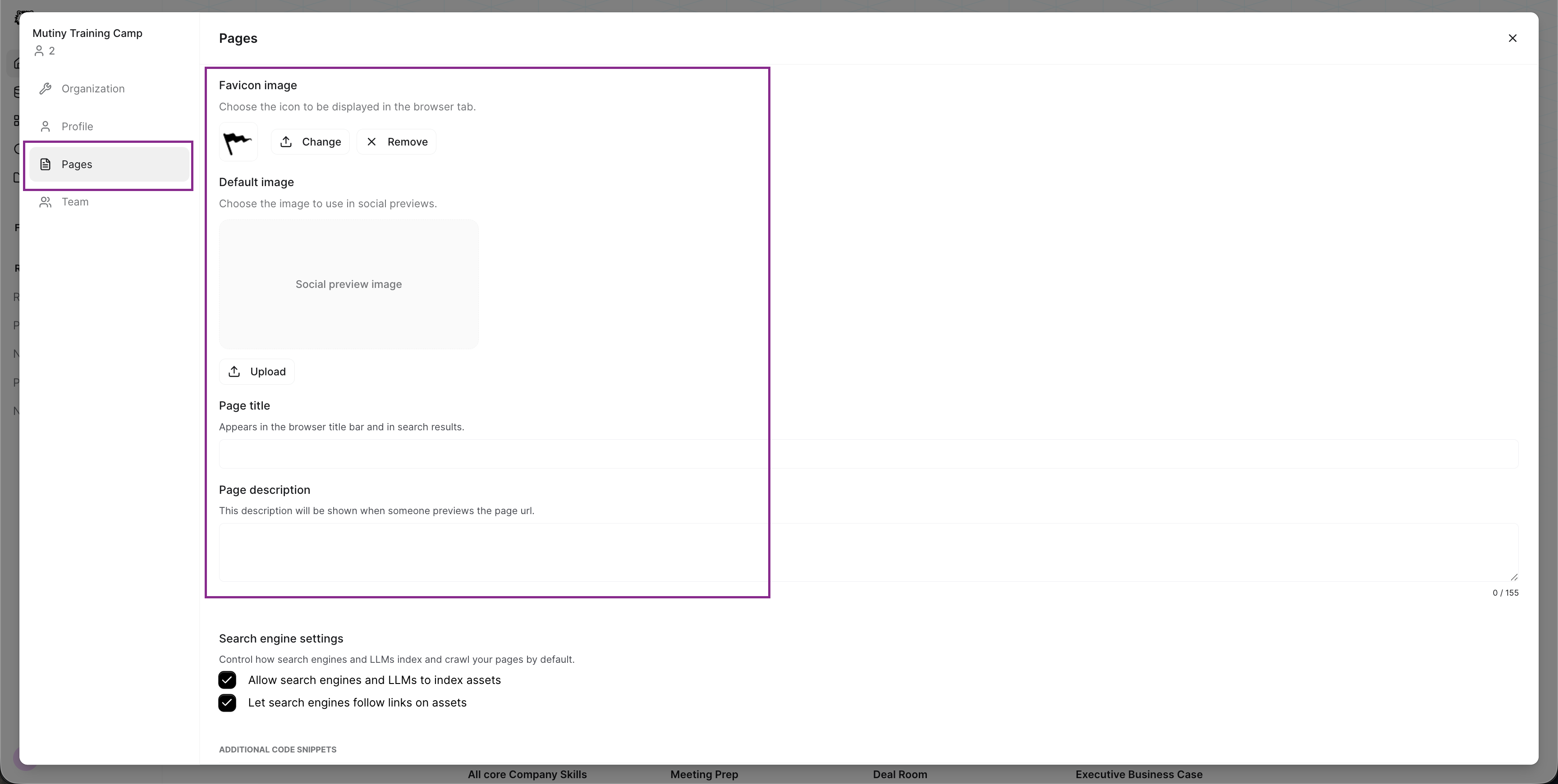
These settings apply across all of your assets. From here you can set:
Favicon — the small icon that displays in the browser tab
Default image — the image used in social previews and link previews
Page title — what appears in the browser title and in search results
Page description — the text shown when someone previews the page URL, which also unfurls in link previews
Setting metadata for a single asset
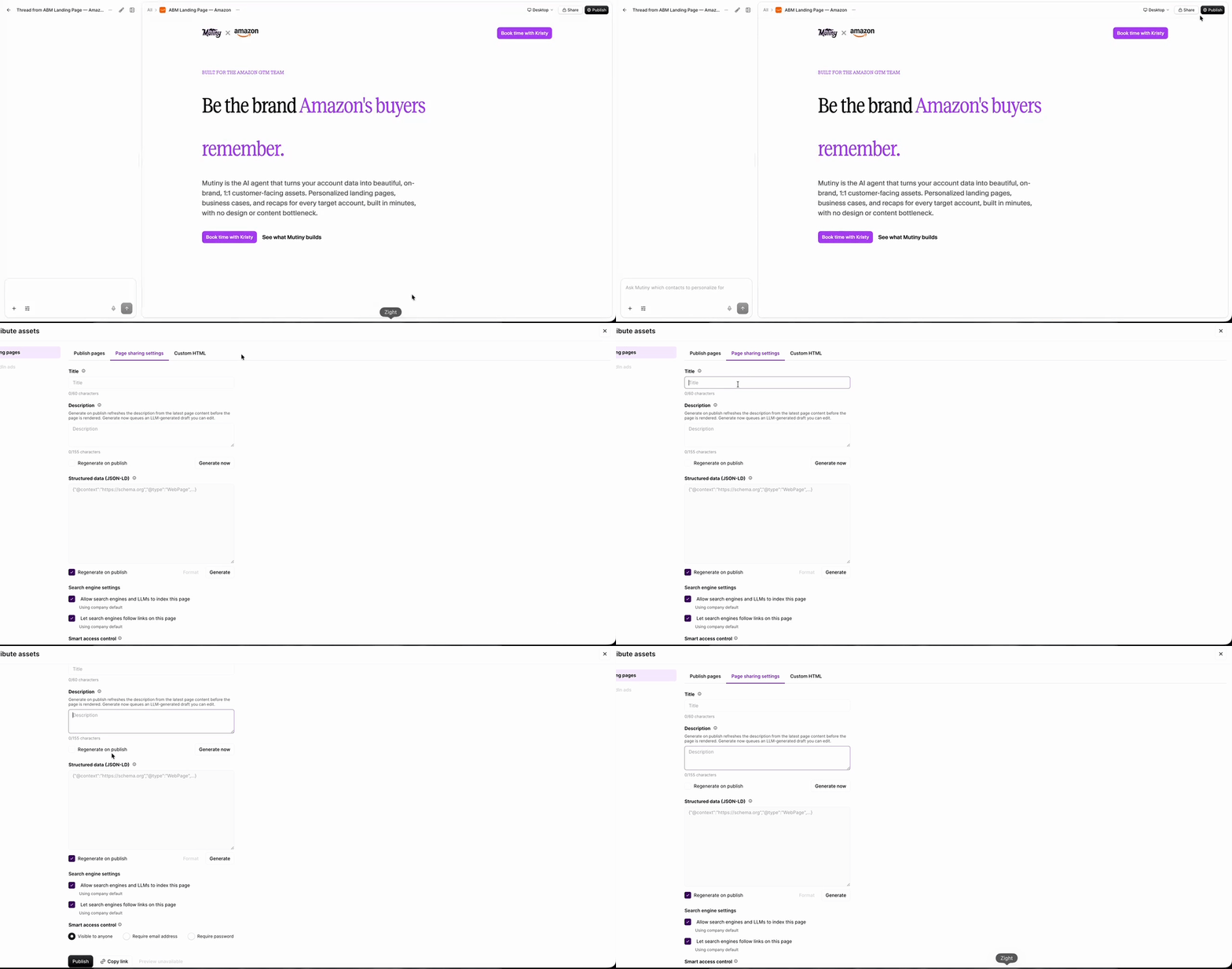
You can also set metadata per asset when one page needs its own title or description.
Open the asset and go to the Publish menu in the top right, then select Advanced settings. Under Page sharing settings, you can set a title, description, and image specific to that asset.
Need Help?
If you have questions or need help, the Mutiny Support team is here for you! You can submit a support ticket using the Submit a ticket button at the top of this page, or reach us at support@mutinyhq.com.