Managing your Brand in Mutiny
Last updated: June 23, 2026
Your brand in Mutiny is the design system that powers all of your assets. It controls colors, fonts, typography, and button styles, everything that makes your assets look like they came from your company.
When your account is created, Mutiny automatically pulls in your brand from your website.
To access your brand settings, click Brand in the left navigation bar in the Foundations dropdown.
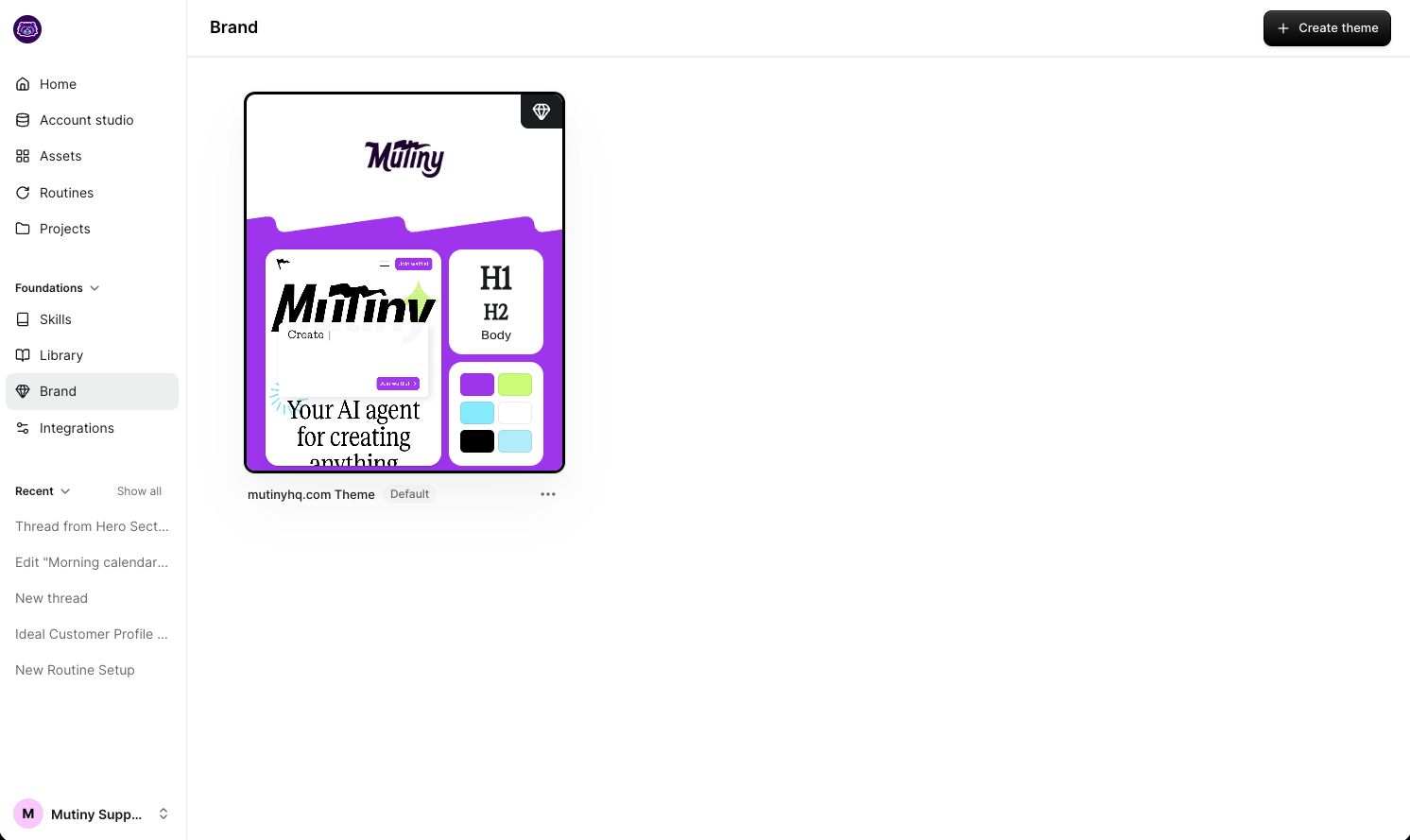
Editing Brand Settings
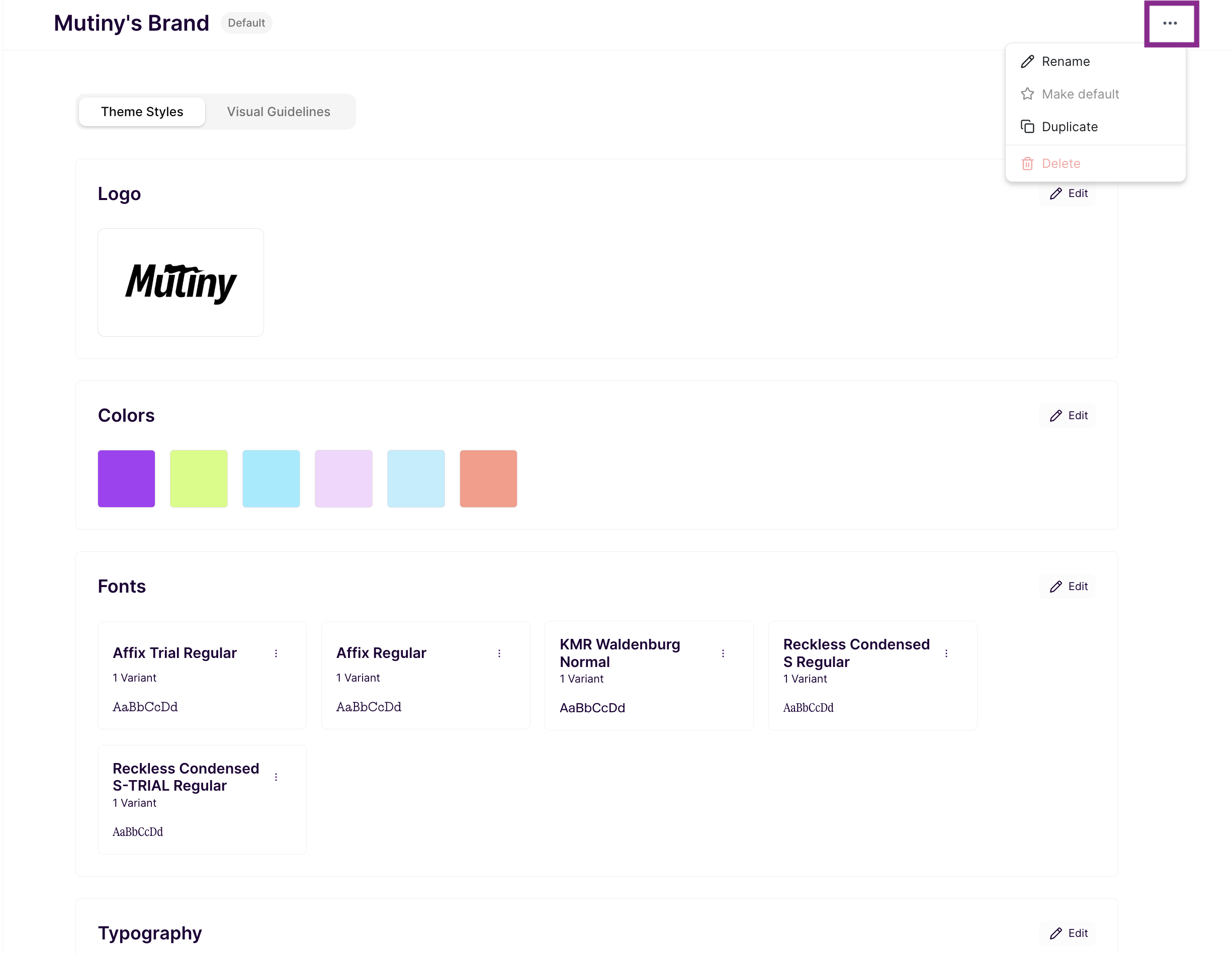
Click into any brand to open its settings. Changes you make here are automatically applied to any asset that uses that brand.

Colors
Set your primary, secondary, and tertiary accent colors. These are applied to buttons, links, backgrounds, and other elements throughout your assets. You can also add additional colors from your brand's color palette.
Fonts
Upload custom font files or connect Google Fonts. If you're uploading individual font files rather than a variable font, name each file clearly, for example YourFont-Bold.ttf, so each file can be mapped to the correct font style. You can also set your default dark and light font colors from this tab.
Typography
Control the default font family, weight, size, line height, and letter spacing for each text type: headings, body text, links, and CTAs. Click Show Advanced in the top right of the panel to access line height and letter spacing controls. As a general rule, tighter line height (around 1.2) works well for headlines, while more open line height (around 1.5) improves readability for body text.
CTA
Customize the style of your Primary, Secondary, and Tertiary call-to-action buttons independently. For each button type, you can control text color, font weight and size, padding, border radius, and letter spacing. A border radius of 0 produces sharp, square buttons; 12px gives soft corners; 50px or more creates a pill shape.
Visual guidelines
These guidelines are created automatically after importing the theme, and they will direct the creative agent on how to design elements during asset creation in the editor
Creating a New Brand
Additional brands are useful when you're targeting accounts with a distinct visual identity, or when your company has multiple sub-brands or regional sites with different styles.
To create a new brand, click + Create Theme and enter the URL of the site you want to import.
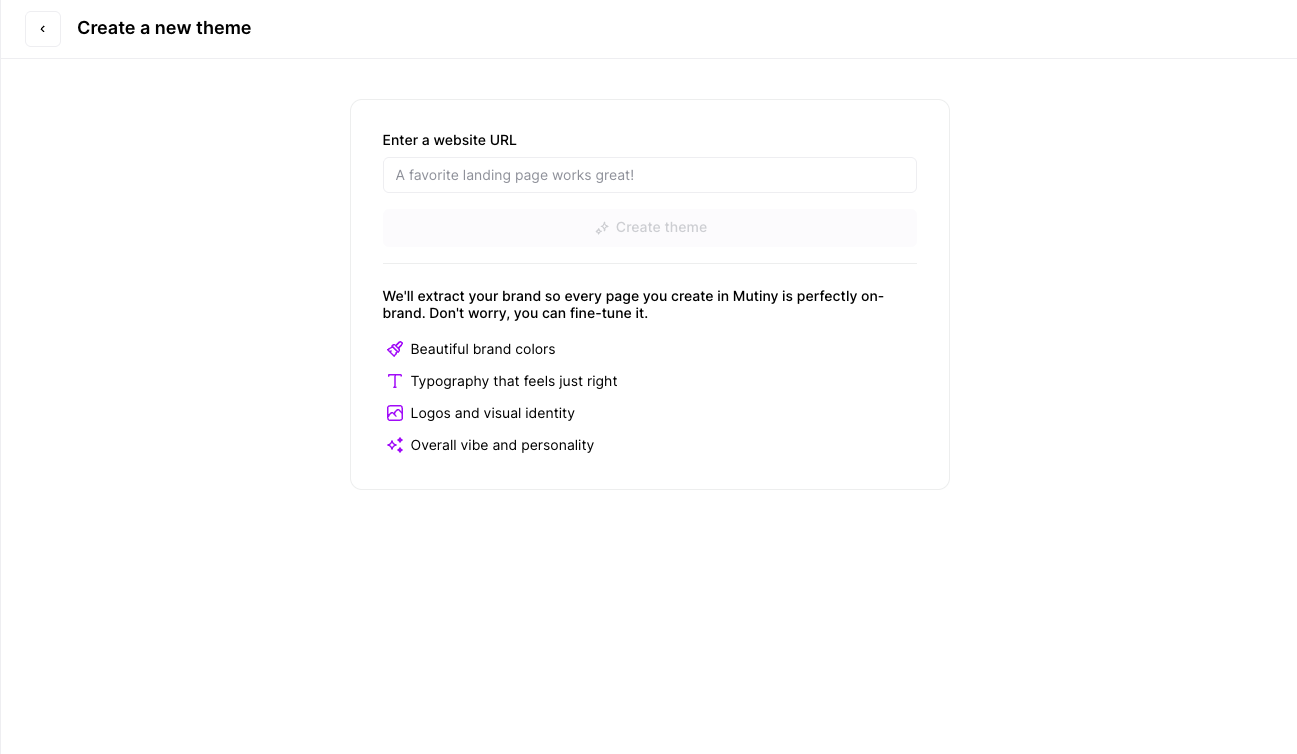
Mutiny's AI scrapes the page and pulls in colors, fonts, typography, and button styles automatically. Product pages and solution pages tend to work well for this, as they usually contain a clear, representative sample of a site's design system. If the site uses a firewall that blocks scraping, you can build the brand manually by entering values directly.
Managing Multiple Brands
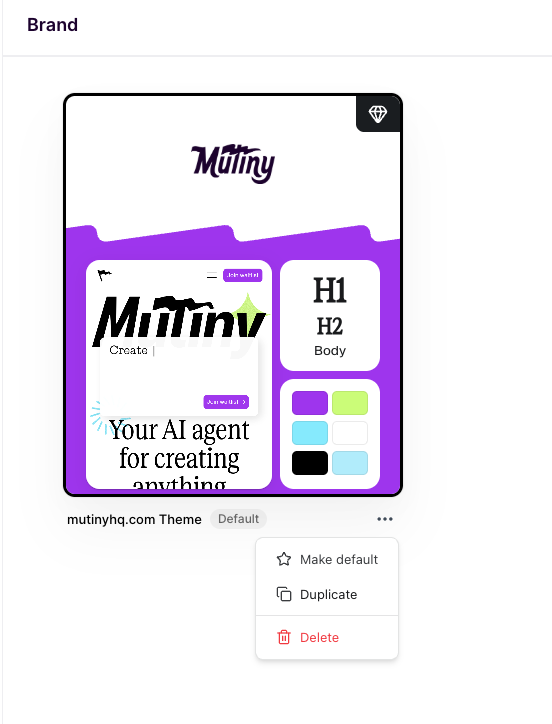
To duplicate, delete, or set a brand as default, open the meatball menu (the three-dot icon) in the bottom right of the brand card. To rename a brand, click into it and use the meatball menu in the top right of the settings panel.
The default brand is what Mutiny uses automatically when you create a new asset. Make sure the brand that represents your primary design system is set as default. Any changes made to a brand are automatically propagated to all assets that use it, so there's no need to update assets individually after making brand adjustments.
Best Practices
Ensure visual consistency: Check that all styles match the intended brand guidelines.
Use live site references: If necessary, inspect elements from your main website to pull exact RGB values or hex codes for accurate styling.
Optimize CTA visibility: Adjust secondary CTAs to ensure they have clear borders and contrast well against the background.
By following these steps, you’ll create high-quality themes that enhance your Mutiny experiences while saving time and maintaining brand integrity.
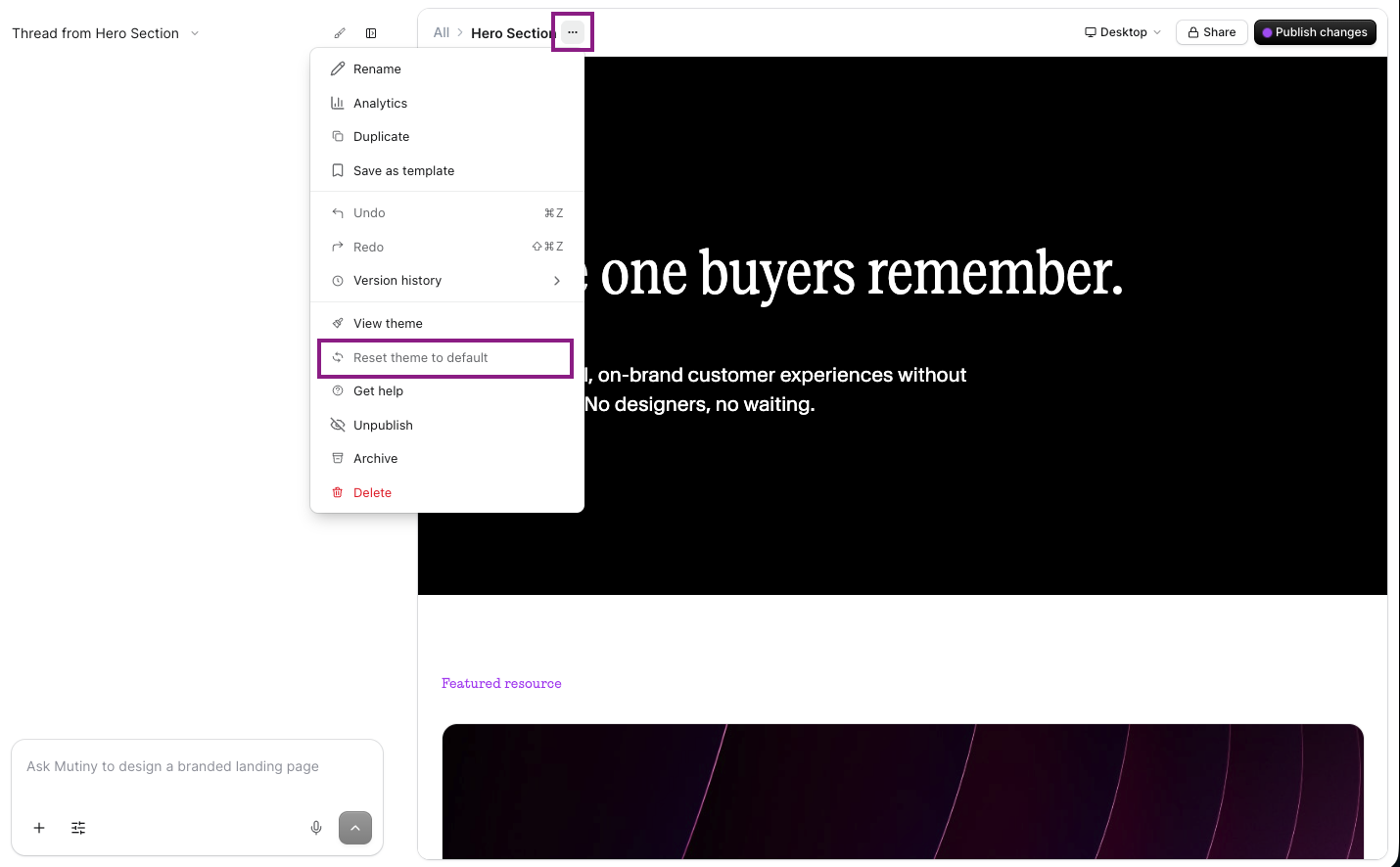
Switching which Theme an Asset Uses
If you have created multiple brand themes, you may have assets utilizing different themes than the one set as the default.
You can convert an asset to the default theme by using the ... menu in the editor, and then select Reset theme to default
Need Help?
If you have questions or need help, the Mutiny Support team is here for you! You can submit a support ticket using the Submit a ticket button at the top of this page, or reach us at support@mutinyhq.com.