Managing Your Team
Last updated: August 26, 2026
Mutiny is better with your team. This article goes through how to manage your team and permissions in Mutiny. Want to keep track of your team's usage and credits? Check out the following articles:
Understanding Roles & Permissions
Every person in your workspace has a role that determines what they can see and do. Owners assign roles when inviting someone or can update them anytime from Settings → Team members.
Owner — Full access: manage billing, users, settings, and everything else. On Free and Business plans, an Owner who is the only active user in the workspace can also deactivate the organization.
Admin — Can change roles, edit page settings, and set up integrations and SSO. Cannot change billing or modify Owner accounts. On Enterprise plans, Admins also have full visibility into every asset, template, routine, project, and skill created in the organization.
Content Manager — Everything a User can do, plus the ability to manage your Brand and your Library. Content Managers can add, edit, version, and delete Library resources and change brand settings.
User — Can use the product and set up integrations. No access to team management, billing, Brand, or the Library.
Managing Your Team
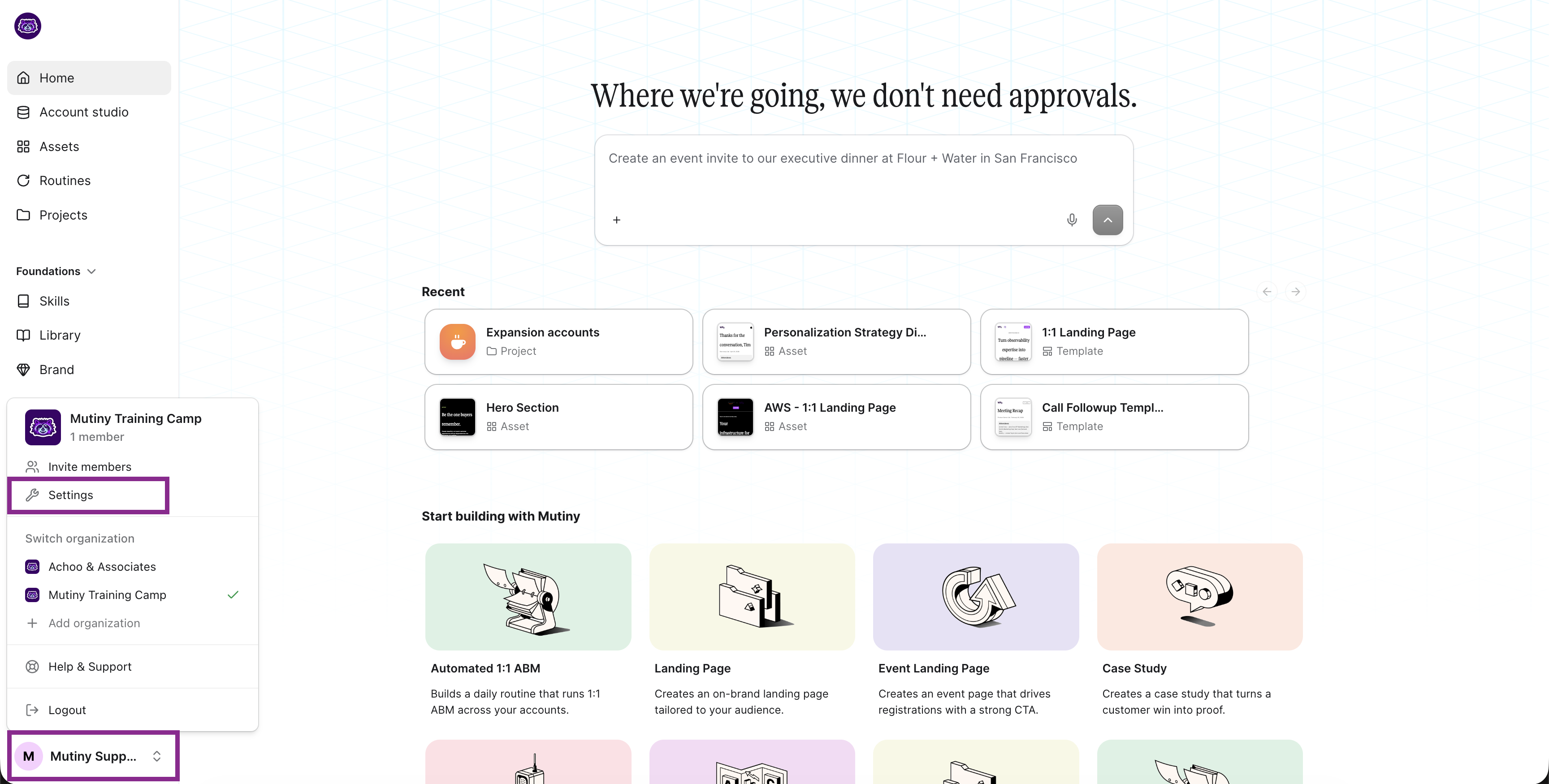
Head to Settings → Team members to see everyone in your workspace, their status, and their role. From here, Owners and Admins can invite new members, update roles, or remove people from the workspace.
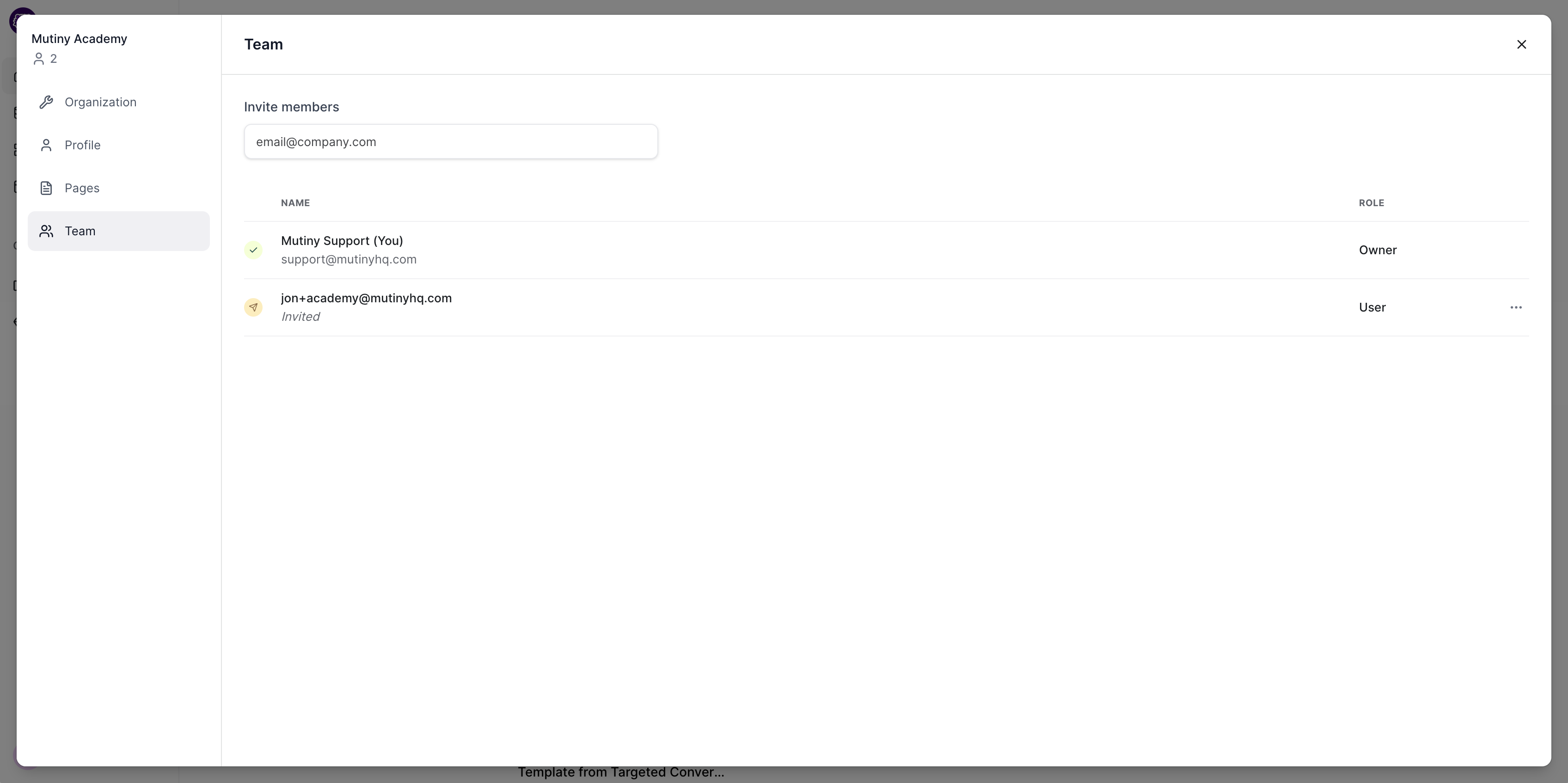
The team page shows every member in your workspace, along with their current role and status. You can use this view to get a quick snapshot of who has access and what level of permissions they have.
Inviting New Members
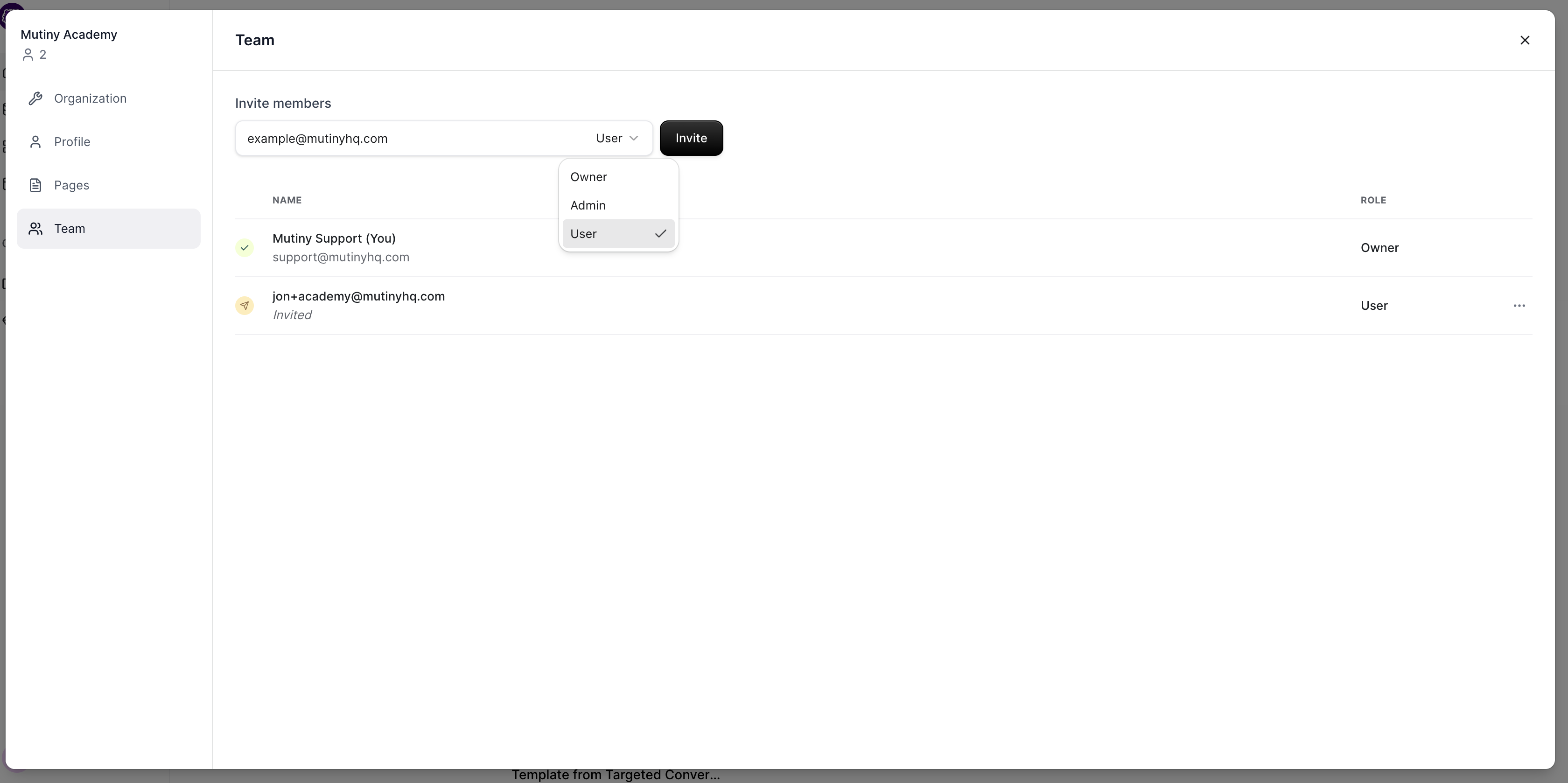
To invite someone, enter their email address in the invite members field and select their role from the dropdown. A seat is counted as occupied as soon as the invite is sent, so you do not need to wait for them to accept before that seat is reflected in your plan.
Removing Members
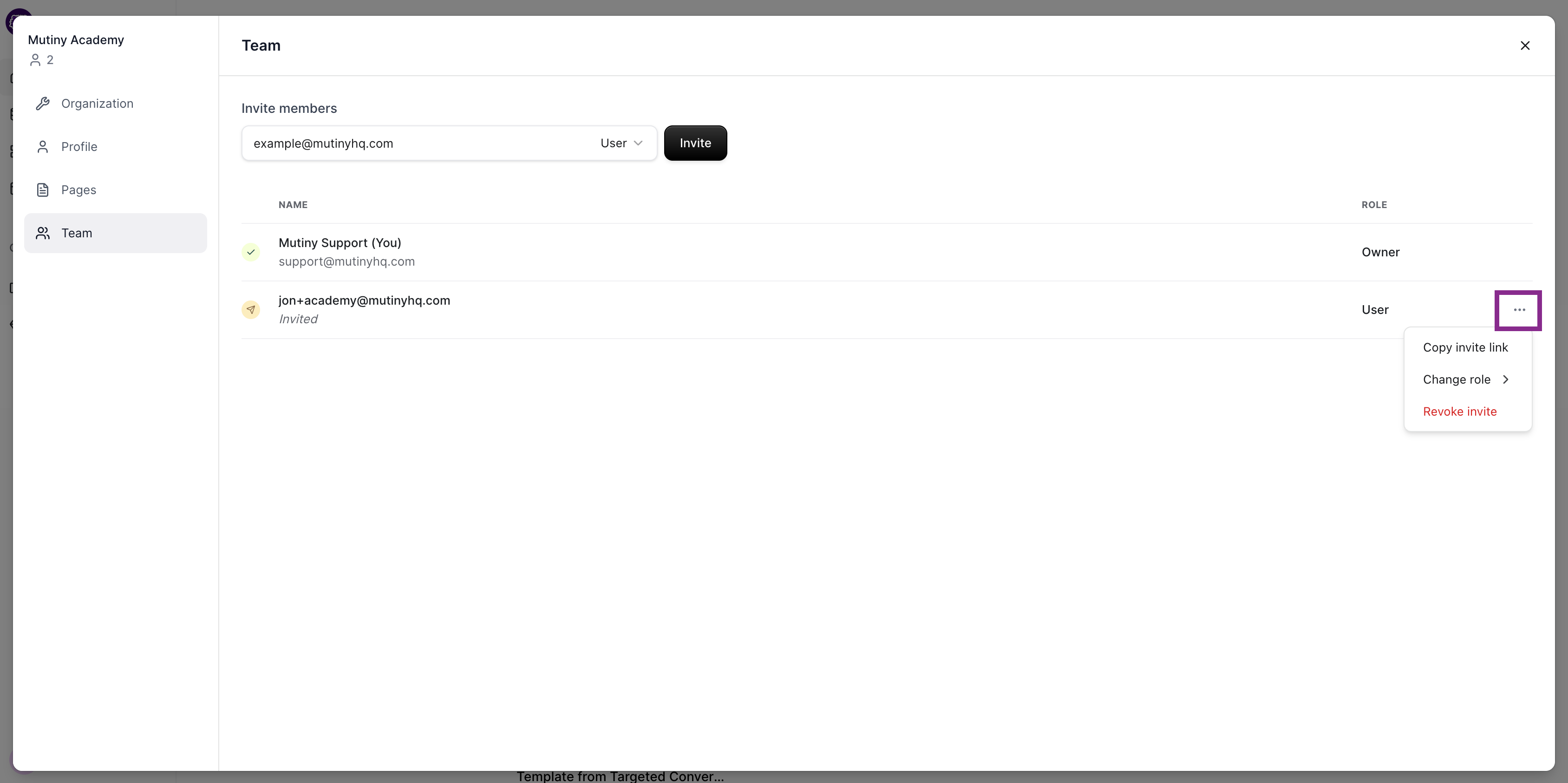
When someone leaves your team, you can remove them from this same page. Their access is revoked immediately upon removal. You can revoke an invite or delete a user by using the ... menu on the desired user
Setting Credit Caps Per User
Admins can set a monthly credit cap for individual users, which limits how much of the shared AI credit pool any one person can use in a given month. This is useful for making sure credits are distributed evenly across the team rather than concentrated among a few heavy users.
Managing Billing
Owners can access all billing details from Settings → Billing. Here you'll find your current plan summary, renewal date, payment method on file, and a full invoice history with downloadable PDFs. You can upgrade your plan, update your payment method, or cancel your subscription directly from this page.
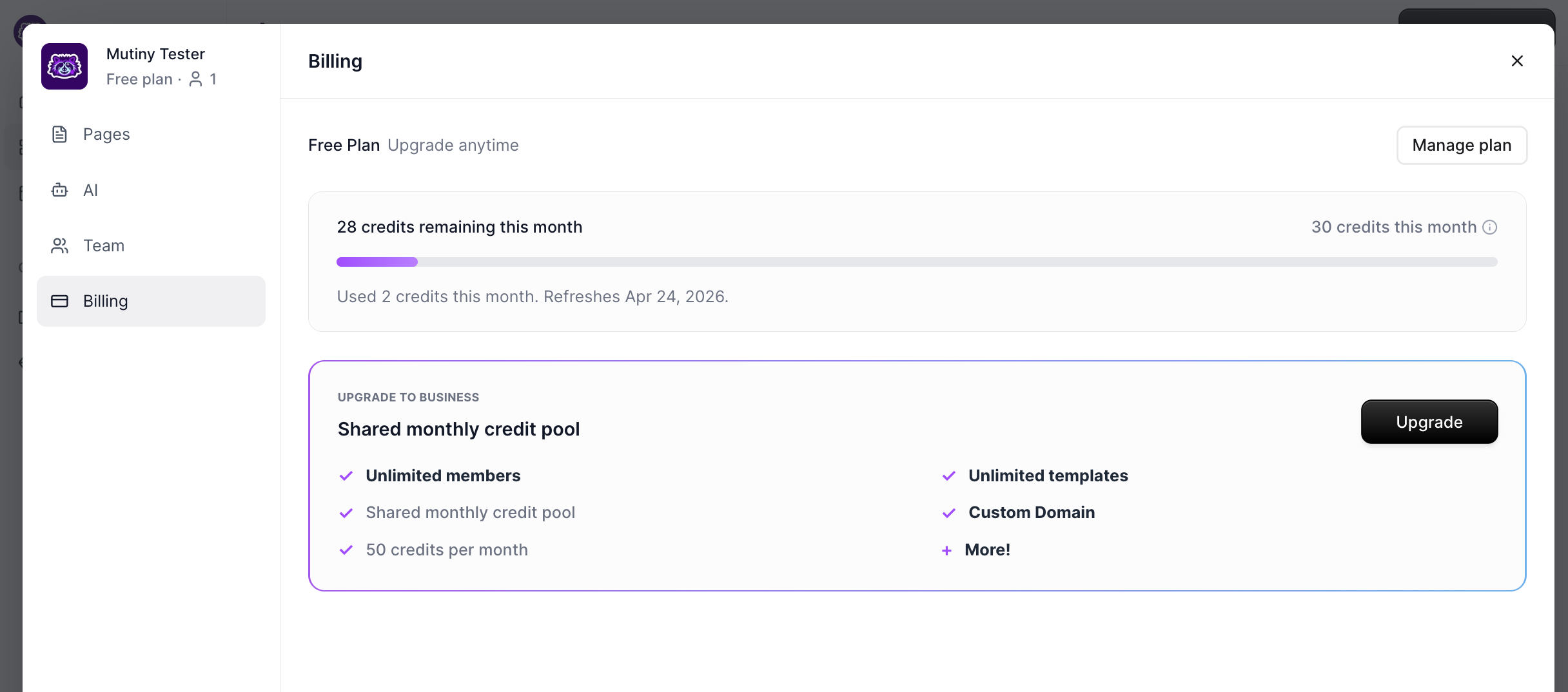
Self-serve accounts can choose between monthly and pay by credit card. If you're on a contract or Enterprise plan, billing is managed through your account team. Any changes to billing (upgrades, cancellations, payment method updates) will trigger a confirmation email to the workspace Owner.
Adding Credits
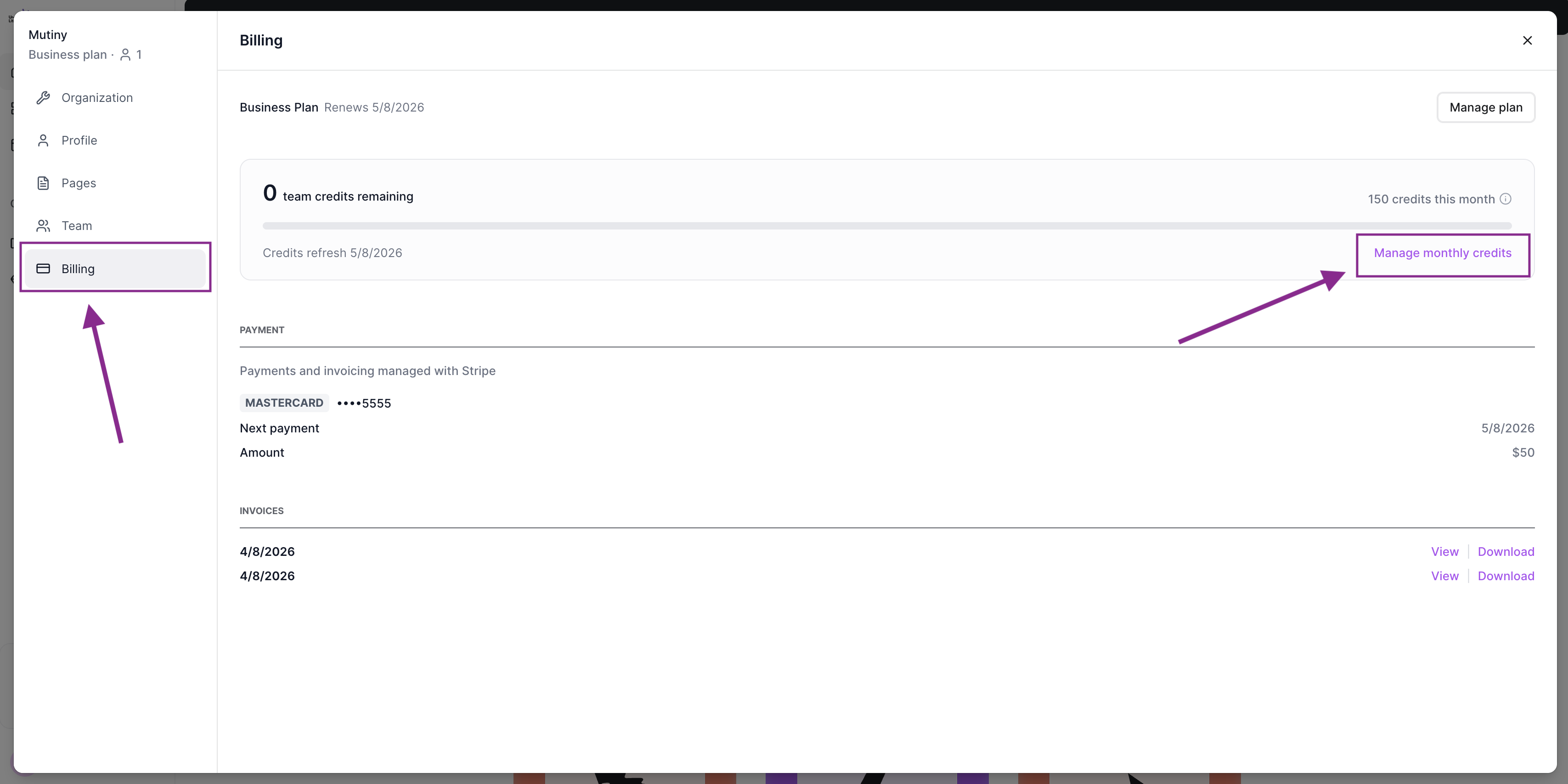
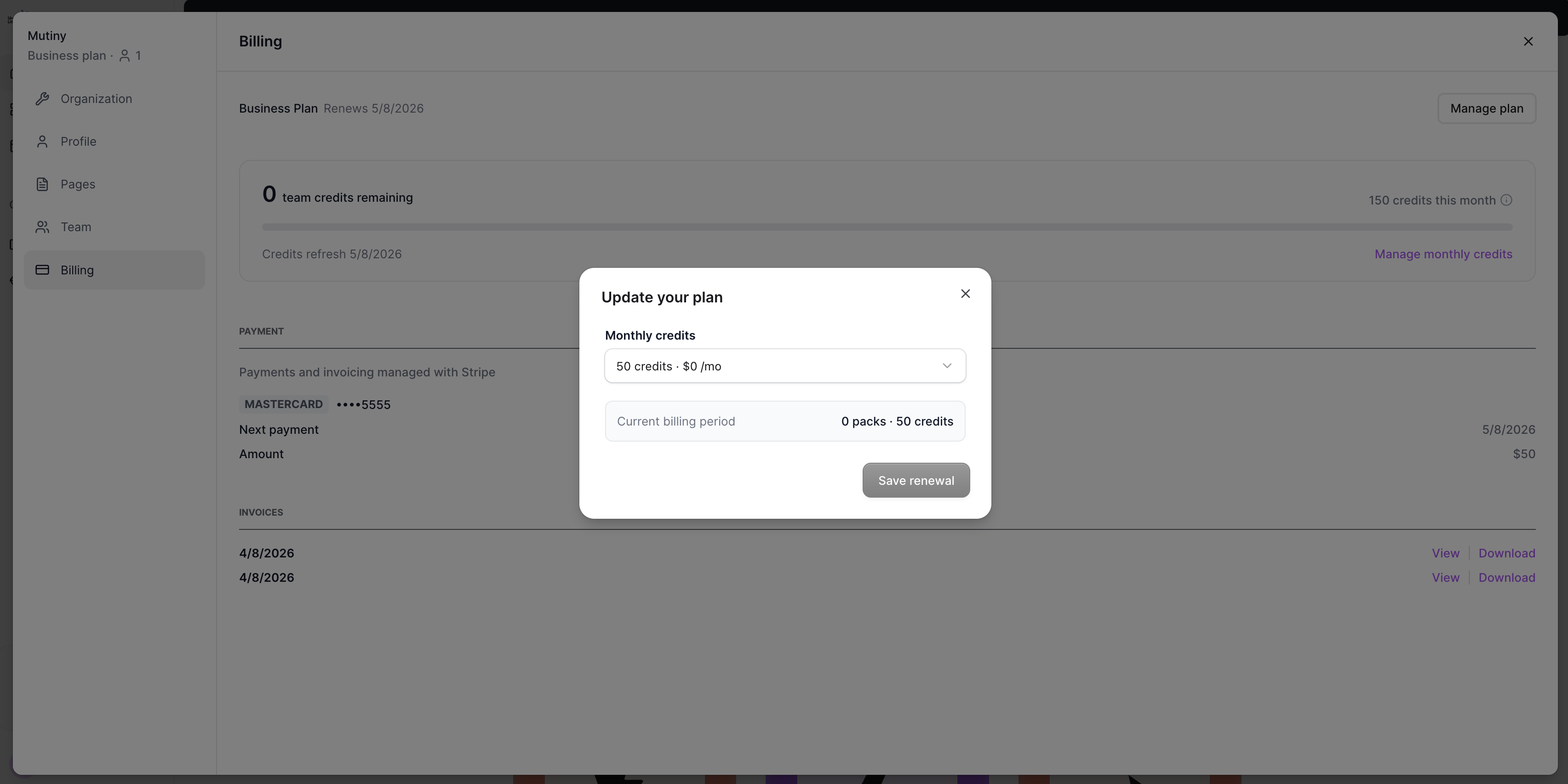
If you have used up all your credits for the month, users with the Owner role can add monthly credits via the Billing page in the settings.
Switching Between Workspaces
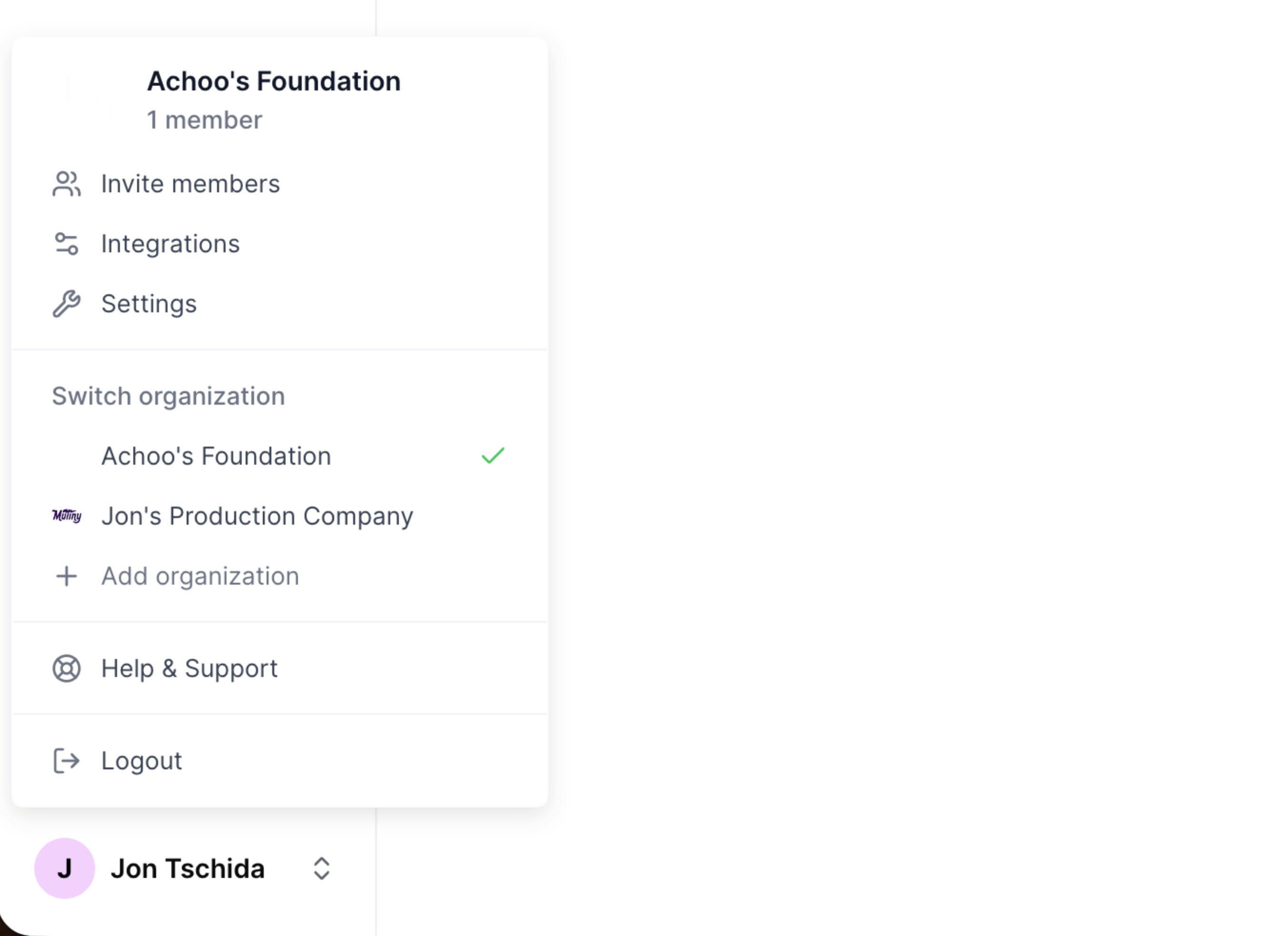
If you belong to more than one Mutiny workspace, you can switch between them using the org switcher. Just click your avatar in the bottom left corner. You can also create a new workspace from the switcher, which will walk you through onboarding. If you're ever removed from all your workspaces, you'll be taken through the onboarding flow to create or join a new one.
Leaving or Deactivating a Workspace
On Free and Business plans, you can leave a workspace you no longer need from Settings → Organization. If you are the Owner and the only active user left, you will see Deactivate organization instead, which shuts the workspace down. Owners with other active users still in the workspace need to promote someone else to Owner before they can leave. Enterprise organizations are managed by your account team and do not have these options.
📄 Leaving or Deactivating Your Organization
Need Help?
If you have questions or need help, the Mutiny Support team is here for you! You can submit a support ticket using the Submit a ticket button at the top of this page, or reach us at support@mutinyhq.com.