Removing Users from Mutiny
Last updated: June 23, 2026
You can remove users from your Mutiny instance from the Team section in the settings modal.
Viewing your team
To get started, open the settings modal and click Team.
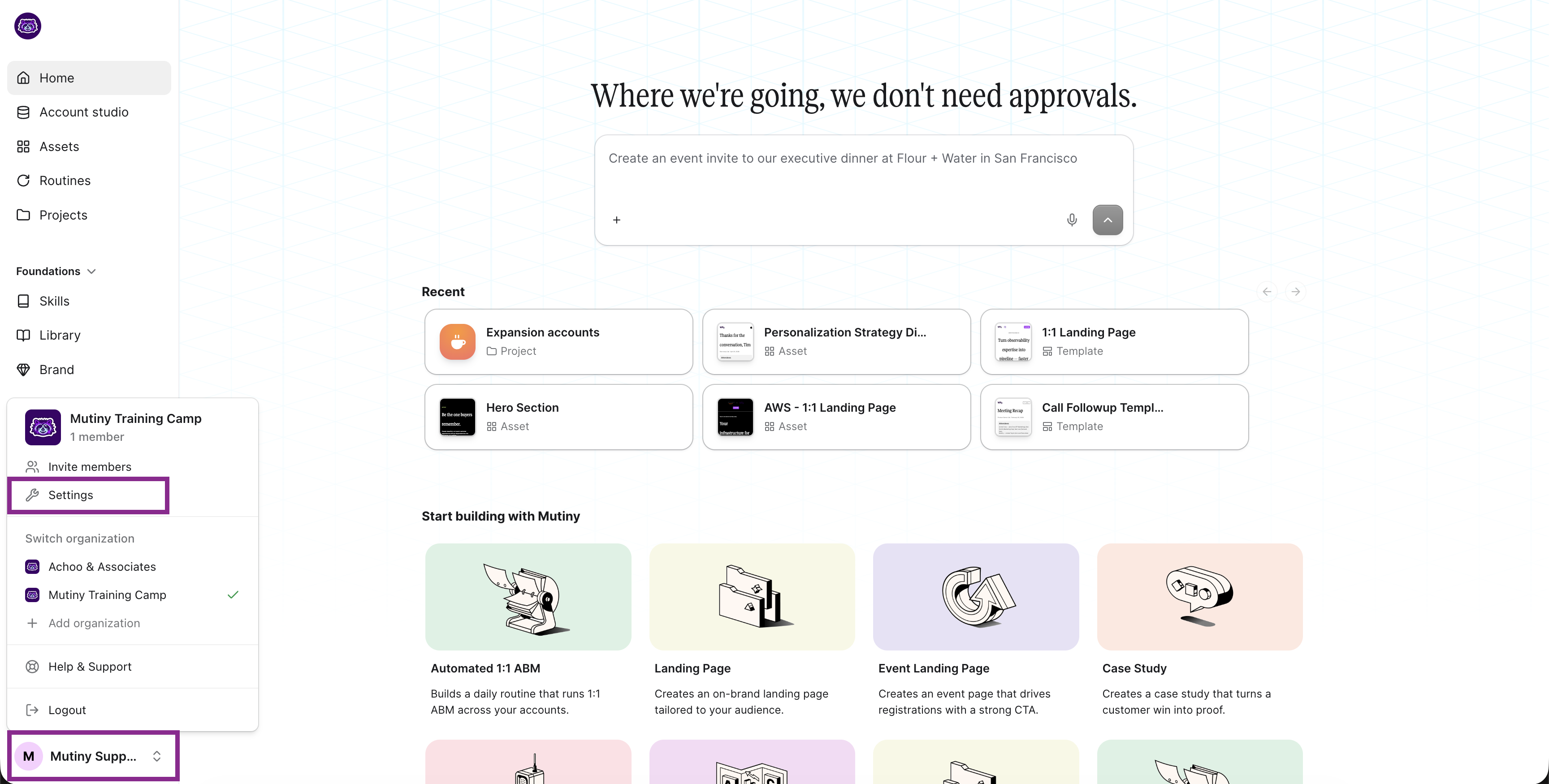
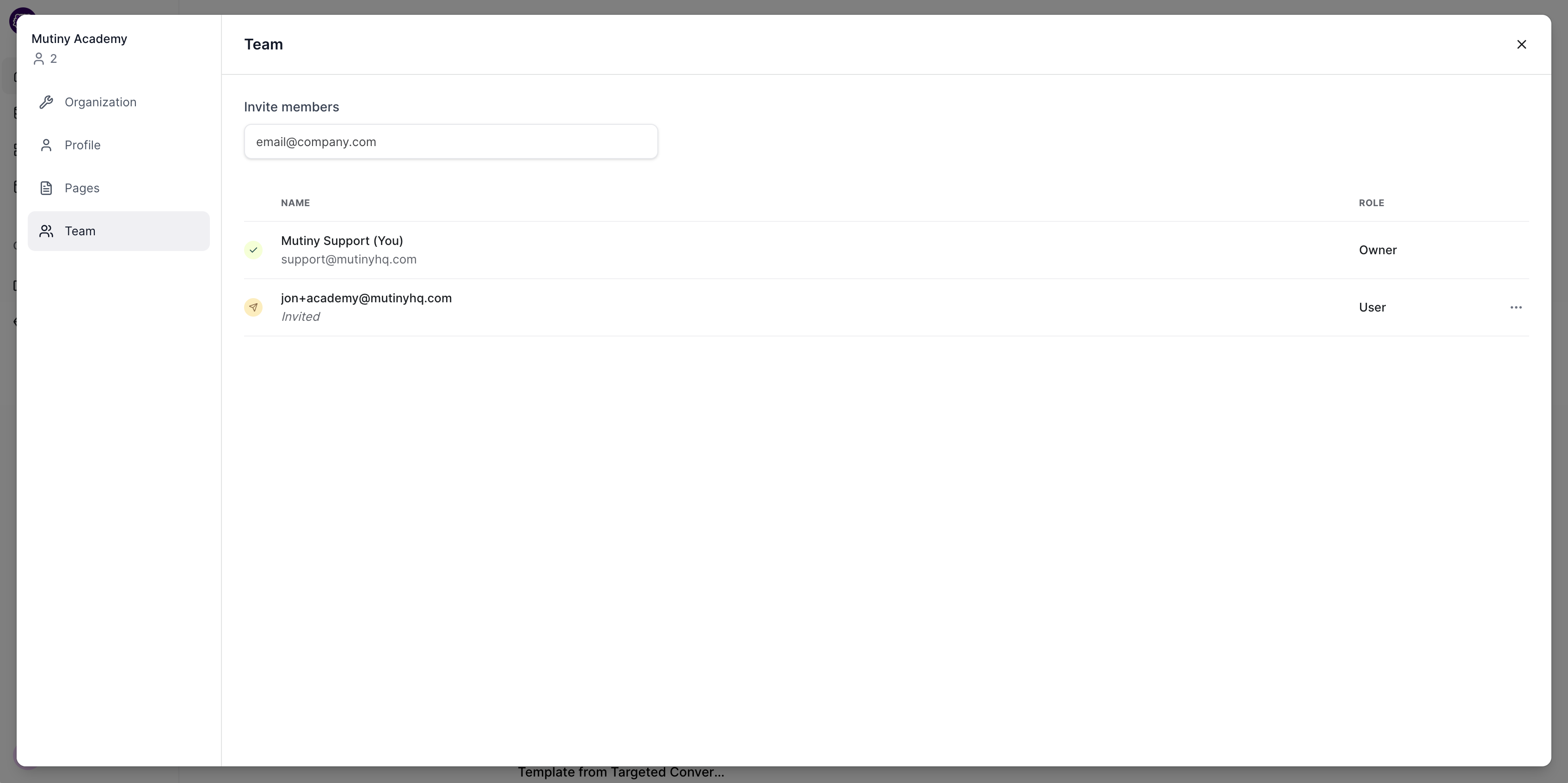
The team page shows every member in your workspace, along with their current role and status. You can use this view to get a quick snapshot of who has access and what level of permissions they have.
Removing a user
To remove a user, select the three-dot menu ... on the user, and click Deactivate
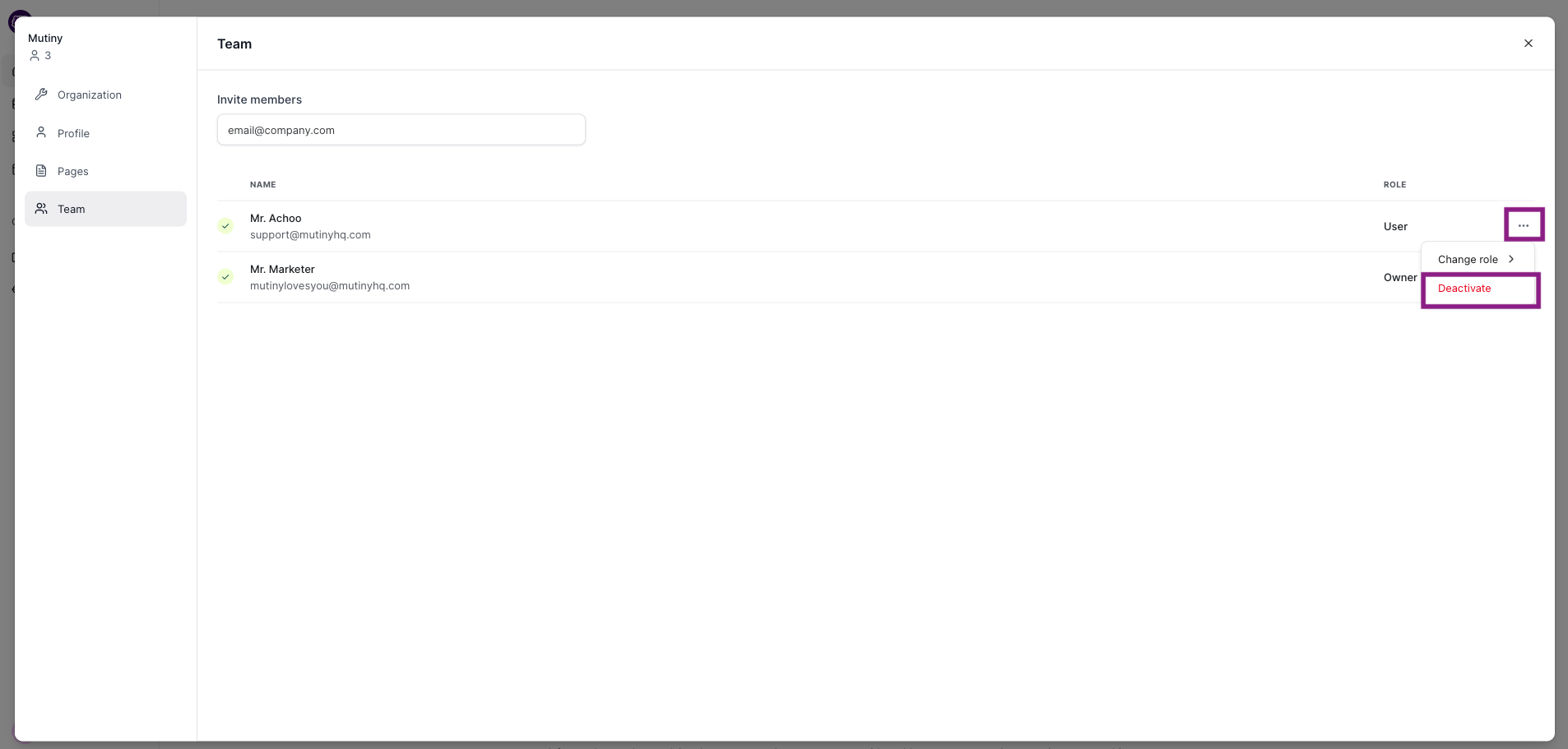
Once deactivated, that user will no longer have access to your Mutiny organization.
Re-activating a User
From that same three-dot menu, you can reactivate any deactivated users by selecting Reactivate
Need Help?
If you have questions or need help, the Mutiny Support team is here for you! You can submit a support ticket using the Submit a ticket button at the top of this page, or reach us at support@mutinyhq.com.