How to track team usage
Last updated: July 30, 2026
The team usage page lets you see what your team is doing in Mutiny. You can view your team size, who's been active, and the assets each team member has created.
Finding team usage
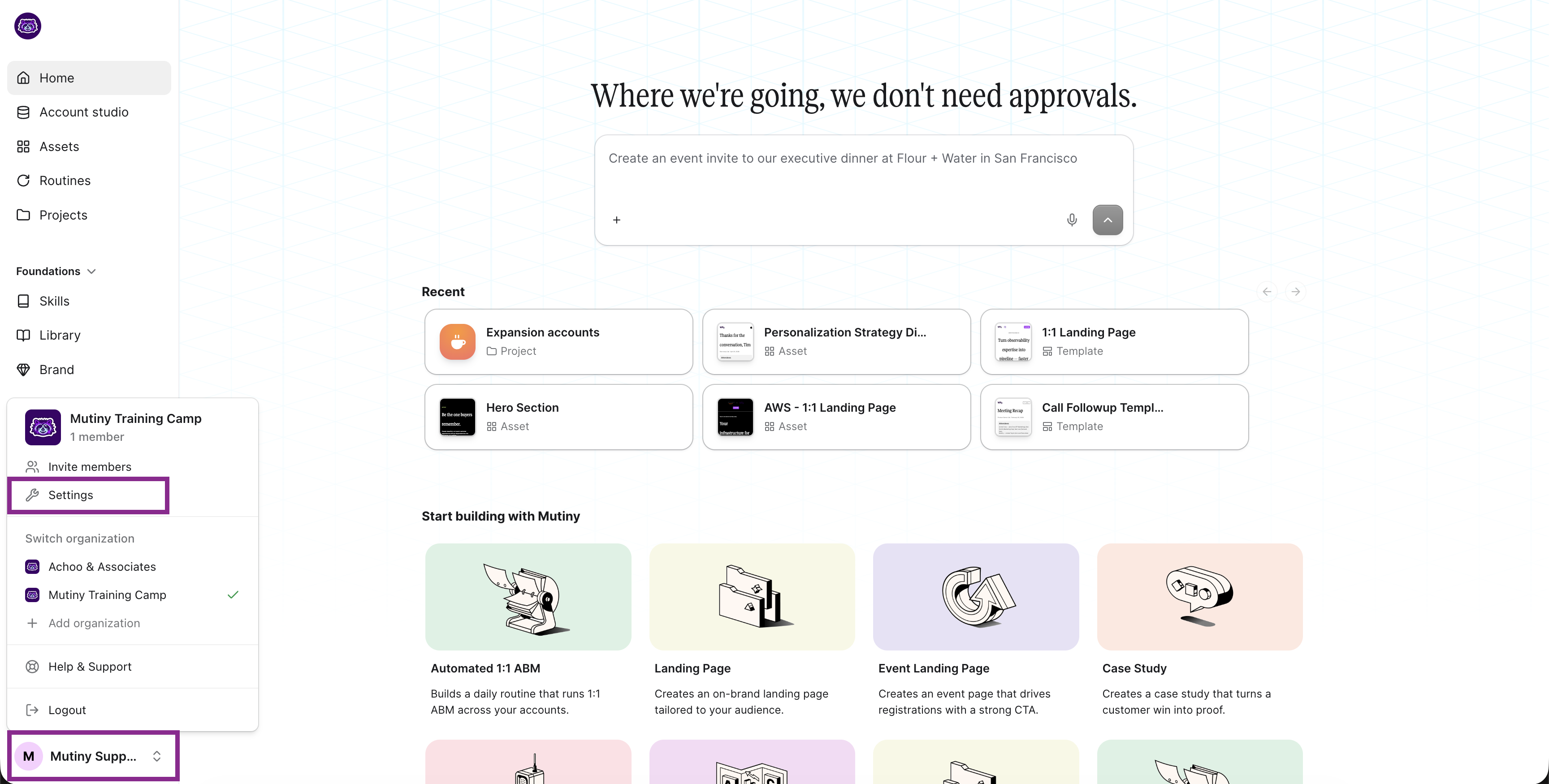
Click the user menu in the bottom left, then go to Settings and click Team usage.
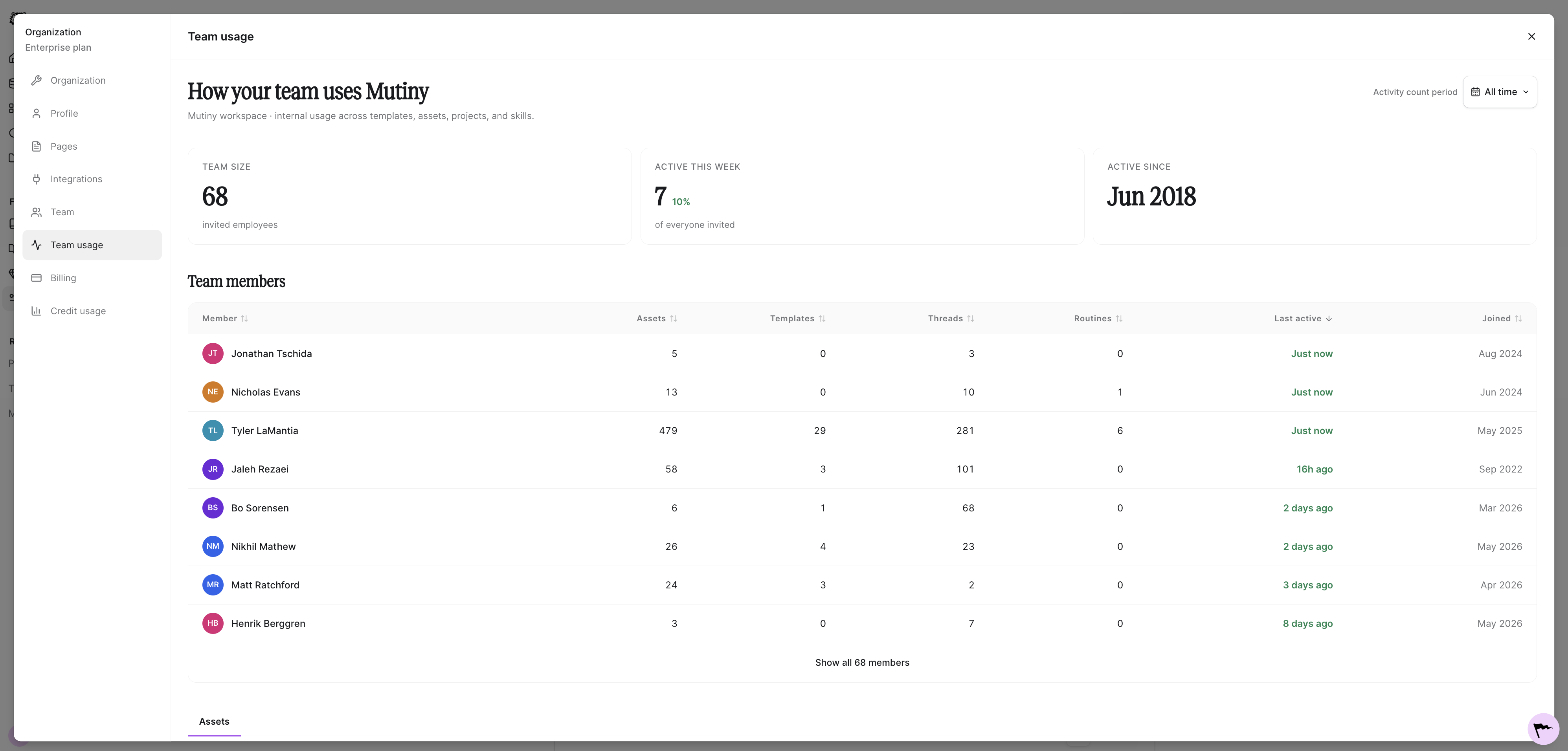
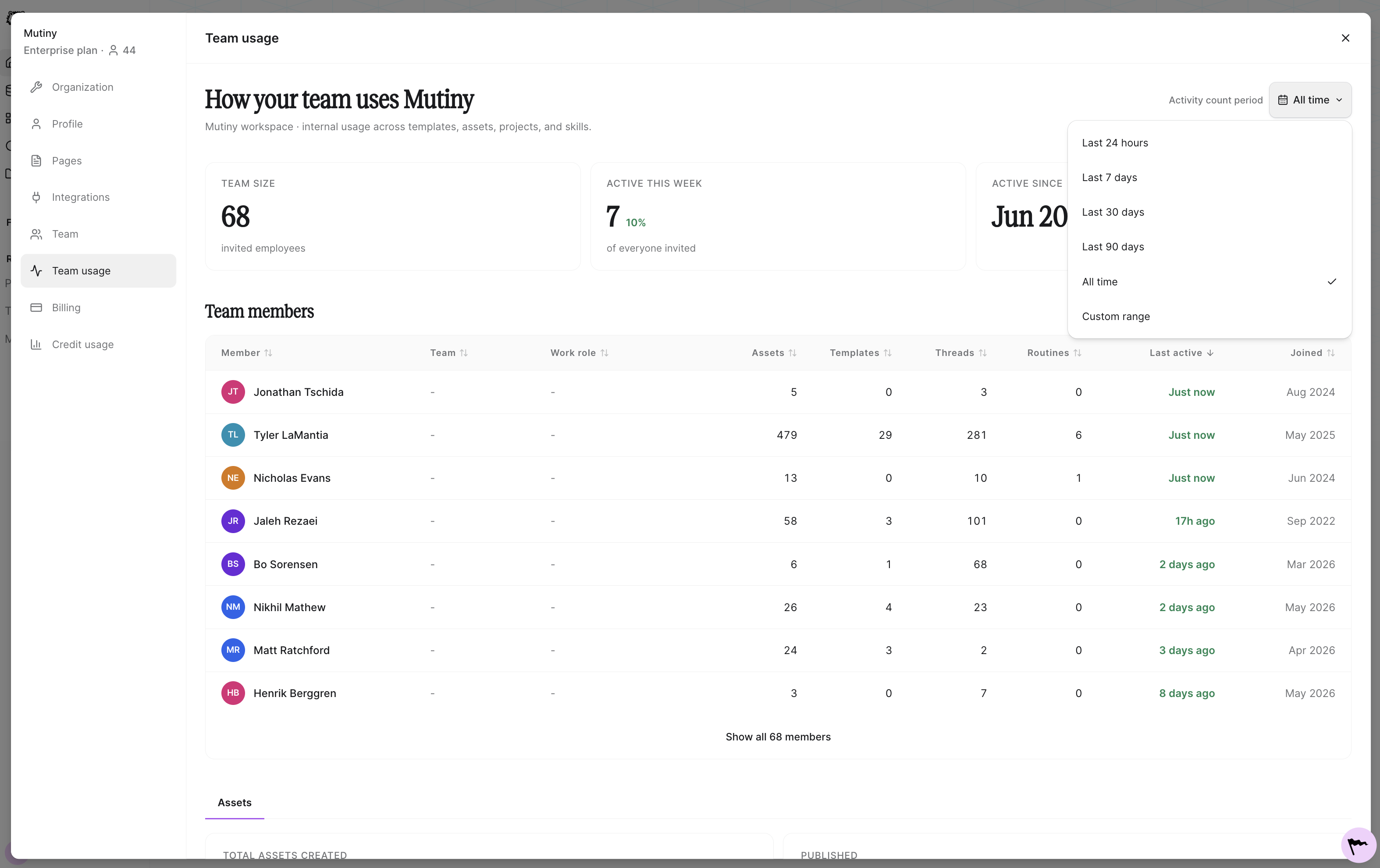
Here you can see a handful of stats related to your team. You can view how many users are present in the instance and how many were active in the last week.
Reviewing team members
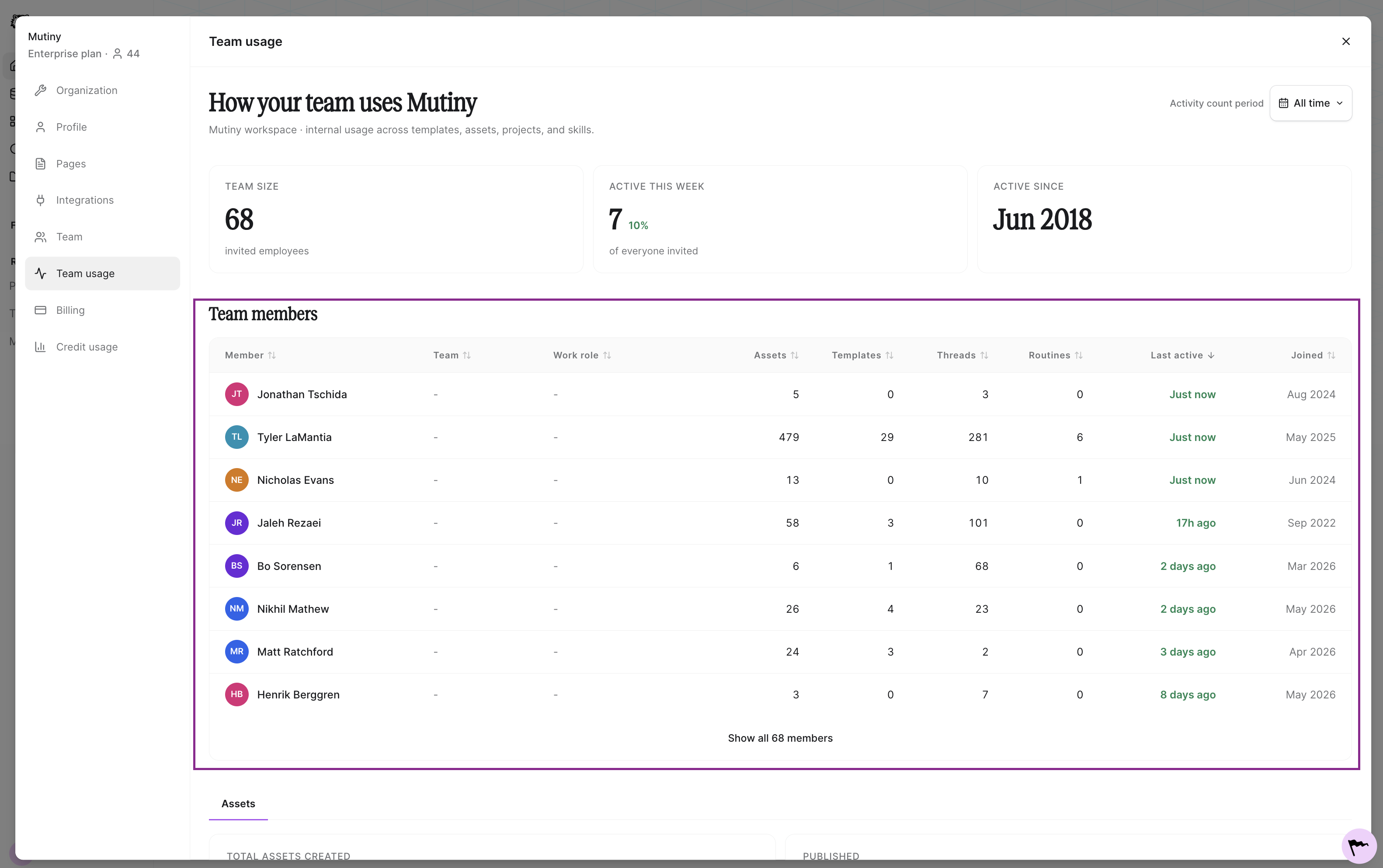
The team members section shows you a list of your team members and the assets they've created, like templates, threads, and routines. You'll also see when each member was last active and when they joined your Mutiny instance.
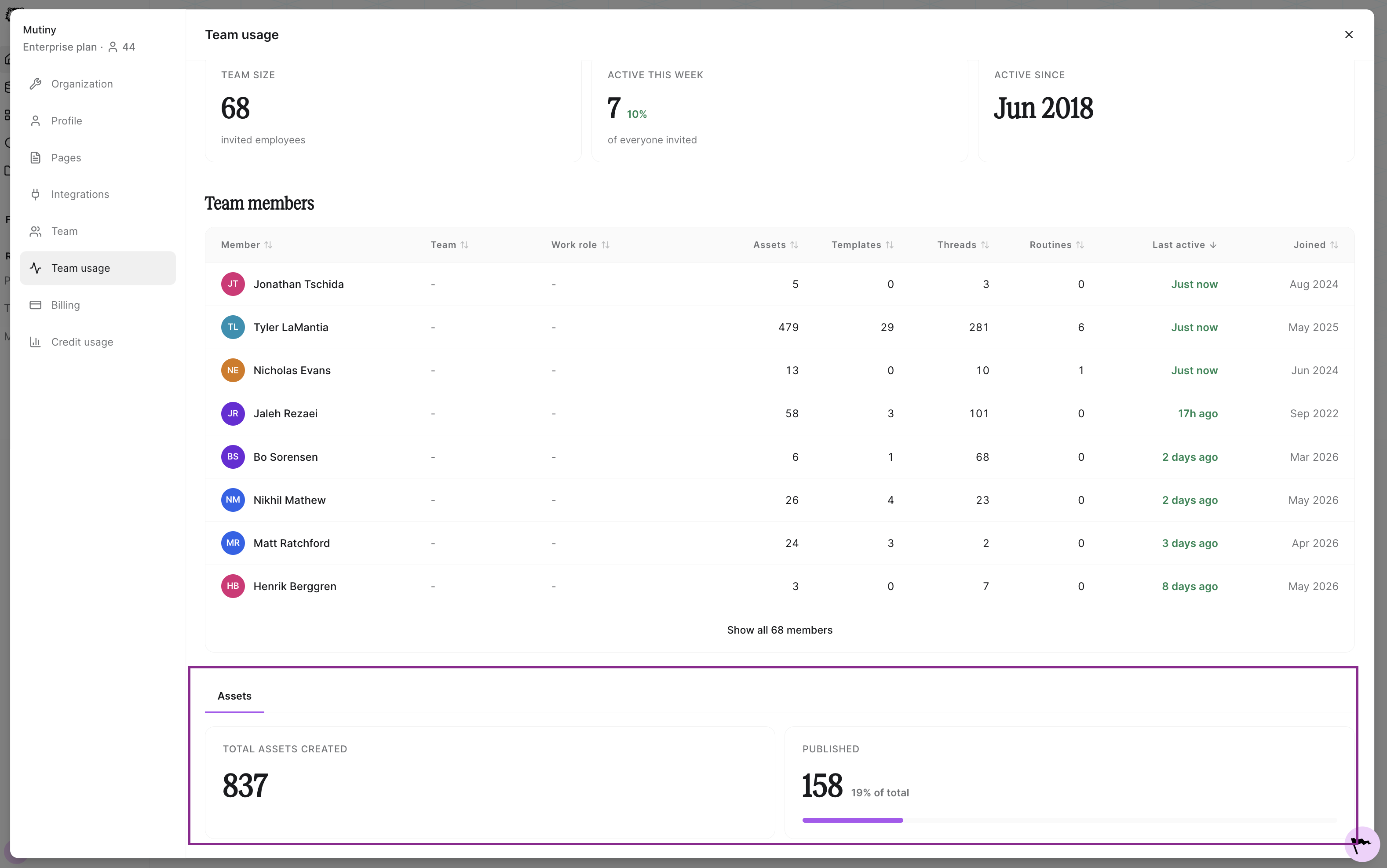
This gives you a really good idea of what your team is doing in Mutiny. You can also see the total number of assets created and the total number of assets published from the team usage page.
Adjusting Reporting Dates
You can adjust the dates for this usage report by using the date filter in the top right
Need Help?
If you have questions or need help, the Mutiny Support team is here for you! You can submit a support ticket using the Submit a ticket button at the top of this page, or reach us at support@mutinyhq.com.