Managing your Assets
Last updated: June 24, 2026
This article covers how to manage your assets in Mutiny, including how to rename, unpublish, duplicate, archive, and delete them.
Unpublishing, Archiving, and Deleting an Asset
To unpublish, archive, or delete an asset, open the three-dot menu on the asset card. From there, select either Archive or Delete.
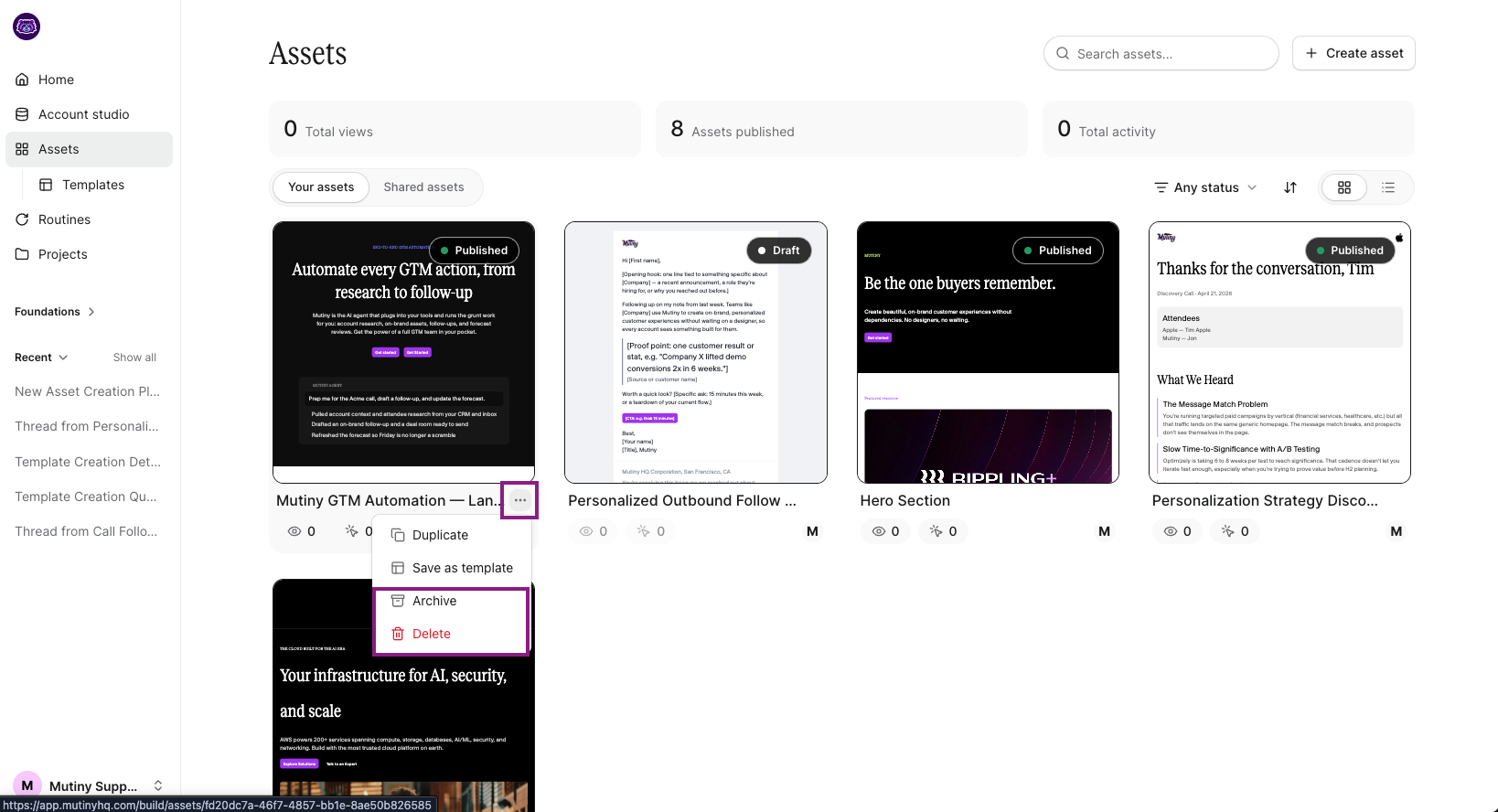
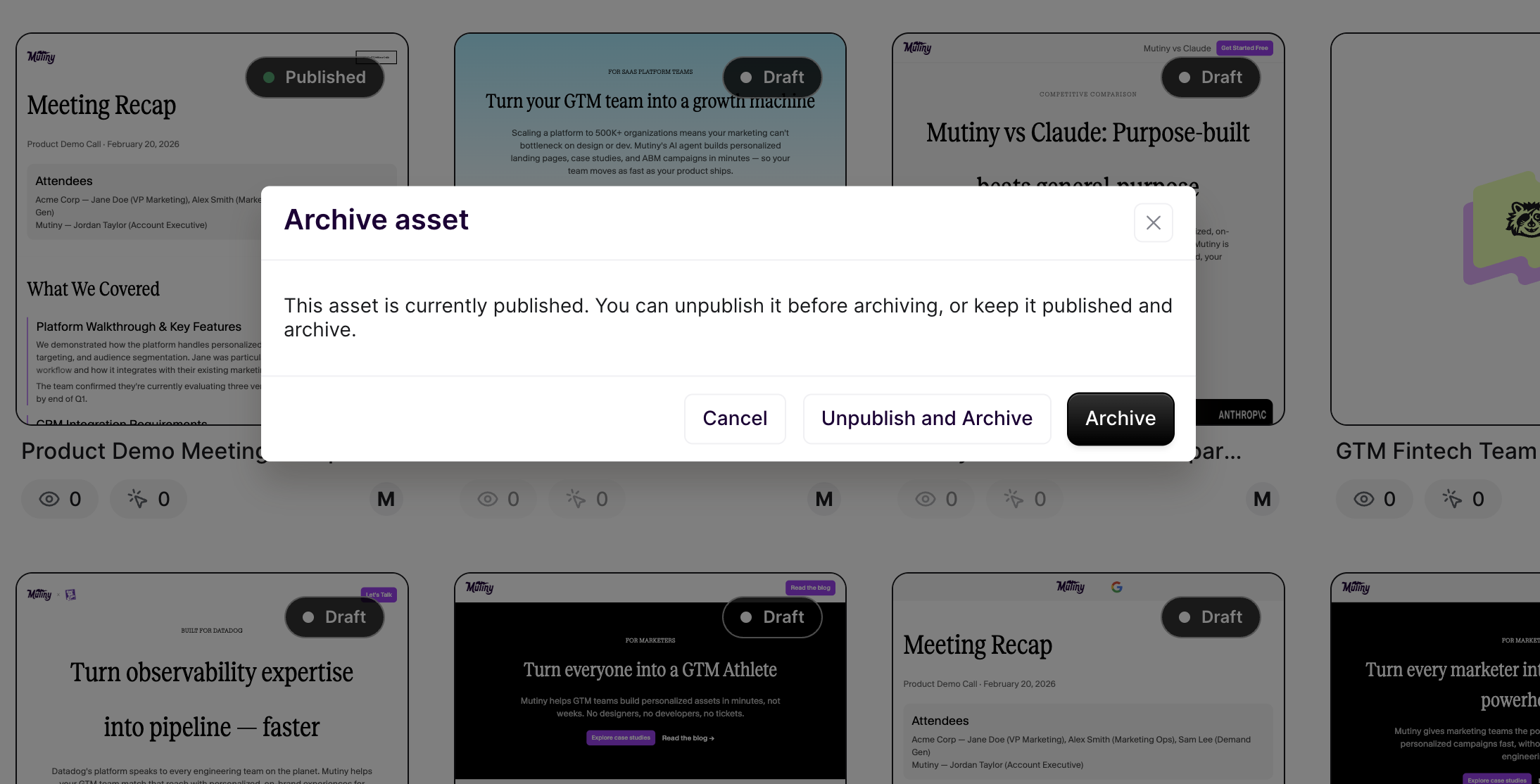
If the asset is published, you will be asked if you want to unpublish before archiving/deleting, or leave the asset live.
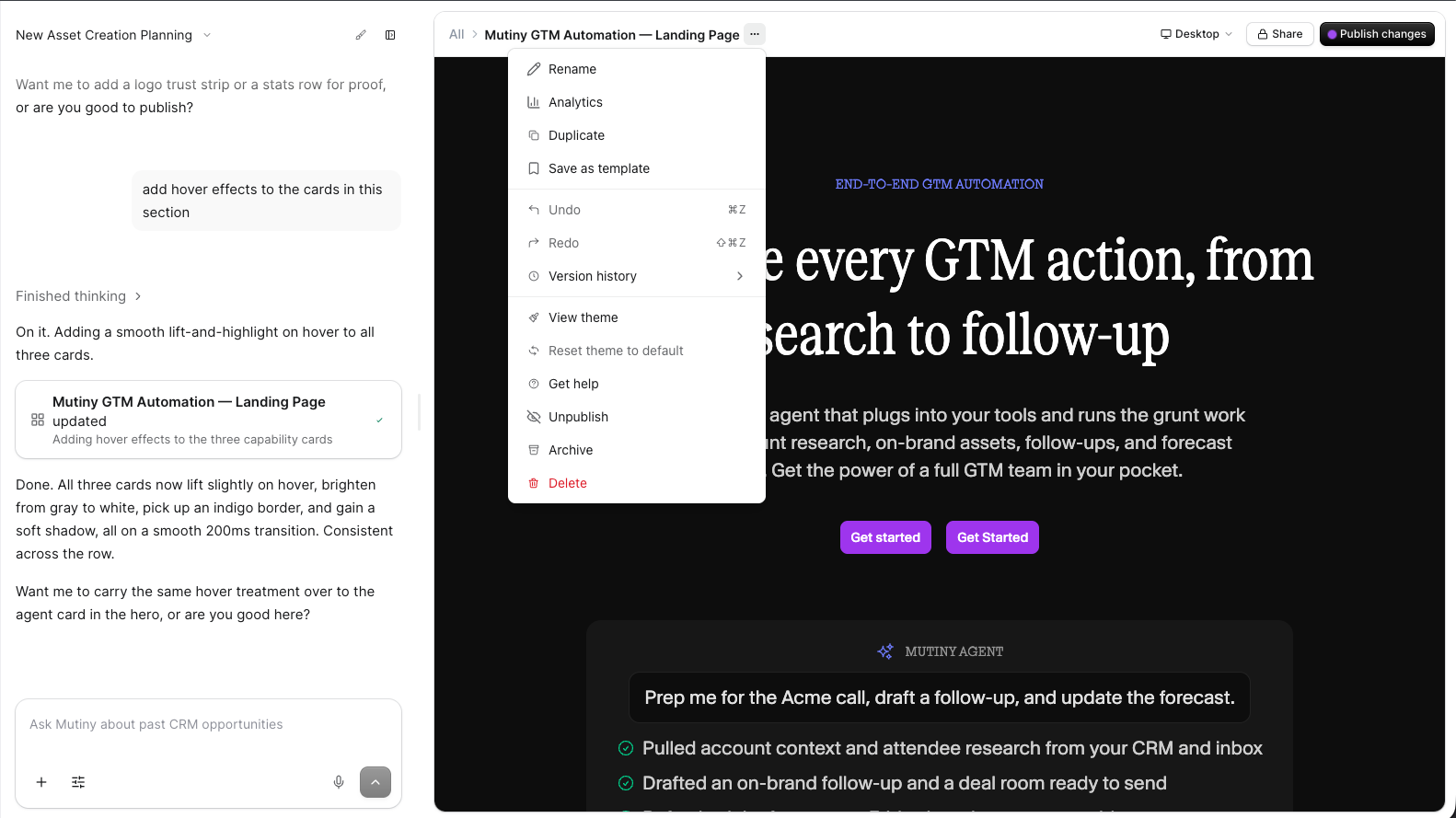
You can also archive or delete an asset directly from the editor. Select the three-dot menu in the top right corner of the editor to access these options.
Duplicating an Asset
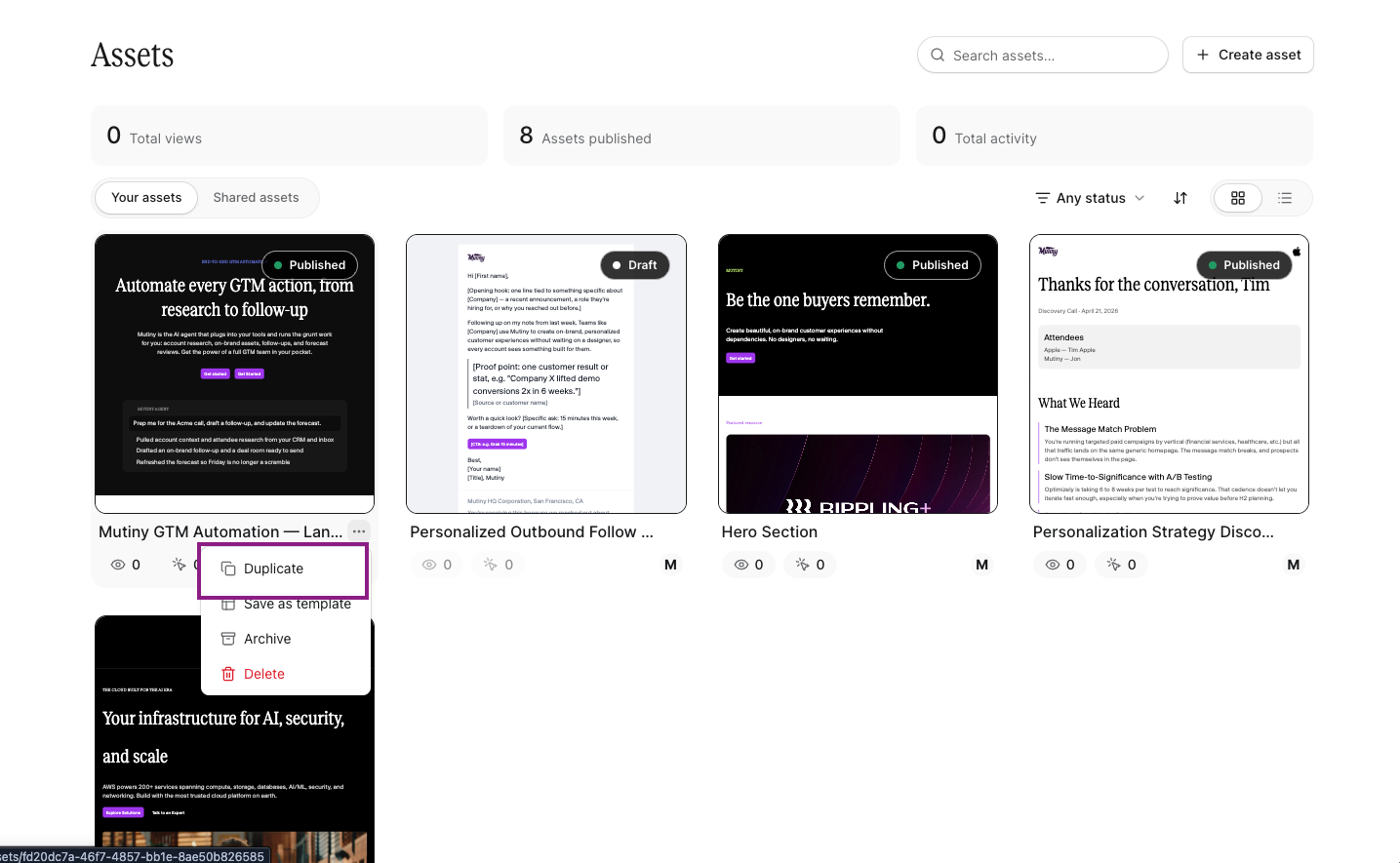
From the same three-dot menu on the asset card, you can also duplicate an asset. This creates a draft version of the asset that you can edit independently.
Renaming an Asset
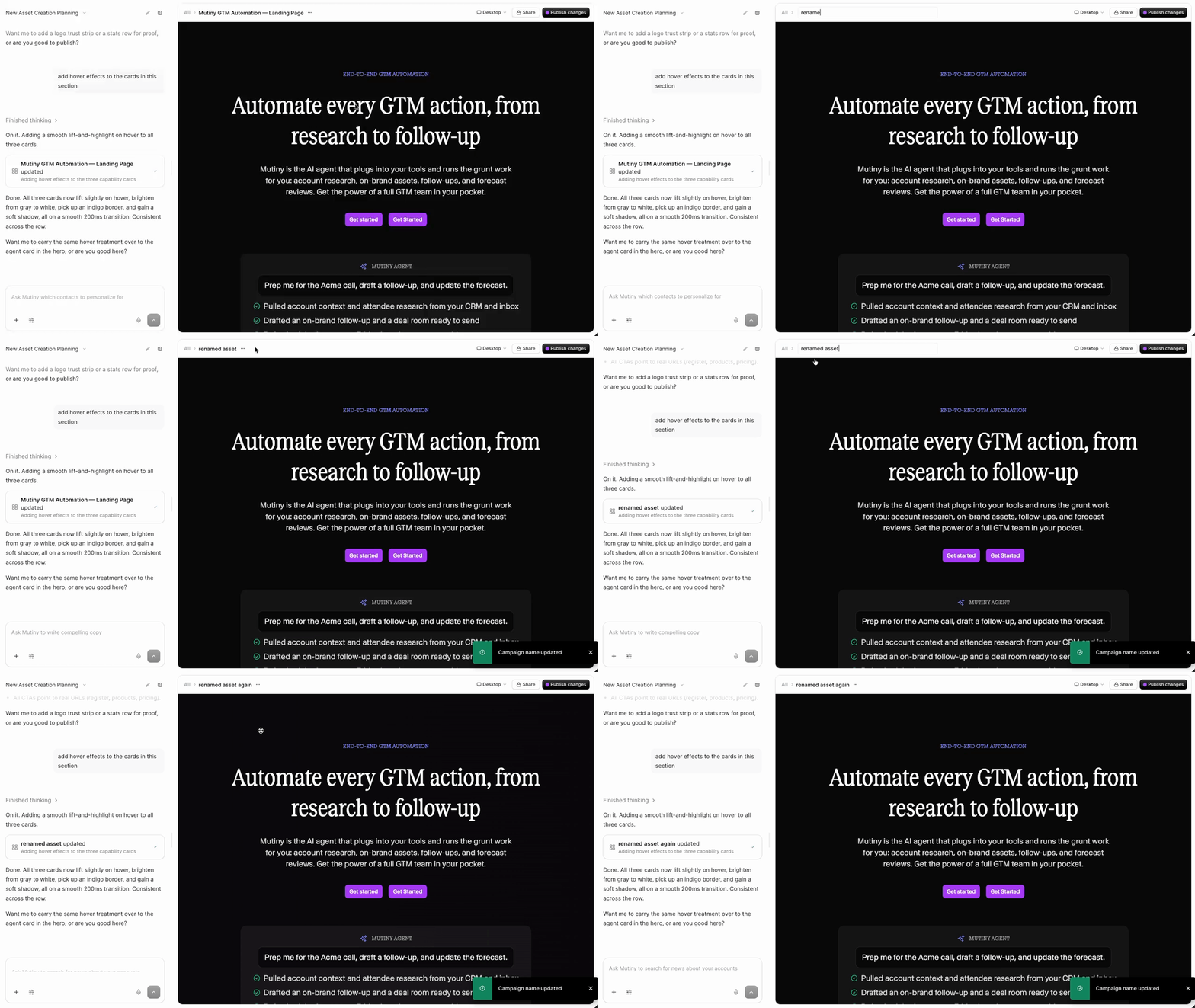
To rename an asset, open it in the editor by clicking into it. Then select the pencil icon in the top left corner of the editor.
Need Help?
If you have questions or need help, the Mutiny Support team is here for you! You can submit a support ticket using the Submit a ticket button at the top of this page, or reach us at support@mutinyhq.com.