Publishing Assets on Mutiny
Last updated: June 24, 2026
You've got some assets ready to ship; let's explore how to publish and share your assets to start driving meaningful interactions.
Publishing your asset
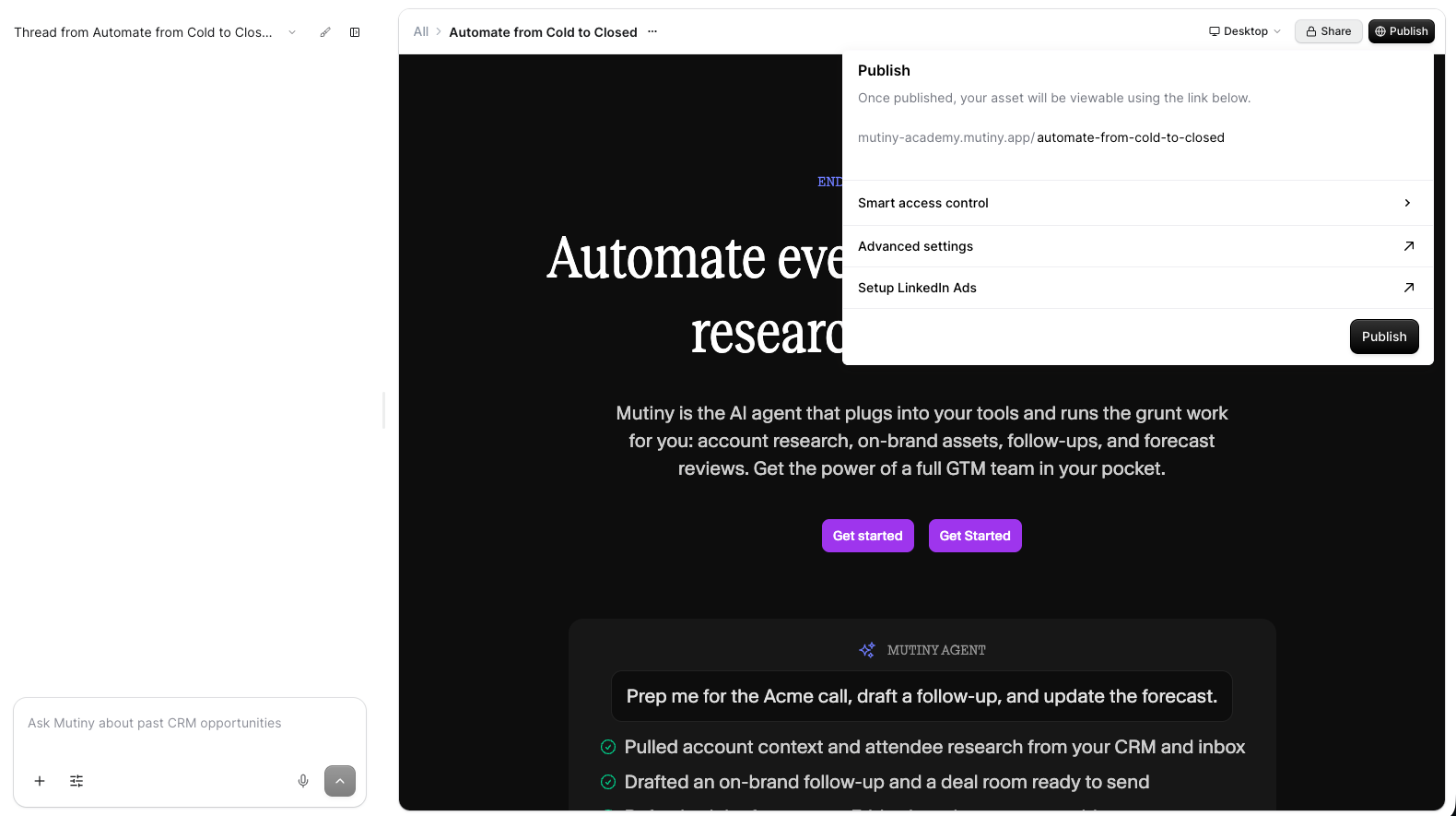
To publish your asset, click the Publish button in the top right, then click Publish from the menu.
Also in this menu, you can change the URL slug by clicking the pen icon, configure asset settings, or if you subscription allows, manage smart access control settings.
Distributing your Asset
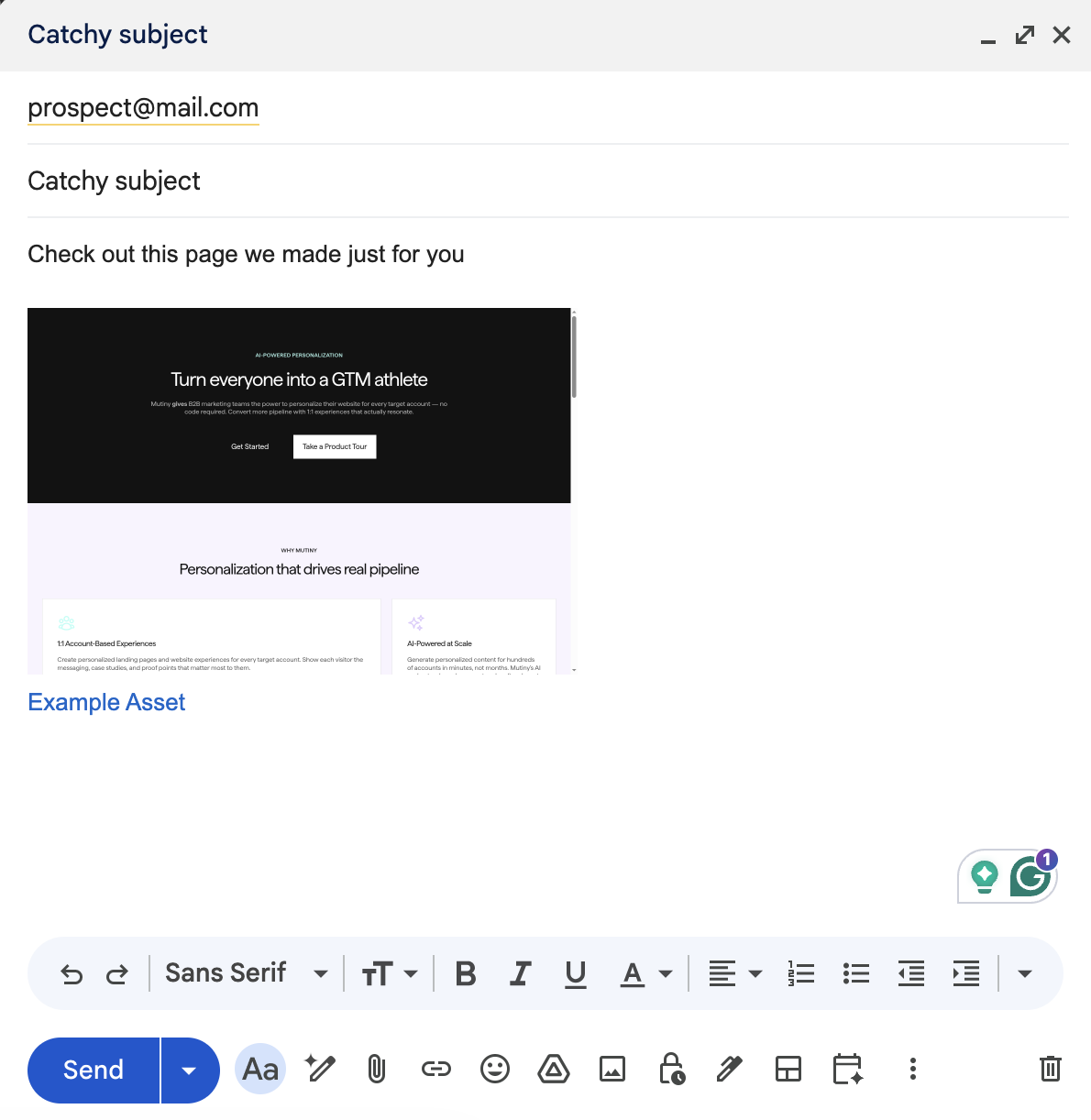
After publishing, you'll see an option to Copy Email Preview - this is a link that, when added to an email, will display a preview of the asset to your prospect in the email
Configuring asset sharing settings
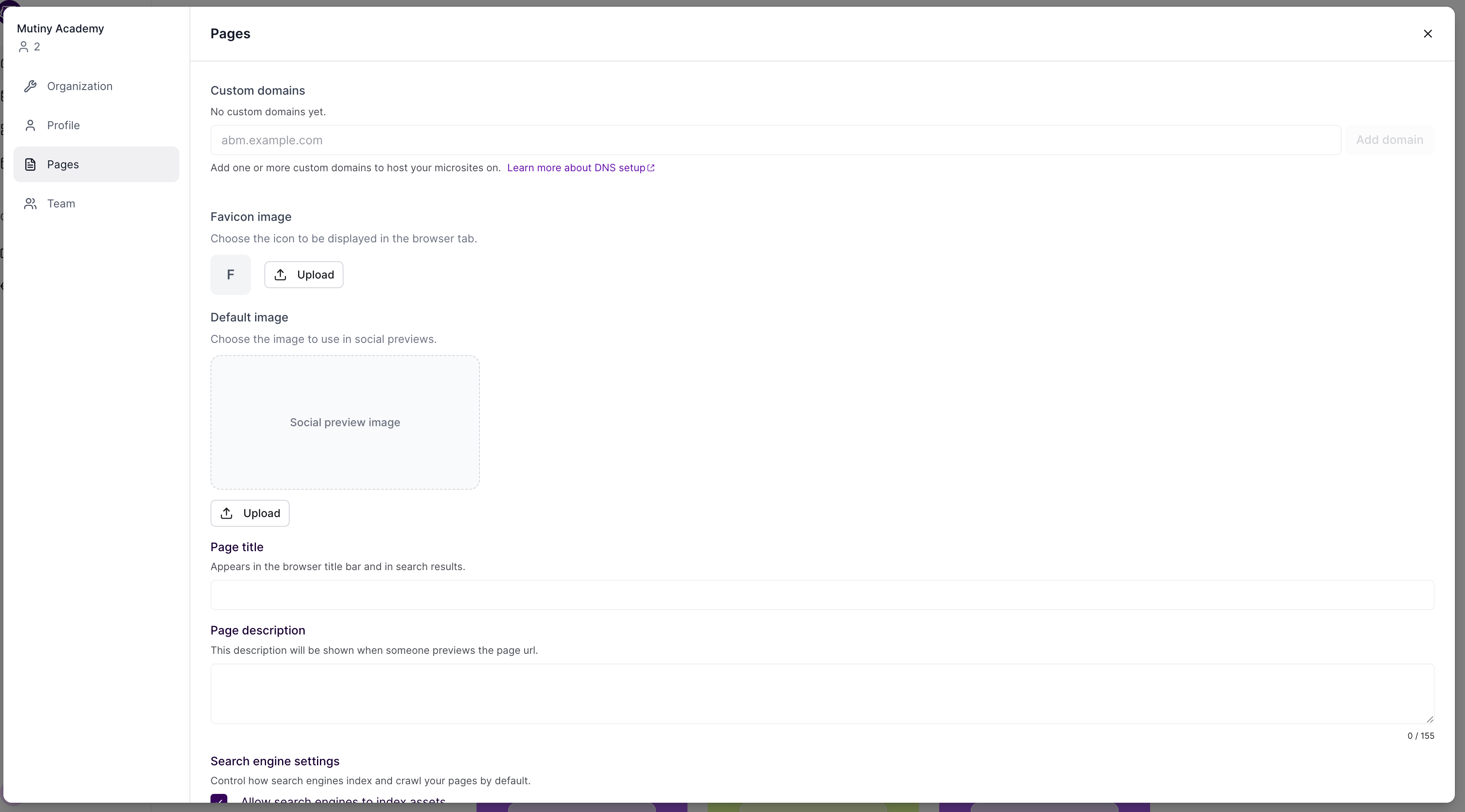
An important setting to configure is the asset sharing settings.
Default image, page title, and page description control how your asset appears when its link is shared or previewed. These three settings are worth filling out carefully, as they determine the preview card people see when you share a link.
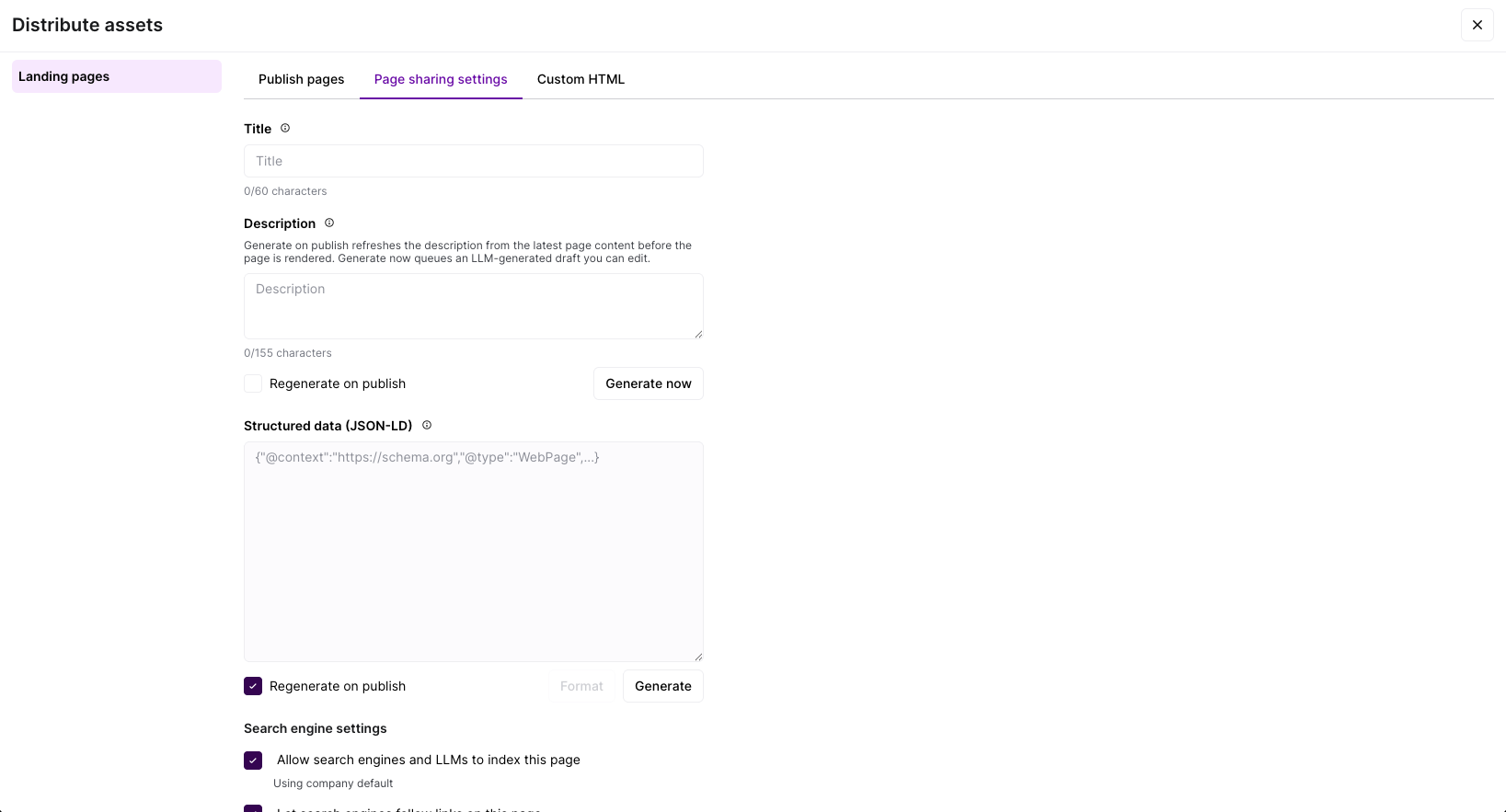
These settings can also be set on a per-asset basis by clicking Advanced Settings from the publish menu and navigating to the Page sharing settings tab
Unpublishing an Asset
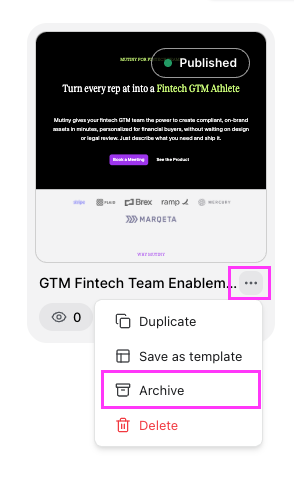
To unpublish an asset, click the three-dot menu ... on the asset card, select Archive
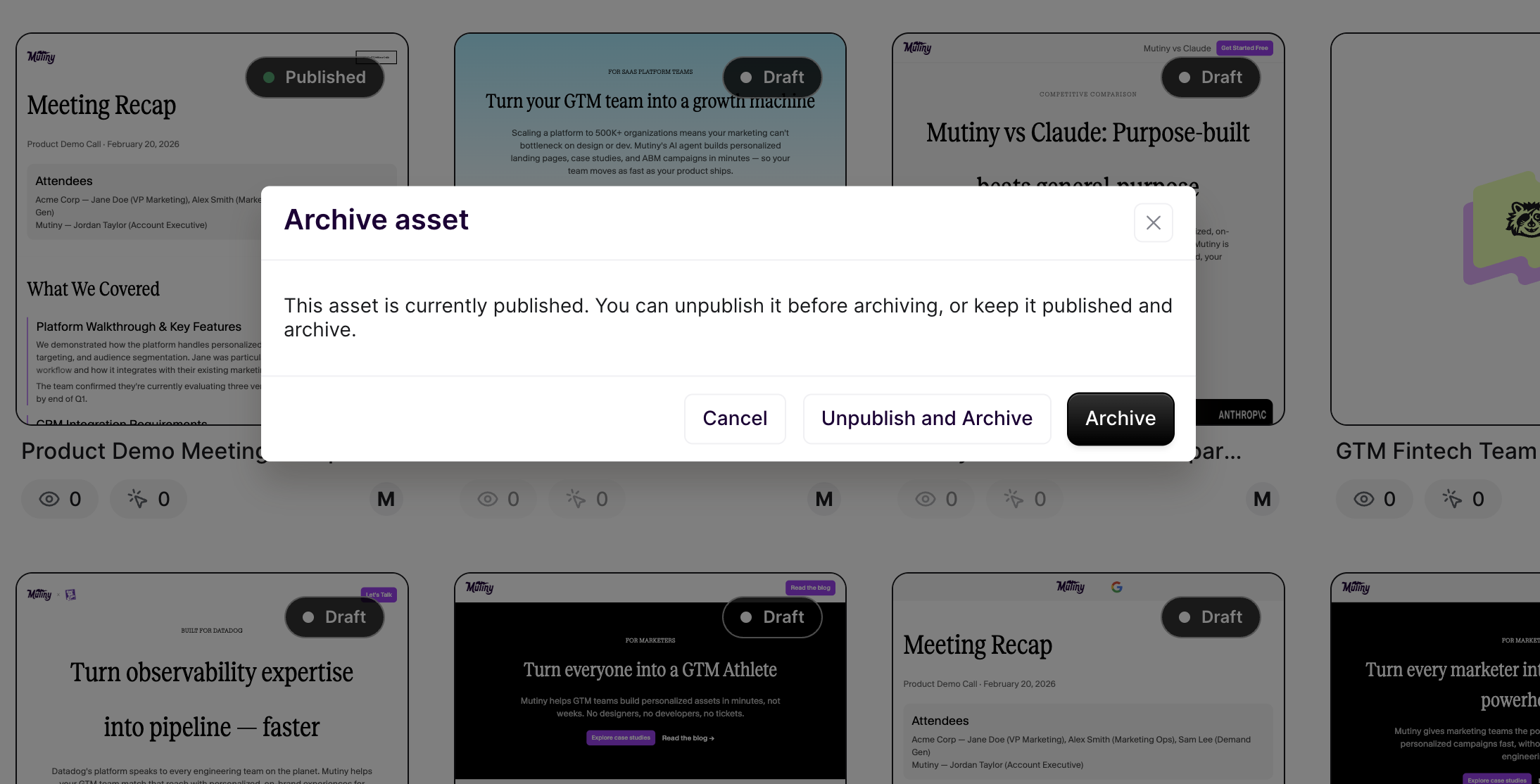
A modal will pop up asking if you want to unpublish and archive, or archive while keeping the asset live
Need Help?
If you have questions or need help, the Mutiny Support team is here for you! You can submit a support ticket using the Submit a ticket button at the top of this page, or reach us at support@mutinyhq.com.