Smart Access Control Overview
Last updated: June 23, 2026
This feature is only available on Business plan and above subscription tiers. You can upgrade from the Billing page in the settings.
Smart access control gives you tools to manage who can view your assets and how they get in. You can protect an asset with a password, require visitors to provide their email address, or combine both methods.
Every gated asset features a gate page with your company logo and a short teaser, and all verified viewers appear in analytics so you can see exactly who engaged with your content.
Enabling Smart Access Control
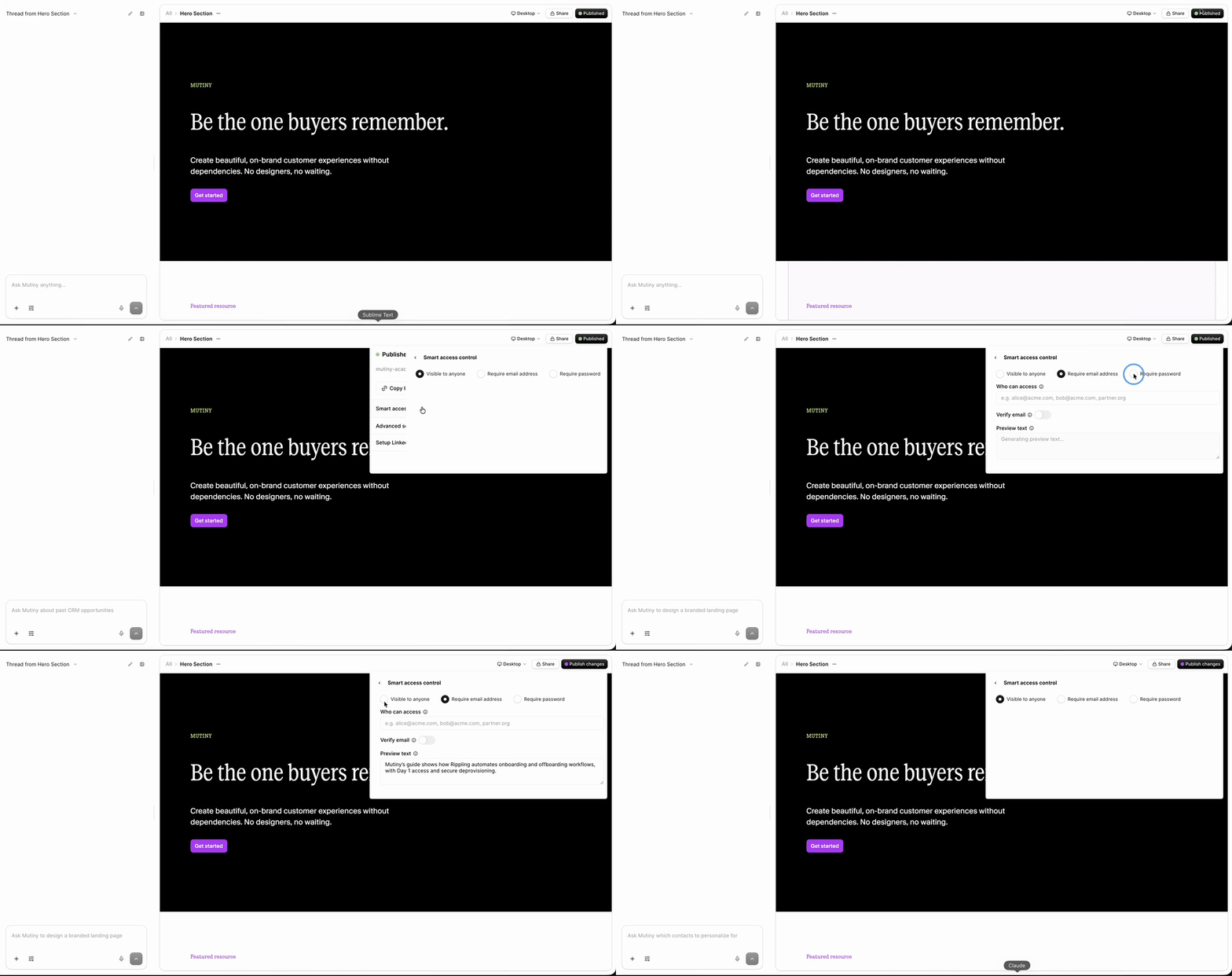
To enable, enter the publish menu by clicking Publish in the top right. Then select Smart Access Control
Gated Page Design
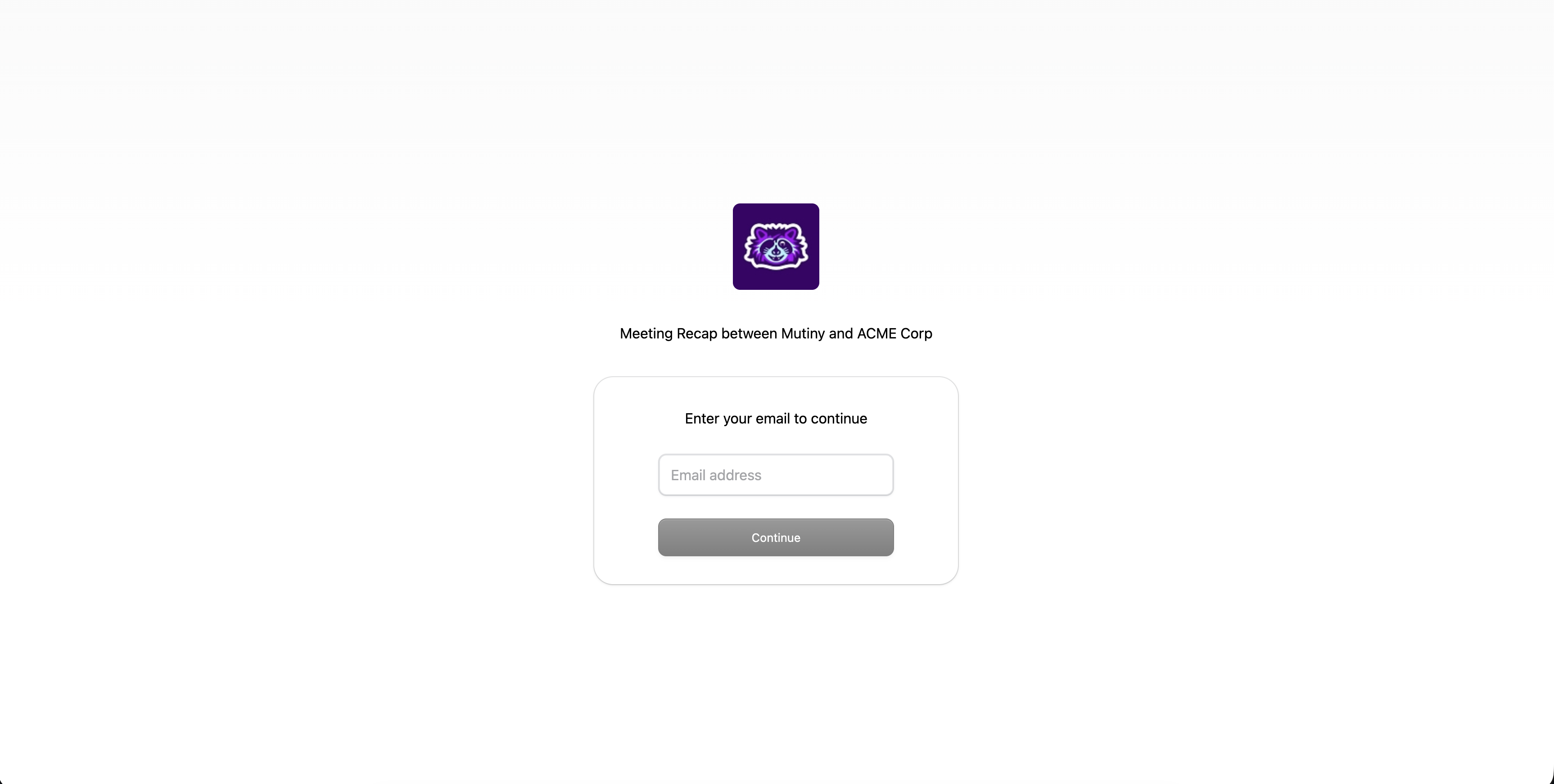
The gate page displays your company logo alongside a short teaser about the asset. The teaser is automatically generated and is up to 15 words long. You can edit it in the asset settings if you want to customize the message visitors see before they enter.
Example gate page on an email-gated page:
Password protection
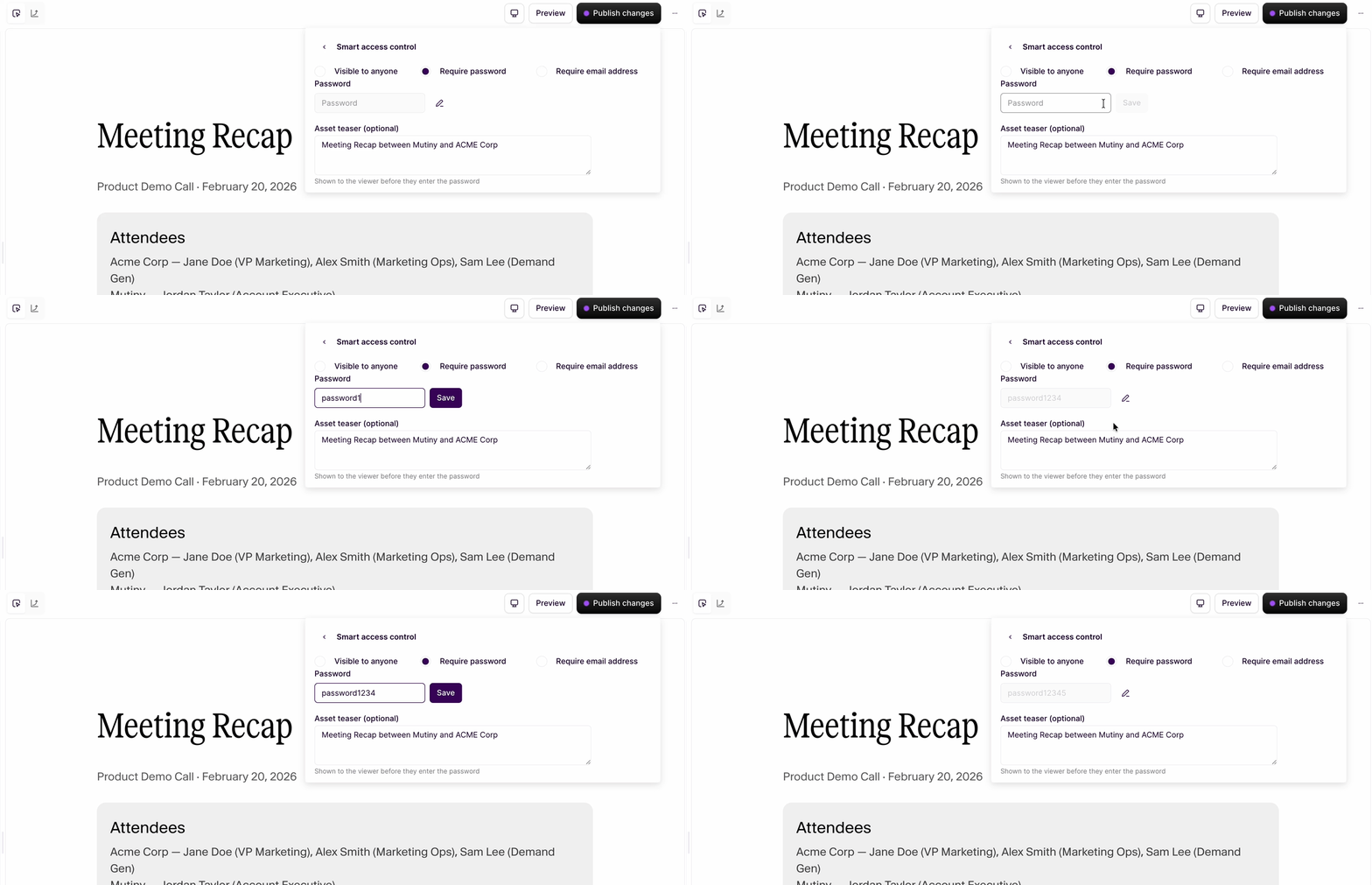
Password protection lets you restrict access to an asset with a single password that you set. Visitors see the gate page and must enter the correct password before the asset loads. This is a good option when you want to share content with a known audience, such as prospects or partners, without requiring individual email verification.
You can set the password by clicking the pen icon next to the password input box
Email gating
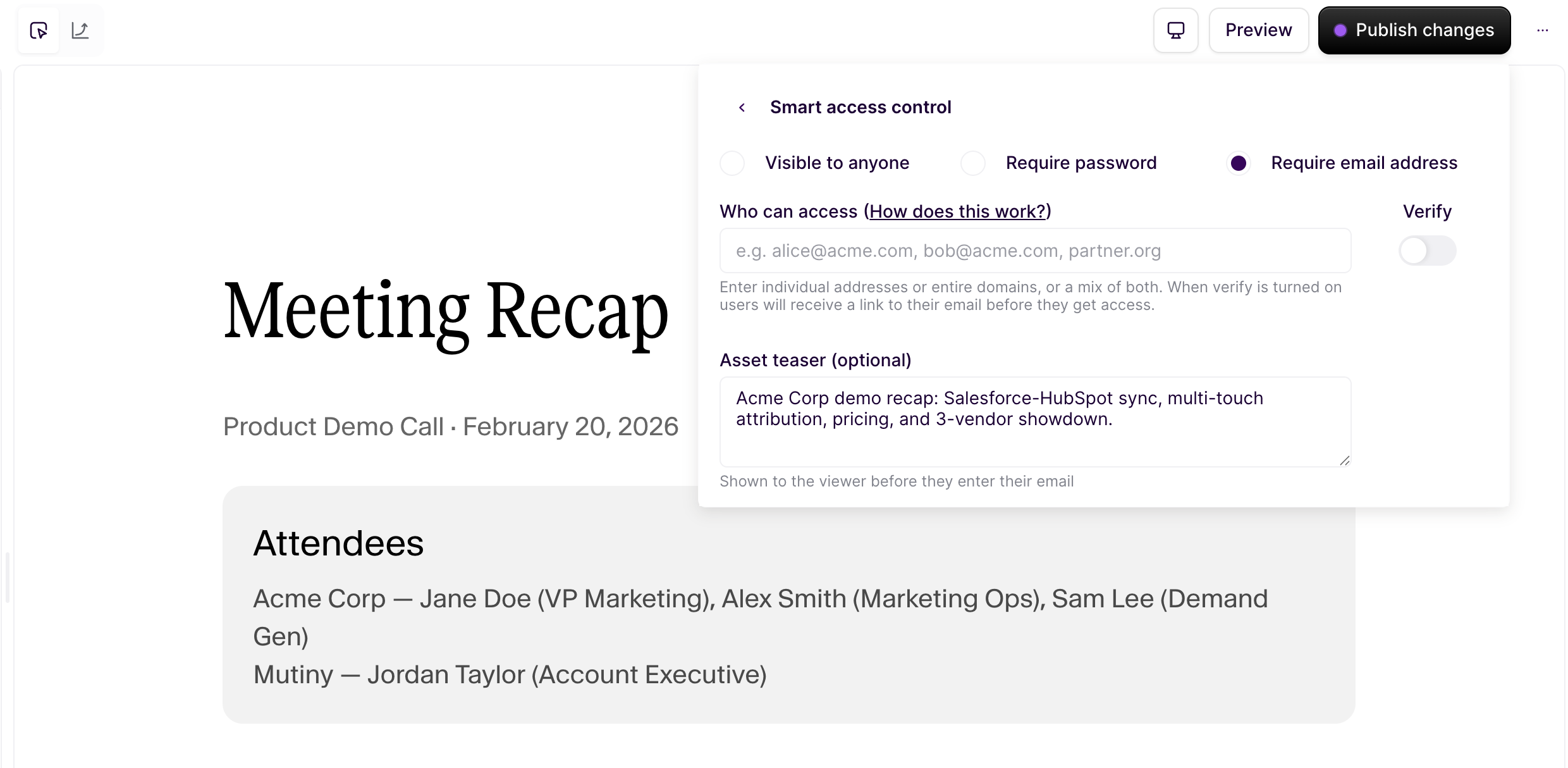
Email gating requires visitors to submit their email address before viewing an asset. You can use this to control exactly who gets access by specifying allowed domains or individual addresses in the asset settings.
Defining who gets access
You can enter a domain, such as google.com, to allow anyone with a matching email address. You can also enter a specific address, such as henrik@nike.com, to allow a single individual.
These rules work on an OR basis, meaning a visitor only needs to match one of your entries to gain access. For example, if you add both @google.com and henrik@nike.com, anyone with a Google email address will be let in, and so will Henrik regardless of their domain.
Email verification
You can take security a step further by enabling email verification.
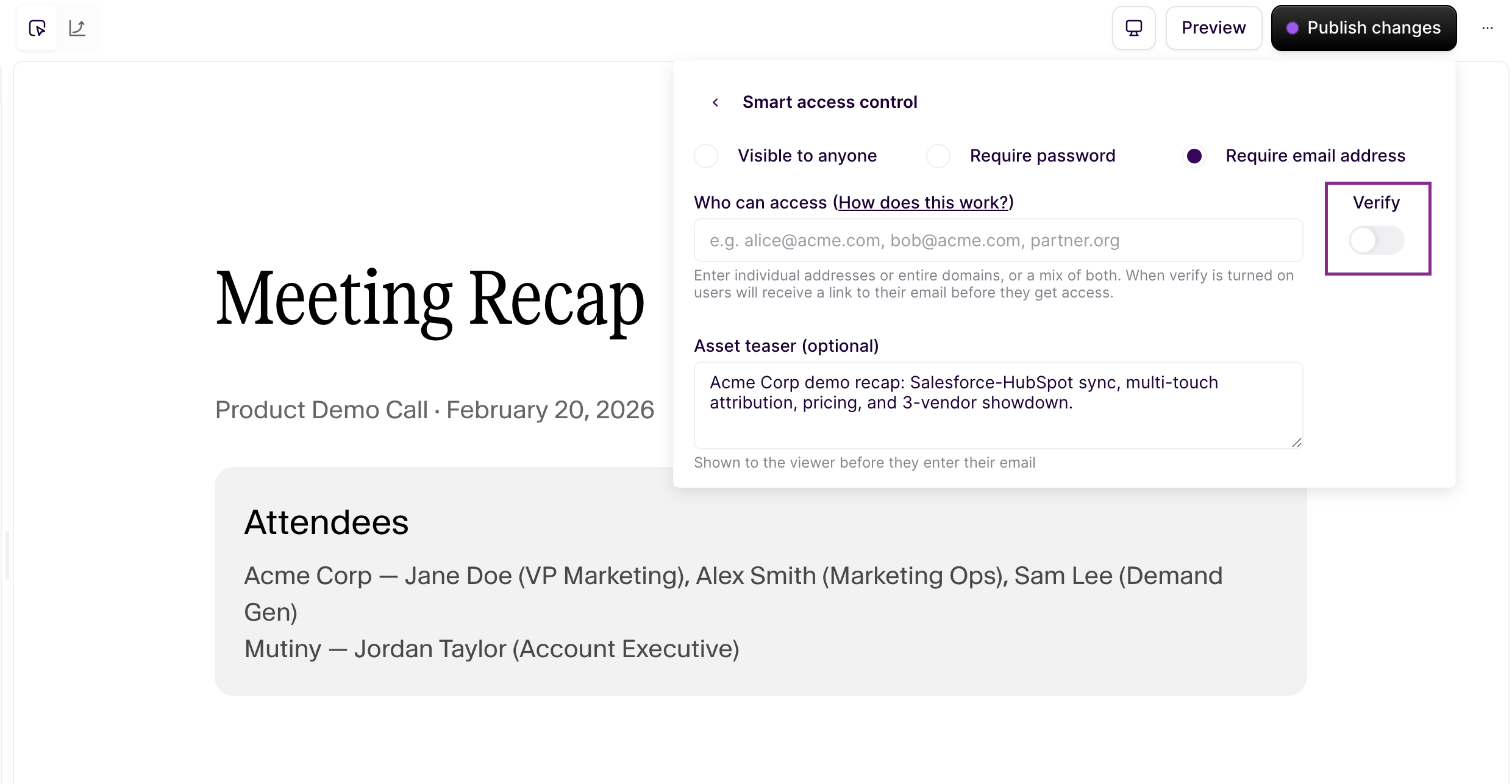
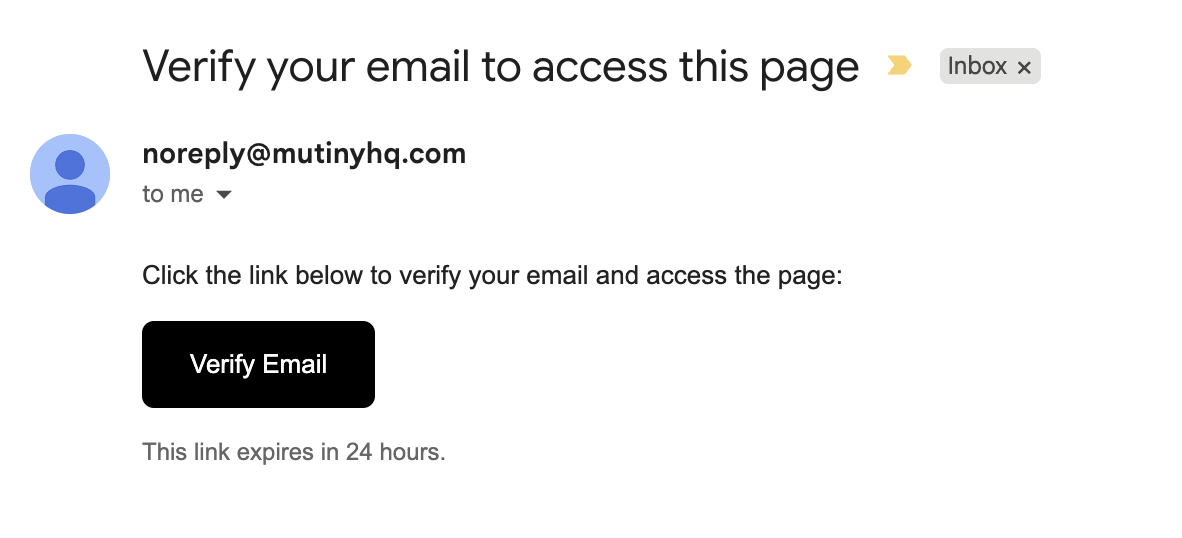
When this is turned on, a visitor submits their email address and then receives a link in their inbox. They must click that link to confirm they have access to the address they entered before the asset unlocks.
This ensures that viewers are who they say they are, not just someone who knows a valid email address.
Analytics
Every email address submitted through a gate, whether verified or not, appears as a viewer in the asset's analytics. This gives you a clear picture of who accessed your content and when.
The analytics page also indicates whether an asset is gated and which mechanism is in use. This makes it easy to understand your audience data in context, especially when comparing gated and ungated assets side by side.
Need Help?
If you have questions or need help, the Mutiny Support team is here for you! You can submit a support ticket using the Submit a ticket button at the top of this page, or reach us at support@mutinyhq.com.