Designing and Exporting Assets as a PDF
Last updated: June 23, 2026
Mutiny's PDF export feature lets you create polished, page-aware PDF documents directly from your assets. For the best results, it's worth thinking about PDF formatting before you start building, though you can always refine your layout after an initial export.
Creating an Asset as a PDF
Design for PDF from the Start
The easiest way to get a great-looking PDF is to build with a PDF export in mind from the start.
When creating a new asset, you can either start from a blueprint designed for PDF output (such as a personalized pitch deck template) or explicitly tell the agent in your initial prompt that the output will be a PDF.
When you mention PDF in your prompt, the agent will ask clarifying questions about structure and layout, then generate content that's already optimized for page-based formatting.
Preview the Asset in PDF View
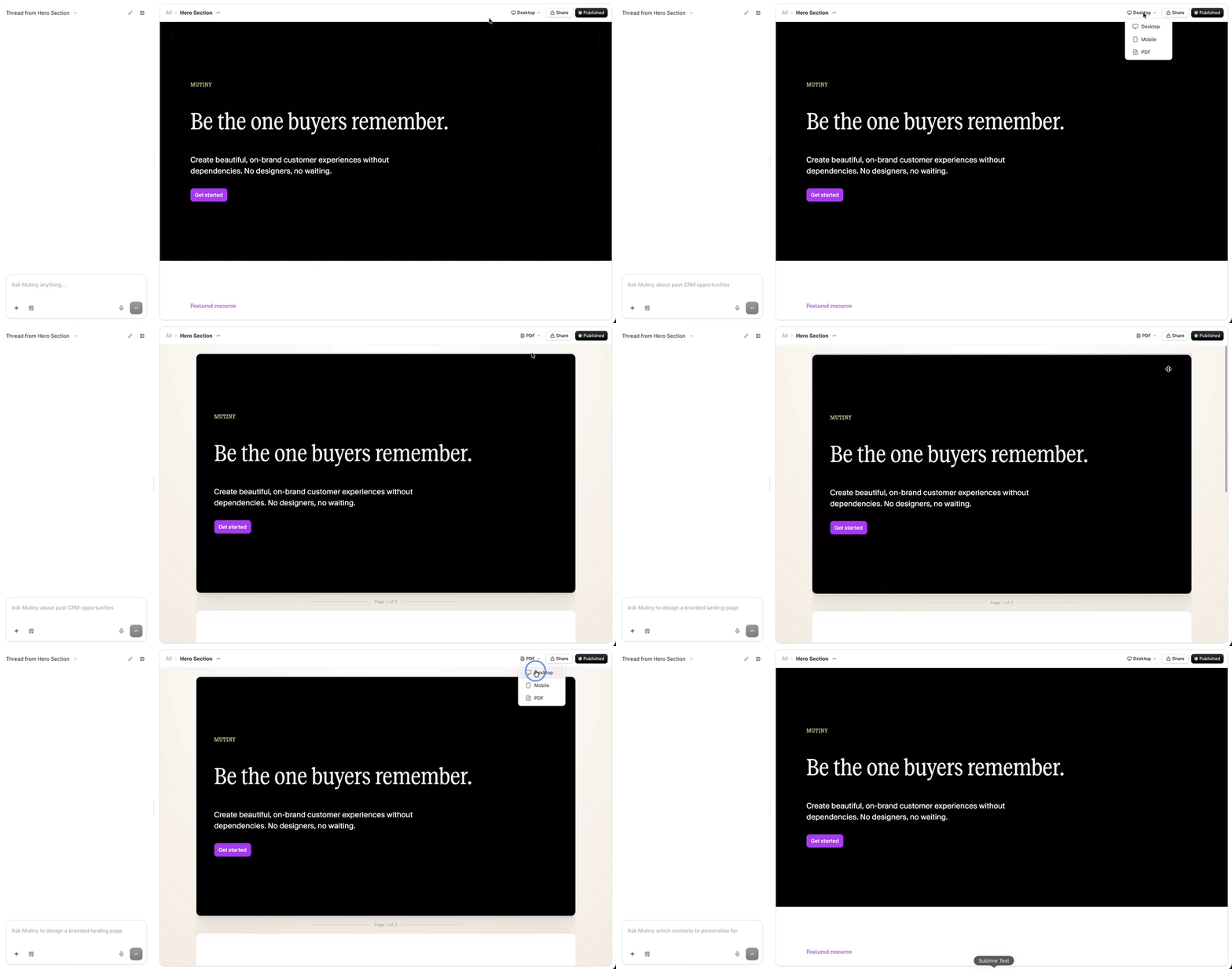
Before exporting, use the PDF view toggle in the top-right of the editor, located alongside the Preview and Publish buttons, to see exactly how your asset will be divided across pages. This gives you a clear picture of where page breaks fall and whether any sections look disproportionately tall or unbalanced.
Refining Your Layout for PDF
Editing with the Creative Agent
If the exported PDF doesn't look quite right, for example, if one section is significantly taller than the others, you can prompt the agent directly to fix it.
Describe what looks off and what you'd like changed, such as asking it to remove an image or reduce a section's height so it's consistent with the rest of the page:
You can address issues one at a time or give the agent broader layout guidelines all at once, like specifying consistent section heights or image rules across the whole document.
A prompt like:
Adjust the height of the sections so that they all match
Editing manually
You can also make edits manually, just like you would with any asset. Click into sections and move elements around, utilize the design tab, add new sections with the "+" icon in the quick actions menu, etc.
Export Your Asset as a PDF
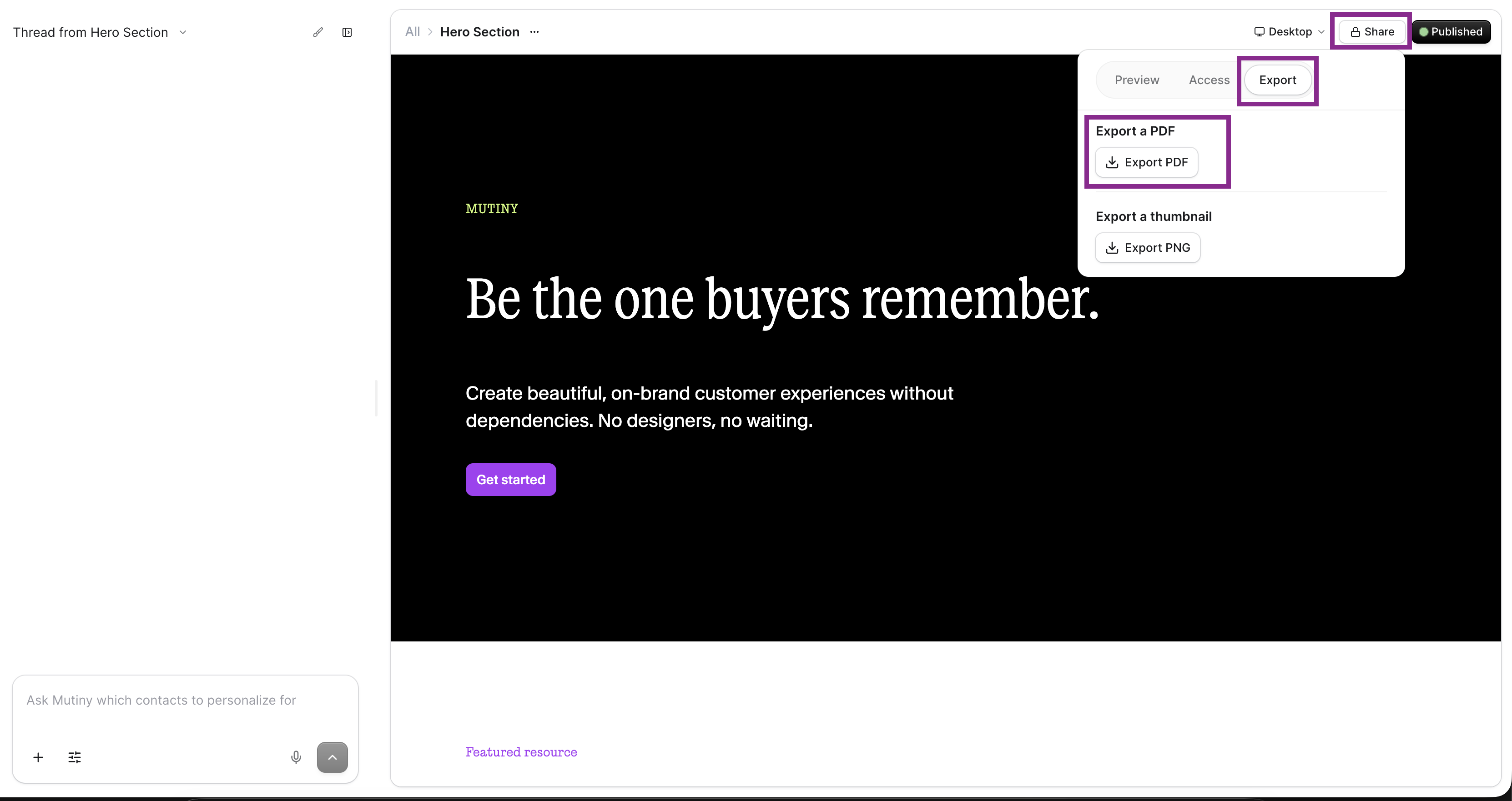
Once you're happy with your layout in PDF view, export the asset to generate your PDF file from the share menu in the top right, and select Export a PDF
FAQ
Why are the sections in my PDF not the same size?
To ensure that each page in your PDF is the same size, ask the agent to make all the sections the same size. A prompt like:
Make all the sections in the asset the same size
Are links or CTAs in the PDF clickable?
Currently, links and CTAs in the asset will not be clickable in the generated PDF
Need Help?
If you have questions or need help, the Mutiny Support team is here for you! You can submit a support ticket using the Submit a ticket button at the top of this page, or reach us at support@mutinyhq.com.