Password-Protected Assets
Last updated: April 7, 2026
Password protection allows you to restrict access to your Assets by requiring visitors to enter a password before viewing the content. This feature is ideal for sensitive information that should only be viewed by specific audiences.
Setting Up Password Protection
Assets without account pages
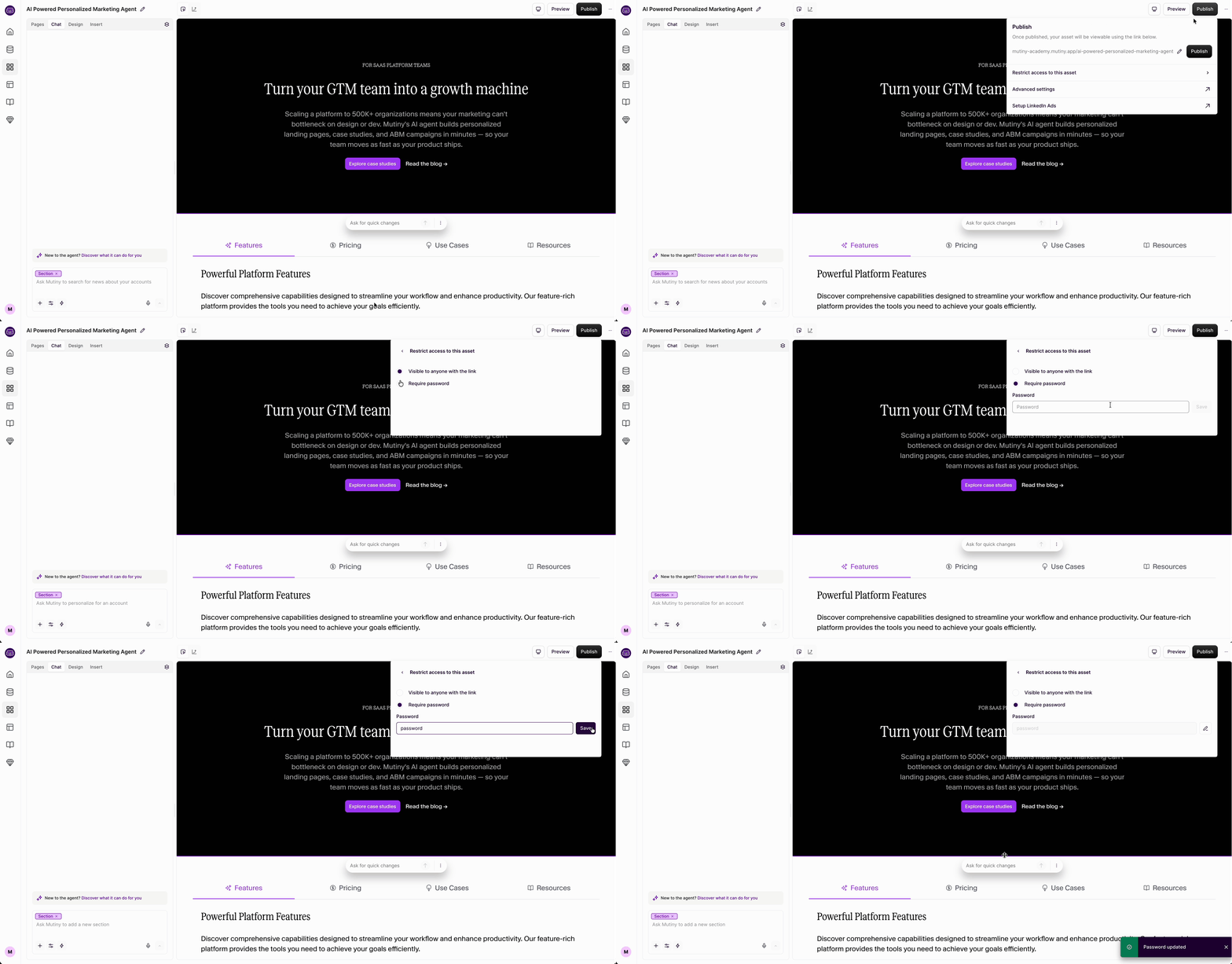
If your asset does not have account pages, click Publish in the top right, and then select Restrict Access to this Asset.
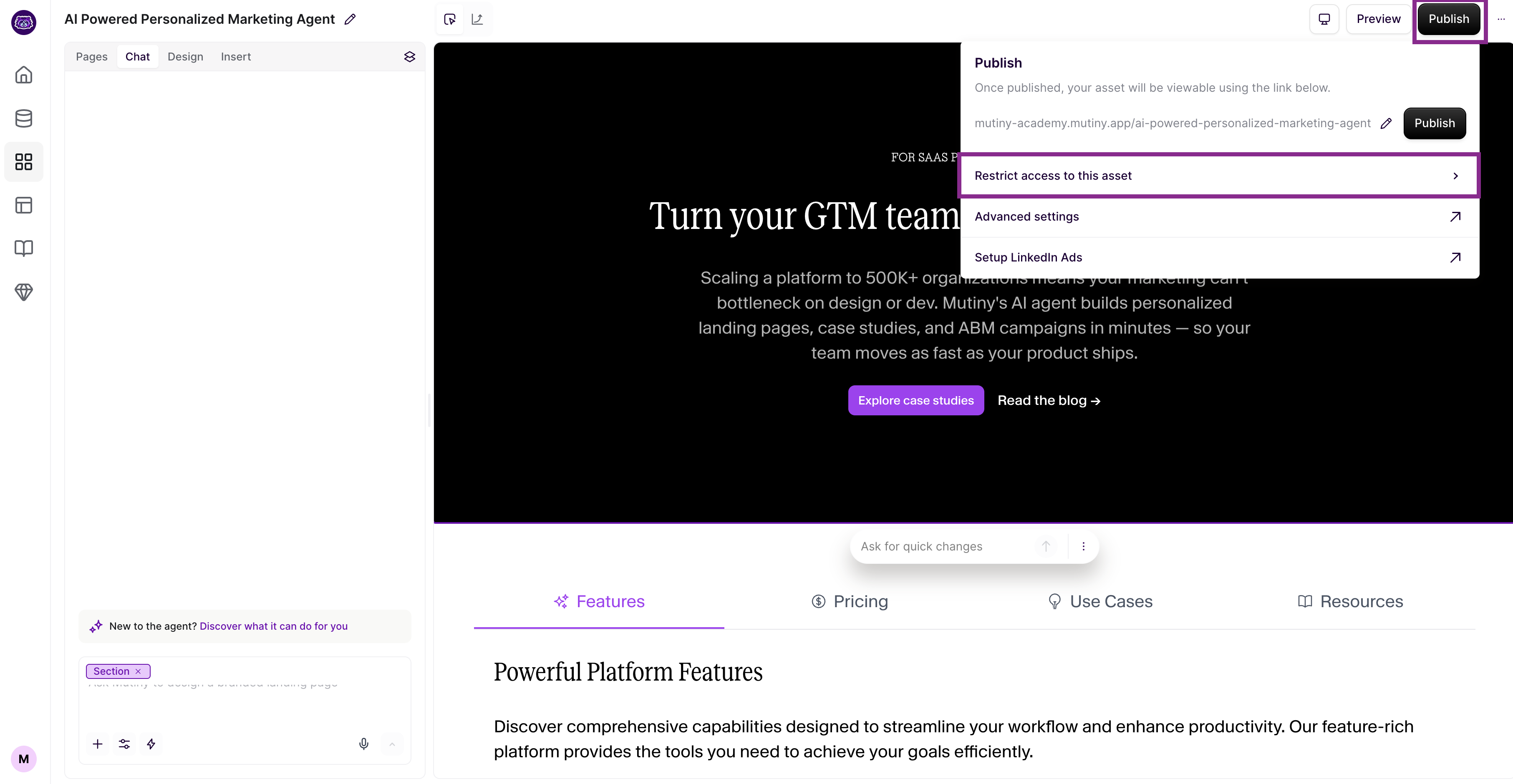
From here, you can toggle on password protection and set your desired password
Assets with account pages
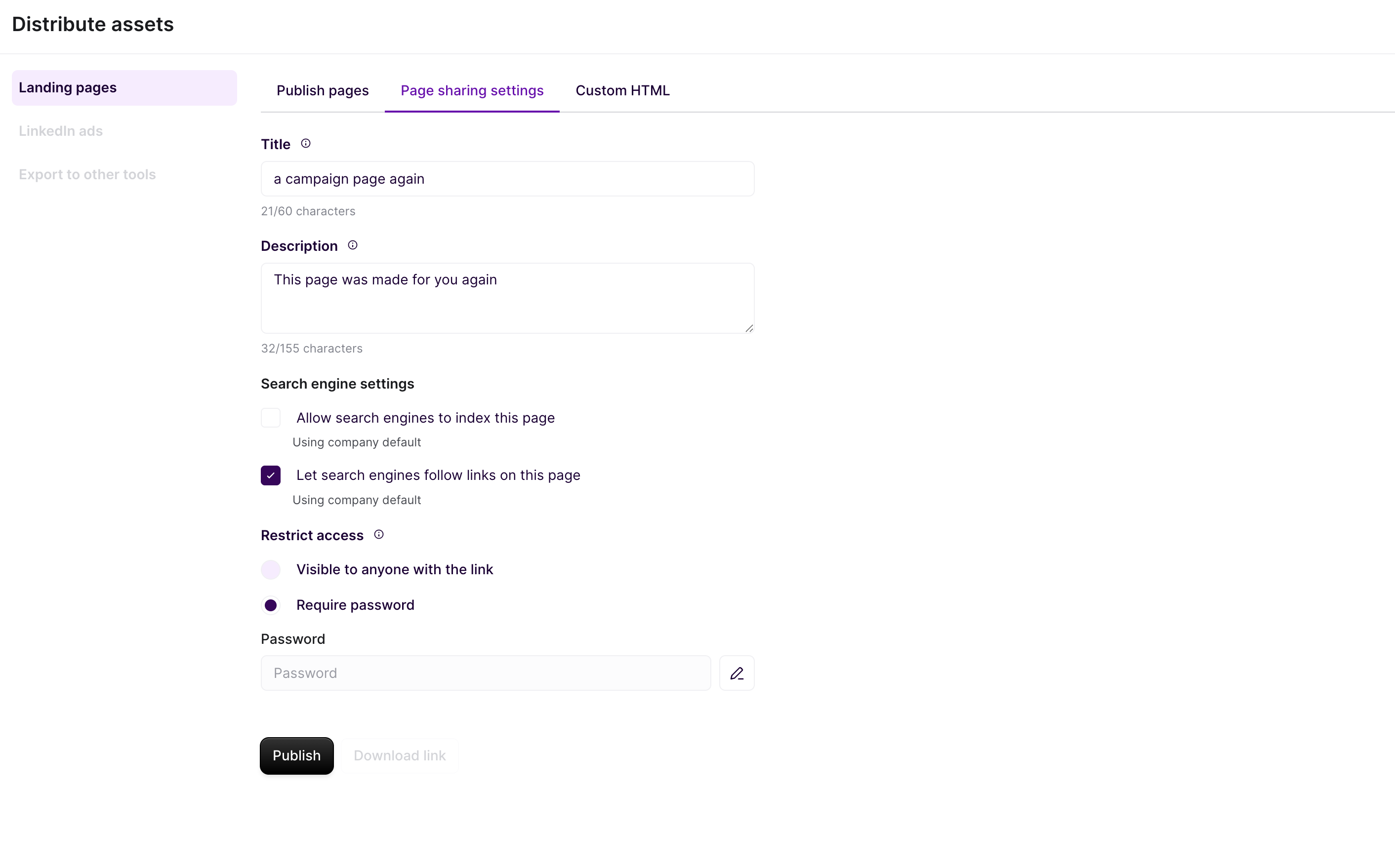
Access Page Share Settings
From the editor, click Publish
Switch over to the Page Sharing Settings tab
Enable Password Protection
Toggle on the password protection feature
Enter a default password in the input field that appears
Save your settings
Password Requirements
Passwords can contain letters, numbers, and special characters
Passwords are case-sensitive
Choose a secure password that's easy to share with authorized users
User Experience
When visitors access a password-protected page, they'll see a branded modal that:
Pulls in your theme styles and CTA colors
Maintains your company's branding
Prompts for the password before revealing the page content
Important Security Considerations
This is a basic protection feature, not an advanced security solution. The password protection is implemented as a modal overlay, this should not be used for extremely private or highly sensitive information. It provides a reasonable level of protection against casual access; consider it suitable for information you don't want available to the general public.
Best Practices
Use this feature for moderately sensitive content that needs limited access
Share passwords securely with authorized viewers
Regularly update passwords if needed, using the edit function
Consider disabling protection for trusted audiences to improve their experience
This feature strikes a balance between accessibility and protection, making it easy to control who can view your asset while maintaining a smooth user experience for authorized visitors.
Need Help?
If you have questions or need help, the Mutiny Support team is here for you! You can submit a support ticket using the Submit a ticket button at the top of this page, or reach us at support@mutinyhq.com.