Library Overview
Last updated: August 19, 2026
The Library allows you to take advantage of your web-based assets from your website, things like case studies, blog posts, PDFs, product pages, press releases, newsletters, and any of your top-used, most exciting assets that you want to put in front of your target accounts.
You can also upload images that you would like the creative agent to have access to when building assets.
Who can manage the Library: Owners, Admins, and Content Managers can add, edit, version, and delete Library resources. Users can use Library content when building assets, but cannot change what is in the Library.
Importing Resources
When you create a brand, Mutiny will also scrape content from your site to fill your Library. The Agent will be able to use this content while creating Assets.
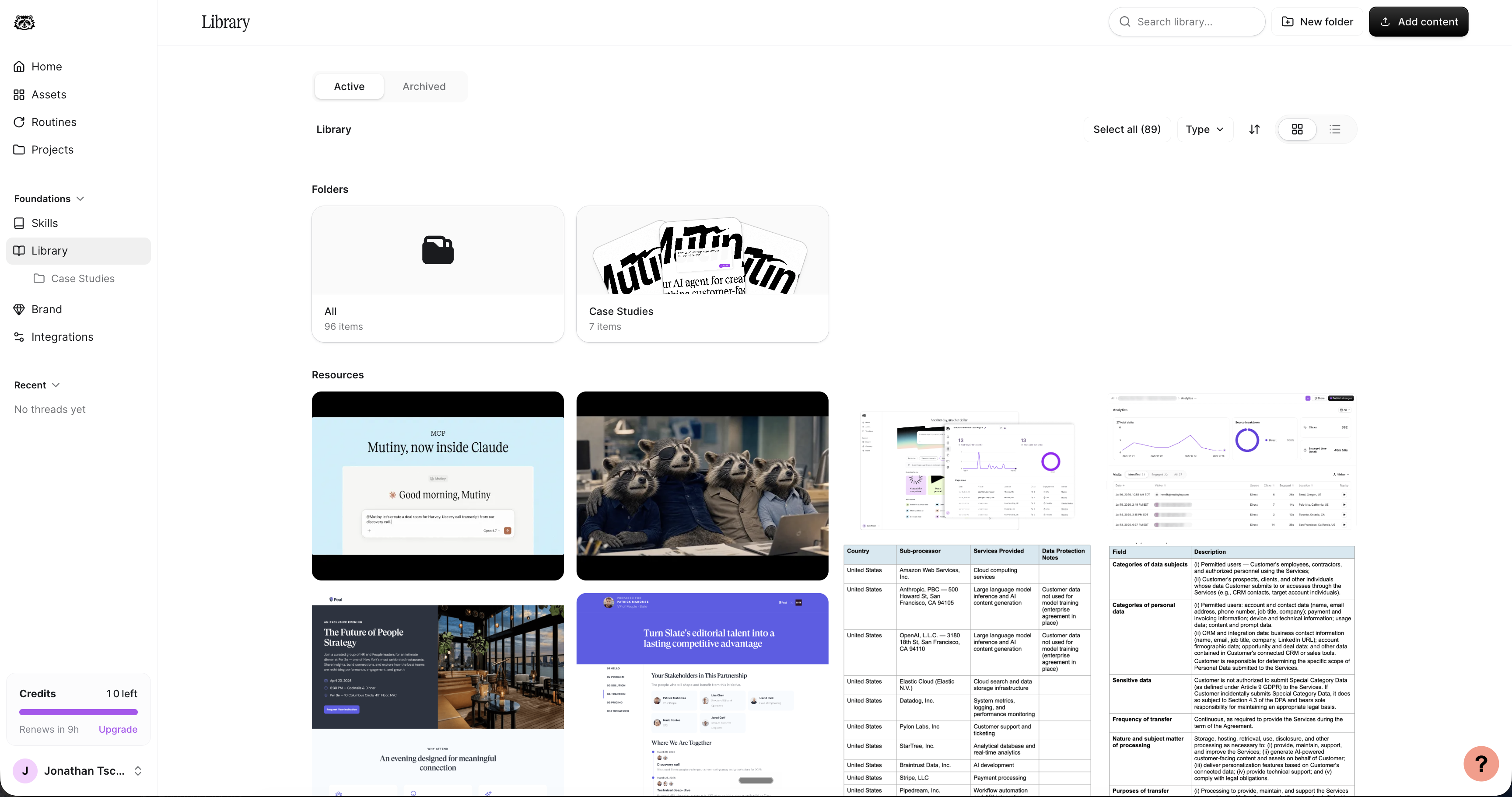
You can also manually add resources to the Library. From the Library page, click the Add Content button.
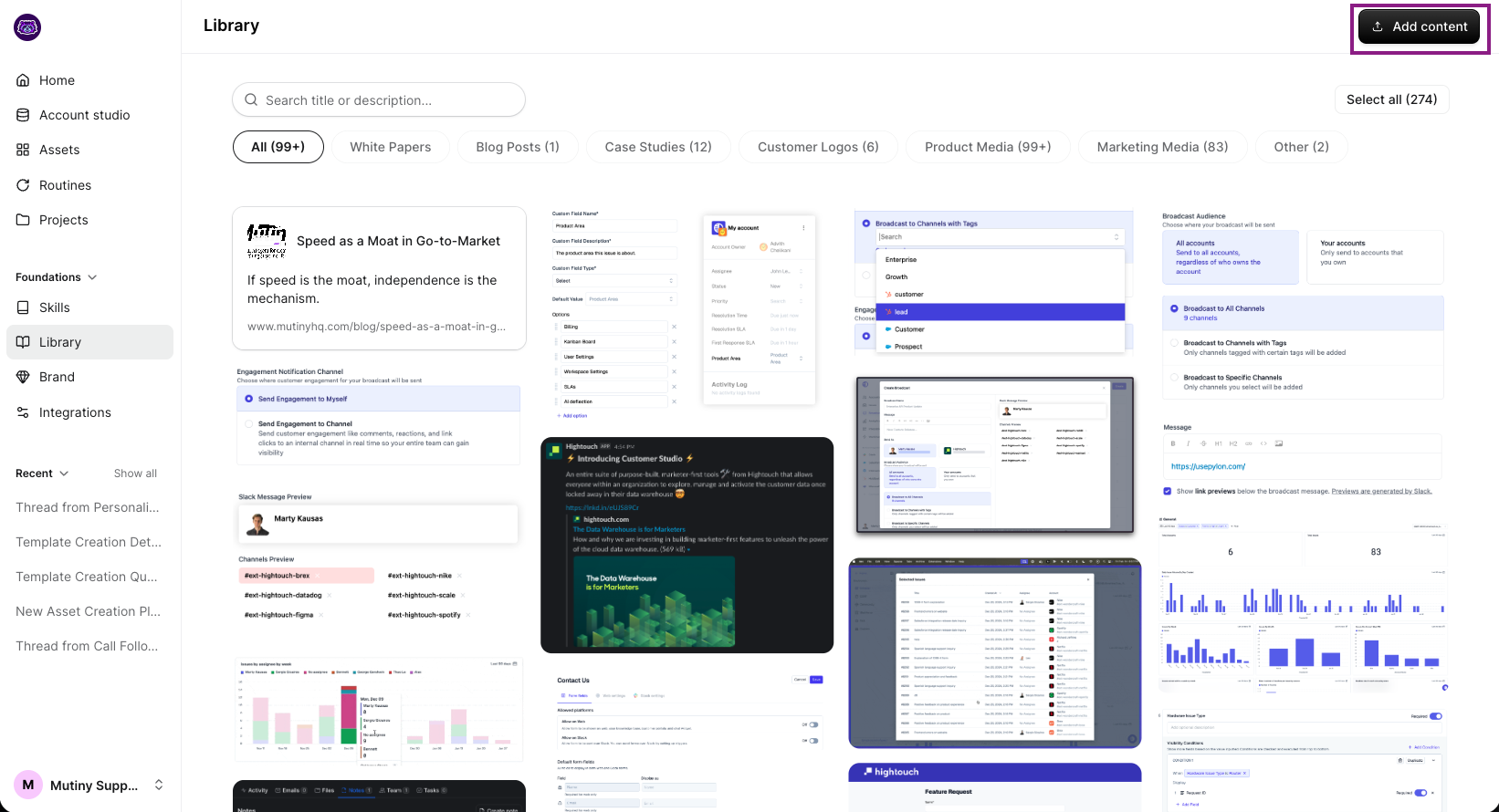
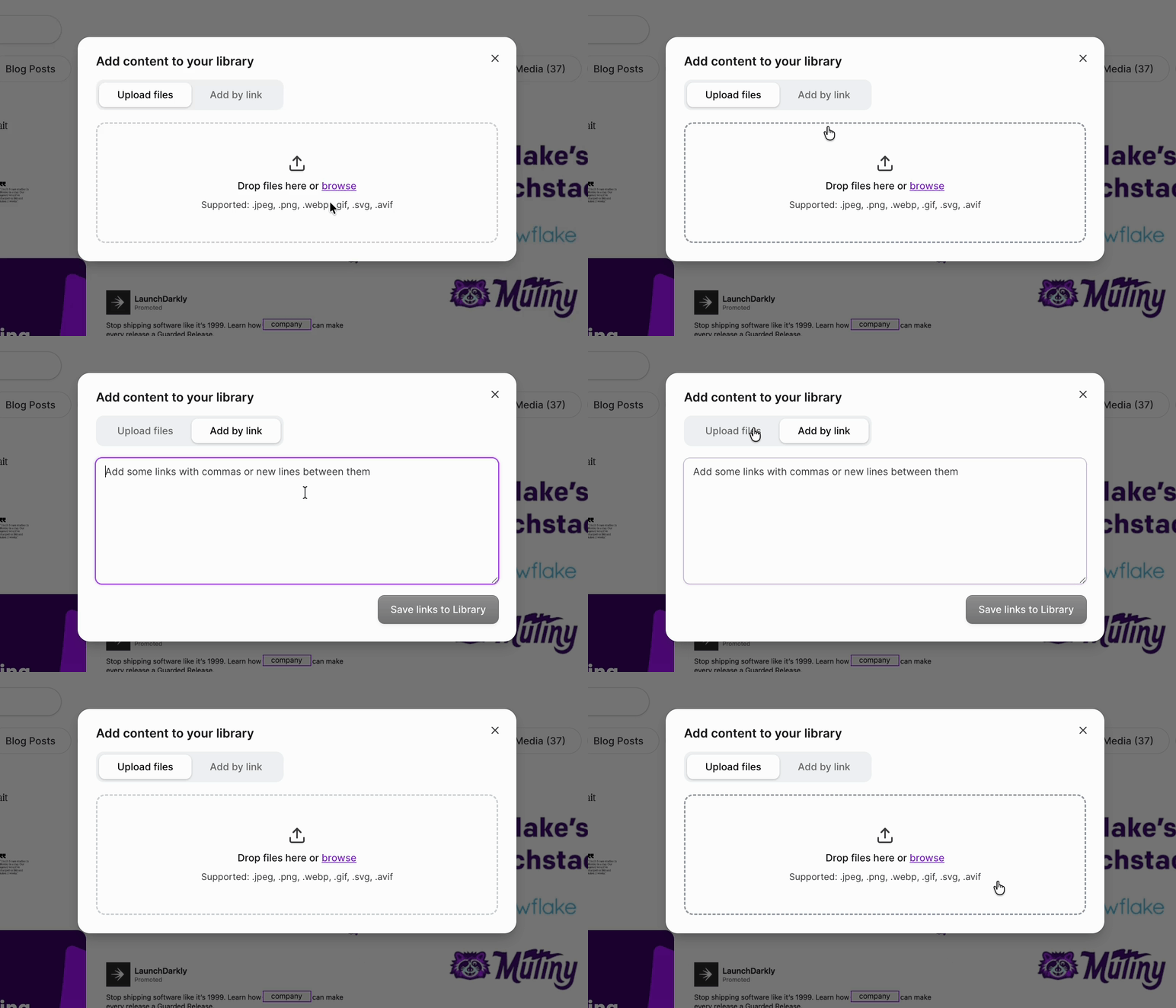
This will open an import modal where you can either paste the URLs of the resources you'd like to add or upload images. You can also add multiple URLs and images in one upload
Managing Your Resources
After importing, you can edit key details of your resources by clicking on the resource you'd like to edit. Then you'll be able to make the following changes:
On resources:
Edit the title and description of the resource
Choose a new thumbnail image
Crop thumbnail image
We recommend cropping to 4:3 to fit nicely on assets
Delete unwanted resources using the delete option
Note: Deleting from the library does not remove the asset from assets where it's already being used
On Images:
Crop the image
Change cover image
Adjust Title and Description
Delete unwanted images
Versioning a resource
If a resource changes, you do not need to hunt down every asset that links to it. Open the resource in the Library and upload a new version. Every link pointing at that resource now serves the new file, everywhere it is used.
This is useful for documents that get refreshed on a cycle, like a pricing proposal, a one-pager, or a security overview.
Using Resources from the Library
Once your library is populated, the creative agent will be able to pull these resources into assets. A prompt example would be:
Grab the three most relavent case studies from the library for x account
You will also have direct access to the images in the Library from the asset editor. To replace an image, hover over the image and click Replace - This will then open a side-modal where you can choose an image from the Library, upload a new image, or crop the existing image.
Need Help?
If you have questions or need help, the Mutiny Support team is here for you! You can submit a support ticket using the Submit a ticket button at the top of this page, or reach us at support@mutinyhq.com.