Creating and Using Folders in the Library
Last updated: September 1, 2026
Your library holds all of the resources Mutiny draws on when it creates assets. Folders and subfolders let you group those resources so you can find the right one quickly as your library grows.
Only users with the Owner, Admin, or Content Manager role can create folders in the Library. If you don't see these options, then your user does not have one of these roles.
Finding your library
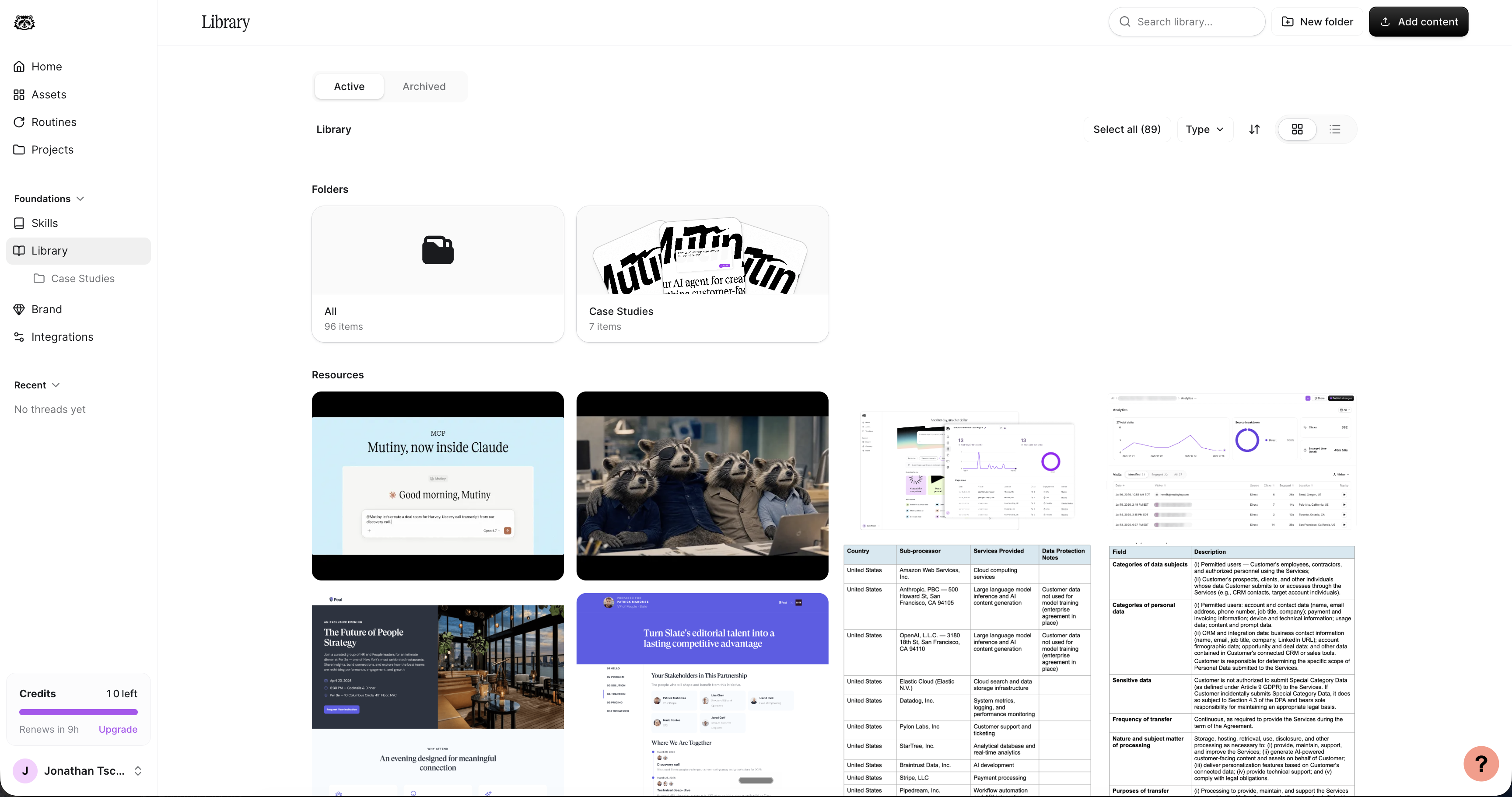
Go to Library under the Foundations dropdown in the left nav bar. By default, every resource sits in the All folder.
Creating a folder
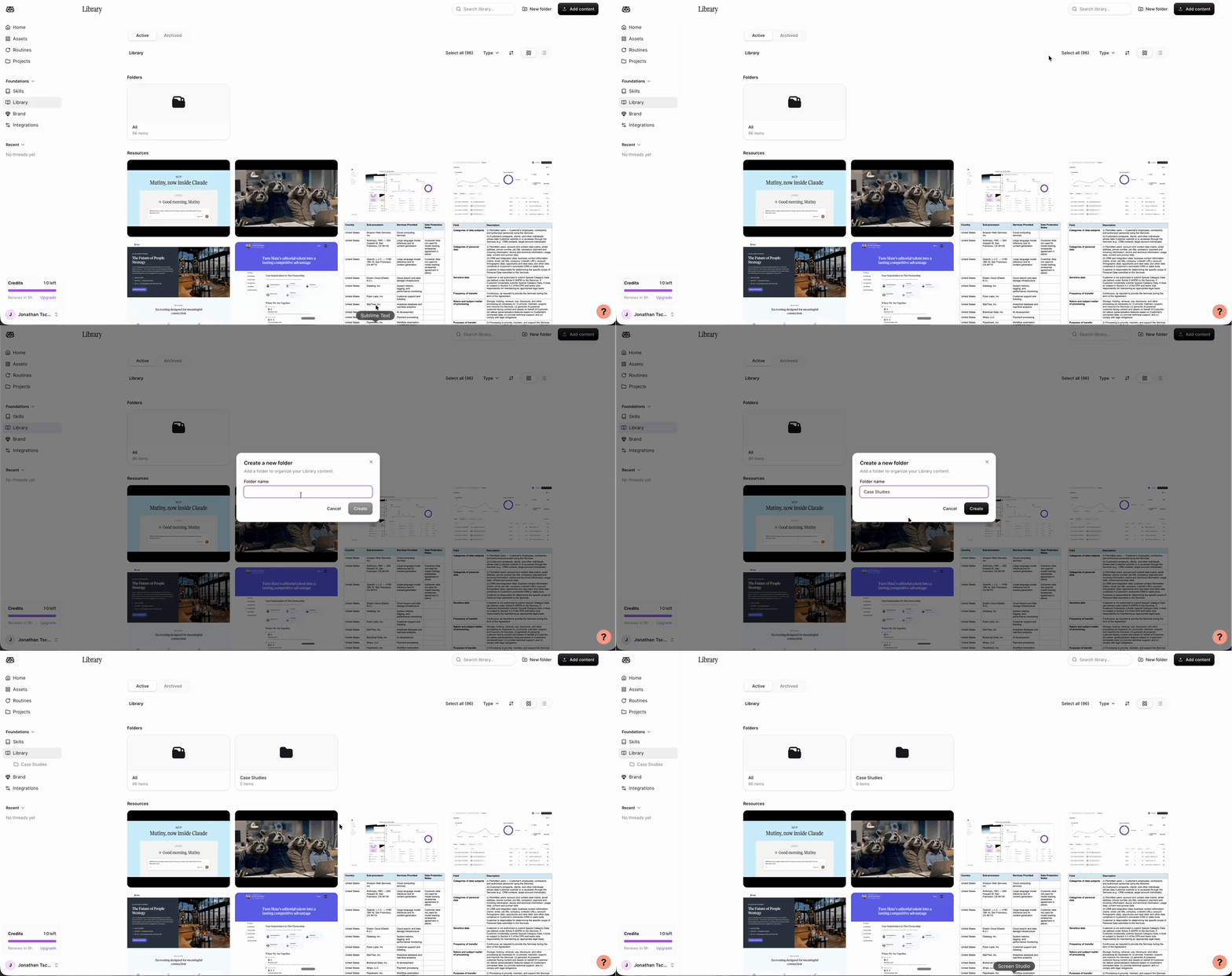
Click New folder in the top right and give the folder a name. Common examples can be creating folders for case studies, product images, presentations, etc.
Moving resources into a folder
Select the resources you want to group together, then choose Move to folder and pick the folder you want them in.
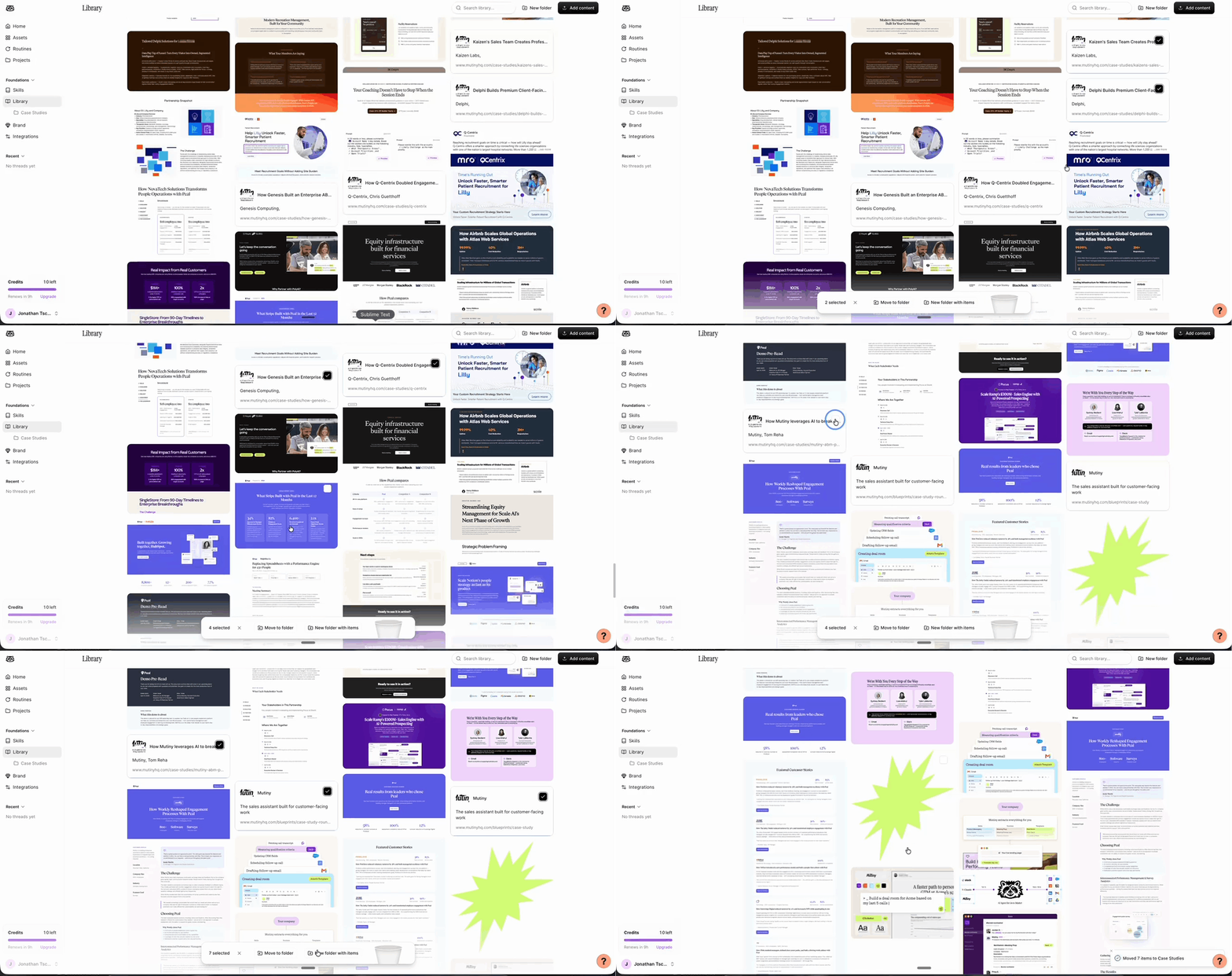
Once your resources have moved, they show up inside that folder.
When you have resources selected, you also get the option to create a new folder with those items in one step. Both paths get you to the same place, so use whichever fits how you work:
Create the folder first, then select resources and move them in
Select resources first, then create a new folder from your selection
Reorganizing resources
You can move resources between folders at any time. Open the folder, select the resources you want to relocate, then move them to a different folder or create a new folder from your selection.
Moving entire folders
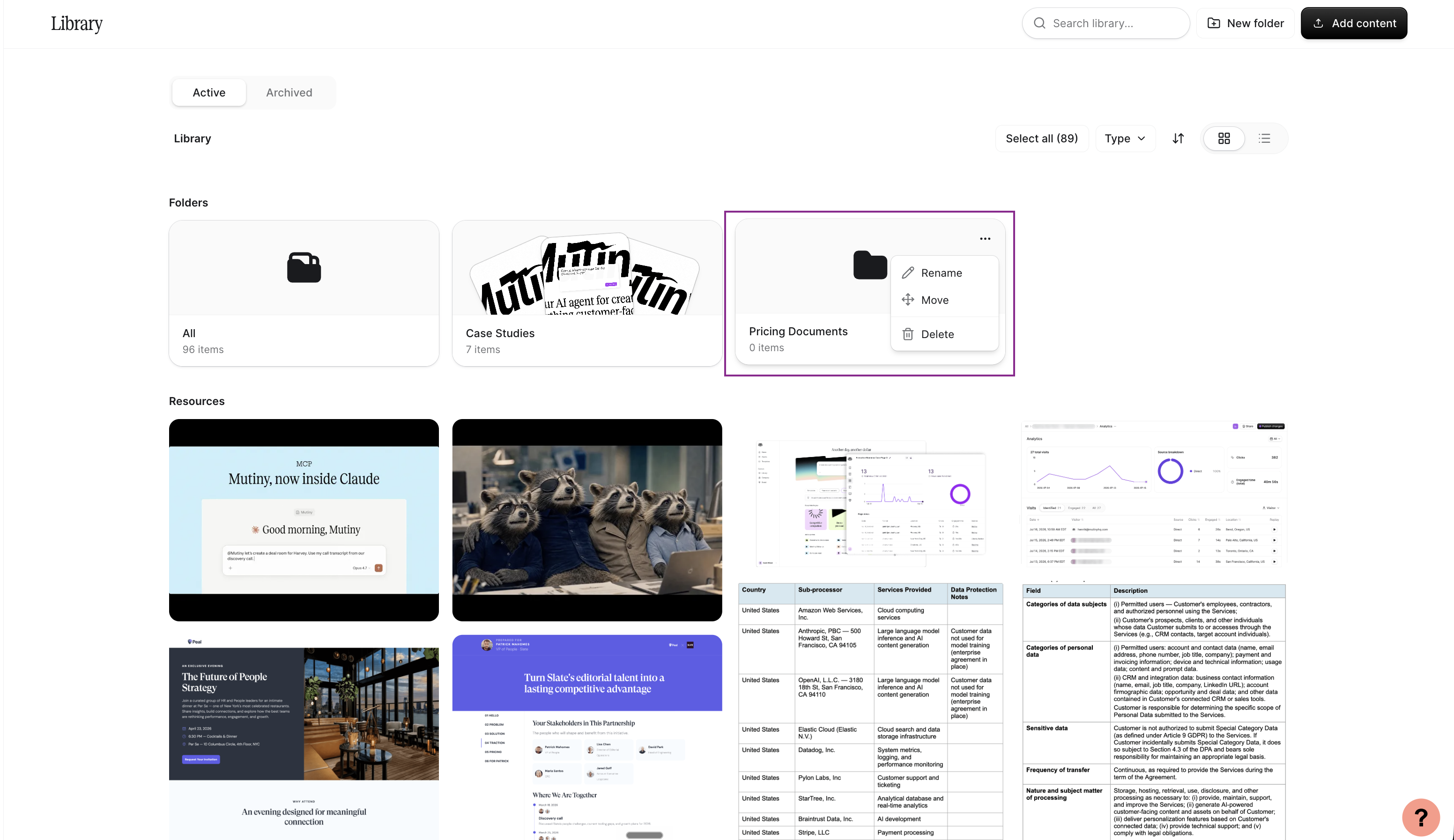
You can also move entire folders at once. To do this, hover over the folder and use the three-dot menu and click Move
This will give you the option to move the folder into another one as a subfolder.
Deleting Folders
To delete a folder, the folder must be empty. You can use the same format as moving resources discussed above. Once the folder is empty, hover over the folder and use the three-dot menu, and click Delete
Filtering by type
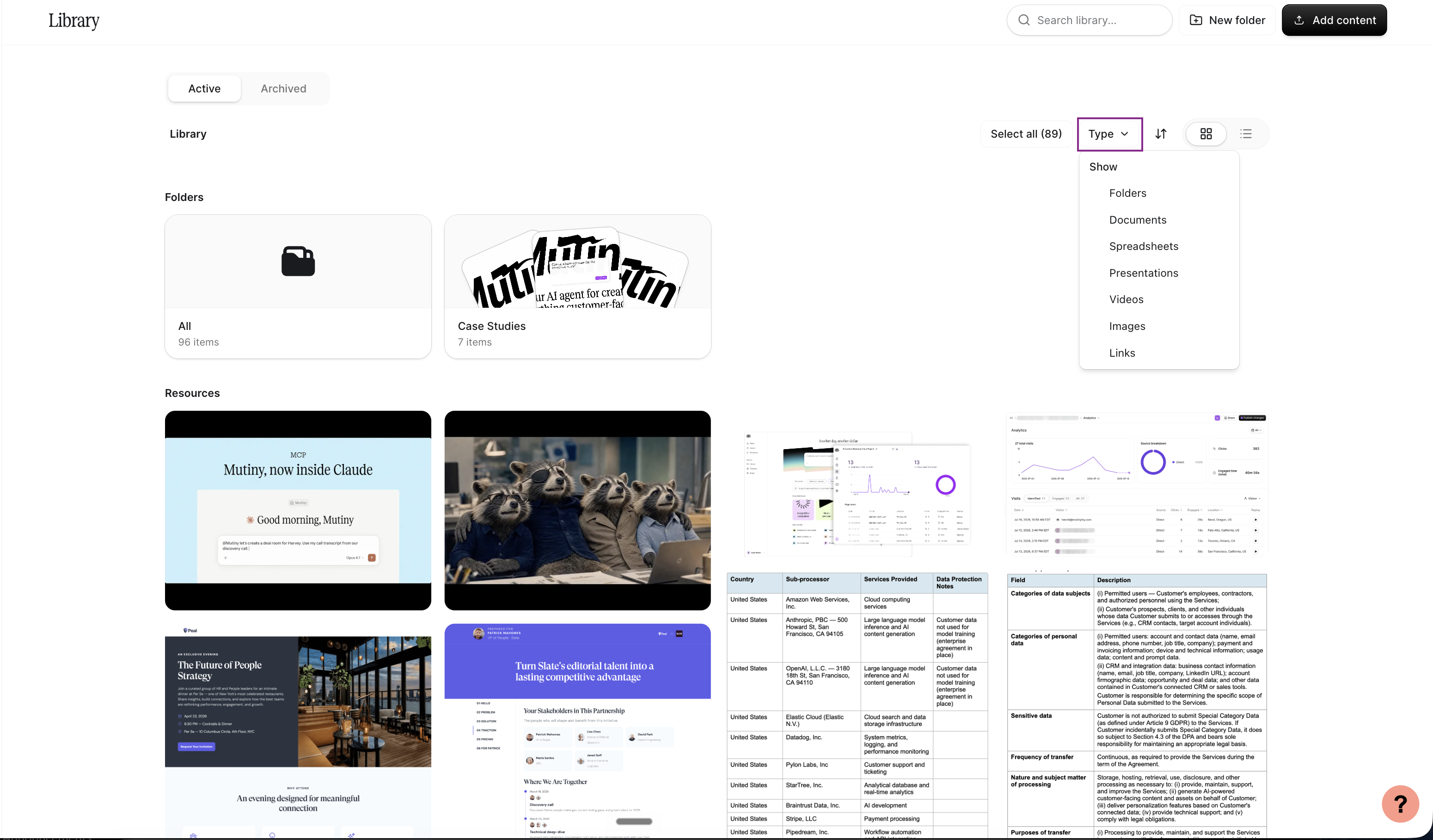
Filtering by type is a fast way to pull up one kind of resource when you're building out a folder.
In the primary library view, where you see the resources that aren't in a folder yet, click the Type dropdown in the top right. From here, you can show folders, documents, spreadsheets, presentations, and more.
Need Help?
If you have questions or need help, the Mutiny Support team is here for you! You can submit a support ticket using the Submit a ticket button at the top of this page, or reach us at support@mutinyhq.com.