Automating Call Coaching Summaries
Last updated: July 27, 2026
Mutiny can turn your team's calls into coaching material. With a routine, the agent reviews each rep's recent call transcripts and sends you a digest of coaching-worthy moments, so your feedback is grounded in what actually happened on calls instead of memory. The Gong integration in Mutiny is org-wide, so the agent can review calls across your whole team.
Connecting your integrations
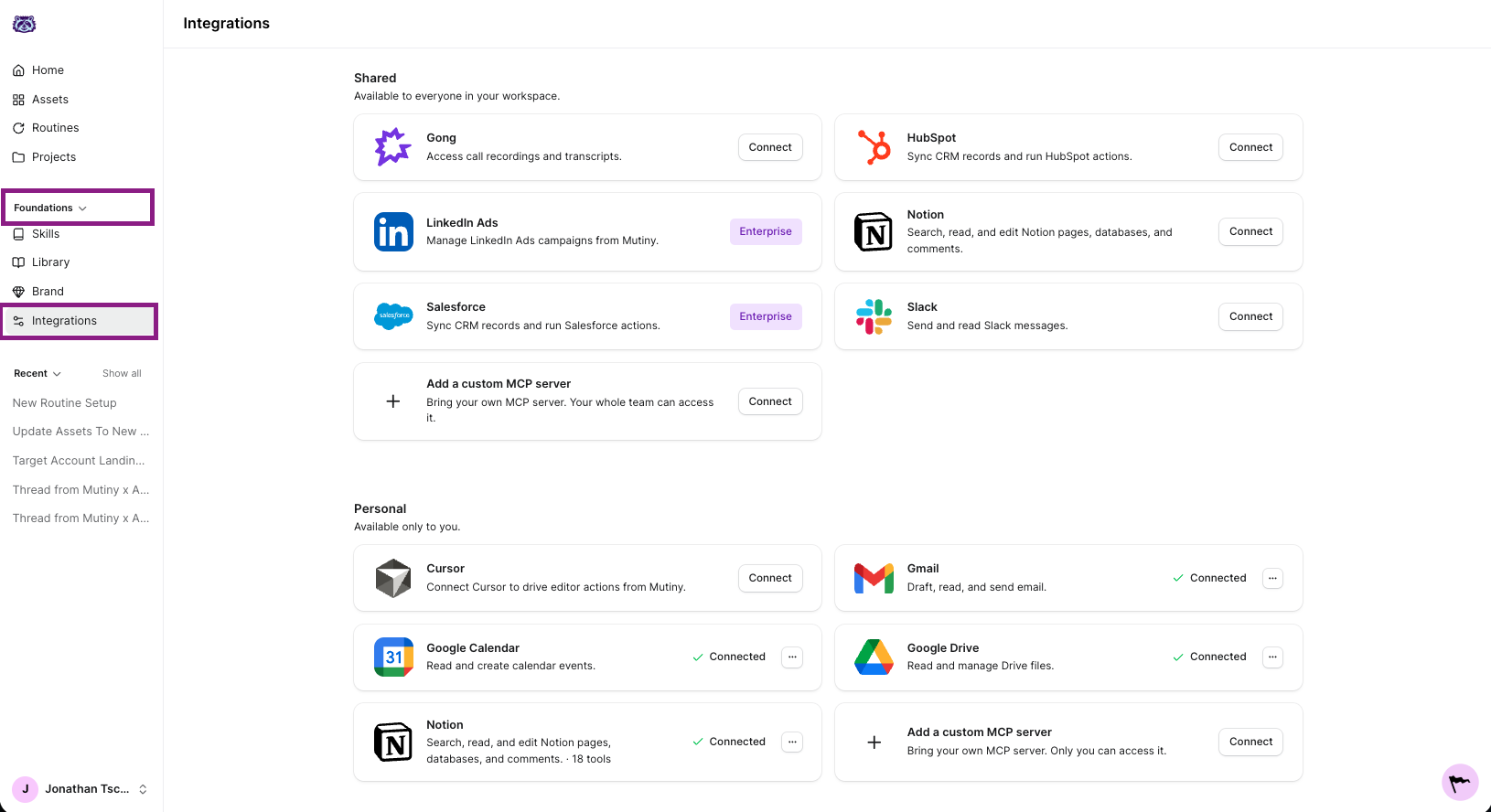
This routine reads your team's call transcripts, so connect your call tool, like Gong, Granola, or Fireflies. If you'd like the agent to deliver this via Slack, then connect Slack as well.
Creating the routine
Go to Routines in the left nav and click New routine in the top right. This launches a thread where the agent asks a few questions to set up your routine.
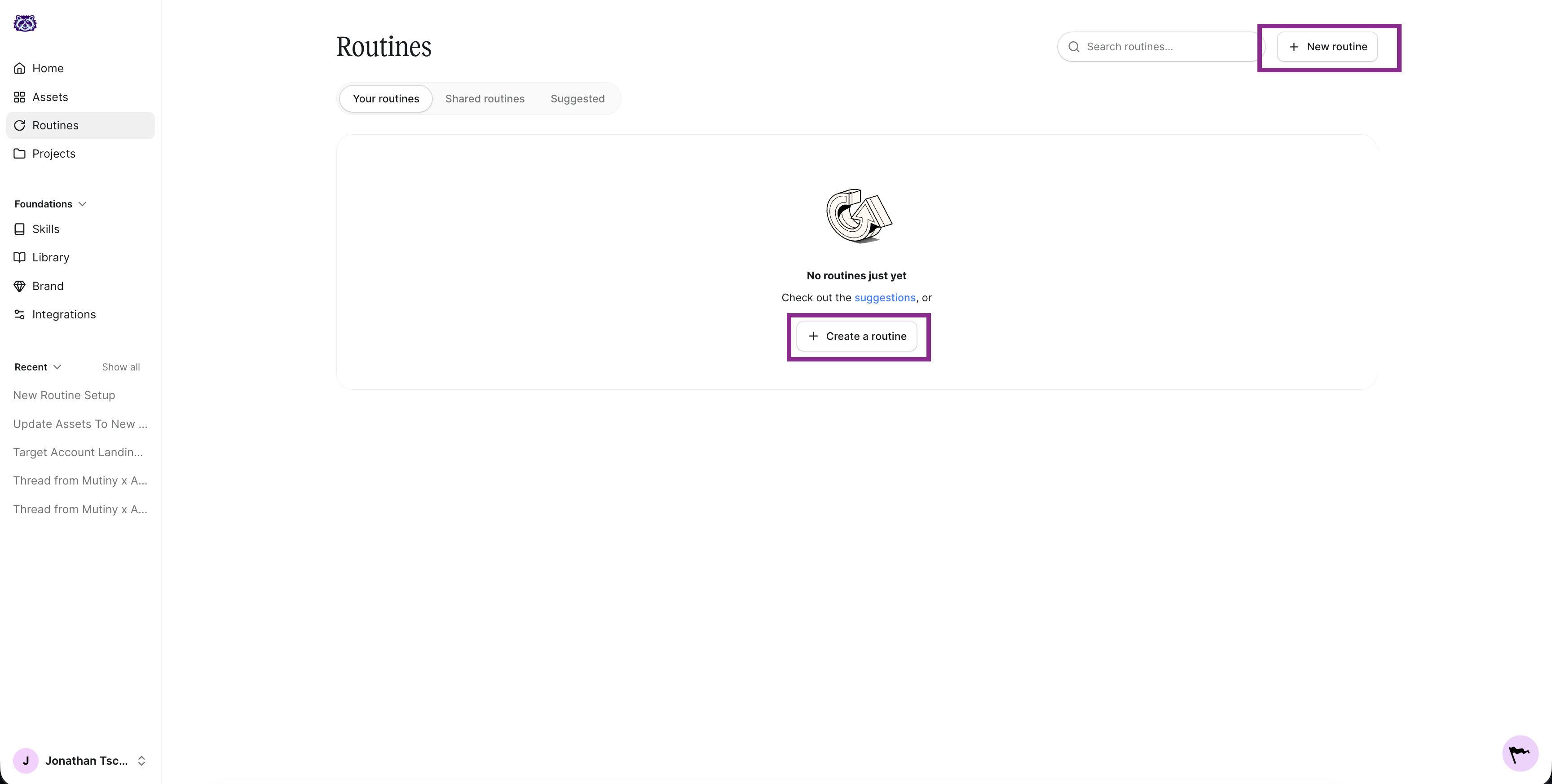
The agent will ask a series of questions about what the routine should do, when it should run, and where the output should go. Below are answers you can use to create this routine.
What should this routine do?
Review my team's call transcripts from the past week. For each rep, summarize coaching-worthy moments, like objections that weren't handled well, calls that ended without a clear next step, and moments where the rep talked more than they listened. Include what went well so I can reinforce it.
If your team coaches to a specific framework or call structure, describe it in the prompt so the agent evaluates calls against the way you actually coach.
When should it run?
A weekly run on Monday morning gives you a digest to work from ahead of that week's 1:1s. Choose a daily run if you want to catch coaching moments while calls are fresh.
Extra details & where the output should go
Have it send you the digest in Slack so it's easy to skim between meetings. If Slack isn't connected, have the agent email you instead. You can also save it as a doc if you want a running record of coaching notes per rep.
Enabling tool usage
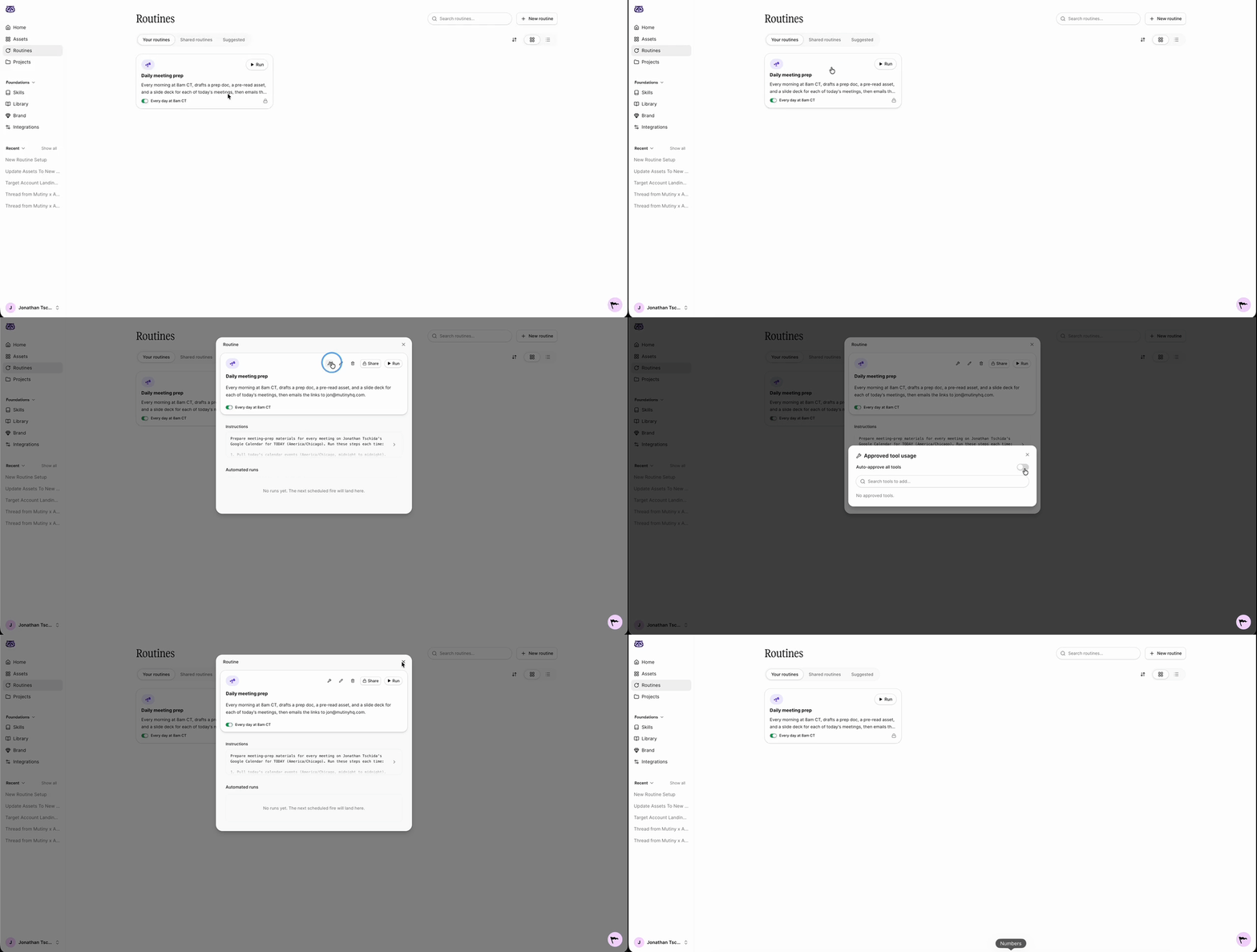
For the routine to run without a hitch, you need to auto-approve its tools. Click into the routine, then click the wrench icon on the routine card. This is titled Tool usage. Select Auto approve all tools.
This lets the Mutiny agent make requests to your connected tools, like Gong and Slack, without pausing for approval each time.
Editing and monitoring your routine
Once created, your routine appears on the Routines page and in the thread, along with a summary of what it will do.
When you open the routine, you'll see the instructions the agent drafted when you created it. Click into these to edit them at any time, whether you want to change what counts as a coaching moment or add your team's call framework.
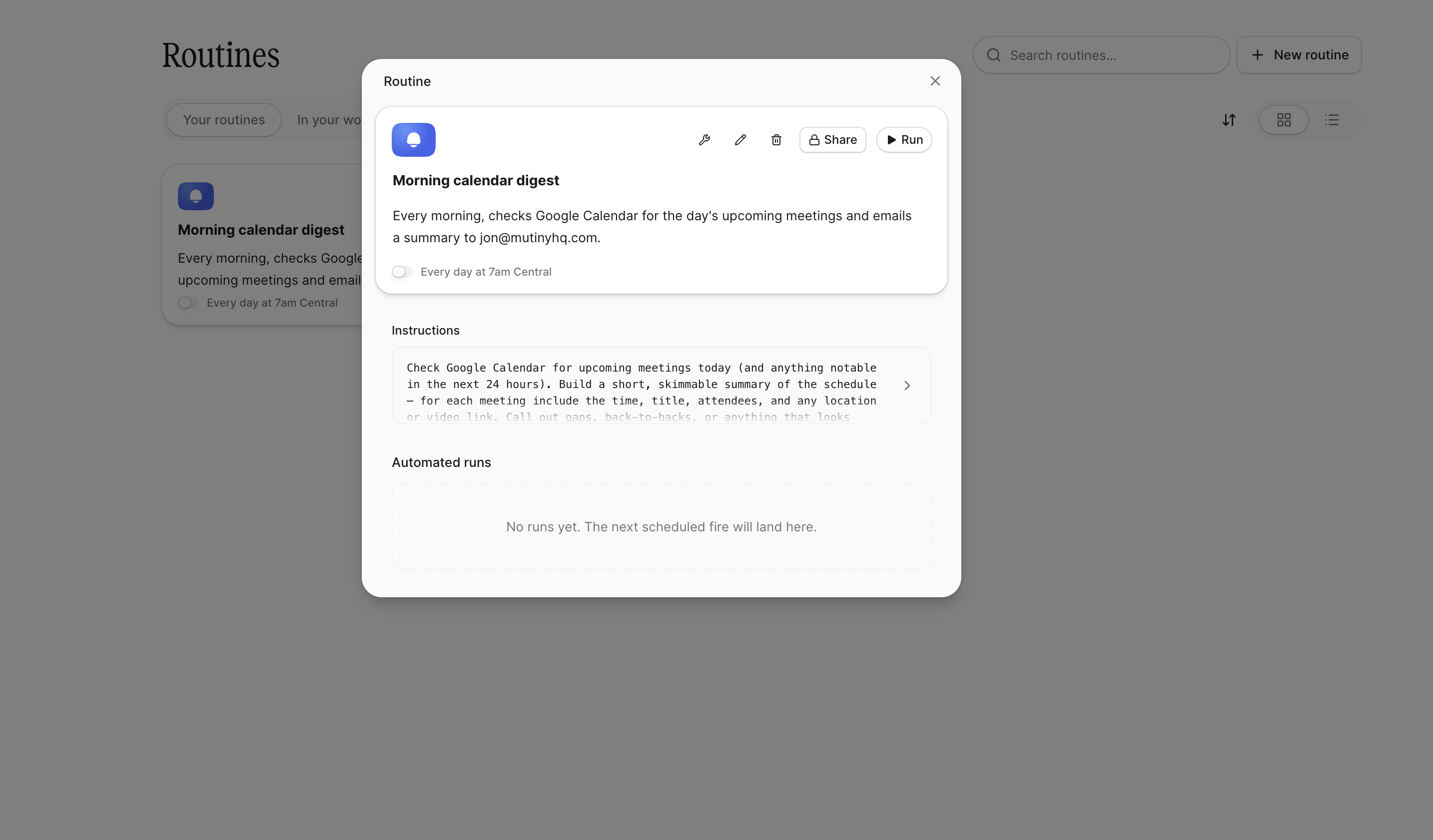
You'll also see a log of every run. These populate as the routine runs, so you can check what the agent did and confirm everything is working.
Need Help?
If you have questions or need help, the Mutiny Support team is here for you! You can submit a support ticket using the Submit a ticket button at the top of this page, or reach us at support@mutinyhq.com.