Automating Rep 1:1 Prep
Last updated: July 7, 2026
Mutiny can prep your rep 1:1s for you. With a routine, the agent checks your calendar for upcoming 1:1s, pulls that rep's pipeline and recent calls, and builds a prep doc so you walk in knowing exactly what to cover.
Connecting your integrations
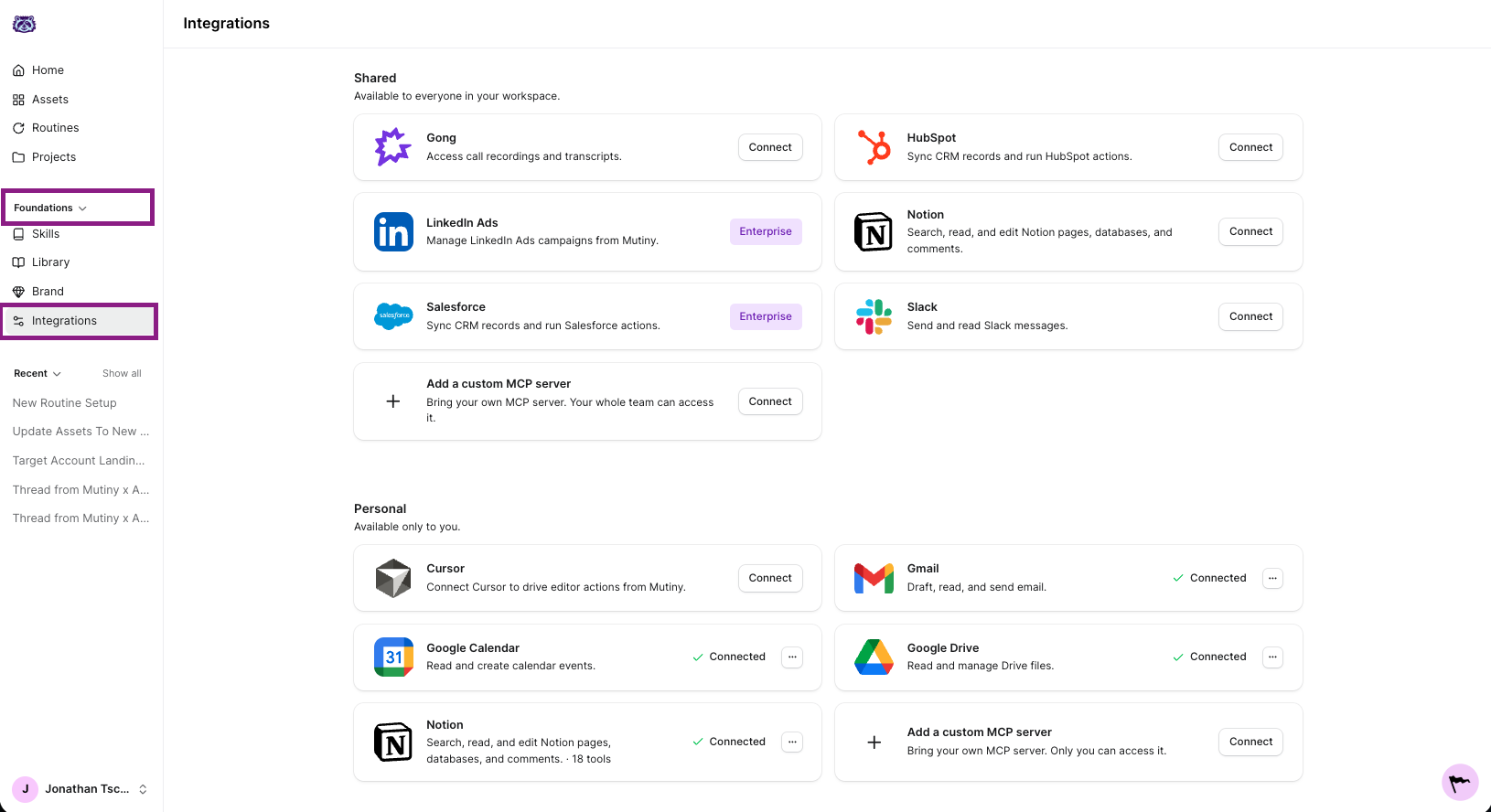
This routine needs a few connections. Connect Google Calendar so the agent can see your 1:1s. Connect HubSpot, or Salesforce if you're on Enterprise, so it can pull each rep's deals. Connect your call tool, like Gong, Granola, or Fireflies, so it can review their recent calls. If you want the prep doc in Notion or Google Drive, connect those as well.
Creating the routine
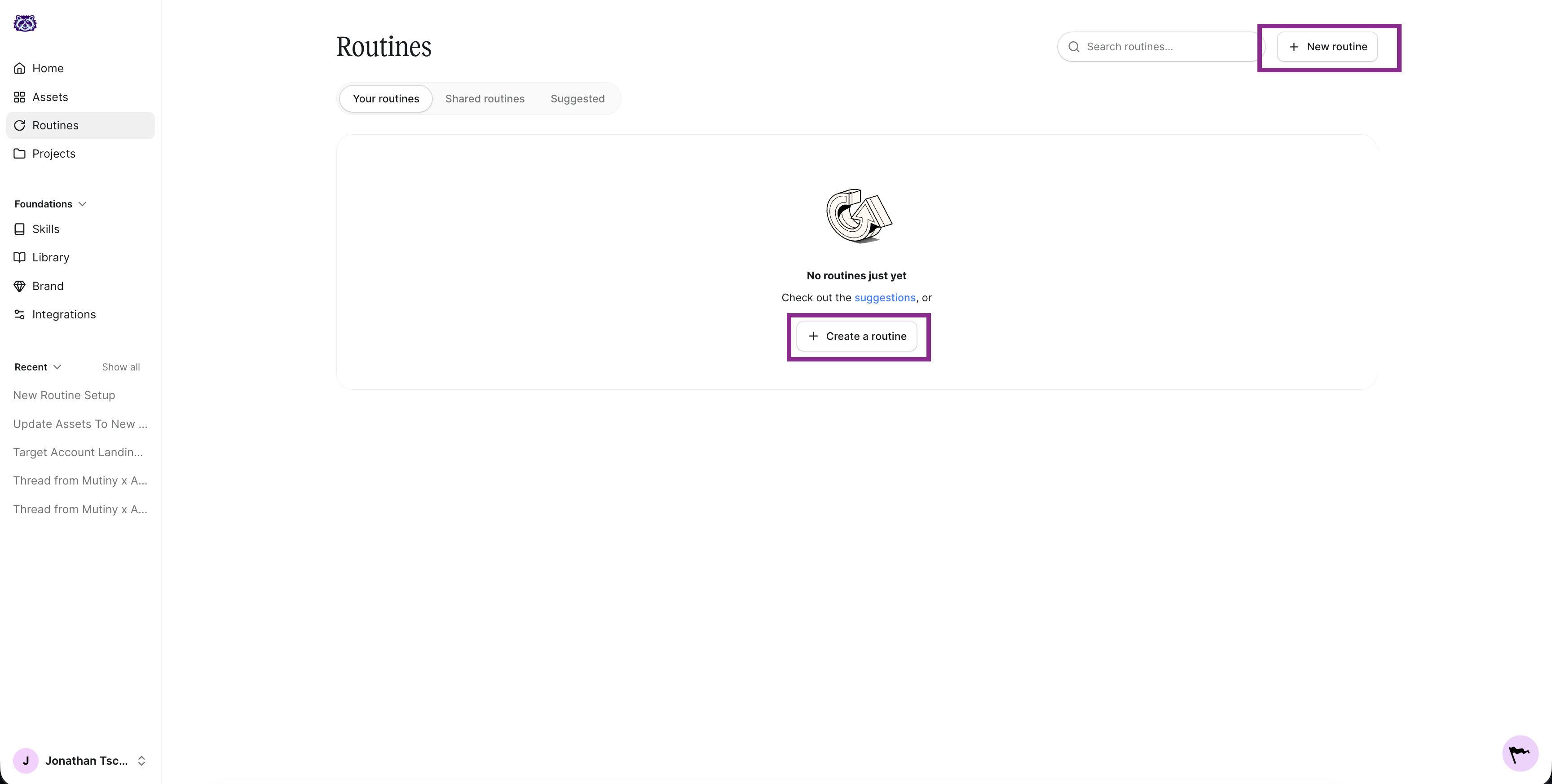
Go to Routines in the left nav and click New routine in the top right. This launches a thread where the agent asks a few questions to set up your routine.
The agent will ask a series of questions about what the routine should do, when it should run, and where the output should go. Below are answers you can use to create this routine.
What should the routine do?
Check my calendar for any 1:1s with my reps today. For each one, build a prep doc covering that rep's open deals, any deals that stalled or changed since our last 1:1, and highlights from their recent calls, including anything worth coaching on.
If you keep a running 1:1 doc per rep, tell the agent to update that doc instead of creating a new one each time.
When should it run?
Choose every weekday morning so prep is ready for whichever 1:1s land on your calendar that day. On days with no 1:1s, the routine simply has nothing to prep.
Where should the output go?
Have it email you the prep docs each morning, or save them as docs in Notion or Google Drive so you and the rep can both work from them.
Enabling tool usage
For the routine to run without a hitch, you need to auto approve its tools. Click into the routine, then click the wrench icon on the routine card. This is titled Tool usage. Select Auto approve all tools.
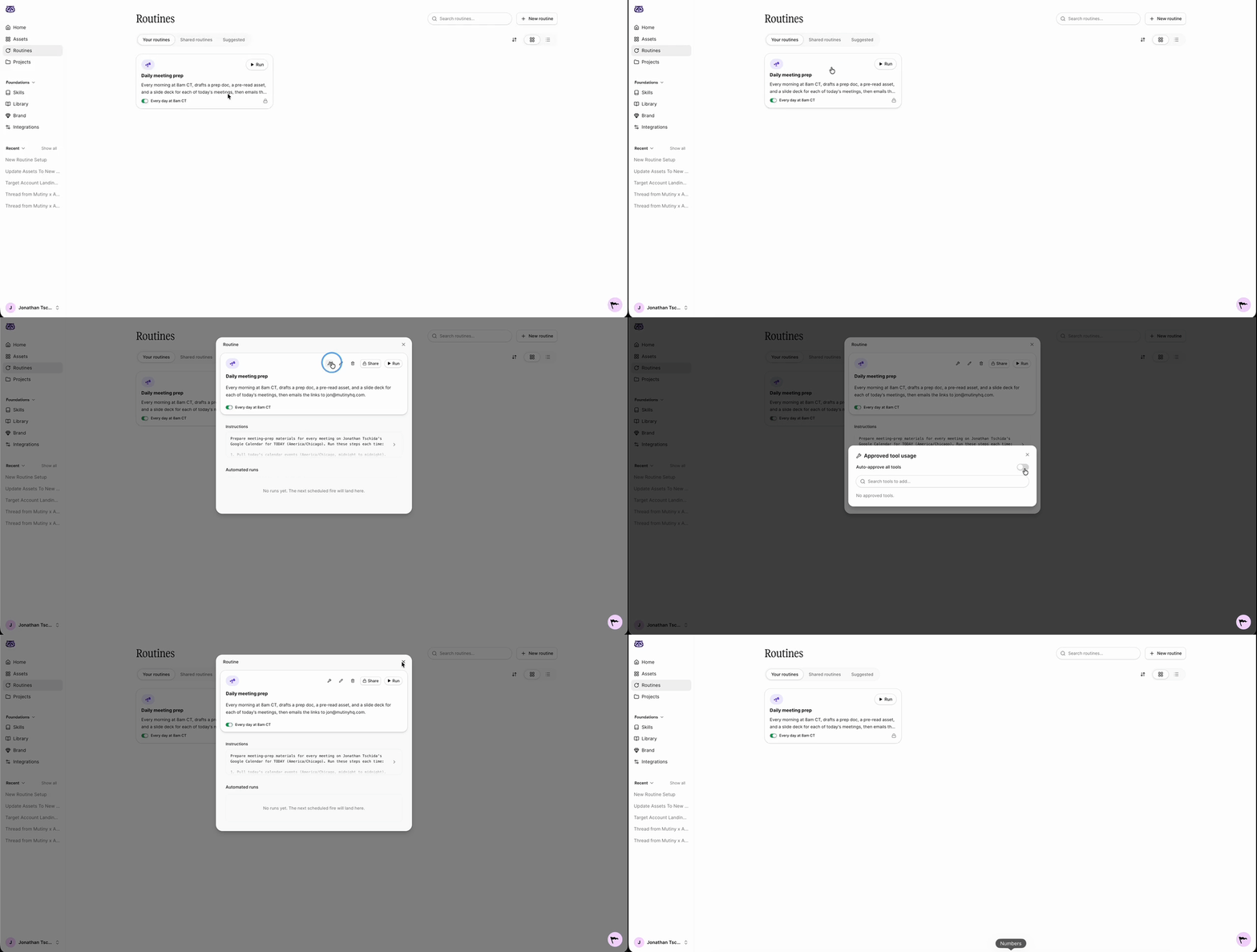
This lets the Mutiny agent make requests to your connected tools, like Google Calendar, HubSpot, and Gong, without pausing for approval each time.
Editing and monitoring your routine
Once created, your routine appears on the Routines page and in the thread, along with a summary of what it will do.
When you open the routine, you'll see the instructions the agent drafted when you created it. Click into these to edit them at any time, whether you want to add sections to the prep doc or change which meetings count as 1:1s.
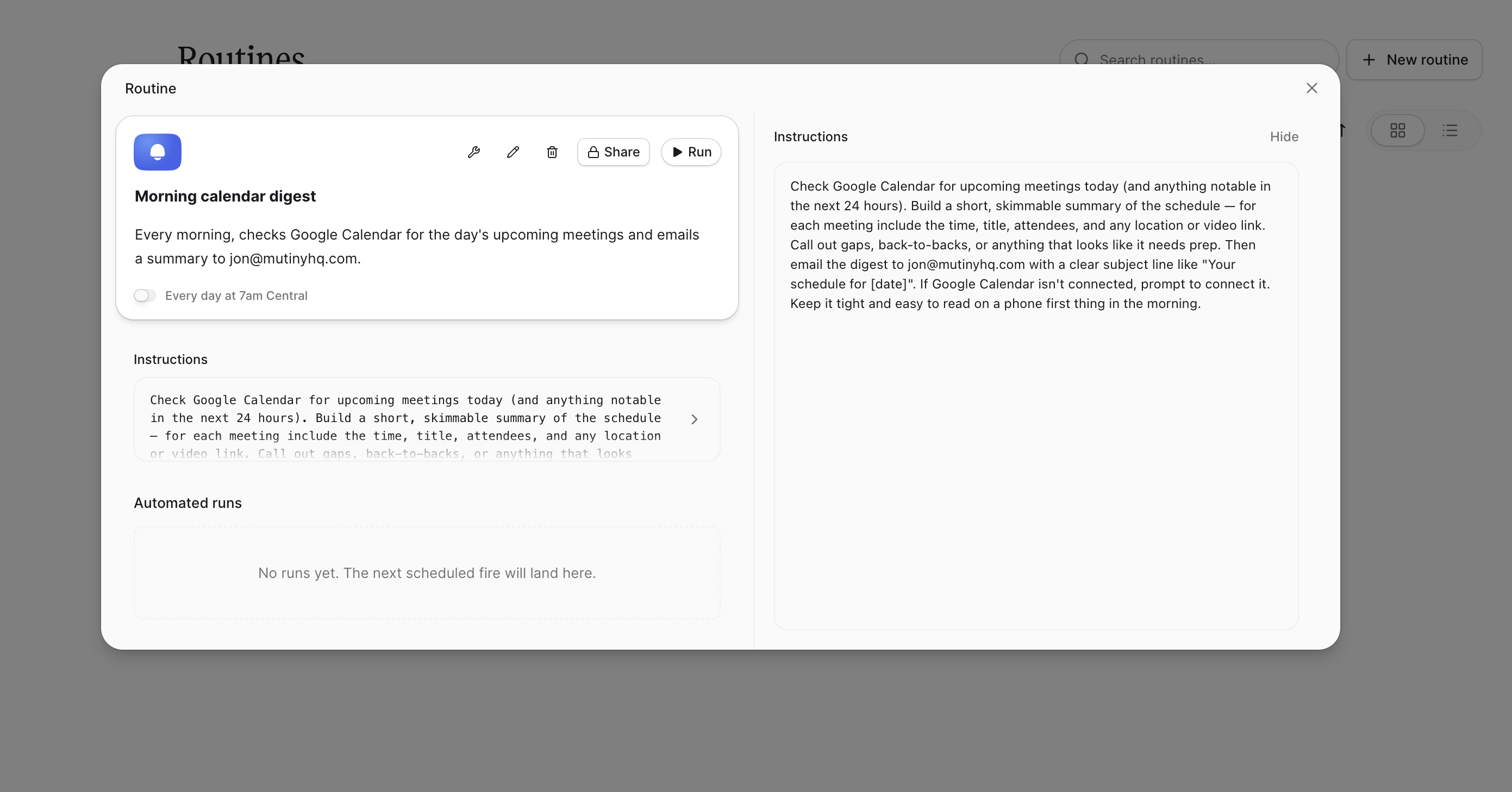
You'll also see a log of every run. These populate as the routine runs, so you can check what the agent did and confirm everything is working.
Need Help?
If you have questions or need help, the Mutiny Support team is here for you! You can submit a support ticket using the Submit a ticket button at the top of this page, or reach us at support@mutinyhq.com.