Automate Outreach to Stale Deals
Last updated: July 1, 2026
Mutiny can spot deals that have gone quiet and help you re-engage them before they slip away. With a routine, the agent reviews your CRM for opportunities with no recent activity, drafts a re-engagement email for each, and builds a personalized asset to go with it.
Connecting your integrations
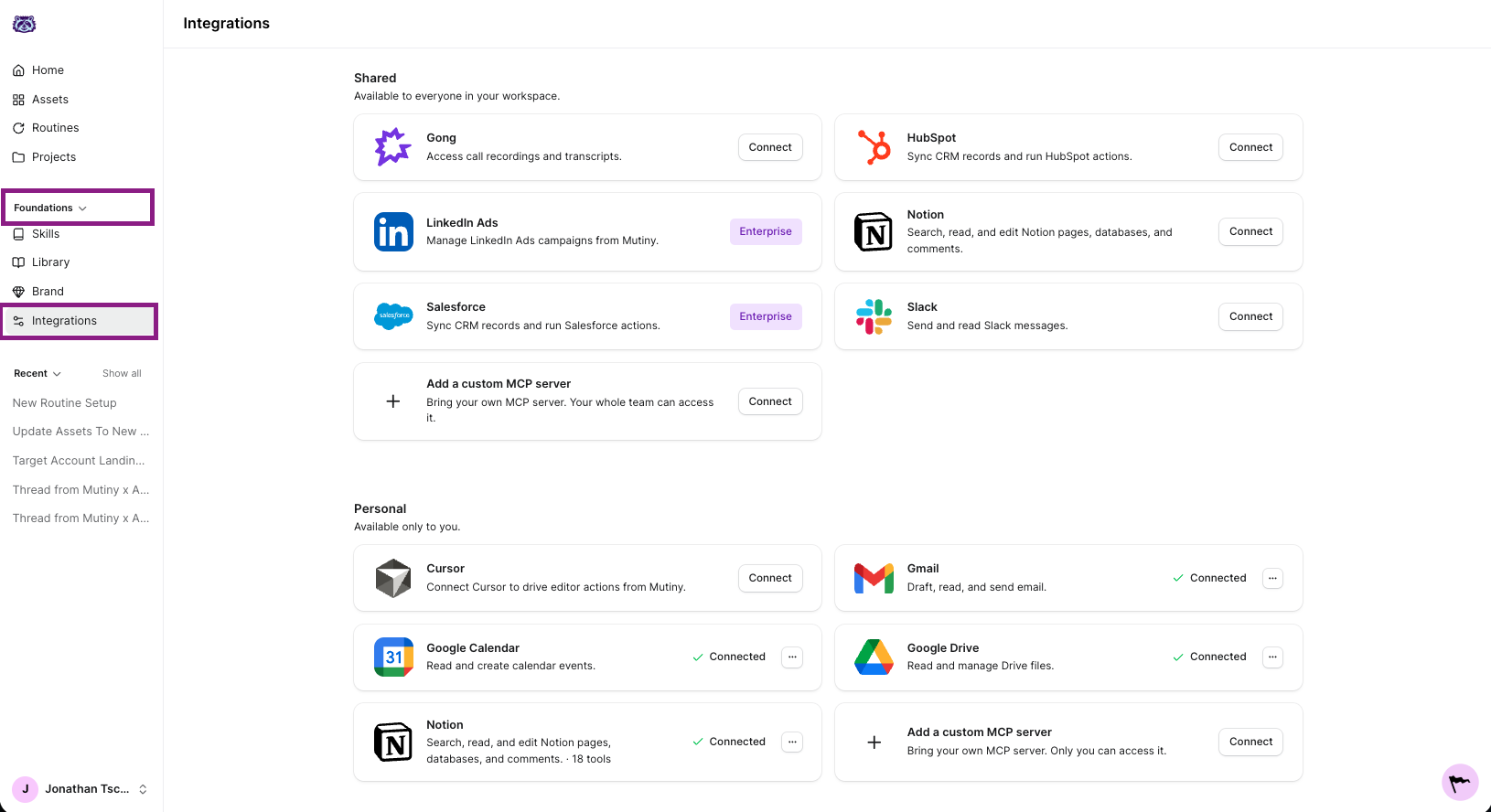
This routine reads from your CRM, so connect HubSpot, or Salesforce if you are on Enterprise. If you would like the agent to draft outreach emails for you, connect Gmail as well.
You can check connected tools via the Integrations page:
Creating the routine
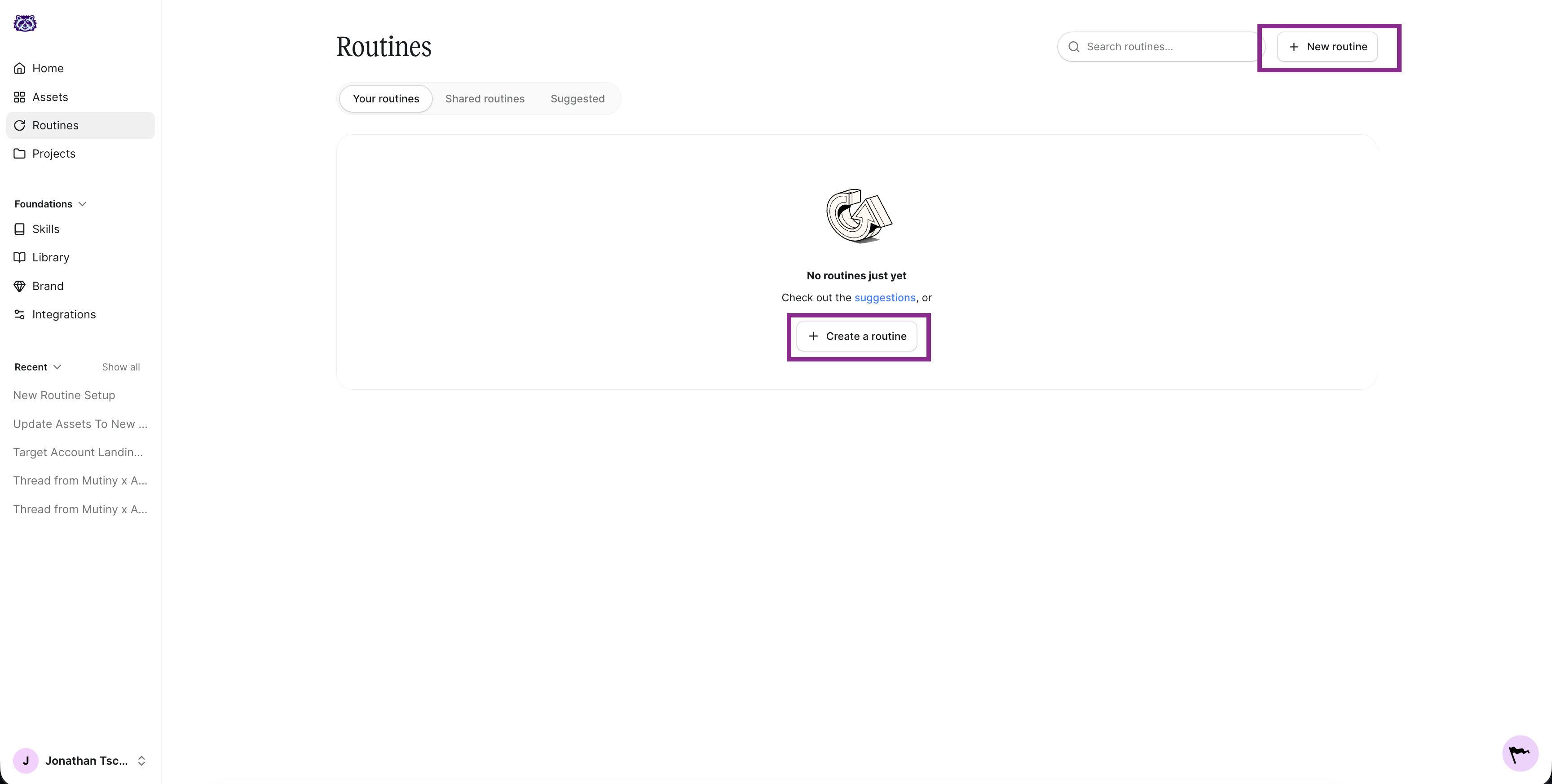
Go to Routines in the left nav and click New routine in the top right. This launches a thread where the agent asks a few questions to set up your routine.
The agent will ask a series of questions about what the routine should do, when it should run, and where the output should go. Below are answers you can use to create this routine.
What should this routine do?
Review my CRM for open deals with no activity in the last 14 days. For each one, draft a re-engagement email and build a personalized asset I can send along with it.
You can set the inactivity window to whatever fits your process, like 14, 30, or 45 days.
When should it run?
Running this weekly on Monday morning gives you a fresh list of deals to revive at the start of each week. Choose a daily run if you want to stay on top of them continuously.
Where should it output?
Finally, the agent asks where the output should go. Have it email you with the deals it flagged and the drafts it created, so you can review each one and send when you are ready.
If you have Slack connected, you can also ask the agent to DM you when the routine runs.
Enabling tool usage
For the routine to run without a hitch, you need to auto approve its tools. Click into the routine, then click the wrench icon on the routine card. This is titled Tool usage. Select Auto approve all tools.
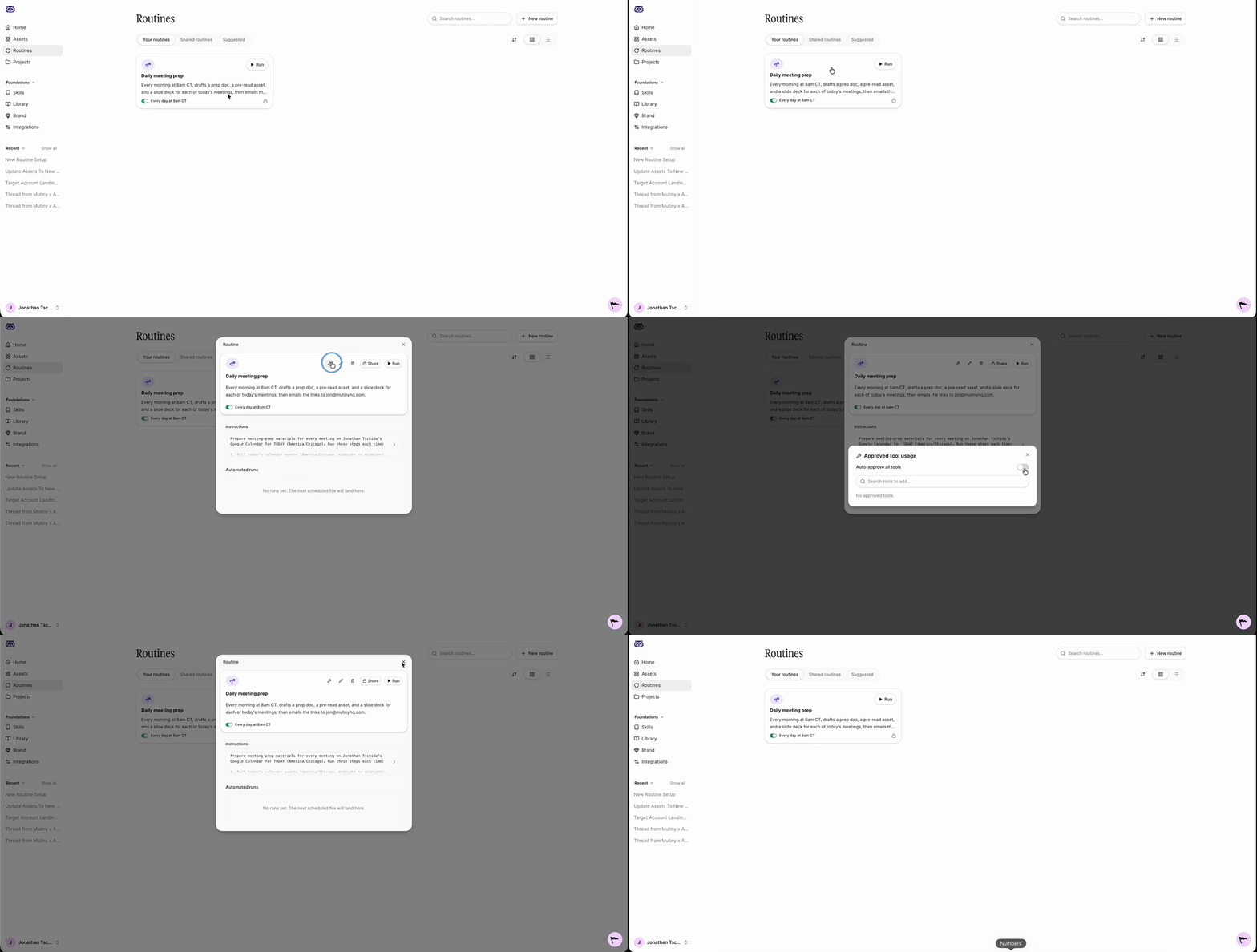
This lets the Mutiny agent make requests to your connected tools, like HubSpot, Salesforce, and Gmail, without pausing for approval each time.
Editing and monitoring your routine
Once created, your routine appears on the Routines page and in the thread, along with a summary of what it will do.
When you open the routine, you will see the instructions the agent drafted when you created it. Click into these to edit them at any time, whether you want to change the inactivity window or adjust the email drafts.
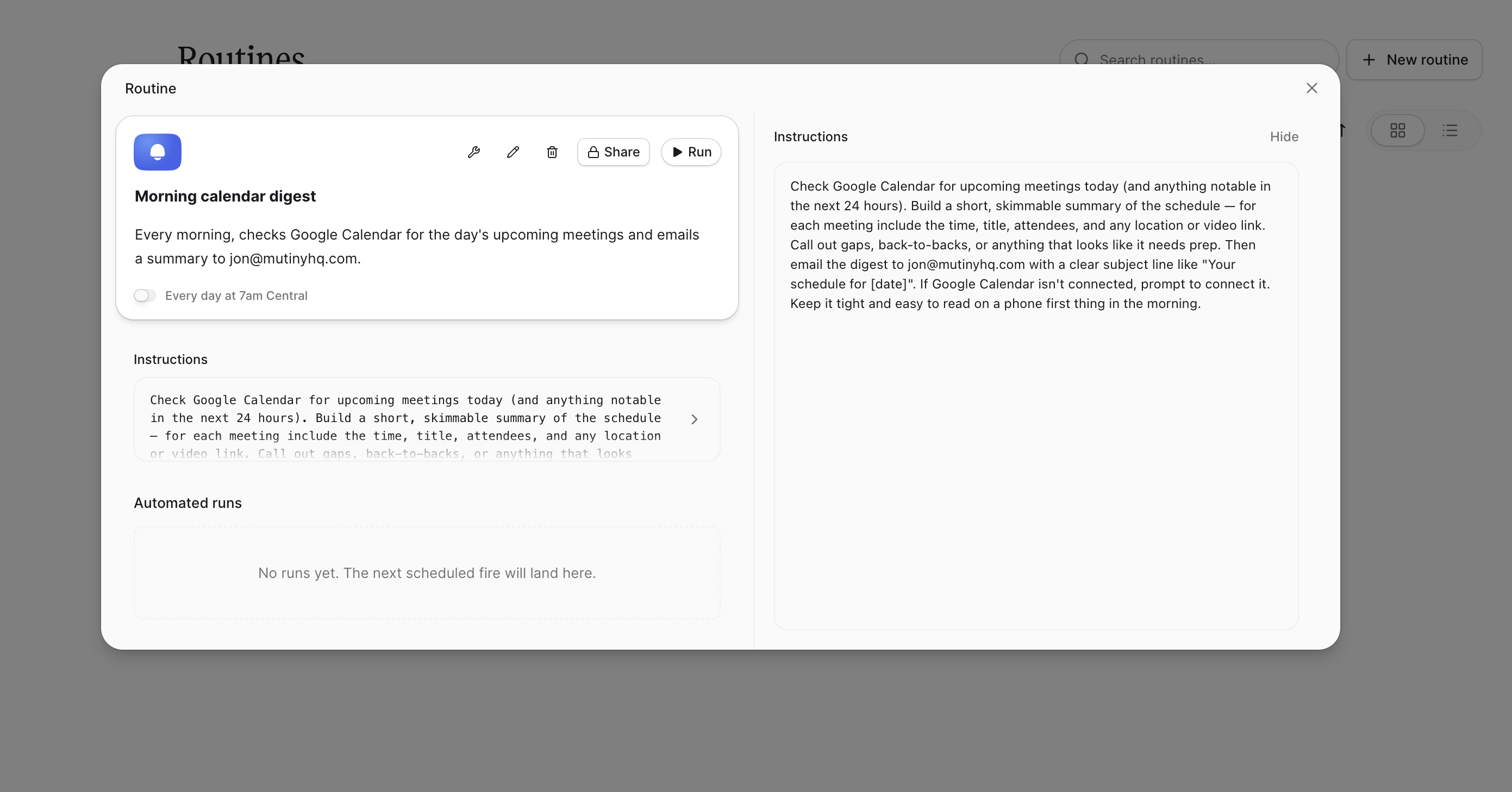
You will also see a log of every run. These populate as the routine runs, so you can check what the agent did and confirm everything is working.
Need Help?
If you have questions or need help, the Mutiny Support team is here for you! You can submit a support ticket using the Submit a ticket button at the top of this page, or reach us at support@mutinyhq.com.