Integrating with Common Room
Last updated: June 23, 2026
Once connected, Mutiny will be able to access your Common Room instance via the Common Room MCP
Connecting to Common Room
To get started, head to the integrations page in Mutiny
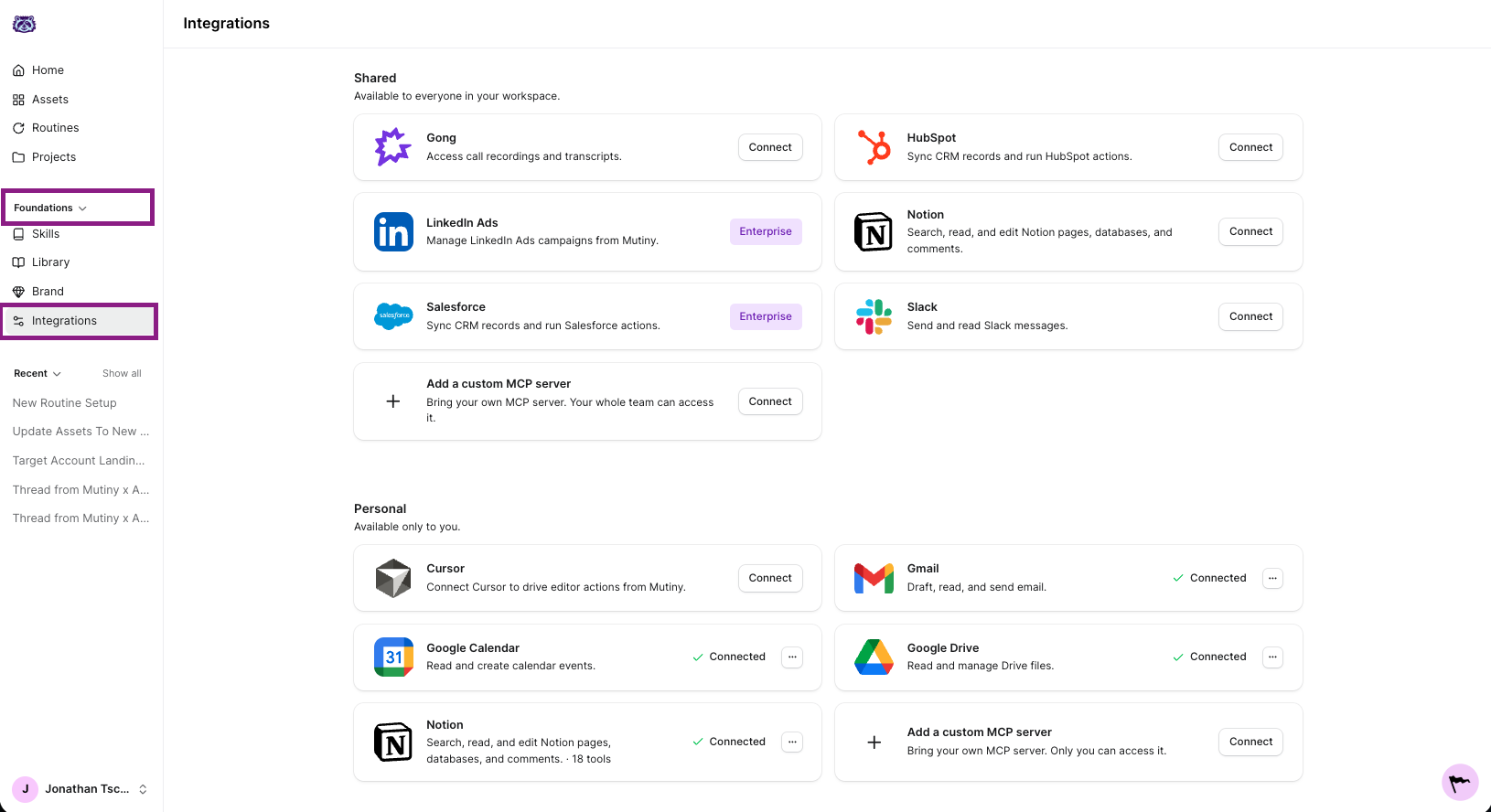
If you have Admin or Owner permissions in Mutiny, this integration can be set up on a shared level or a personal level. Shared means everyone in your Mutiny instance can access the data from this integration; Personal means only your account can access this integration.
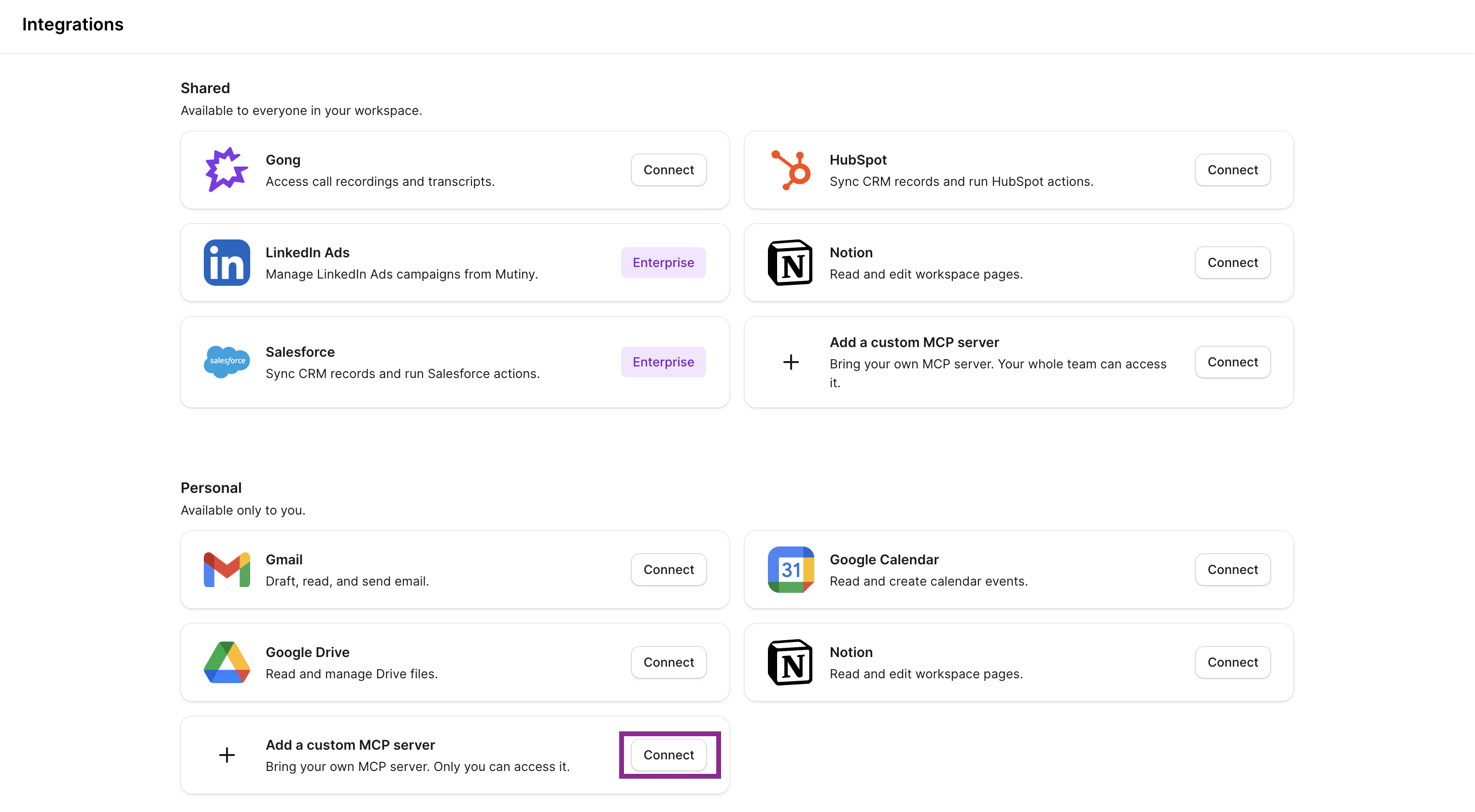
From the Add a custom MCP server click Connect:
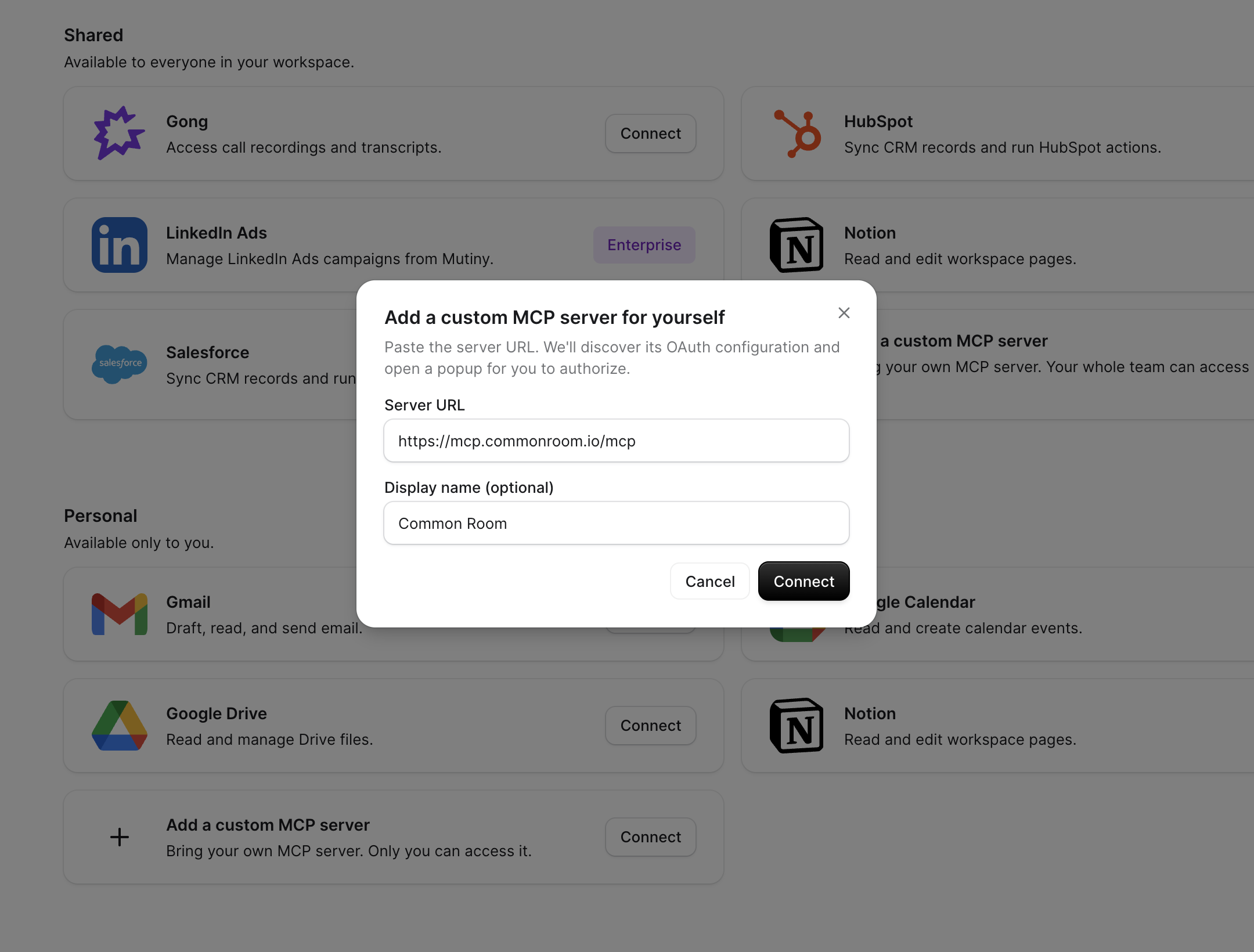
This will open a modal where you can add the Common Room MCP server URL, as well as the display name in Mutiny. Set the display name to Common Room, and add the respective MCP server URL: https://mcp.commonroom.io/mcp
Once added, click Connect. This will launch a modal where you will authorize your account
Disconnecting
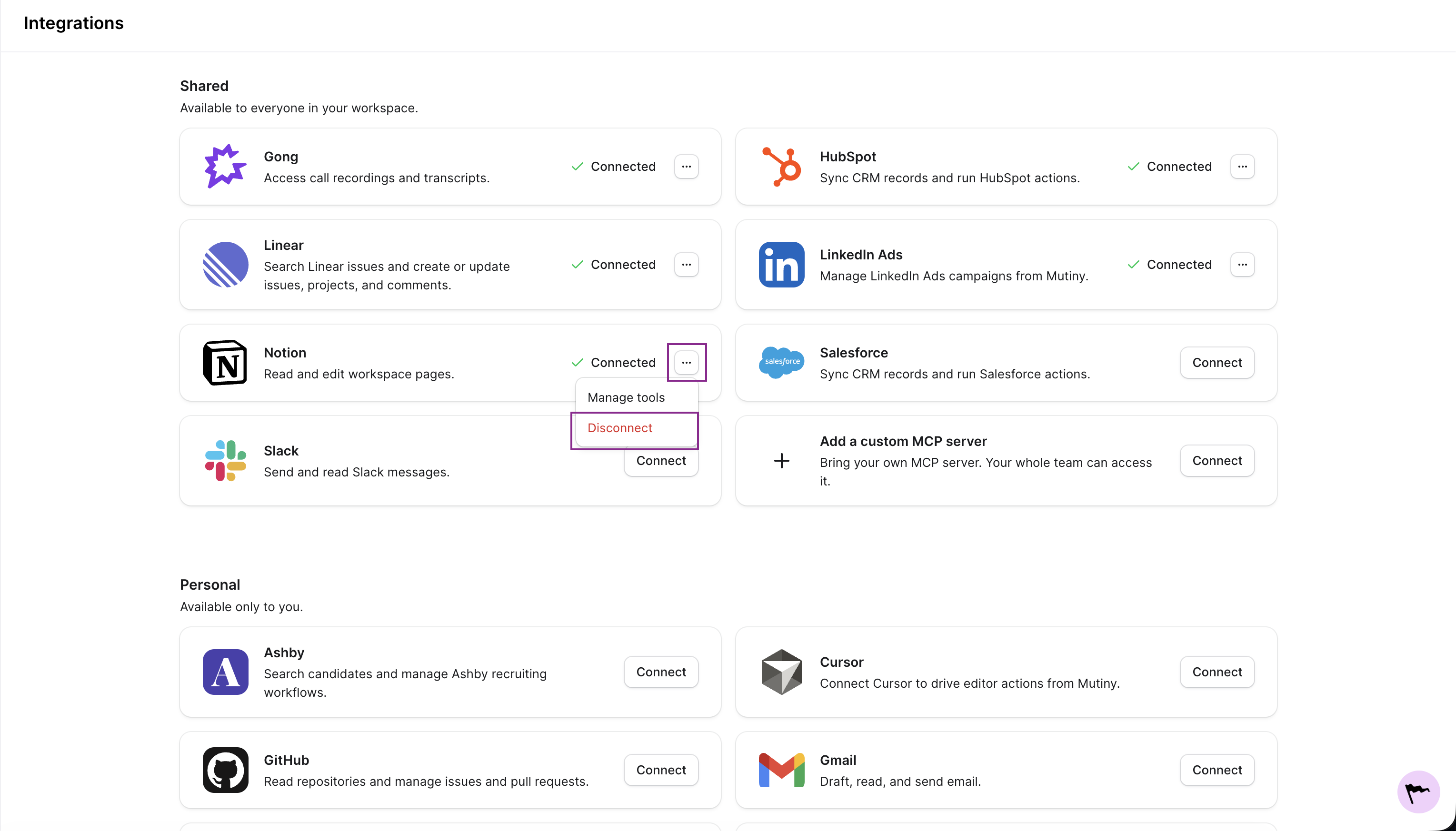
You can disconnect any integration from the three-dot menu on the integration card
Need Help?
If you have questions or need help, the Mutiny Support team is here for you! You can submit a support ticket using the Submit a ticket button at the top of this page, or reach us at support@mutinyhq.com.