Connect Your Tools to Mutiny (Custom integrations)
Last updated: July 10, 2026
Mutiny lets you connect your own tools directly through custom MCP servers. Once connected, the Mutiny agent can pull data from those tools.
Connecting Your Tools
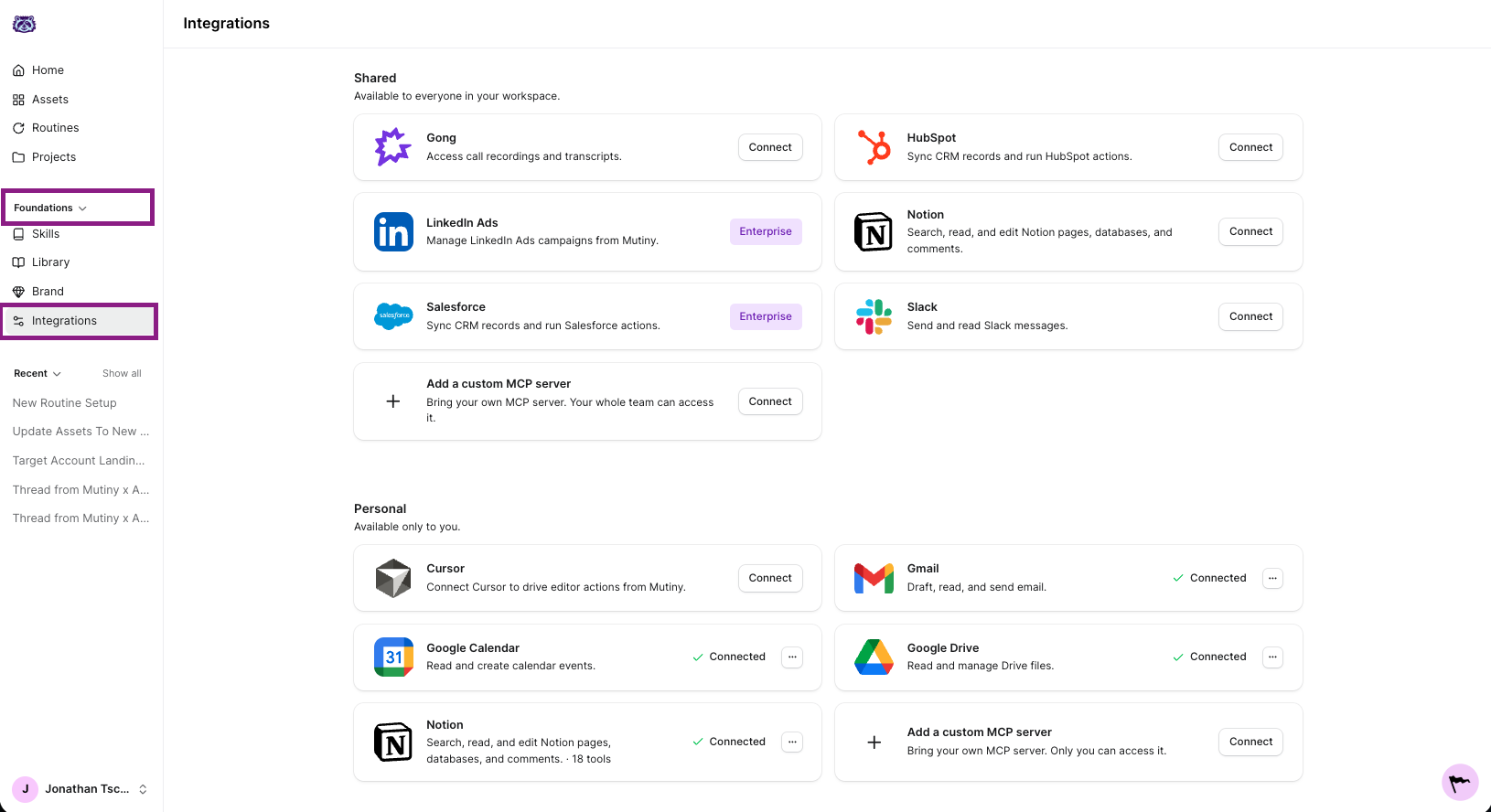
To get started, head to the Integrations page in Mutiny.
Setting Up a Custom Integration
Owners and admins can set up shared integrations that are available to the whole team. All users can set up personal integrations.
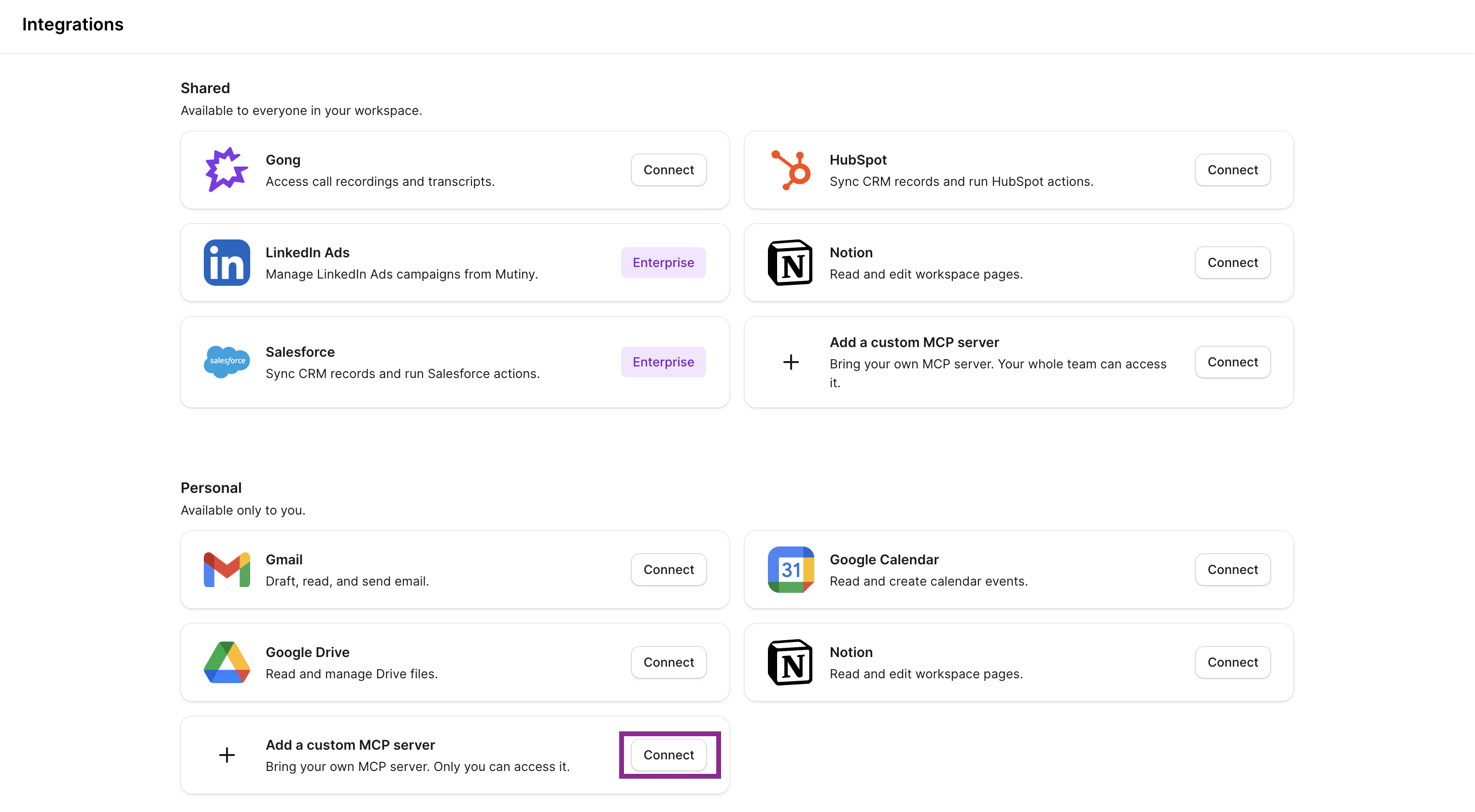
From the Add a custom MCP server click Connect:
A modal will open asking for two things: the MCP server URL for your integration, and a display name for how it will appear in Mutiny.
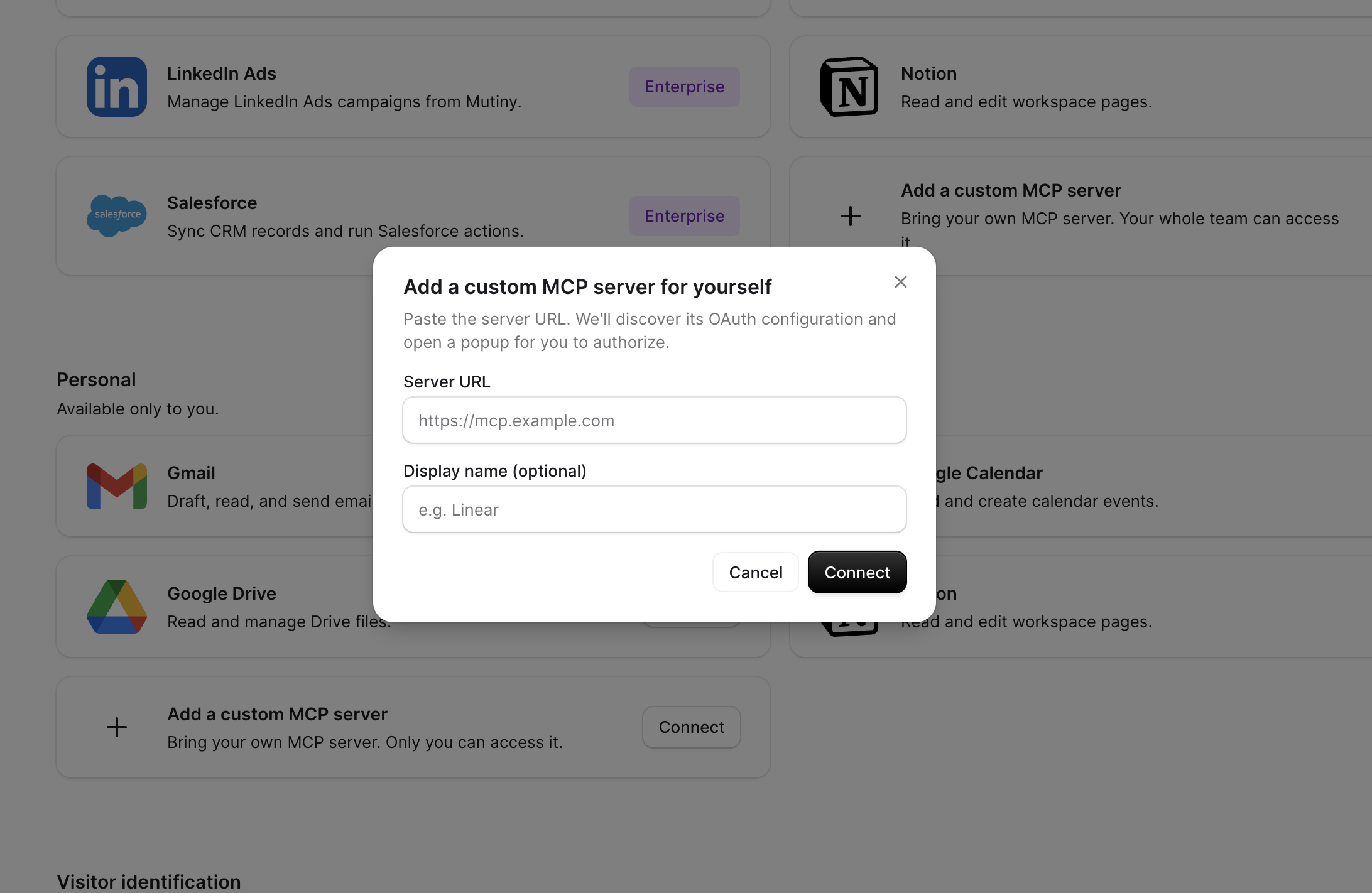
Enter the MCP URL and give it a name, then click Connect. An authorization window will open in your selected tool, and log in to complete the connection.
Using Connected Tools
Once connected, your integration will appear on the Integrations page alongside Mutiny's default integrations. The Mutiny agent will have access to this MCP server and can pull data from your connected tool to use across your workflows.
Need Help?
If you have questions or need help, the Mutiny Support team is here for you! You can submit a support ticket using the Submit a ticket button at the top of this page, or reach us at support@mutinyhq.com.