Integrating with Chili Piper
Last updated: July 27, 2026
Connect Chili Piper to Mutiny to enable the Mutiny agent to read and manage your Chili Piper data: users, meetings, routing rules, distributions, and more.
Connecting to Chili Piper
To get started, head to the integrations page in Mutiny
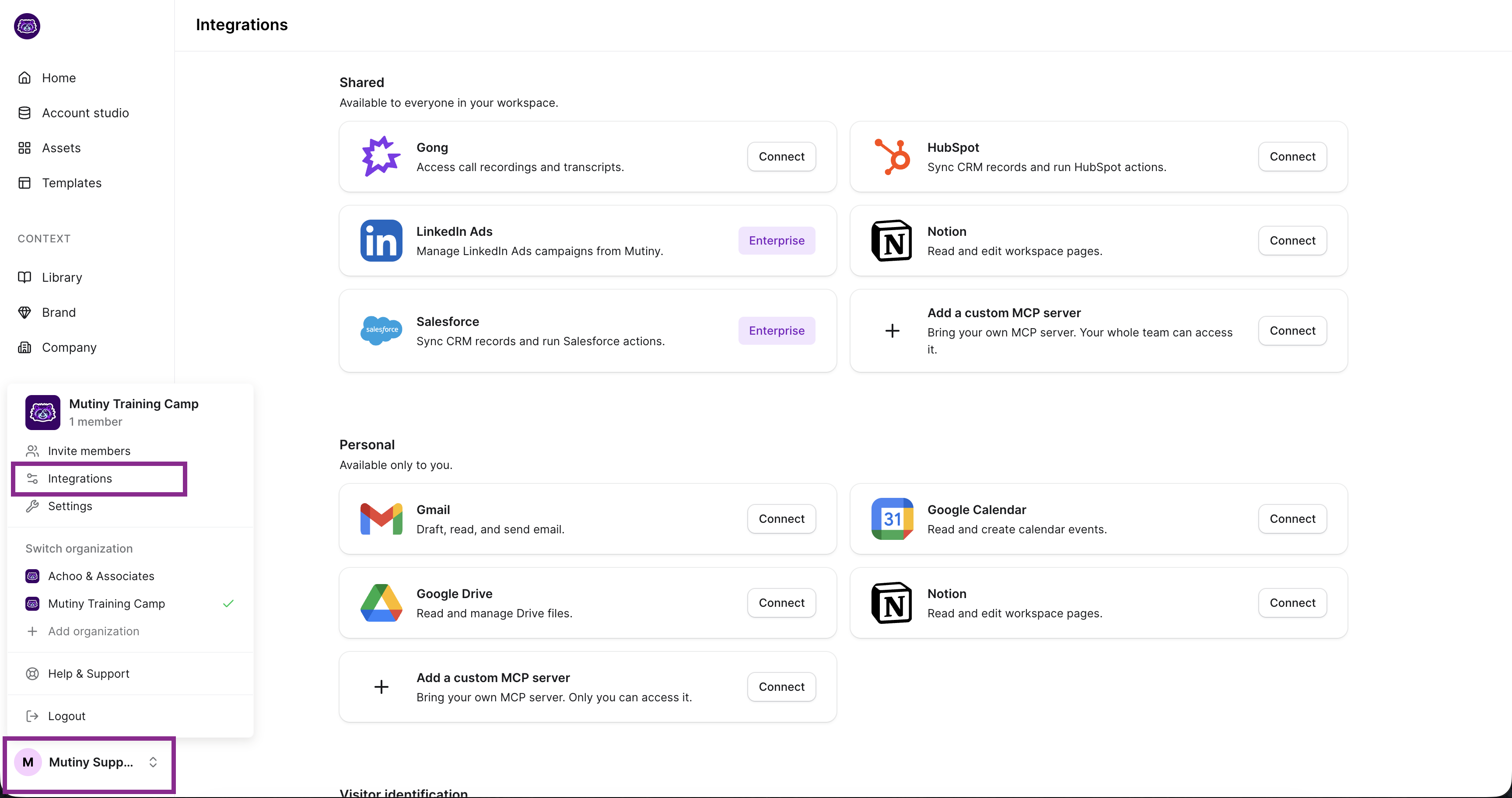
If you have Admin or Owner permissions in Mutiny, this integration can be set up on a shared level or a personal level. Shared means everyone in your Mutiny instance can access the data from this integration; Personal means only your account can access this integration.
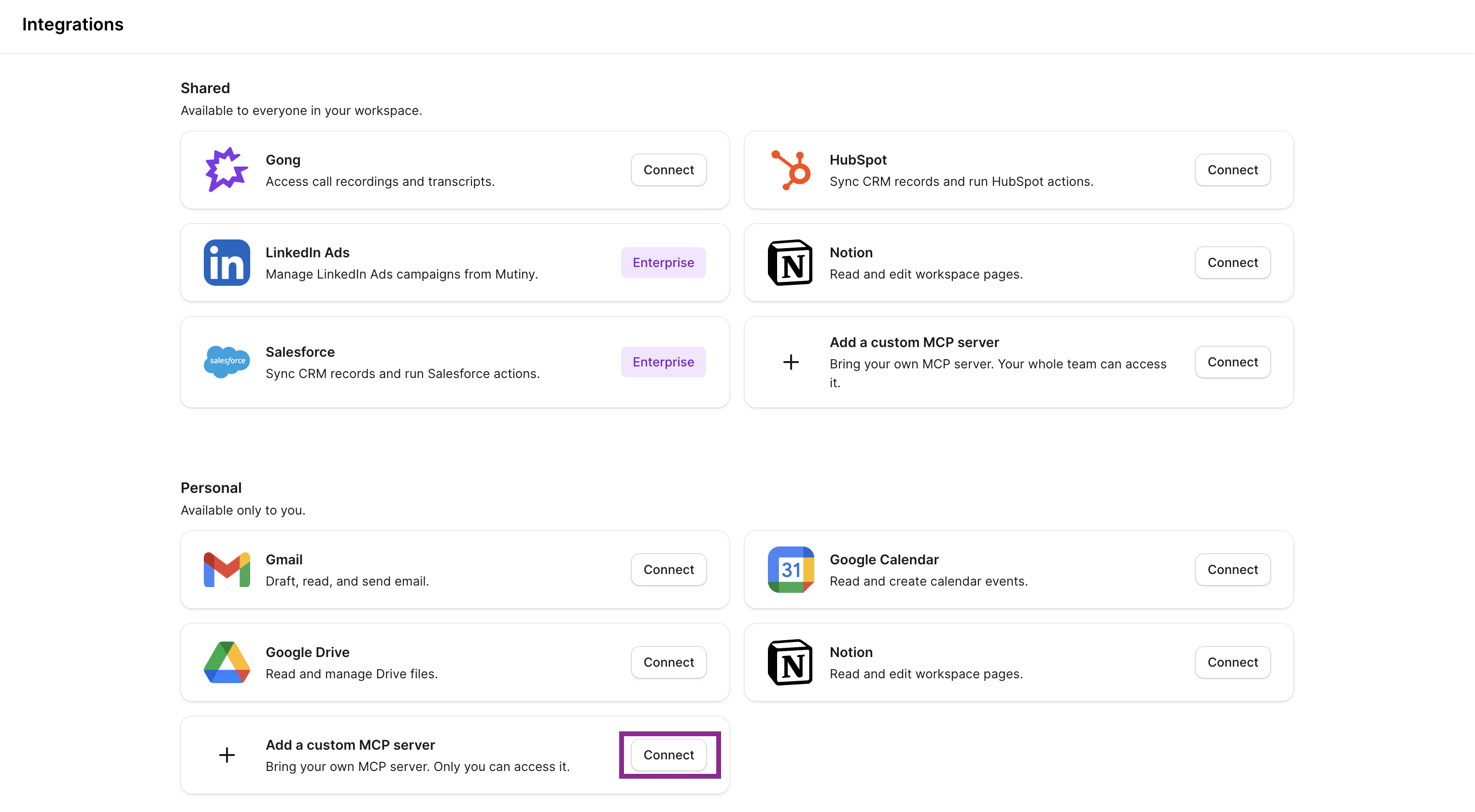
From the Add a custom MCP server click Connect:
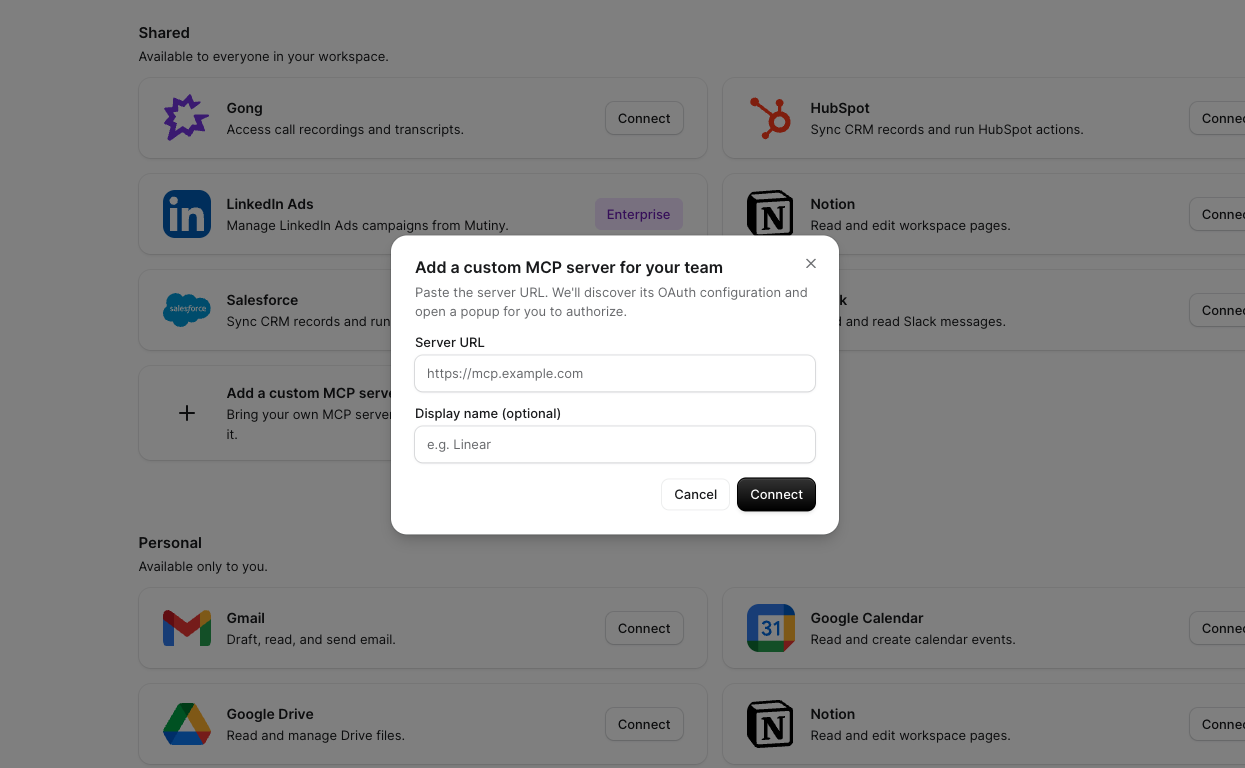
This will open a modal where you can add the Chili Piper MCP server URL, as well as the display name in Mutiny. Set the display name to Chili Piper, and add the respective MCP server URL: https://fire.chilipiper.com/api/fire-edge/v1/org/mcp
Once added, click Connect. This will launch a modal where you will authorize your Chili Piper account
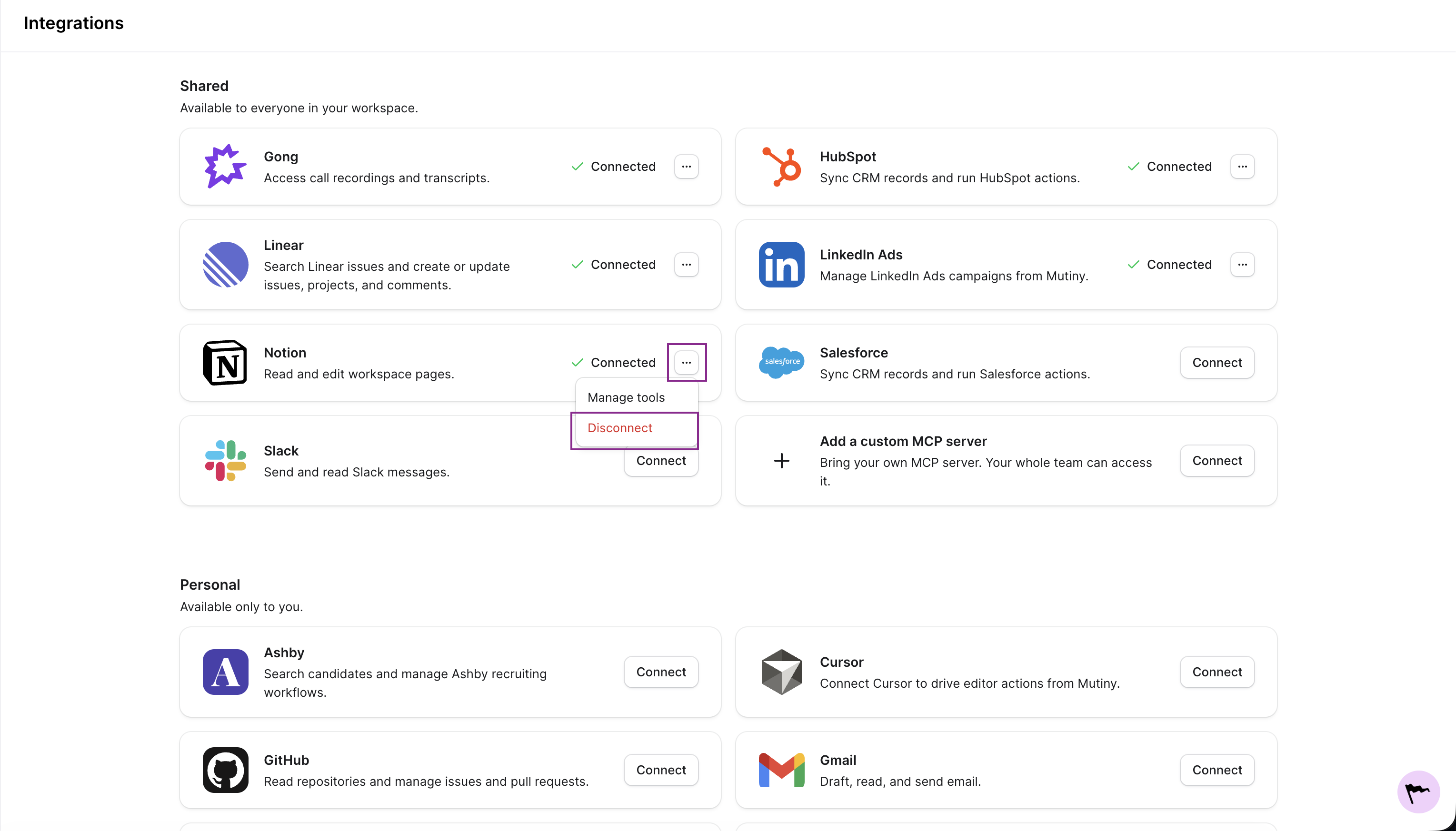
Disconnecting
You can disconnect any integration from the three-dot menu on the integration card
Need Help?
If you have questions or need help, the Mutiny Support team is here for you! You can submit a support ticket using the Submit a ticket button at the top of this page, or reach us at support@mutinyhq.com.