Sharing Your Mutiny Work with Your Team
Last updated: August 19, 2026
Mutiny lets you control who can see and edit your work. Assets, templates, routines, projects, and skills can all stay private to you, or you can share them with your team so others can build on what you've created.
Viewing Shared Work
From the Assets, Templates, Routines, Projects, and Skills pages, you will see a few tabs at the top of the page. For example, on the Assets page, you will see Your assets and Shared assets:
Your assets: Displays any assets you have created. Even if they have been shared with your team, they will still appear under Your assets
Shared assets: Any assets that have been shared by your team will appear here.
This logic applies to all of the work on Mutiny.
Admin access on Enterprise
On Enterprise plans, Admins have full access to everything created in the organization. Assets, templates, routines, projects, and skills built by anyone on the team all appear in the Admin's Shared tabs, whether or not they were explicitly shared.
This applies to the Admin role only.
Sharing an asset
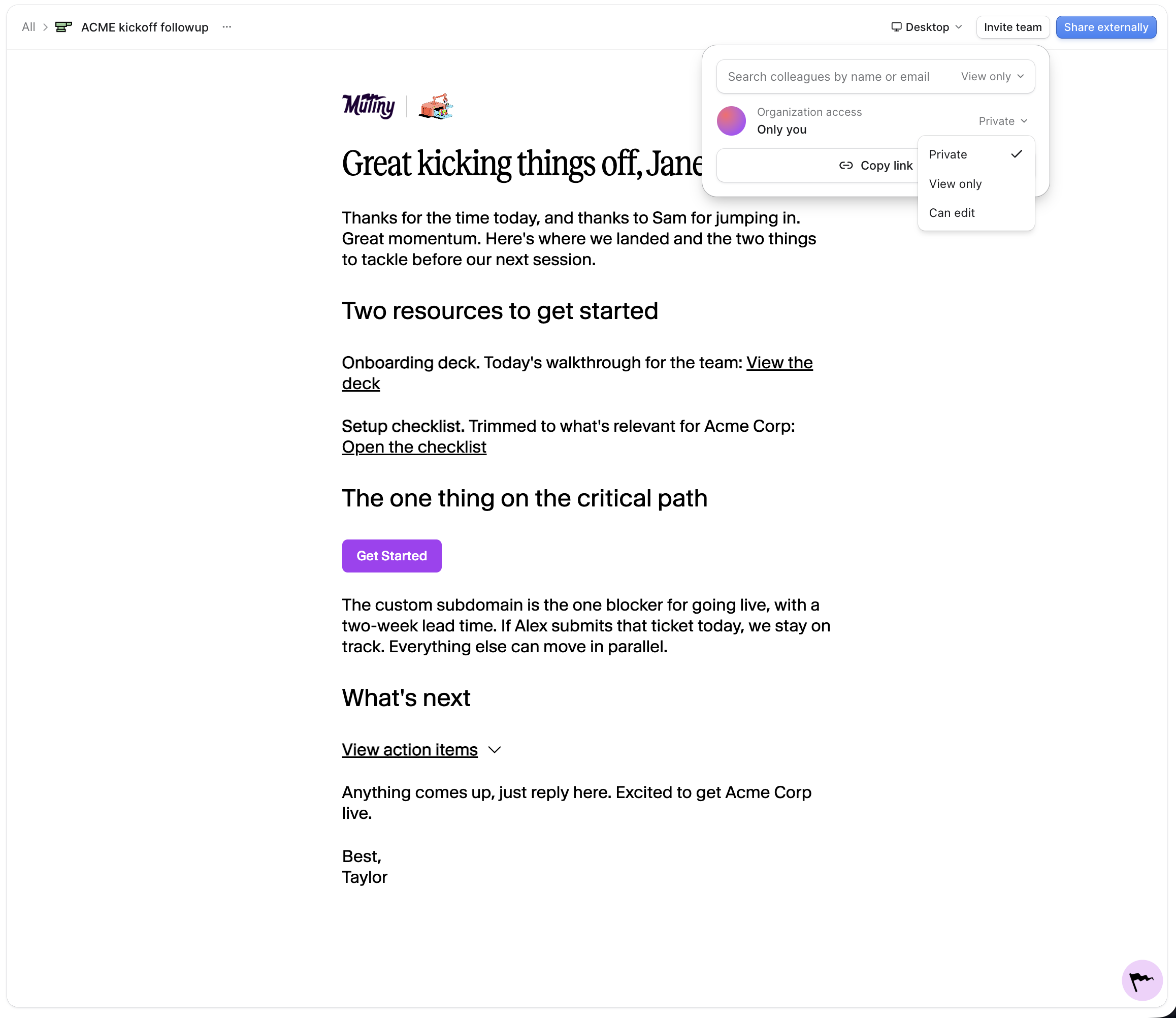
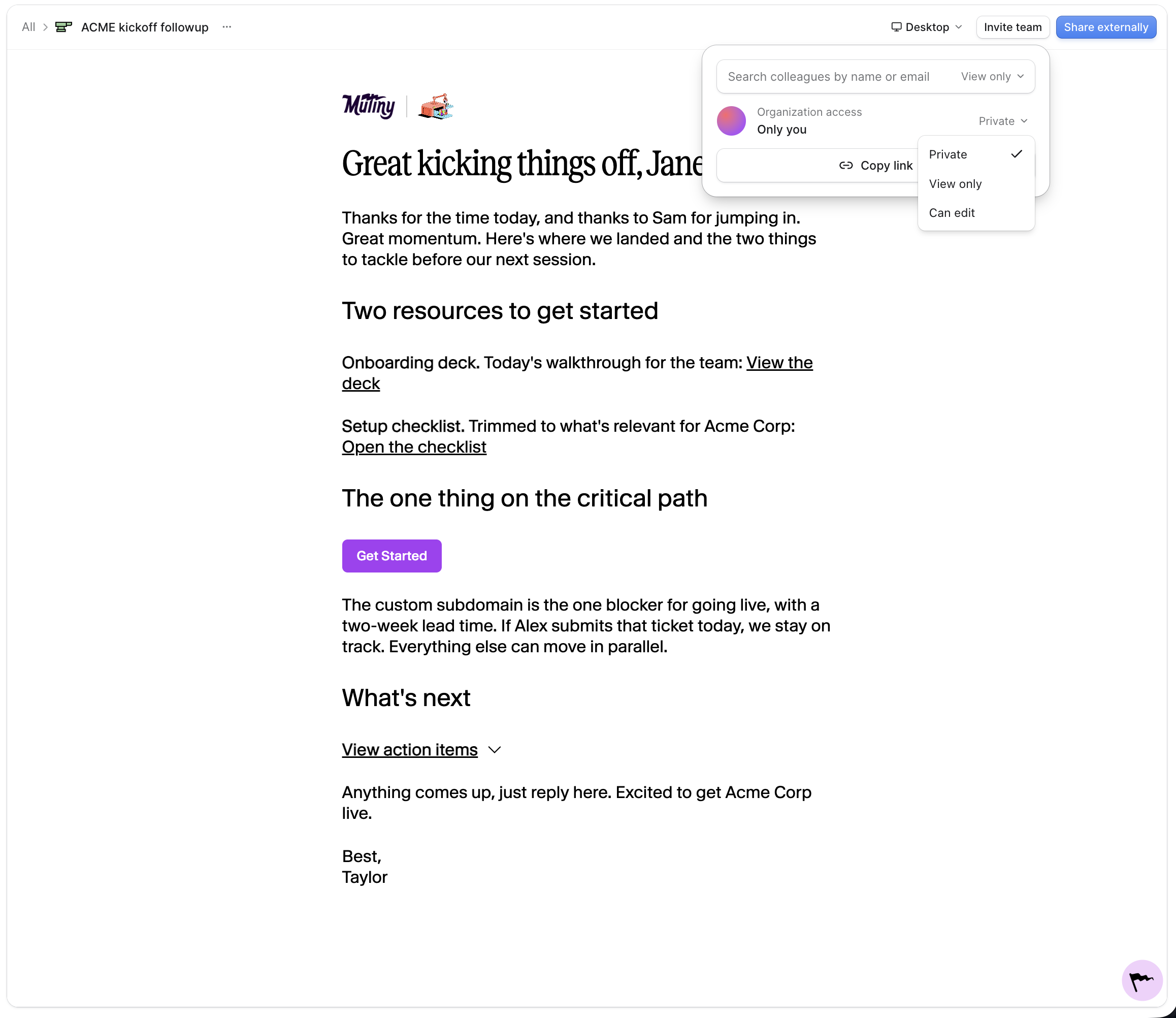
Open the asset in the asset editor and click the Invite team button in the top right corner. You can set org-level access to "view only" or "can edit". You can also give individual users access to an asset by searching their name in the search bar. You can also give them "view only" or "can edit" permissions.
Assets shared with you will appear under the Shared tab on the Assets page
Sharing a template
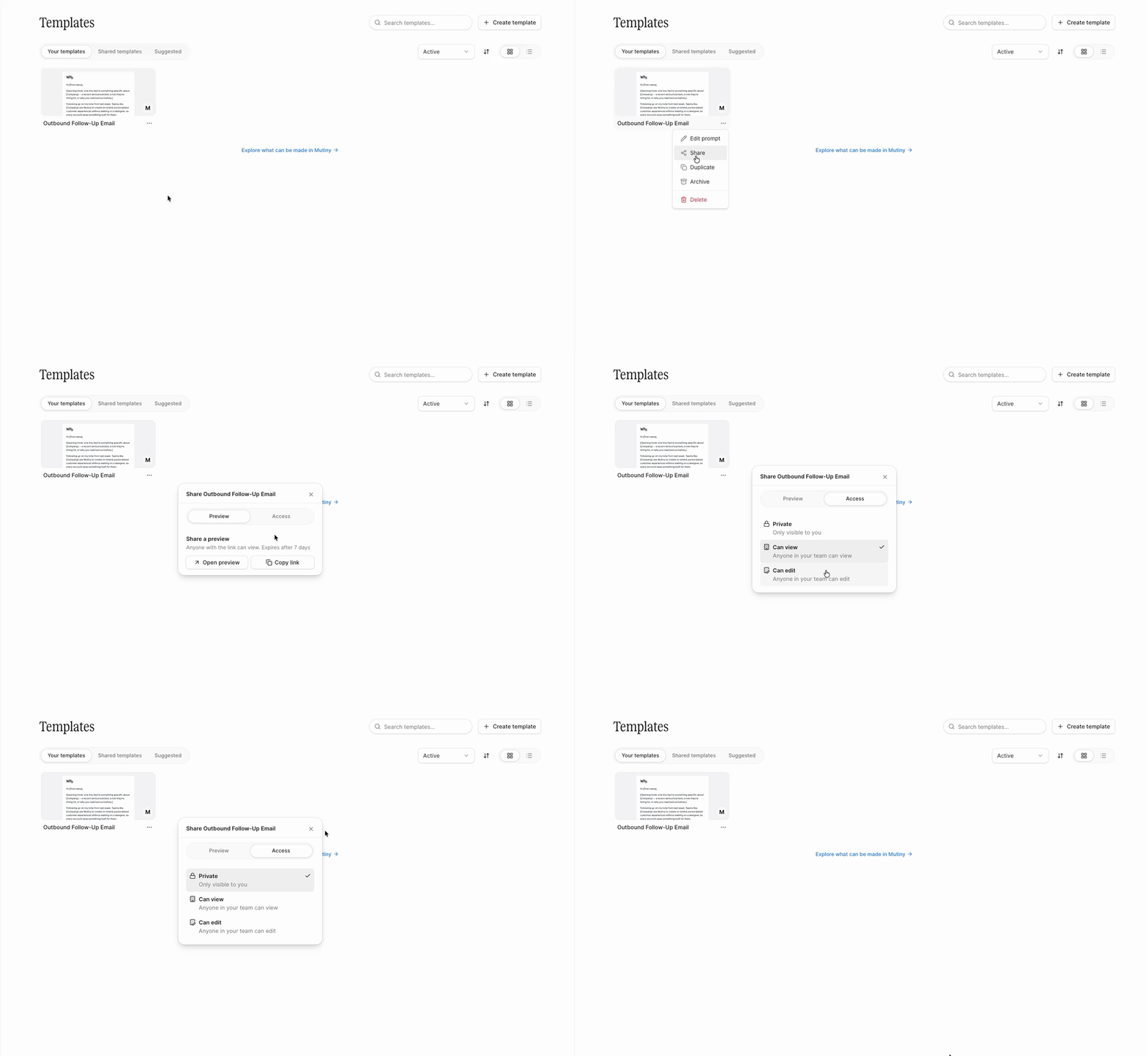
Click into the template you want to share, then click View Template. Use the Invite team button in the top right. You can set org-level access to "view only" or "can edit". You can also give individual users access to an asset by searching their name in the search bar. You can also give them "view only" or "can edit" permissions.
Templates shared with you will appear under the Shared templates tab
Sharing a routine
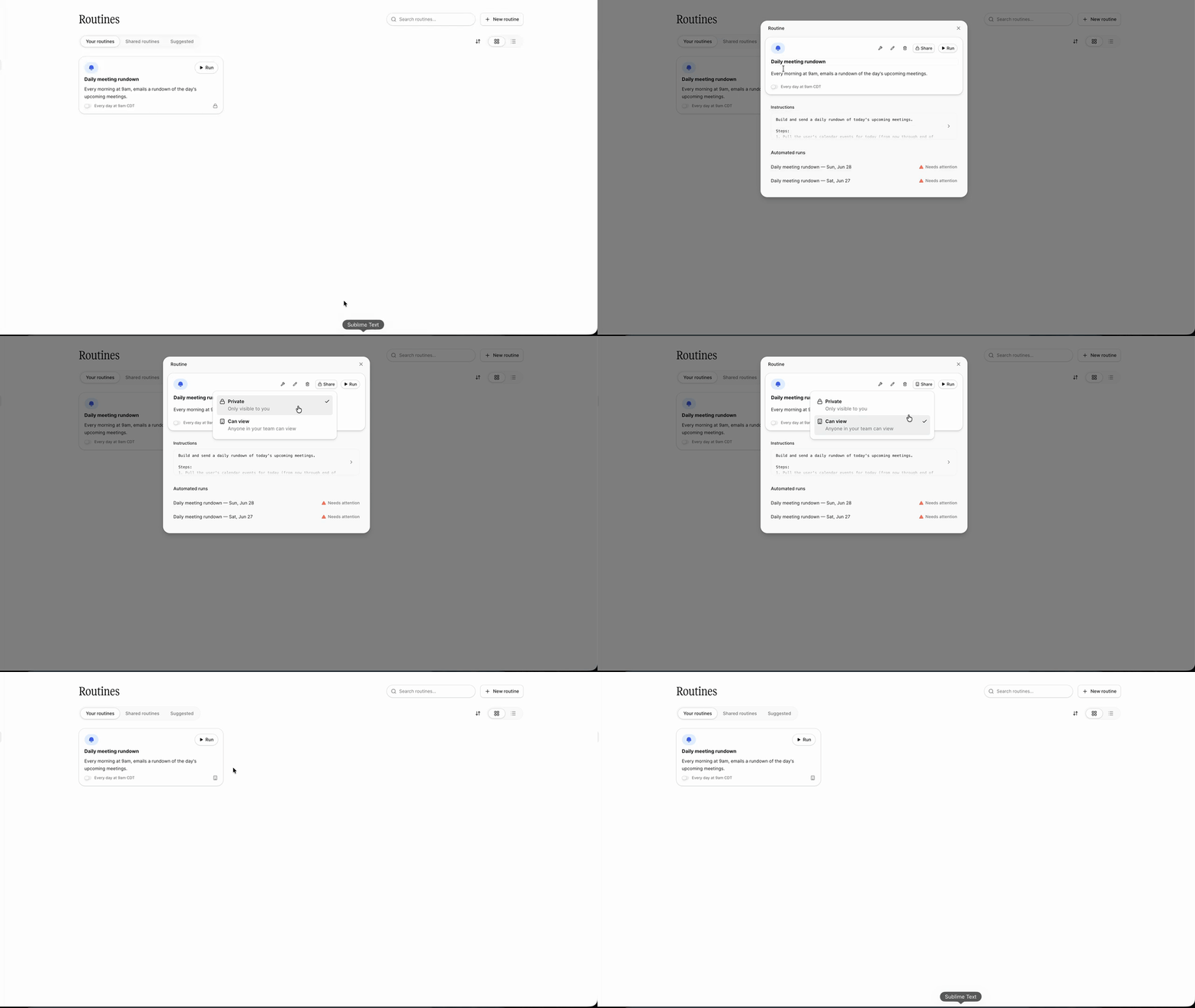
Click into one of your routines and use the share button to share it with your team. Routines only support Can View access. Team members can see a shared routine but can't edit it. Routines shared with you appear under the Shared routines tab
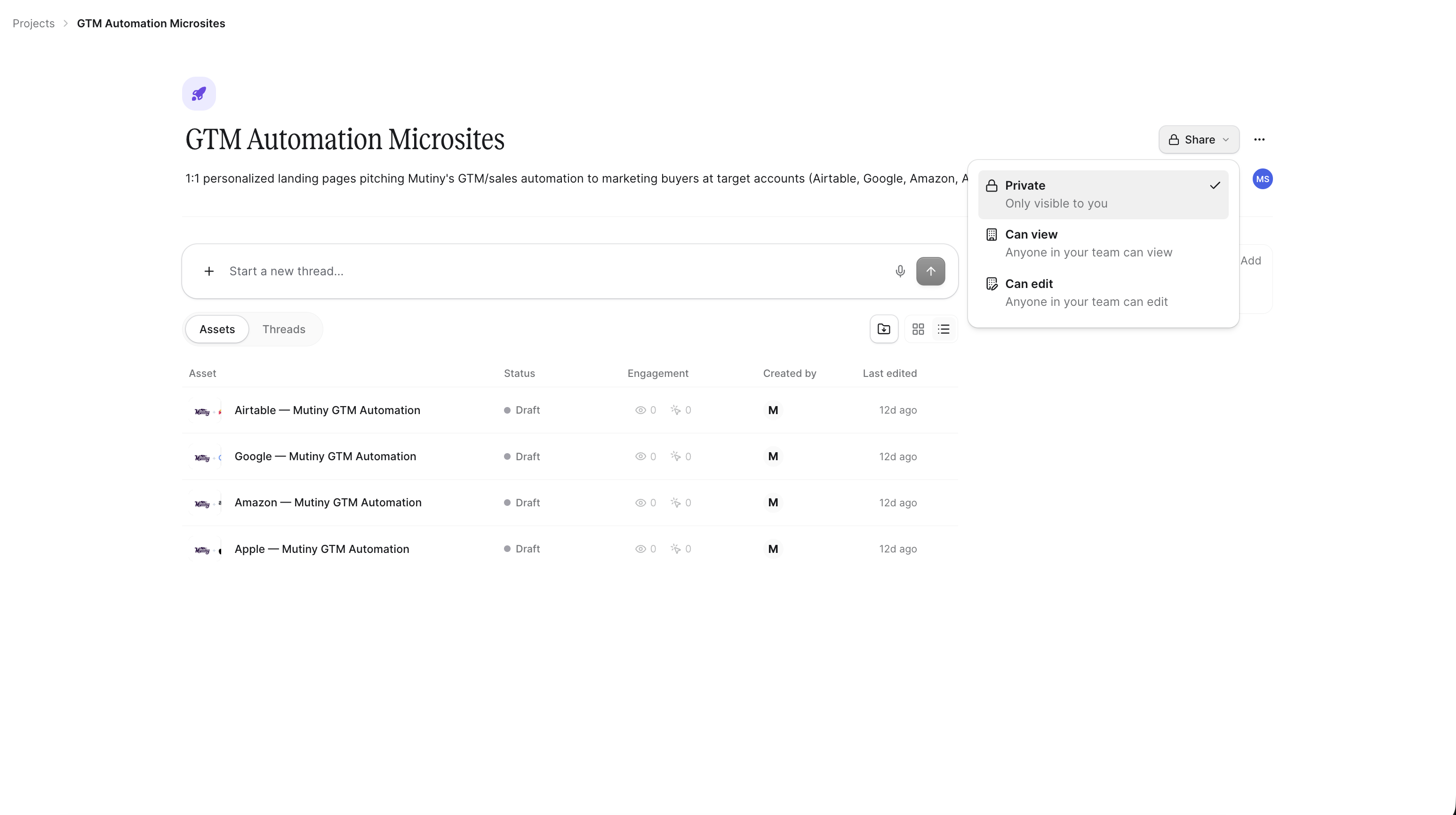
Sharing a project
Click into the project you want to share and click the share button in the top right. Projects support Can View, Can Edit, or Private. Projects shared with you appear under the Shared projects tab.
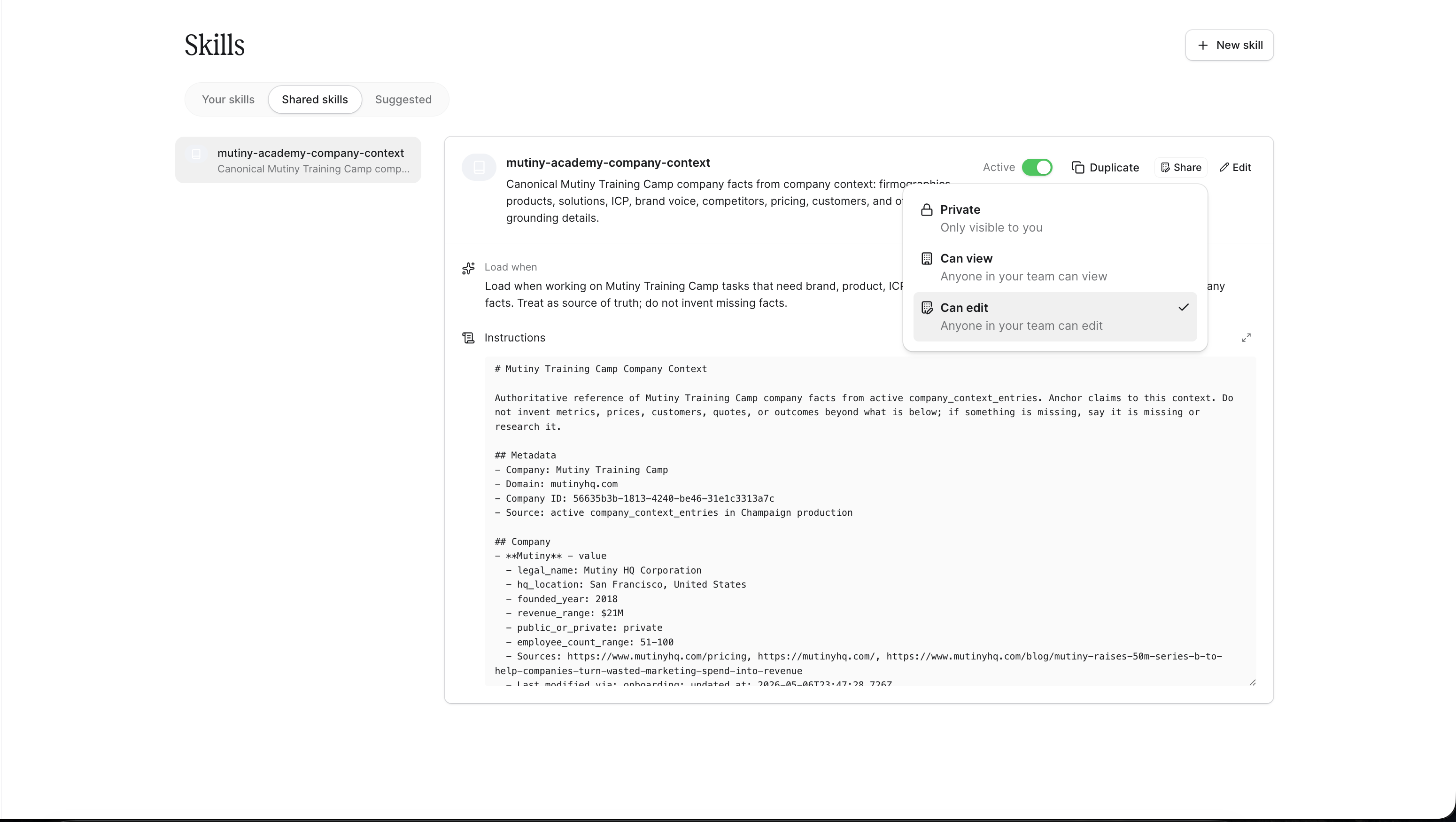
Sharing a skill
Click into the skill you want to share and use the share button in the top right. Skills support Private, Can View, or Can Edit access. Shared skills appear under the Shared skills tab.
Need Help?
If you have questions or need help, the Mutiny Support team is here for you! You can submit a support ticket using the Submit a ticket button at the top of this page, or reach us at support@mutinyhq.com.