Managing your Integrations
Last updated: June 29, 2026
Once you connect tools to Mutiny, the agent can use them to get work done. The Integrations page is where you control which tools the agent can access and how much it can do with each connection.
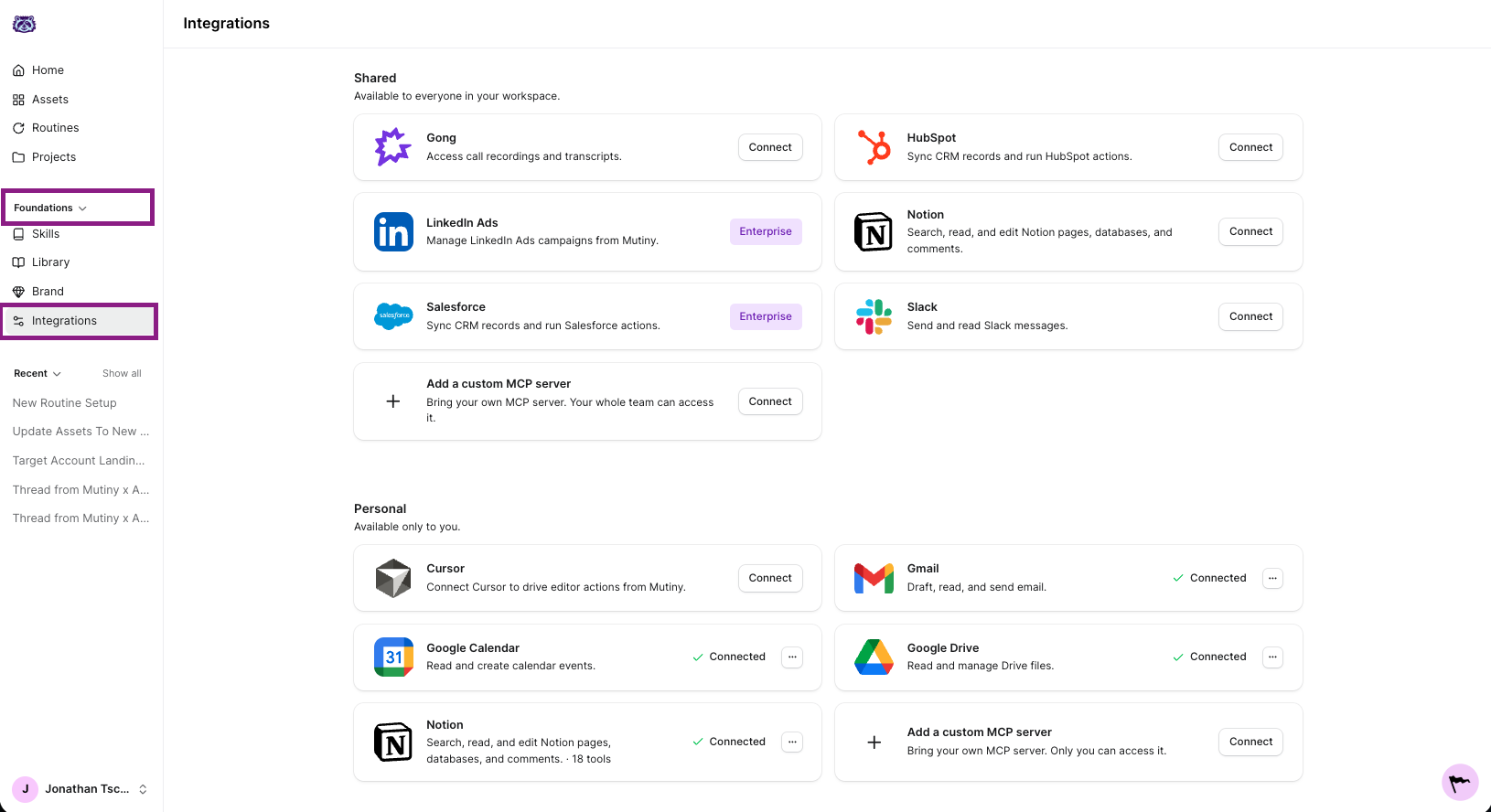
Finding your integrations
Open the Foundations dropdown and select Integrations. This page lists every tool you have connected to Mutiny.
Managing tools for a connection
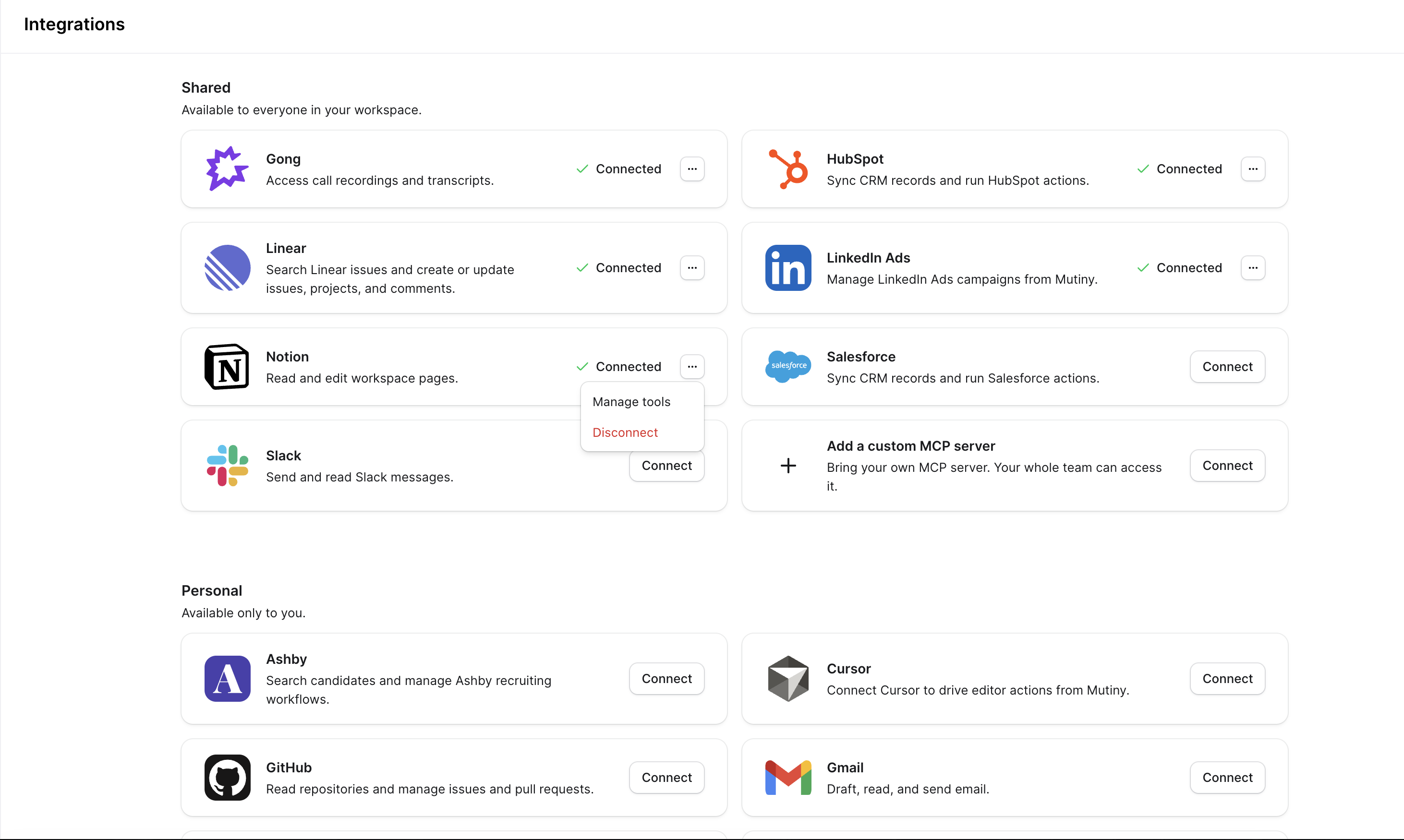
Each integration comes with its own set of tools the agent can use to access that connection. To review them, click the three-dot menu on any connected integration and select Manage tools.
Setting permission levels
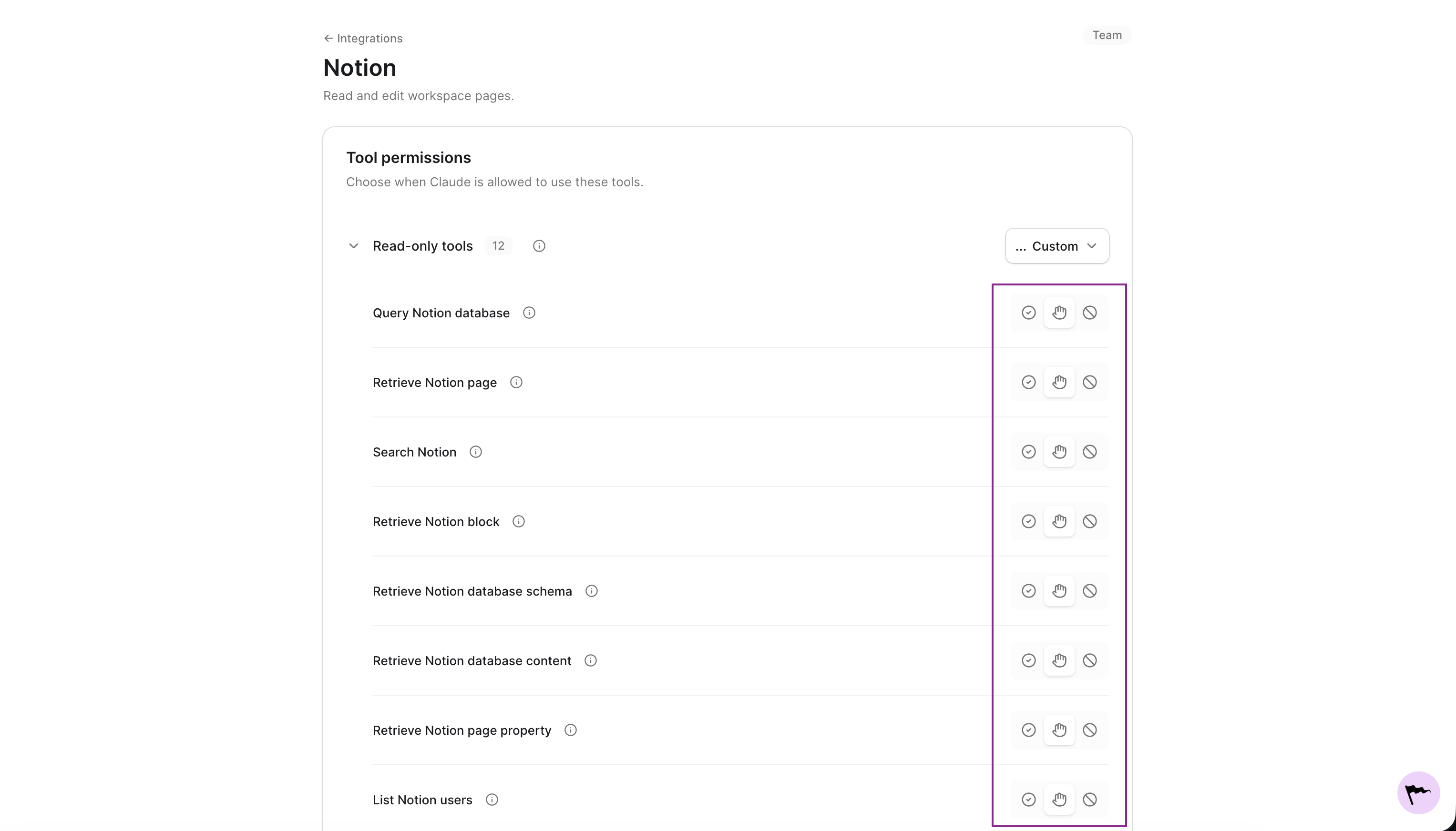
For every tool, you can set the level of access the Mutiny agent has. You can choose to:
Always allow so the agent uses the tool without asking
Require approval so the agent checks with you before using the tool
Disallow so the agent cannot use the tool at all
Checking each connection
As each integration has its own tools, the permissions you set on one connection don't carry over to another. Review every connected integration to make sure the Mutiny agent has the right level of access for each one.
Deleting Integrations
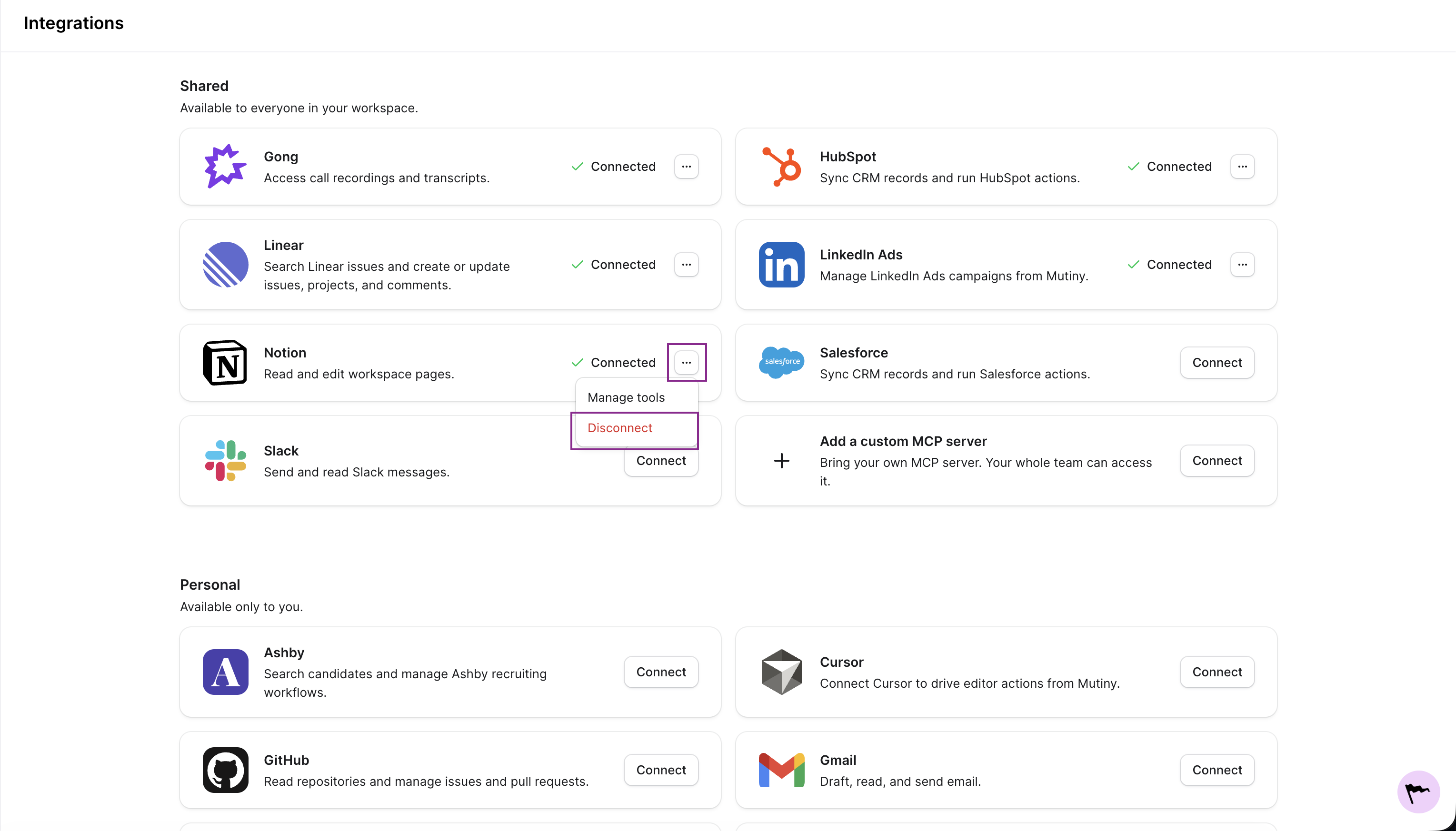
You can disconnect any integration from the three-dot menu on the integration card