Integrating with Salesforce using Pipedream
Last updated: May 15, 2026
Mutiny integrations are connected via Pipedream. You can learn more about Pipedream here:
The Salesforce integration connects your org's CRM data directly into the asset-building flow. The agent can run SOQL queries, traverse relationships (account → contacts → opportunities), search across object types, and read live record data so assets are grounded in your actual pipeline instead of generic copy.
This is a shared integration; only users with Admin or Owner can enable these integrations. Data from shared integrations will be available for everyone in the Mutiny instance.
Connecting to Salesforce
This is an enterprise-only feature. Interested in upgrading to an enterprise plan? Reach out to the sales team here: https://www.mutinyhq.com/talk-to-sales
To get started, head to the integrations page in Mutiny
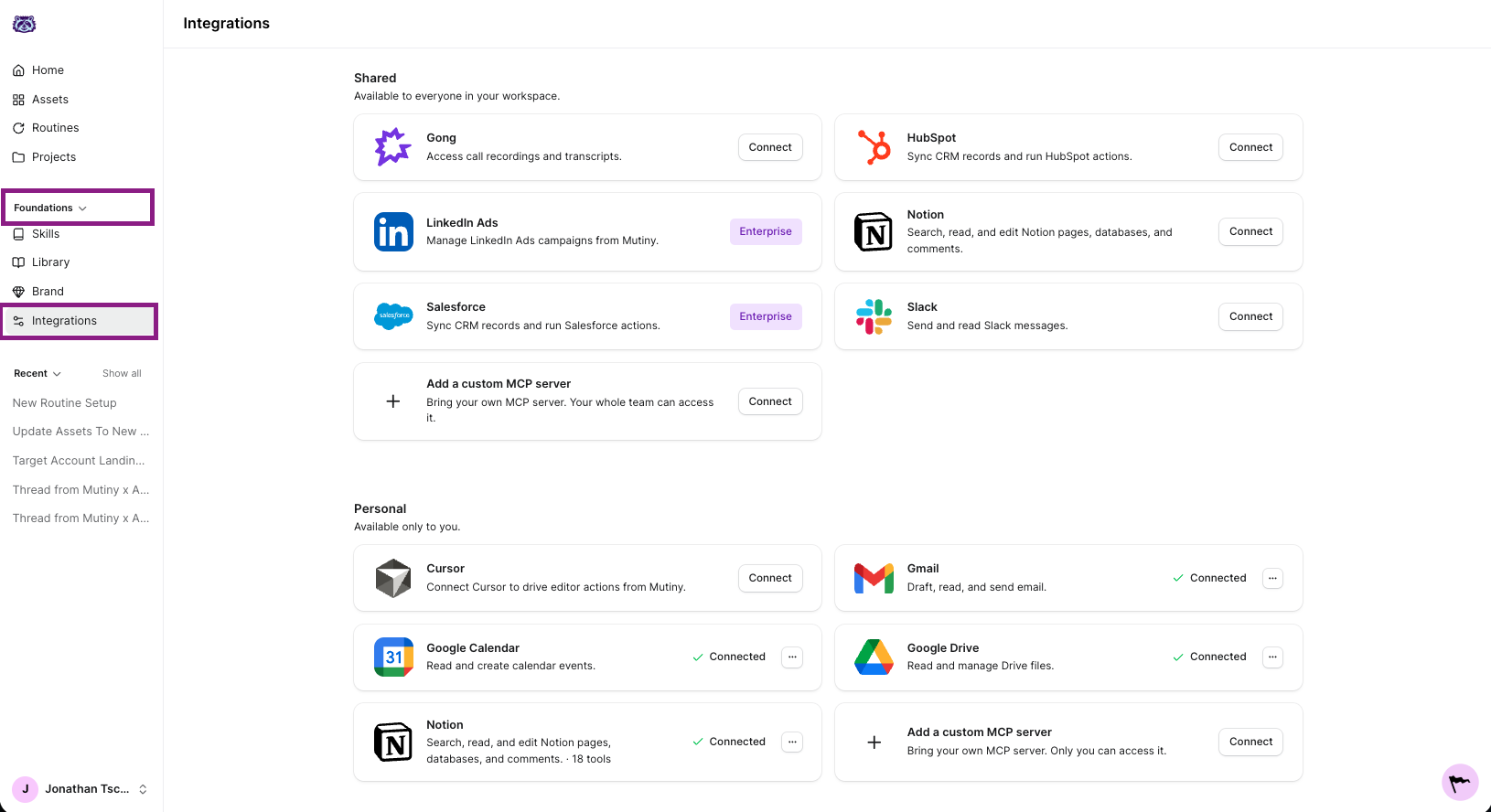
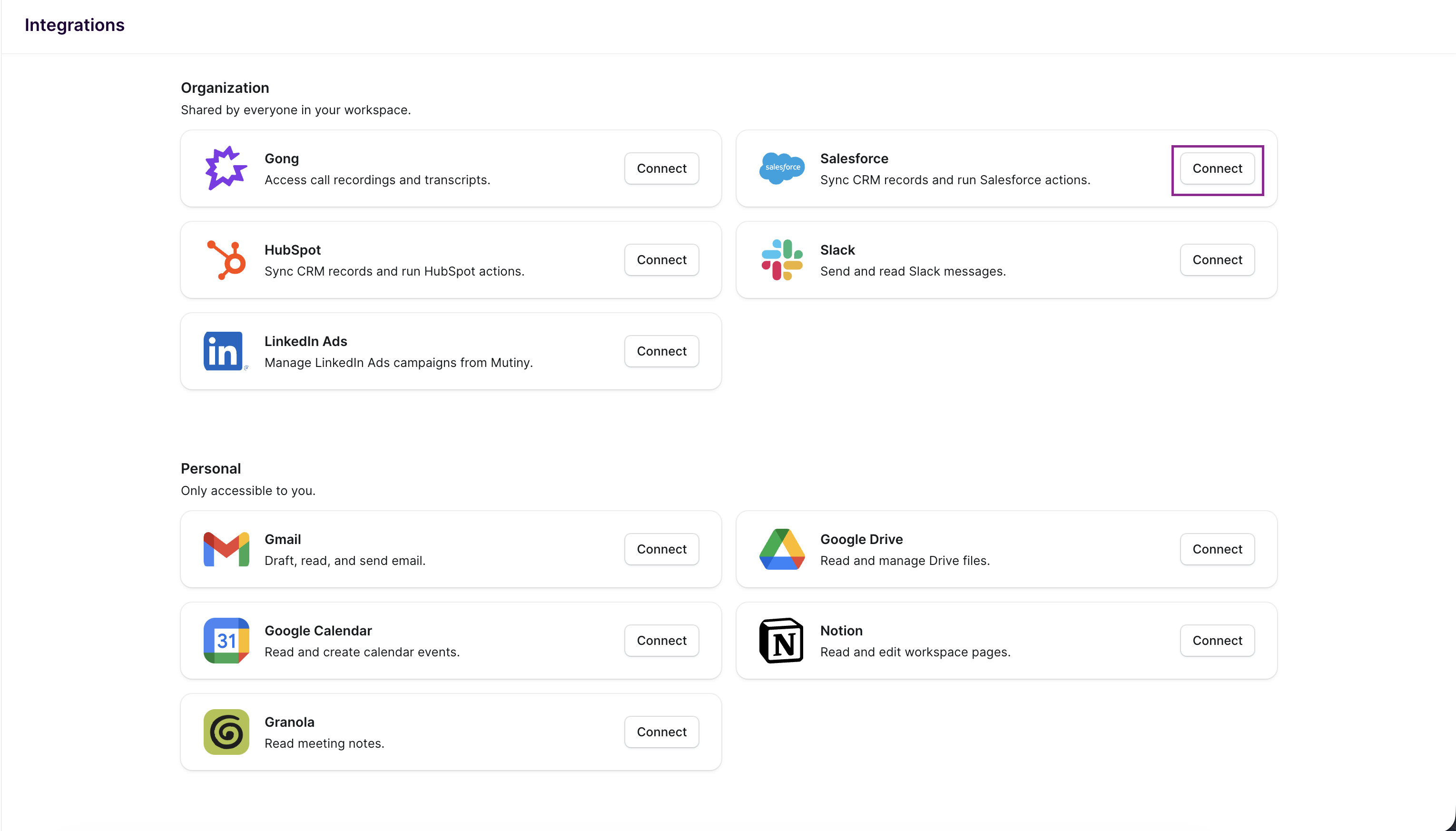
On the Salesforce integration card, click Connect - This will launch the Pipedream connection modal. Complete the connection steps through this Modal to connect to Mutiny
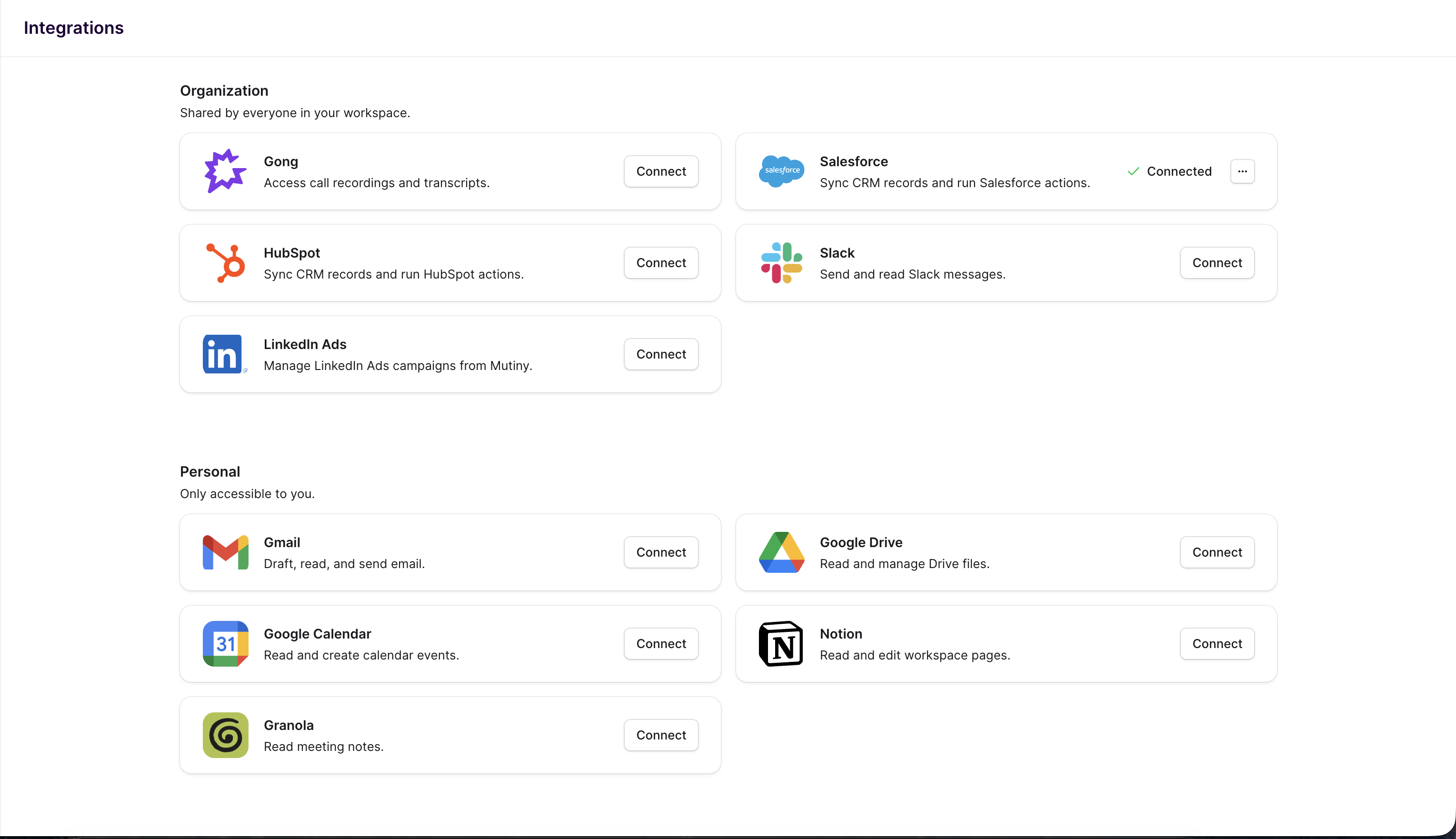
After going through the steps, you will see the integration card now says Connected
Using the Integration
Once connected, you can prompt the agent to find a specific account, deal or segment, for example:
"build a one-pager for our open Acme opportunity" or "create an ABM page for our top 5 enterprise deals in stage Negotiation."
The agent will pull the relevant records (company firmographics, deal stage and amount, contact names and titles, recent activity, owner), then build the asset tailored to that real context
You can also ask exploratory questions - "What are my open opps over $100k?"
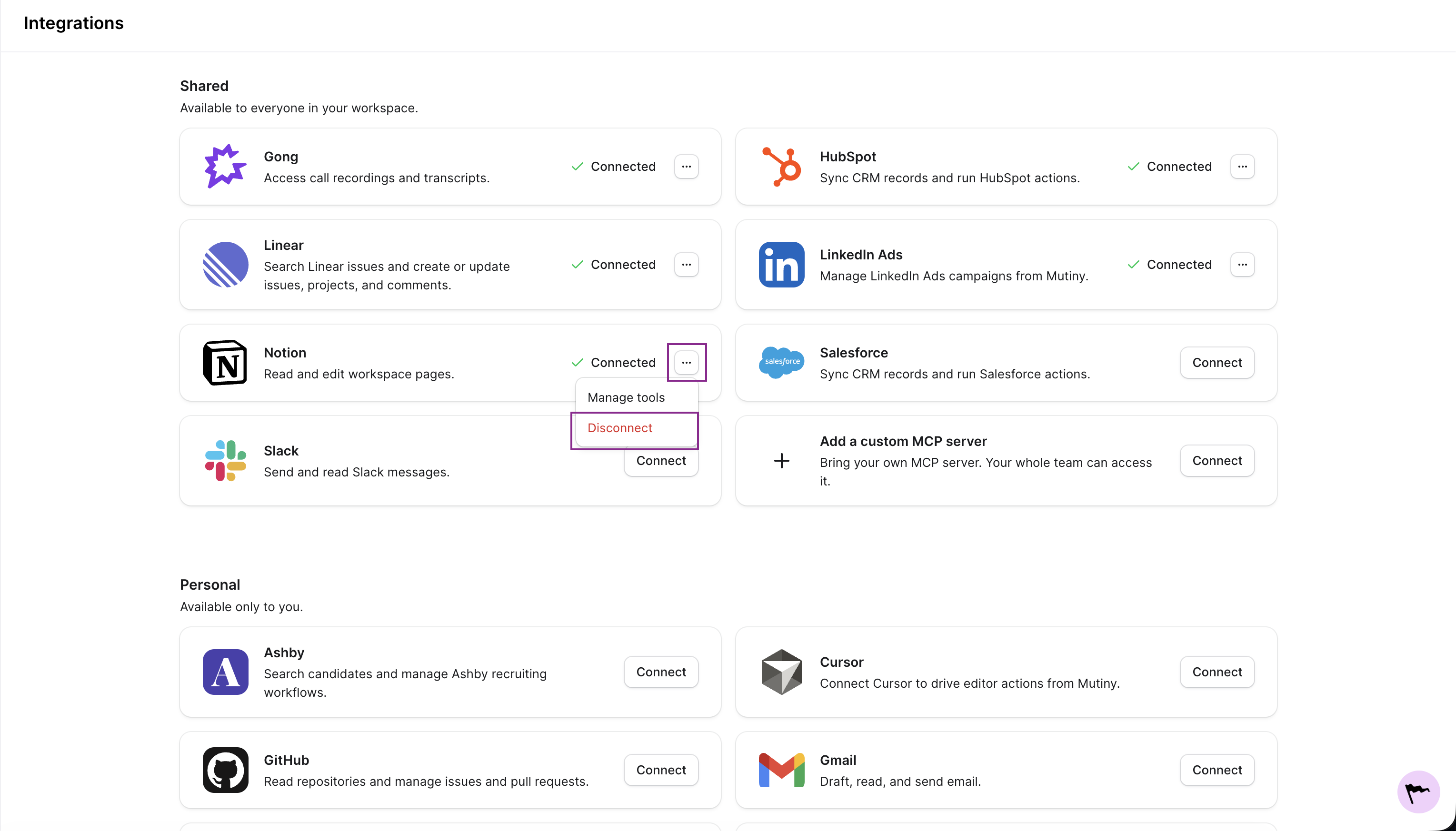
Disconnecting
You can disconnect any integration from the three-dot menu on the integration card
Need Help?
If you have questions or need help, the Mutiny Support team is here for you! You can submit a support ticket using the Submit a ticket button at the top of this page, or reach us at support@mutinyhq.com.