Company Context Overview
Last updated: May 12, 2026
Company Context gives Mutiny's AI agent a foundational understanding of your company. Products, solutions, customers, competitors, and more. By capturing this information once, the agent can reference it every time it generates an asset, rather than researching from scratch each time.
How it works
When you create your Mutiny account, Mutiny automatically visits your website and extracts key information about your business. The agent uses this context whenever it builds new assets, so your outputs stay accurate and on-brand without extra prompting.
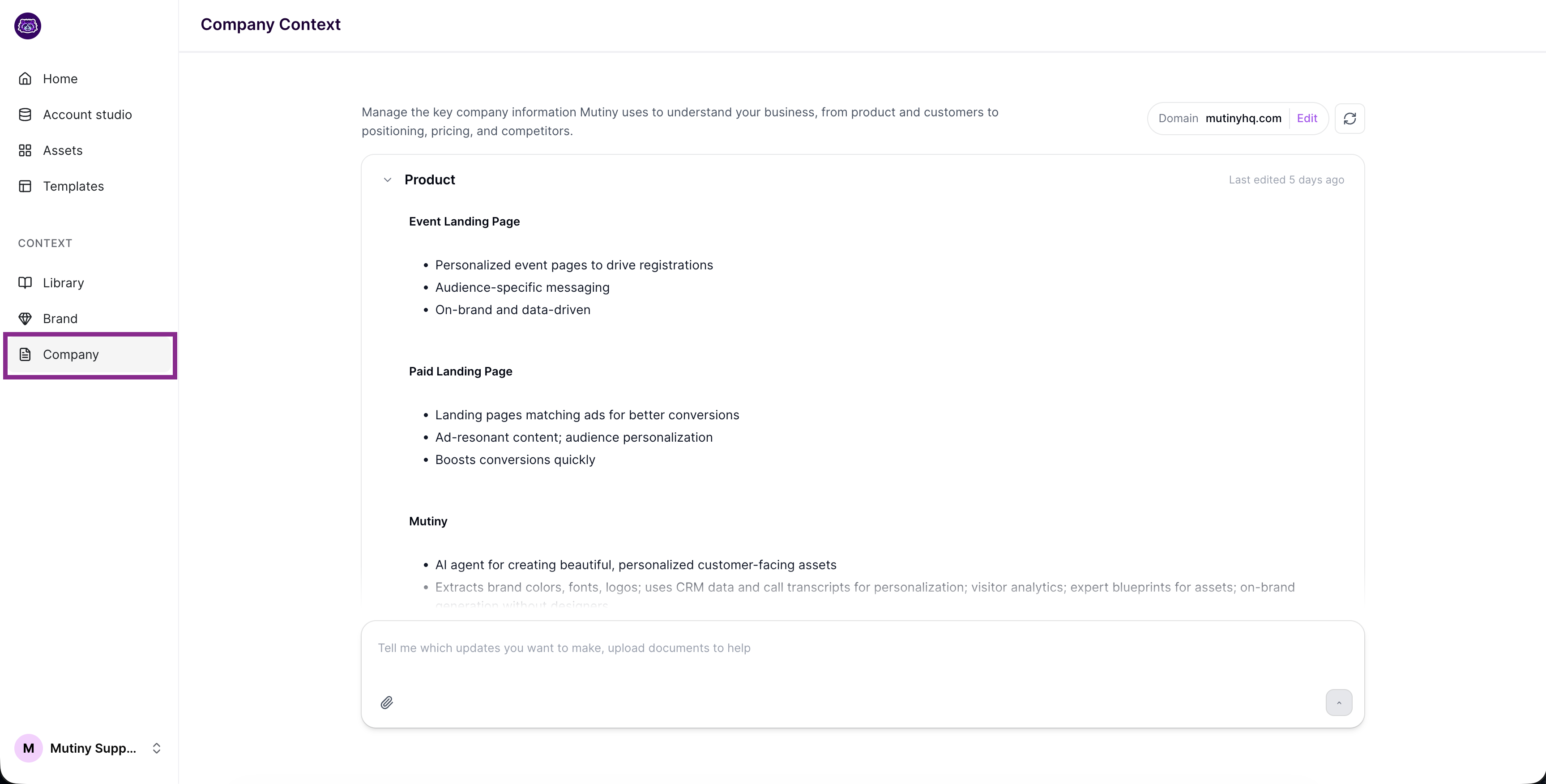
Viewing your Company Context
Navigate to the Company Context tab in the left navigation bar. You'll see your company's domain at the top, along with the following sections: Product, Solution, Customer, Brand, Voice, ICP, Competitor, Pricing, and Other.
Editing Company Context
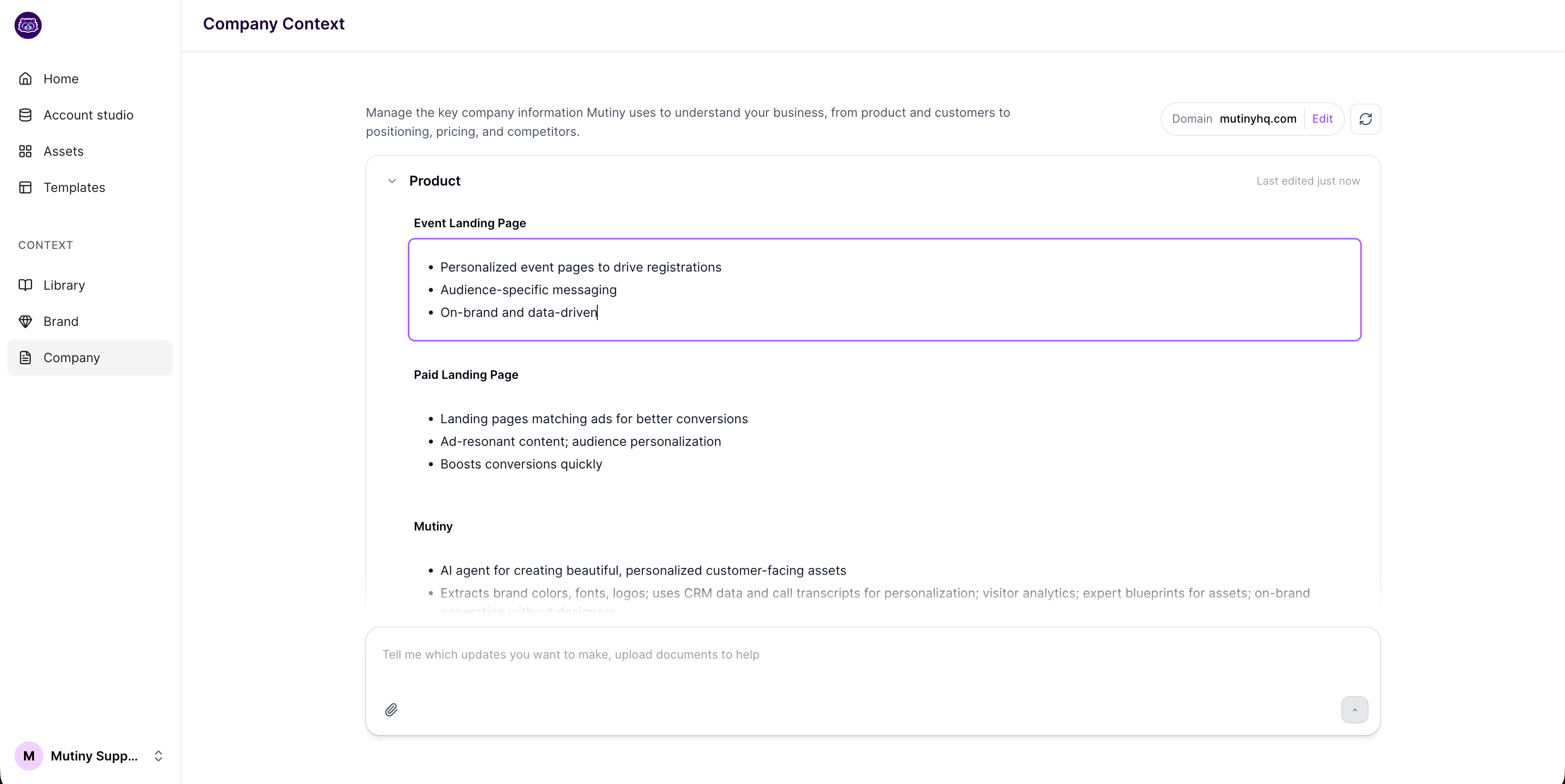
Each section is editable. You can type directly into any field to update or add information. All changes are auto-saved.
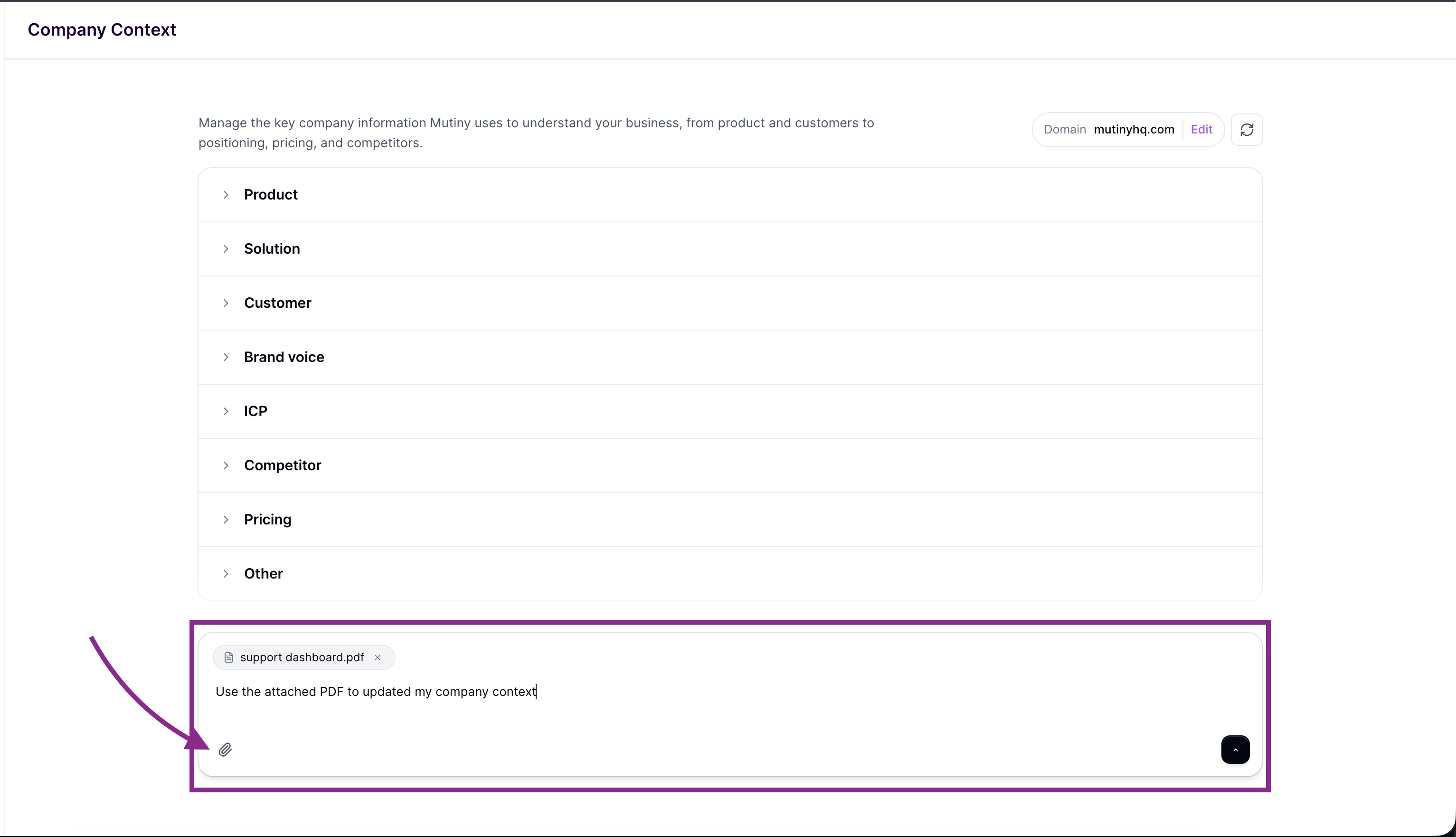
You can also use the prompt box to make targeted edits by typing an instruction like "remove Just Works from Competitor" into the prompt field.
For best results, keep your instructions specific. The more precise your instruction, the better the result.
Uploading Files
If you have a product brief, launch doc, or any other file with relevant company information, you can use this in your prompt to update your Company Context. Mutiny will parse the document and extract useful details into the appropriate sections.
Refreshing your context
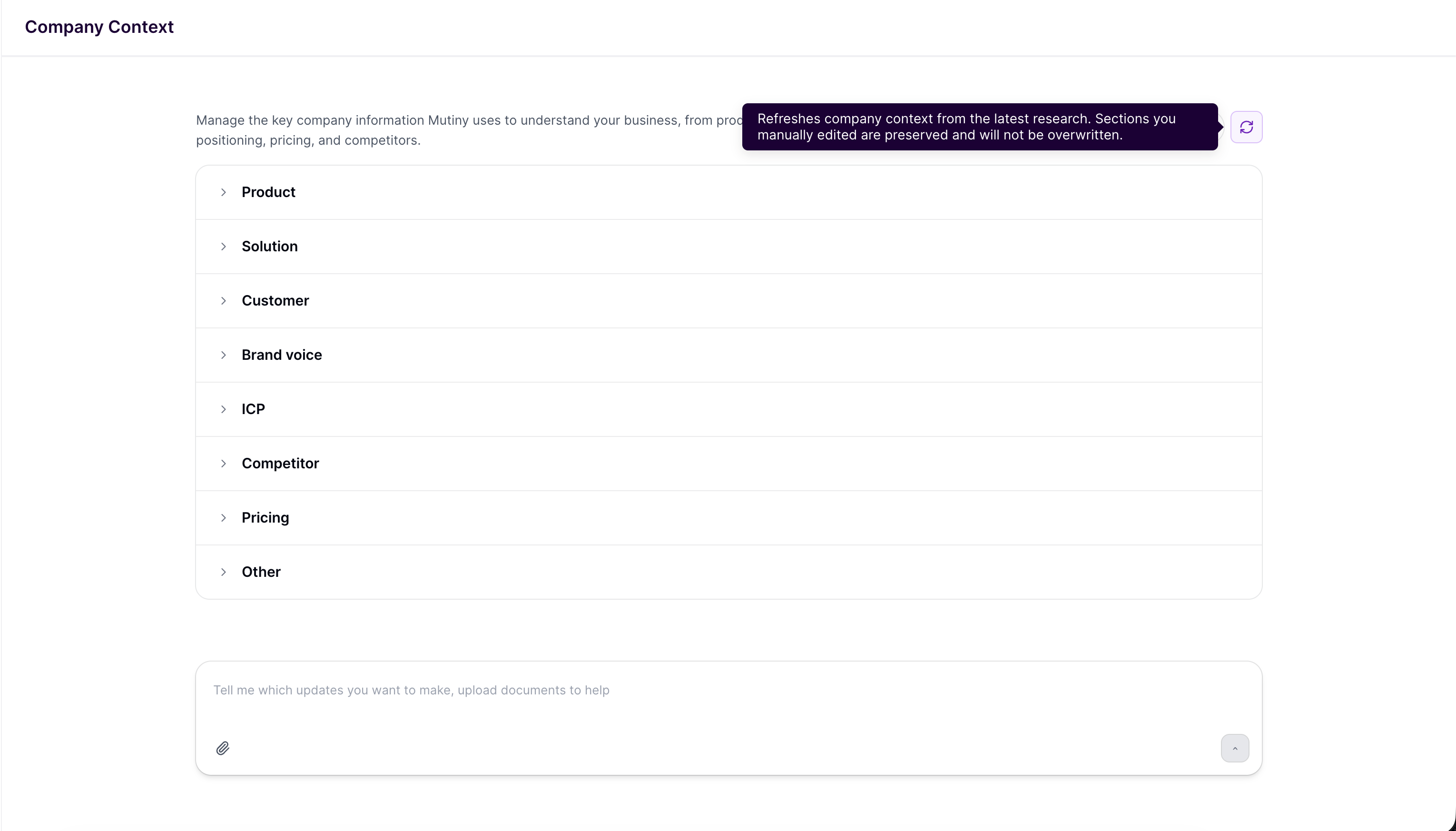
If something significant changes at your company, such as a new product launch, a rebrand, or a new set of customers, click the Refresh button at the top of the page. This pulls the latest information from your website and updates your context. Any sections you've manually edited will be preserved.
How the agent uses Company Context
When generating an asset, the agent loads your Company Context as part of its thinking process. You can see exactly what it reads in the agent's activity panel. This is useful for debugging if an output ever looks off.
Need Help?
If you have questions or need help, the Mutiny Support team is here for you! You can submit a support ticket using the Submit a ticket button at the top of this page, or reach us at support@mutinyhq.com.