Create Recurring Analytics Reports
Last updated: August 24, 2026
You can use routines to generate a recurring asset analytics report on whatever cadence you'd like: daily, weekly, monthly, or something custom. Once it's set up, the report can be emailed to you or sent to you in Slack if you have Slack connected.
Creating the routine
Go to Routines in the left nav and click New routine in the top right. This launches a thread where the agent asks a few questions to set up your routine.
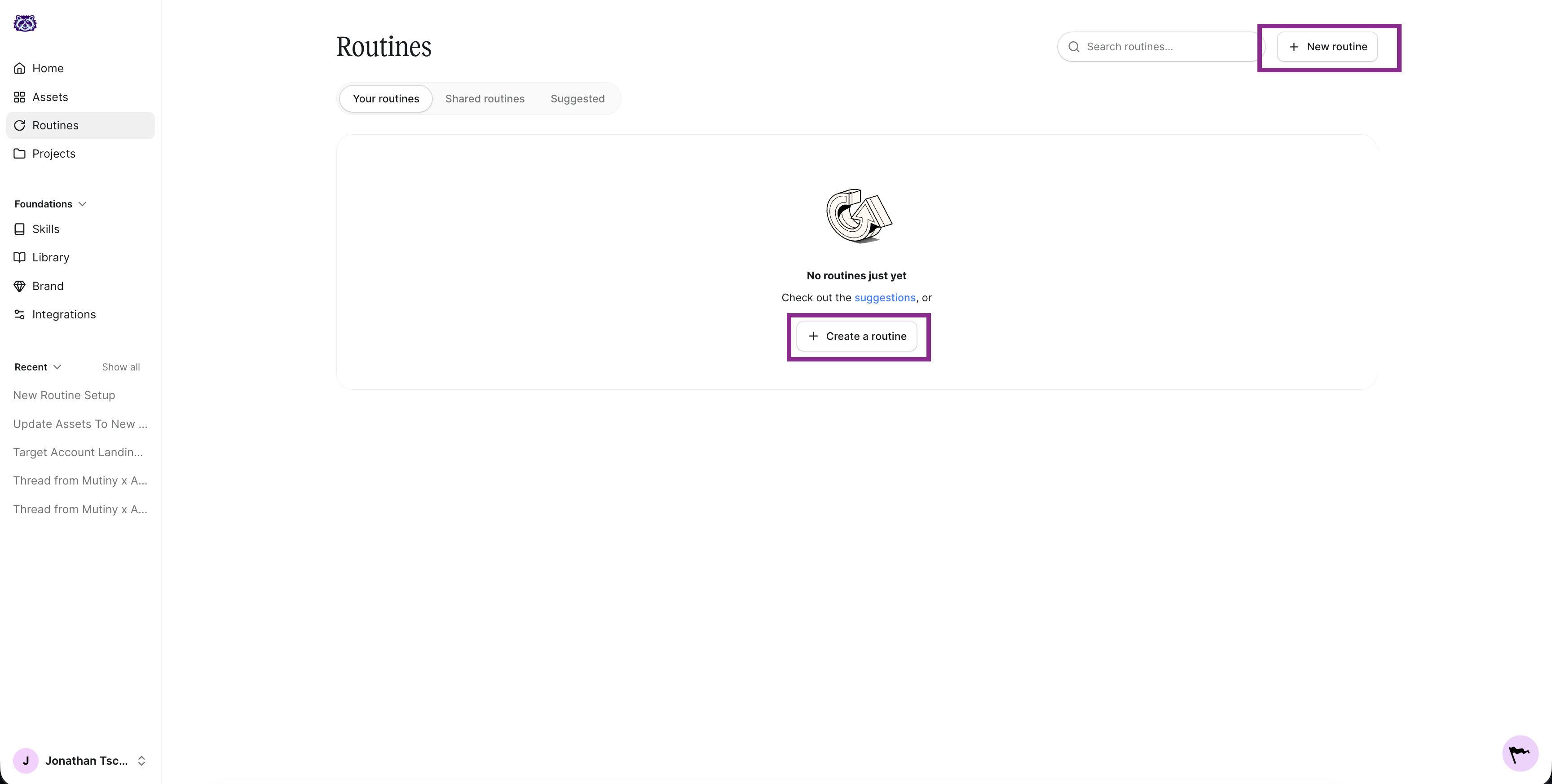
The agent will ask a series of questions about what the routine should do, when it should run, and where the output should go. Below are answers you can use to create this routine.
What should the routine do?
Create a recurring analytics report that shows the top engaged accounts across all my assets.
You can add to this to have the agent surface any other signals from the analytics you may want, ie, surface buying signals, show accounts with most time spent on page, etc.
When should it run?
Running this report every day can result in excessive data; we recommend weekly or monthly reports. Ultimately this is up to you and your workflows.
Extra details & where the output should go
You can have the agent email you this report, or if Slack is connected, have the agent send you a DM of this report.
If you have any other details about what you want in the report, you can add those here as well.
Editing and monitoring your routine
Once created, your routine appears on the Routines page and in the thread, along with a summary of what it will do.
When you open the routine, you'll see the instructions the agent drafted when you created it. Click into these to edit them at any time.
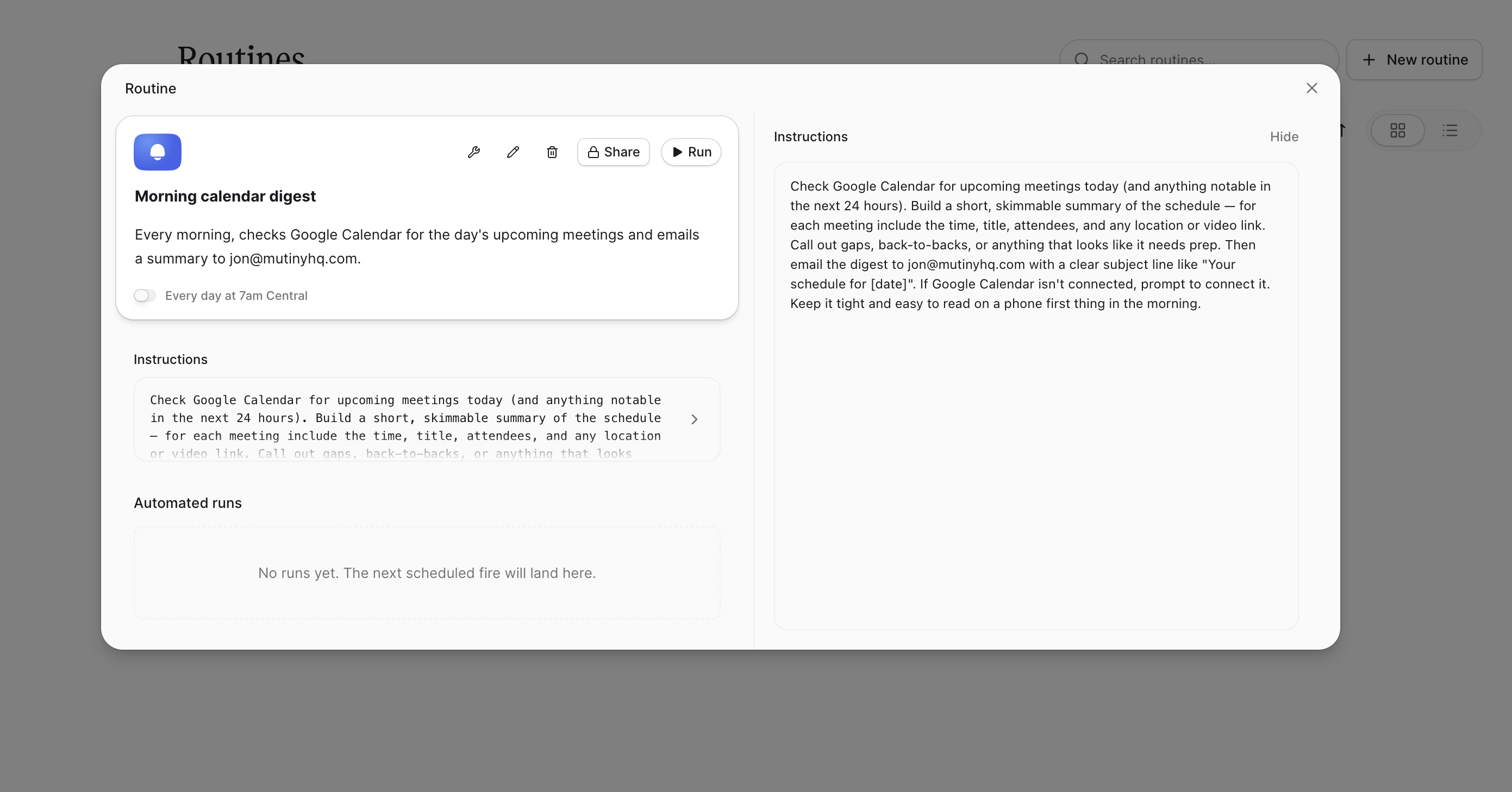
You'll also see a log of every run. These populate as the routine runs, so you can check what the agent did and confirm everything is working.
Need Help?
If you have questions or need help, the Mutiny Support team is here for you! You can submit a support ticket using the Submit a ticket button at the top of this page, or reach us at support@mutinyhq.com.