Automating Competitor Alerts from Your Calls
Last updated: July 1, 2026
Mutiny can watch your calls for competitor mentions so you do not have to comb through transcripts. With a routine, the agent scans your recent calls, flags any where a competitor came up, and summarizes the context, so your team always knows where you are being compared.
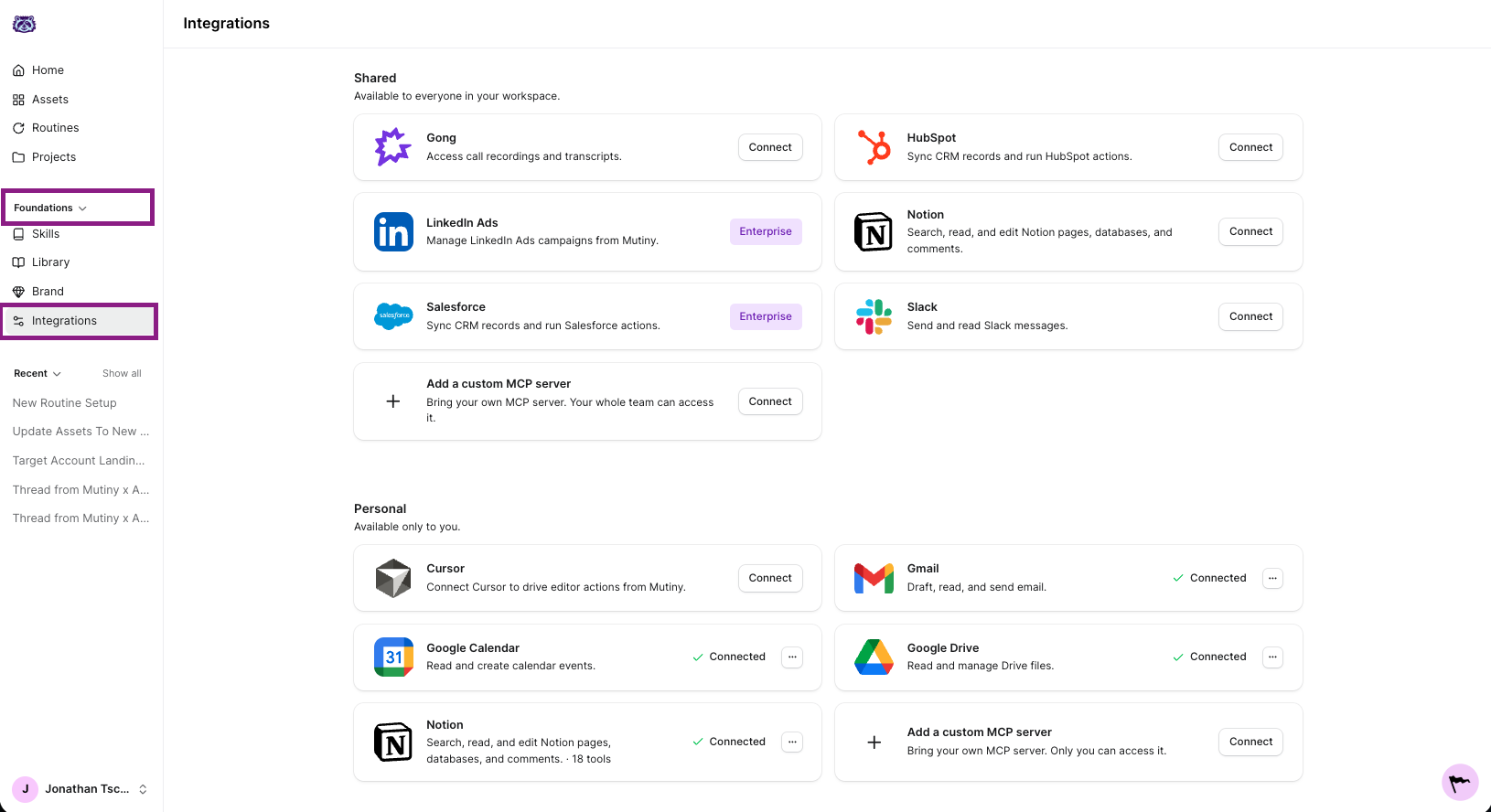
Connecting your integrations
This routine reads your call transcripts, so connect your call tool, like Gong, Granola, or Fireflies. Connect Slack so the agent can message you when it finds something.
Creating the routine
Go to Routines in the left nav and click New routine in the top right. This launches a thread where the agent asks a few questions to set up your routine.
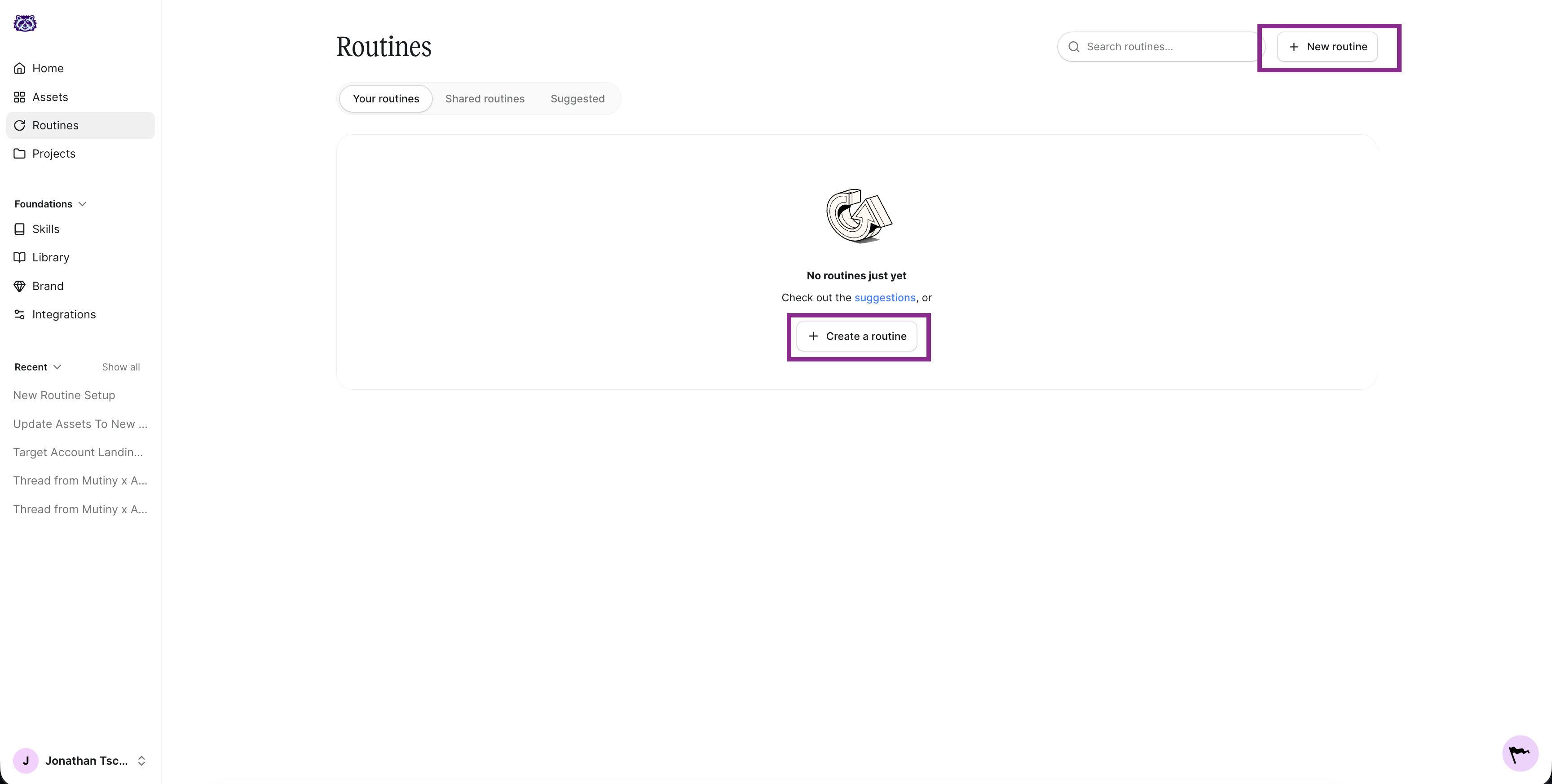
The agent will ask a series of questions about what the routine should do, when it should run, and where the output should go. Below are answers you can use to create this routine.
What should this routine do?
Scan my recent call transcripts and flag any calls where a competitor was mentioned. For each one, summarize what was said and the context around it.
If you want the agent to watch for specific competitors, name them in the prompt so it knows exactly what to look for.
When should it run?
Running this daily keeps competitive intel fresh while calls are recent. A weekly run on Monday morning works well if you would rather review it as a summary.
Where should the output go?
Finally, the agent asks where the output should go. Have it send you a Slack message with any findings so your team sees them right away. If Slack is not connected, have the agent email you instead.
You can also have the agent update or create a Notion page or Google Doc to keep an ongoing record of competitor mentions in calls.
Enabling tool usage
For the routine to run without a hitch, you need to auto-approve its tools. Click into the routine, then click the wrench icon on the routine card. This is titled Tool usage. Select Auto approve all tools.
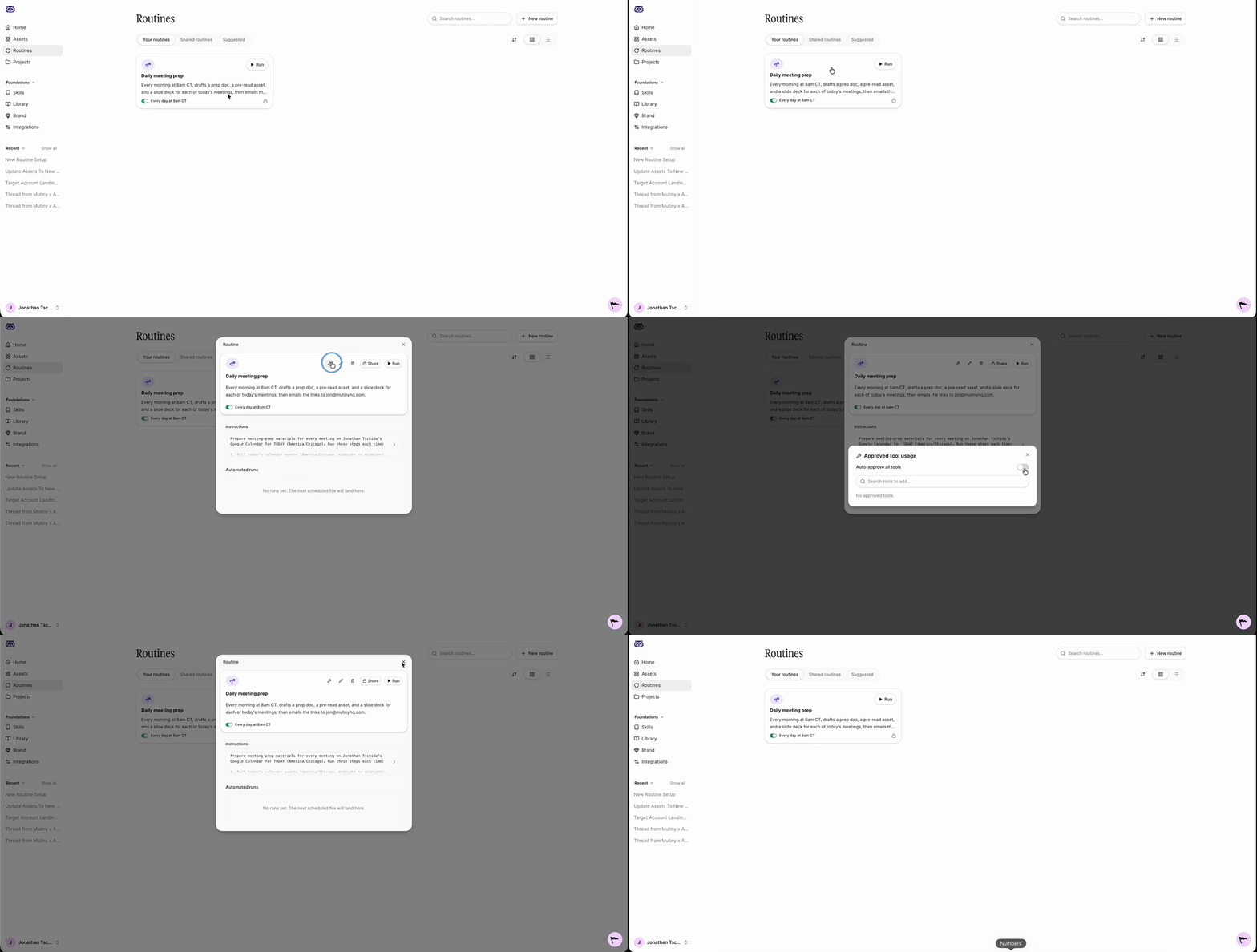
This lets the Mutiny agent make requests to your connected tools, like Gong and Slack, without pausing for approval each time.
Editing and monitoring your routine
Once created, your routine appears on the Routines page and in the thread, along with a summary of what it will do.
When you open the routine, you will see the instructions the agent drafted when you created it. Click into these to edit them at any time, whether you want to add competitors to watch for or change how the summary reads.
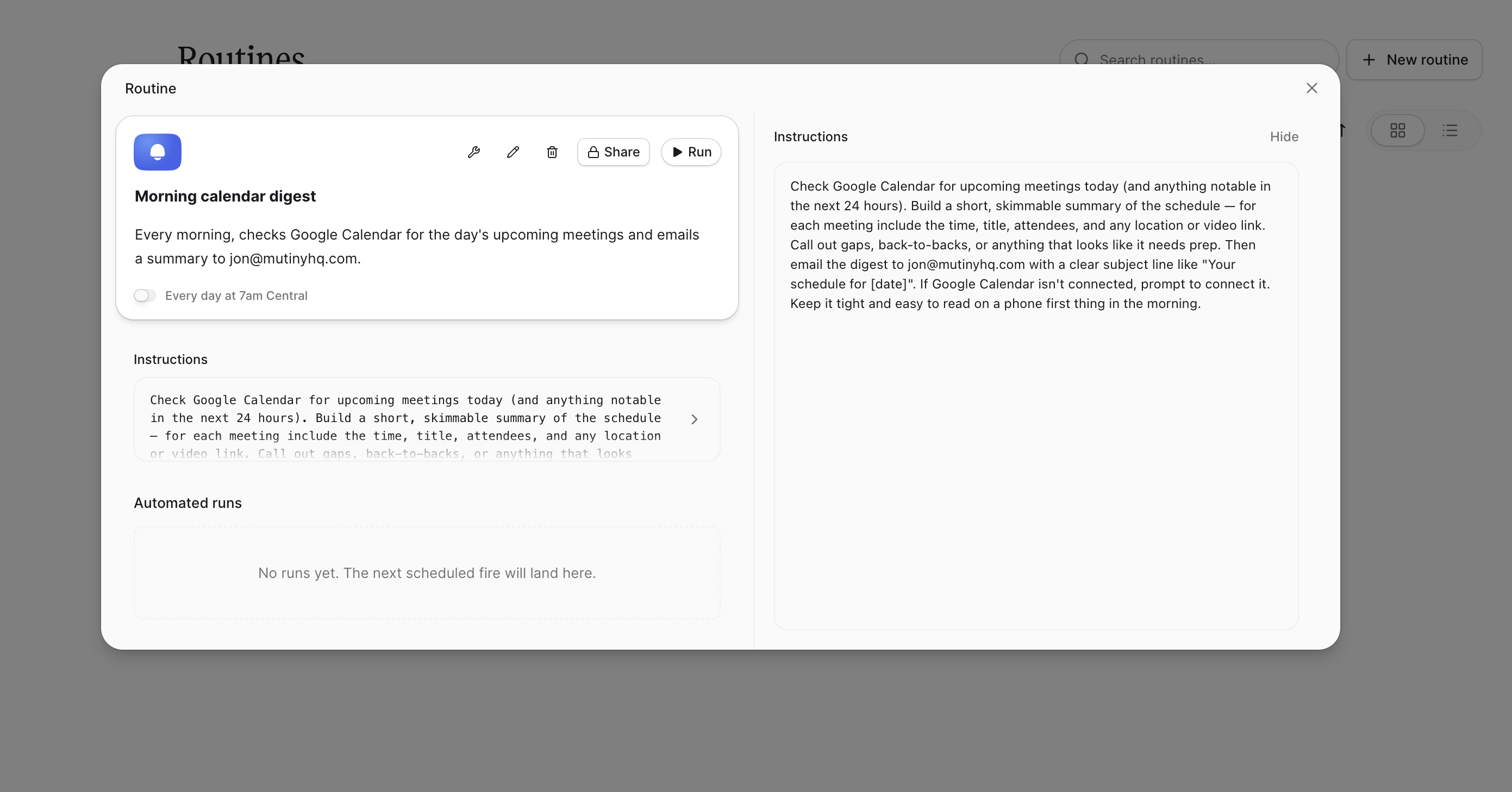
You will also see a log of every run. These populate as the routine runs, so you can check what the agent did and confirm everything is working.
Need Help?
If you have questions or need help, the Mutiny Support team is here for you! You can submit a support ticket using the Submit a ticket button at the top of this page, or reach us at support@mutinyhq.com.