Automating Your Weekly Forecast Rollup
Last updated: July 7, 2026
Mutiny can build your forecast rollup before your Monday call. With a routine, the agent pulls your team's pipeline from your CRM, categorizes deals into commit, upside, and best case, and delivers a summary before you walk into the meeting.
Connecting your integrations
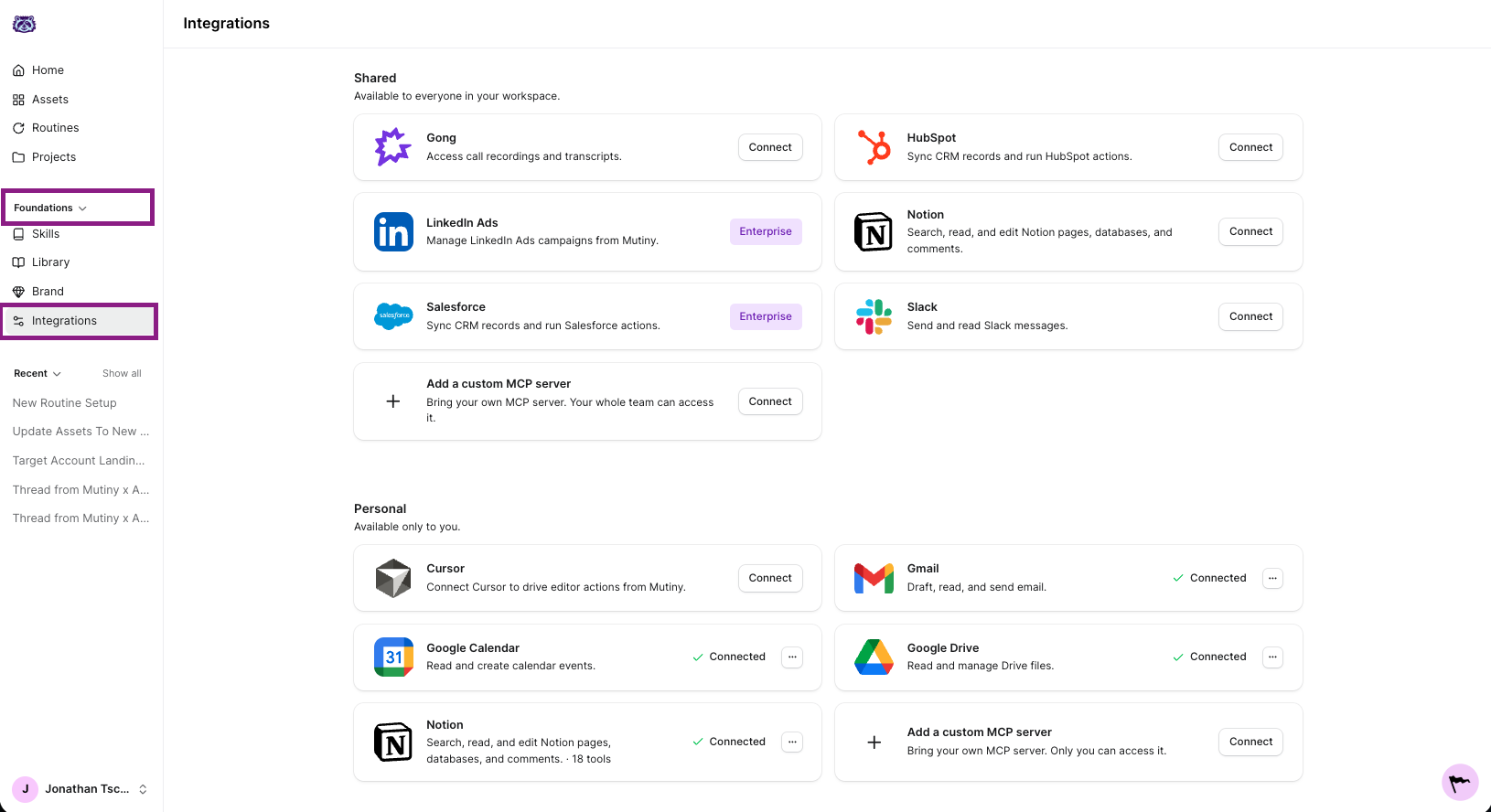
This routine reads from your CRM, so connect HubSpot, or Salesforce if you're on Enterprise. To have the rollup sent to Slack, connect the Slack integration. If you want it saved as a doc, connect Notion or Google Drive.
Creating the routine
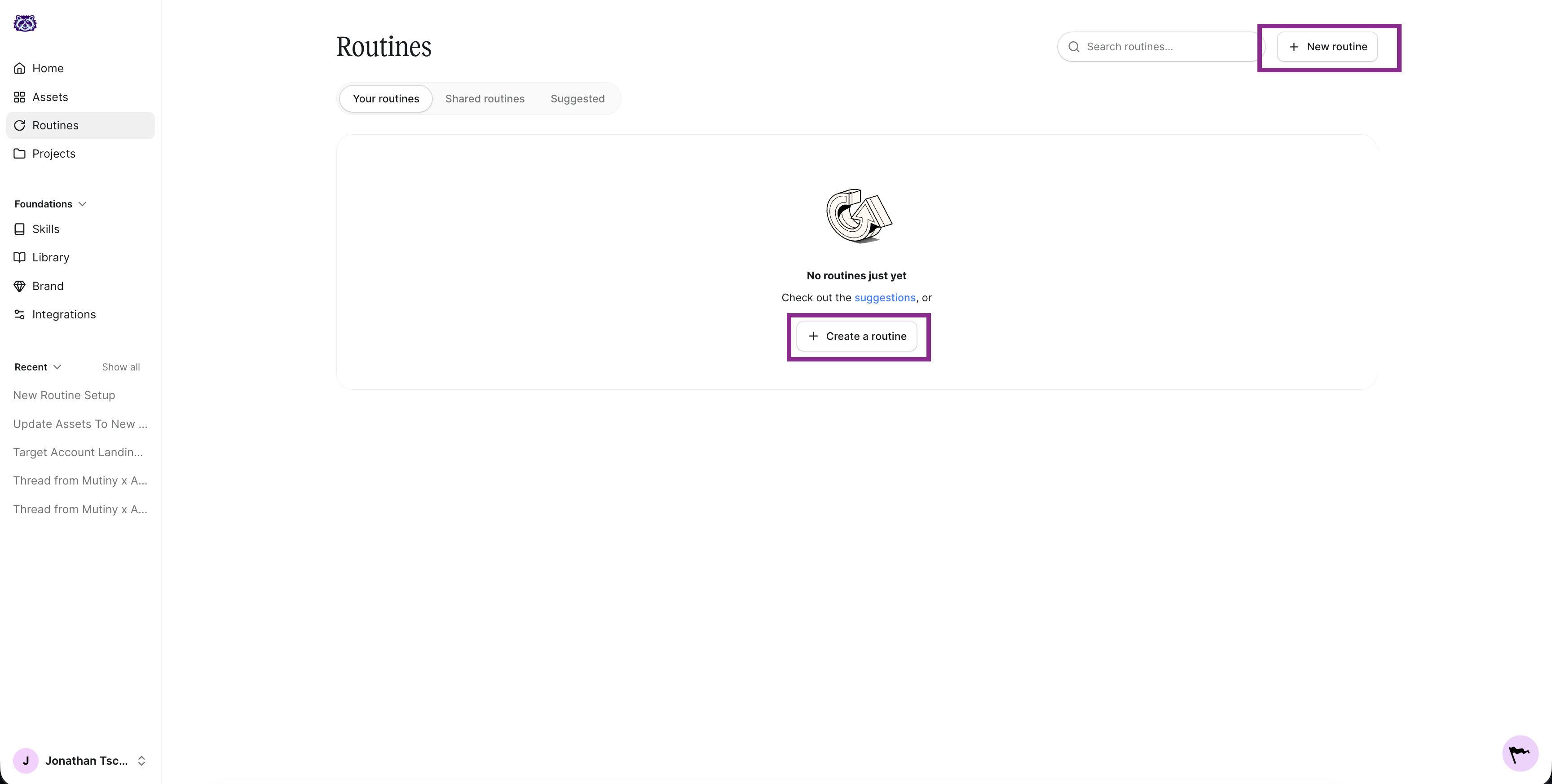
Go to Routines in the left nav and click New routine in the top right. This launches a thread where the agent asks a few questions to set up your routine.
The agent will ask a series of questions about what the routine should do, when it should run, and where the output should go. Below are answers you can use to create this routine.
What should this routine do?
Pull all open deals for my team from the CRM. Categorize each deal as commit, upside, or best case based on stage, close date, and recent activity. Summarize the totals for each category, call out deals that changed category since last week, and flag anything at risk of slipping this quarter.
If your team uses specific criteria for commit versus upside, spell them out in the prompt so the agent categorizes deals the way you would.
When should it run?
Have the agent schedule this routine before any weekly/monthly forecast meetings, or whatever day of the week you want this info.
Where should the output go?
This is up to you and depends on your workflow. You can ask the agent to email you when the routine finishes, or, if you have Slack connected, you can ask the agent to send you a Slack DM instead.
Enabling tool usage
For the routine to run without a hitch, you need to auto-approve its tools. Click into the routine, then click the wrench icon on the routine card. This is titled Tool usage. Select Auto approve all tools.
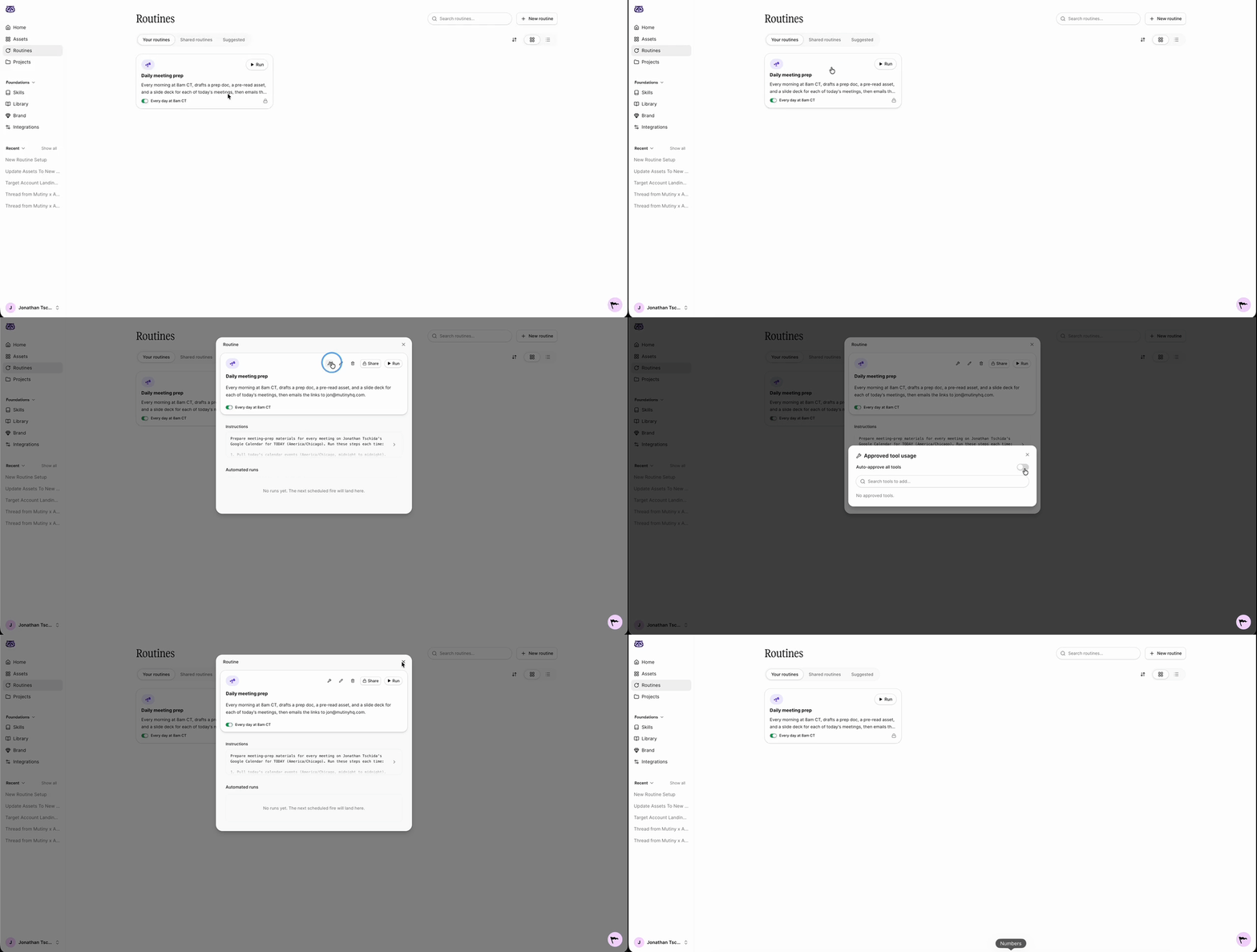
This lets the Mutiny agent make requests to your connected tools, like HubSpot, Salesforce, and Gmail, without pausing for approval each time.
Editing and monitoring your routine
Once created, your routine appears on the Routines page and in the thread, along with a summary of what it will do.
When you open the routine, you'll see the instructions the agent drafted when you created it. Click into these to edit them at any time, whether you want to change how deals are categorized or adjust what the summary calls out.
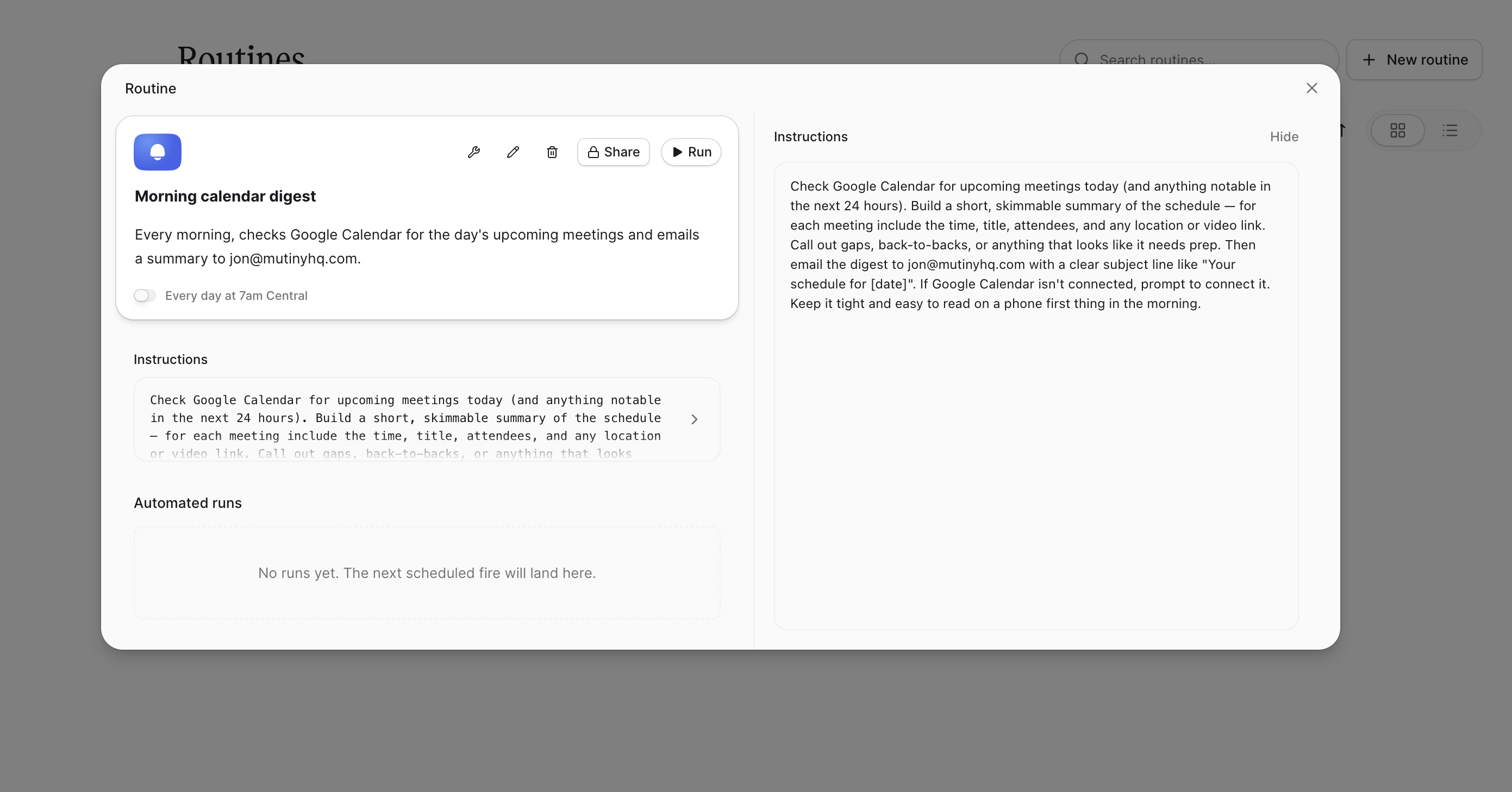
You'll also see a log of every run. These populate as the routine runs, so you can check what the agent did and confirm everything is working.
Need Help?
If you have questions or need help, the Mutiny Support team is here for you! You can submit a support ticket using the Submit a ticket button at the top of this page, or reach us at support@mutinyhq.com.