Automating Daily Meeting Prep
Last updated: July 1, 2026
Mutiny can prep your meetings for you every day. With a routine, the agent reviews your calendar, drafts a prep doc for each meeting, and builds a preread asset and a presentation deck to use during the call. All of it lands in your inbox each morning, so your meeting prep is ready before you start your day.
Connecting your integrations
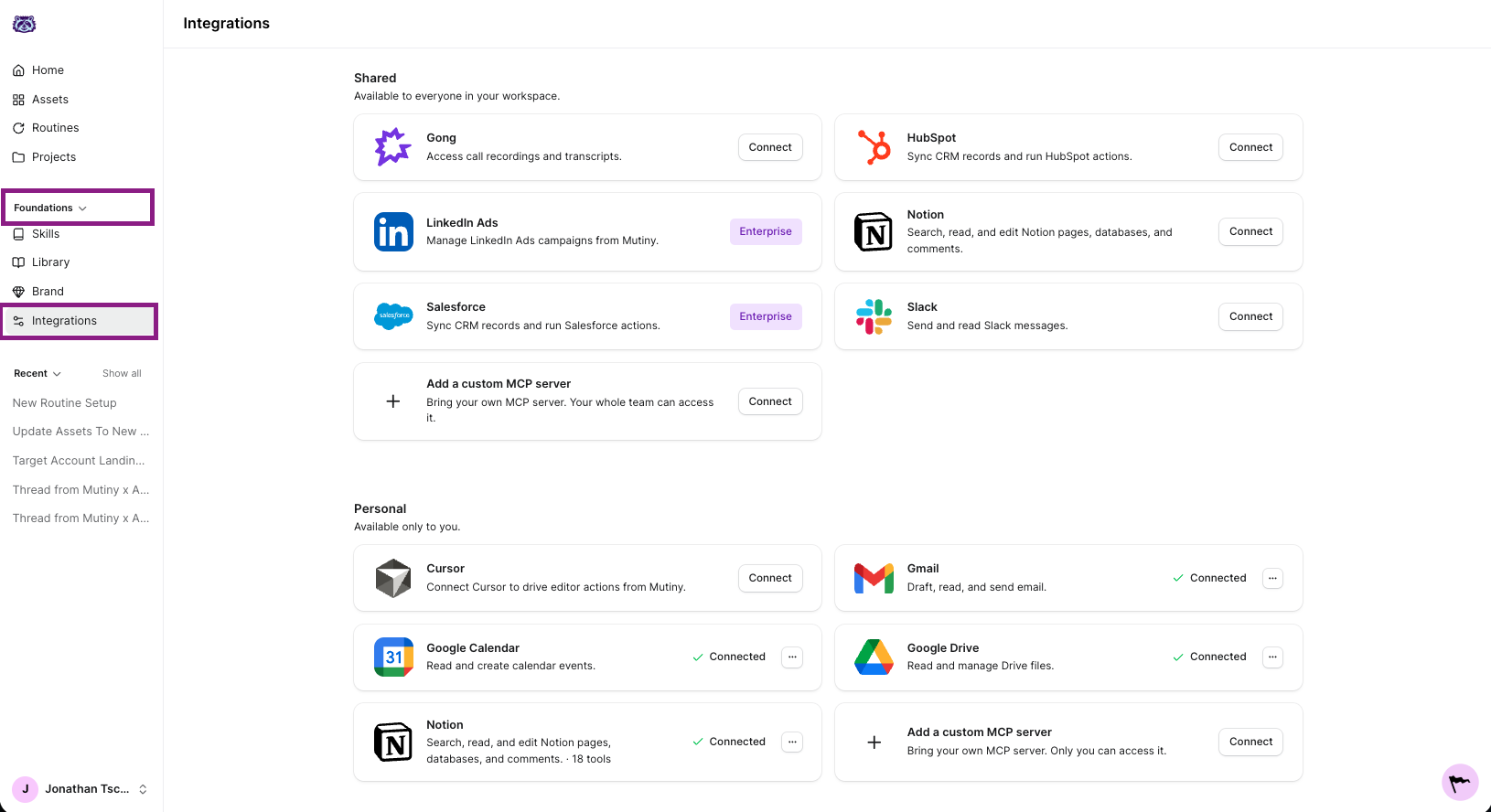
Before you create the routine, ensure that the required tools are connected. Make sure Google Calendar is connected so the agent can see your meetings.
If you want your prep doc created in Google Drive or Notion, connect whichever of those you would like to use. You can also connect Gmail so the agent can send the finished assets to any internal or external people who would find them useful.
You can connect these tools from the Integrations page in Mutiny:
Creating the routine
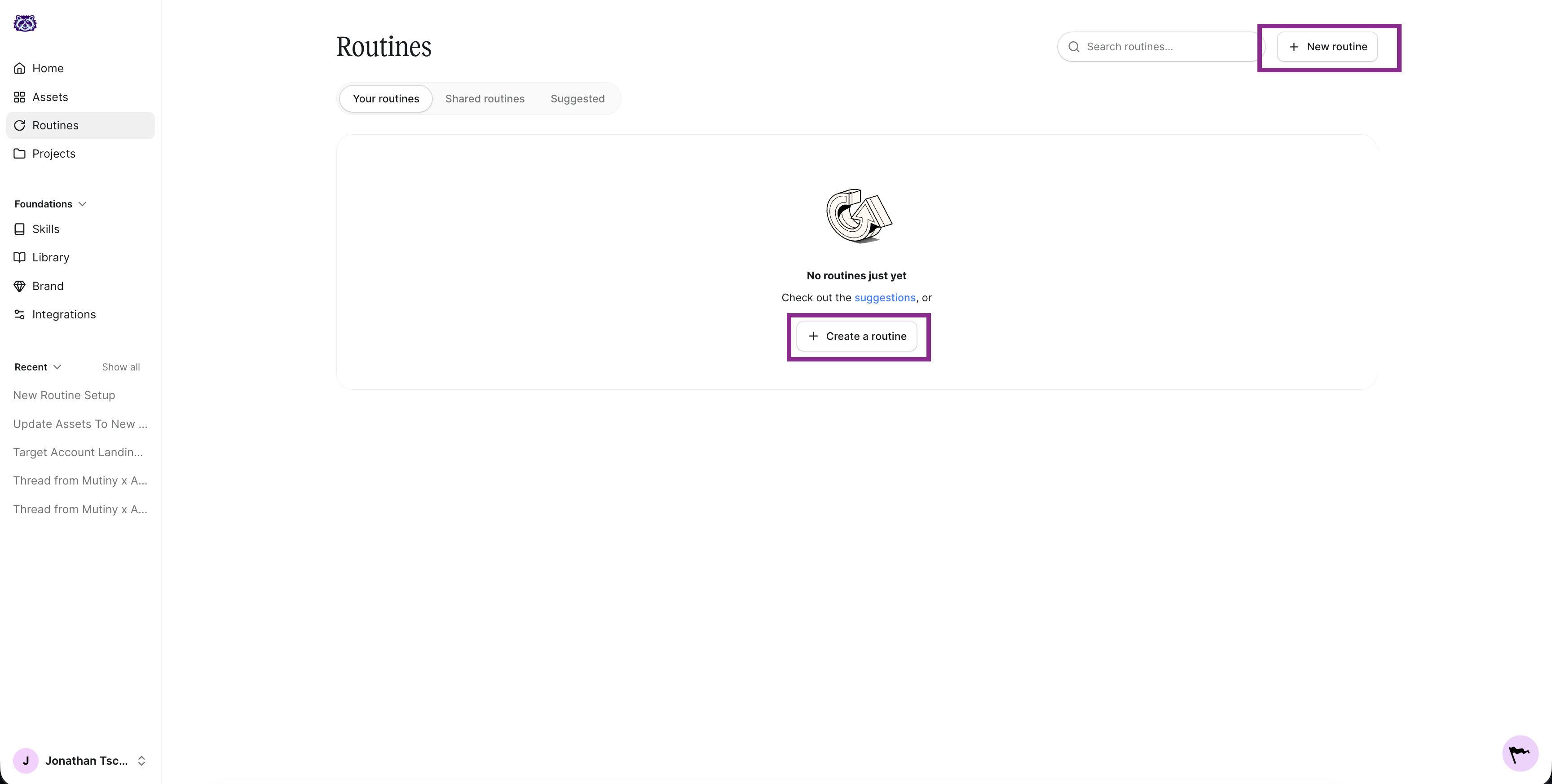
Head to Routines and click New routine in the top right. This launches a new thread with the Mutiny agent where we will create the routine.
The agent will ask a series of questions about what the routine should do, when it should run, and where the output should go. Below are answers you can use to create this routine.
What should this routine do?
I want to automate my meeting prep each day. For each meeting, I want to draft a prep doc in Google Drive as a Google Doc. I want a preread asset for the meeting as well as a slide deck asset to use during the meeting.
If you already have templates for slide-deck and pre-read assets, you can ask the agent to utilize these templates when creating these assets each day, but this is an optional step. More on templates here: 📄 Templates Deep Dive
When should it run?
Select On a schedule and then give the agent a time; we recommend sometime in the morning before 9 am.
Where should the output go?
This is up to you and depends on your workflow. You can ask the agent to email you when the routine finishes, or, if you have Slack connected, you can ask the agent to send you a Slack DM instead.
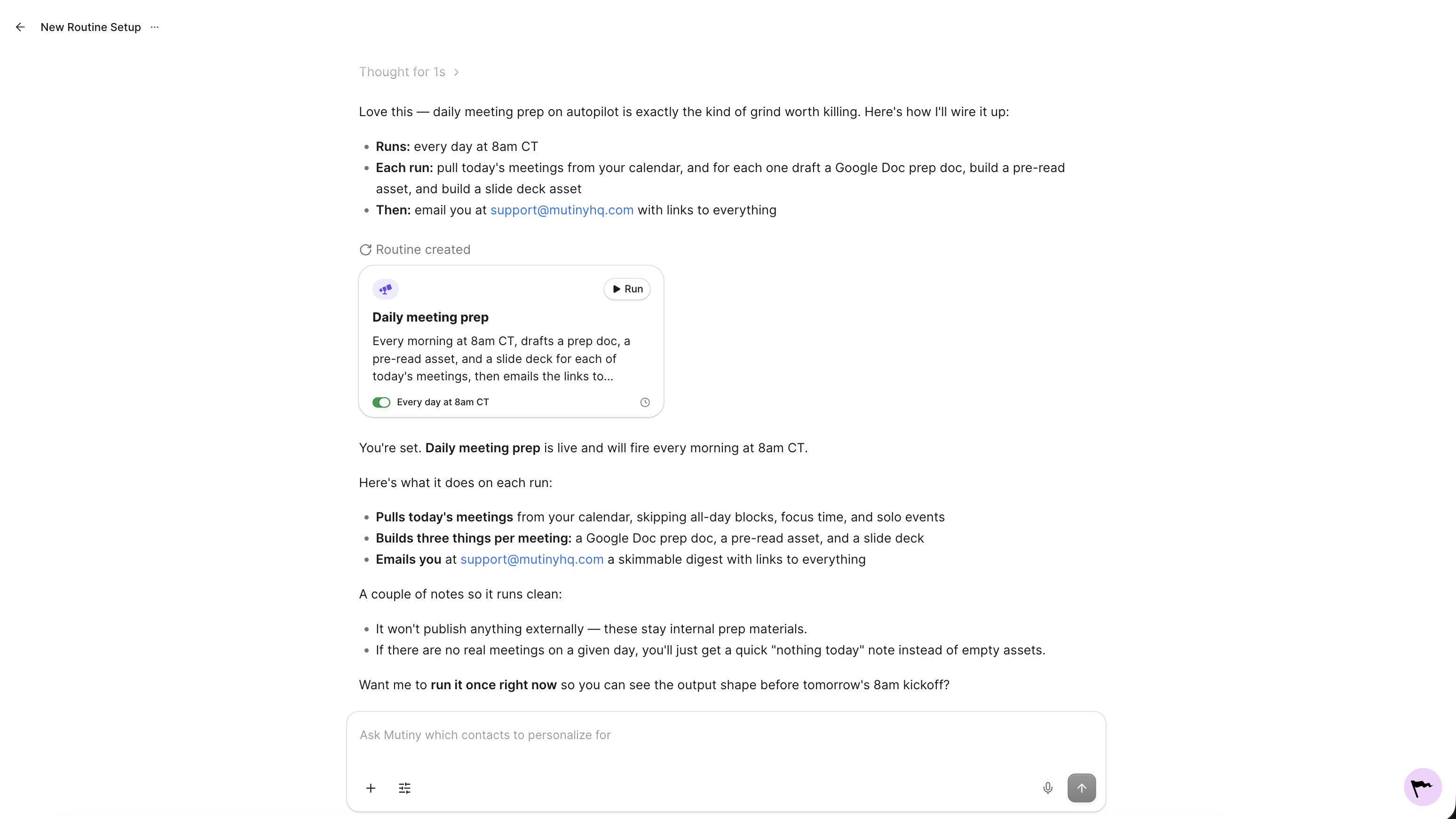
When you've answered the agent's questions, the agent creates the routine and gives you a summary of what it will do. The routine appears in the thread and in your Routines tab.
Enabling tool usage
For the routine to run without a hitch, you need to auto-approve its tools. From the Routines page, click into the routine, then click the wrench icon on the routine card. Select Auto-approve all tools.
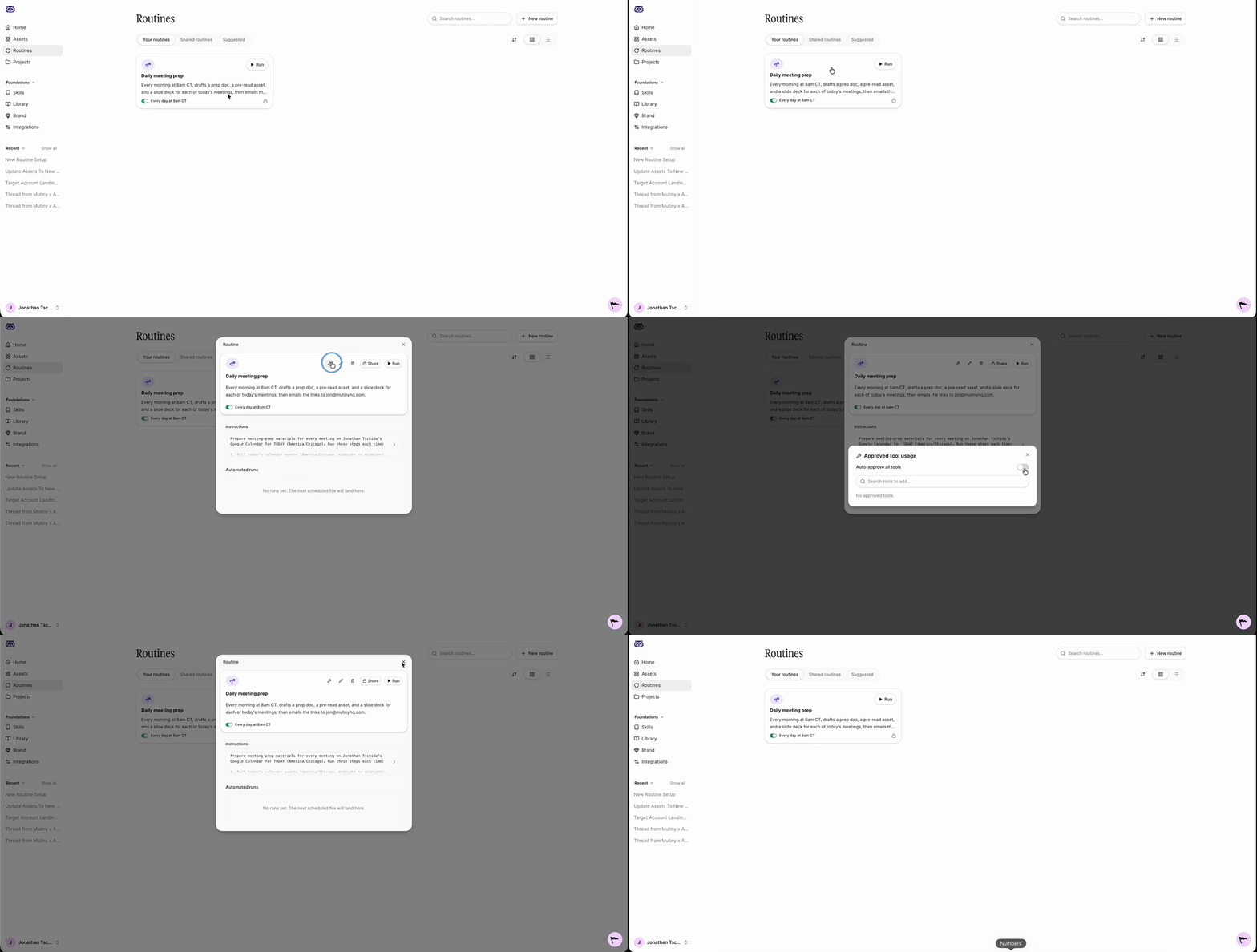
This lets the Mutiny agent make requests to your connected tools, like Notion, Google Drive, and Google Calendar, without pausing for approval each time.
Editing and monitoring your routine
When you open the routine, you will see the instructions the agent drafted when you created it. Click into these to edit them at any time, whether the routine is not working the way you expect or you just want to adjust what it does each day.
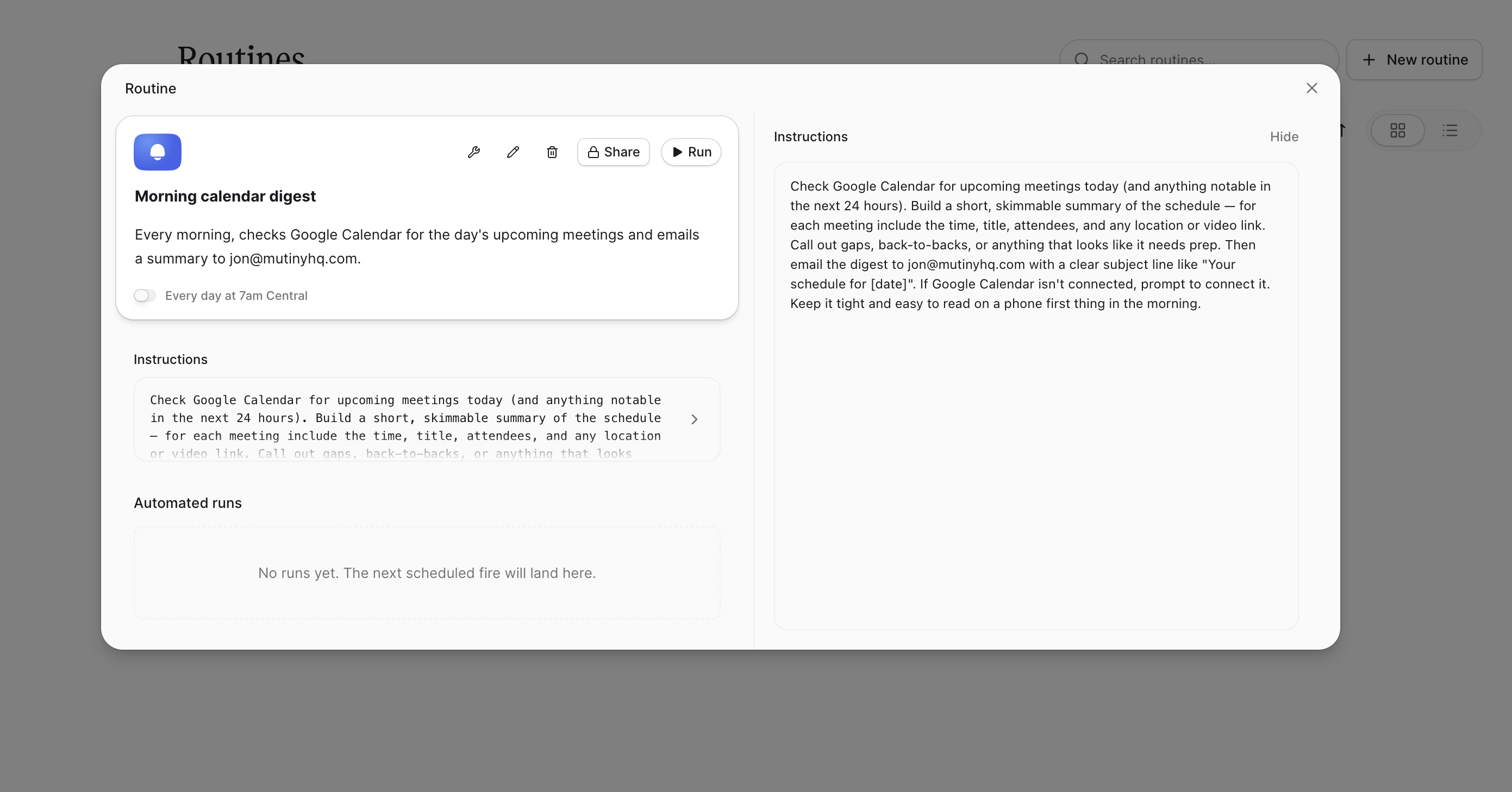
You will also see a log of every run. These populate as the routine runs each day, so you can check what the agent did and confirm everything is working.
Once your tools are approved, the routine runs every day and emails you your meetings for the day with all of the prep docs and slide decks ready to go.
Need Help?
If you have questions or need help, the Mutiny Support team is here for you! You can submit a support ticket using the Submit a ticket button at the top of this page, or reach us at support@mutinyhq.com.