Creating Teams in Mutiny
Last updated: August 18, 2026
Mutiny lets you assign users to Teams so you can keep your Mutiny instance organized and manage groups of users more easily. After you create Teams, you can assign users to them and set credit limits for specific Teams.
Opening Team settings
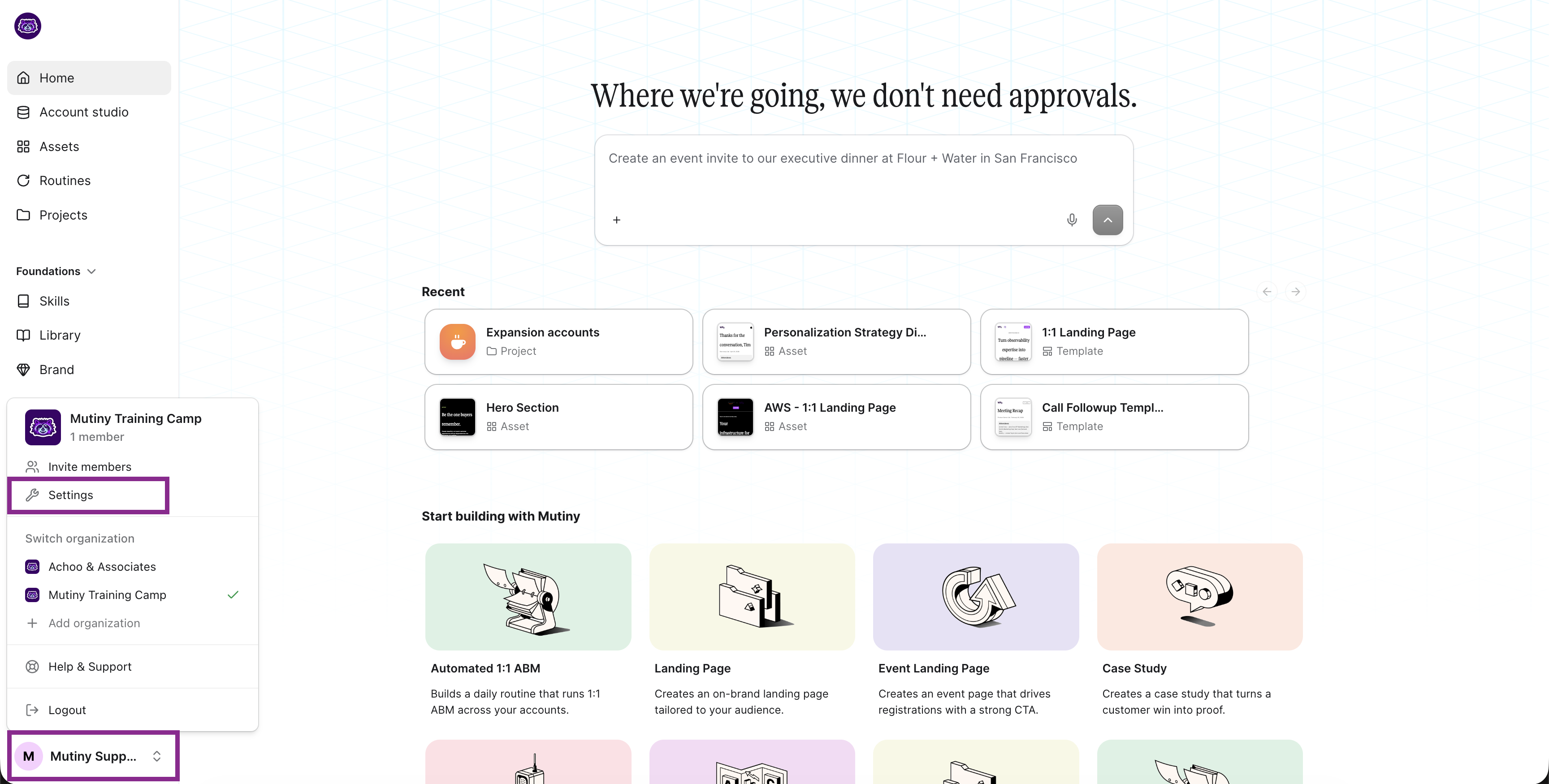
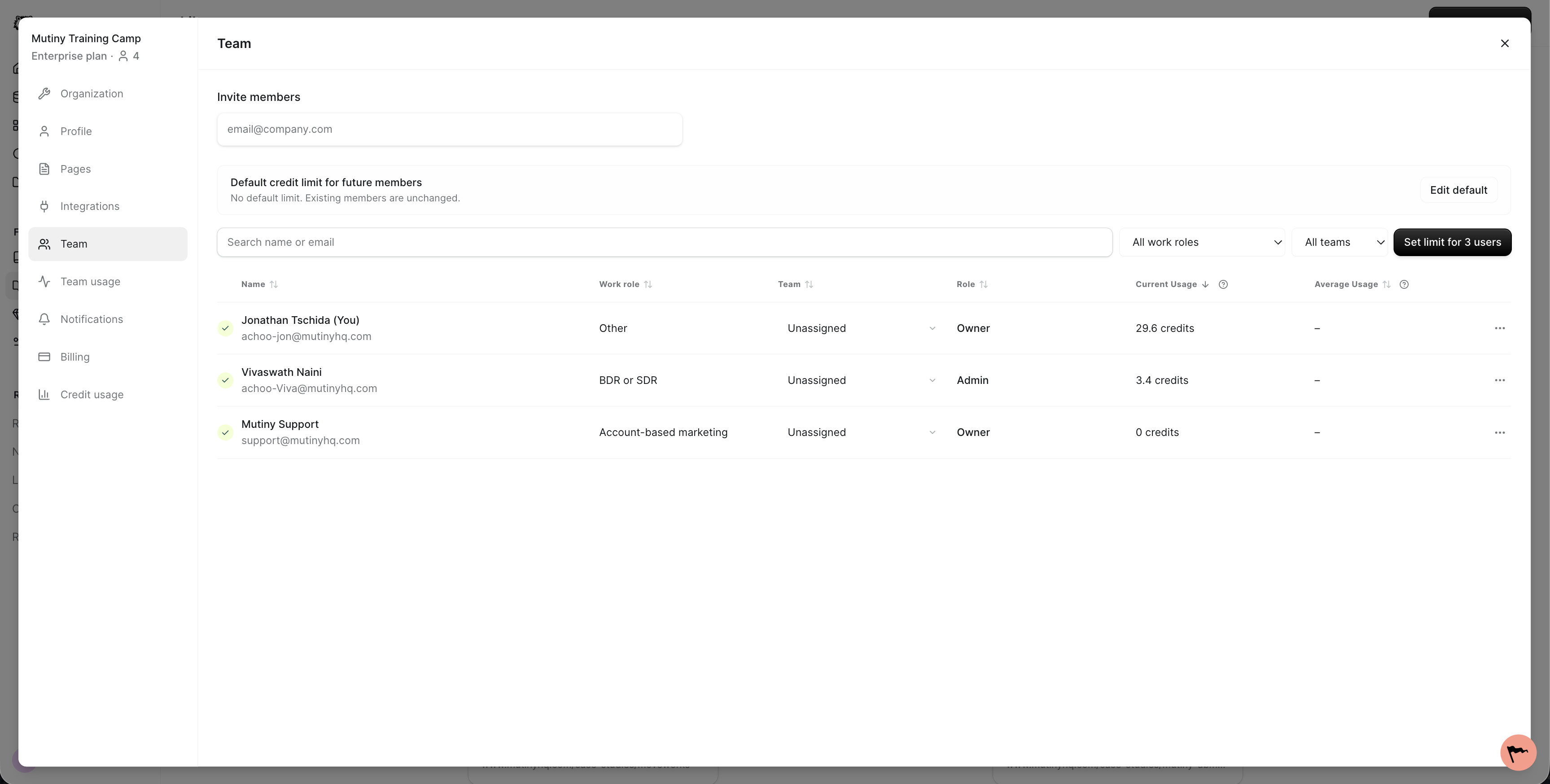
To get started, open the main Settings modal. Go to Team settings.
Creating a Team
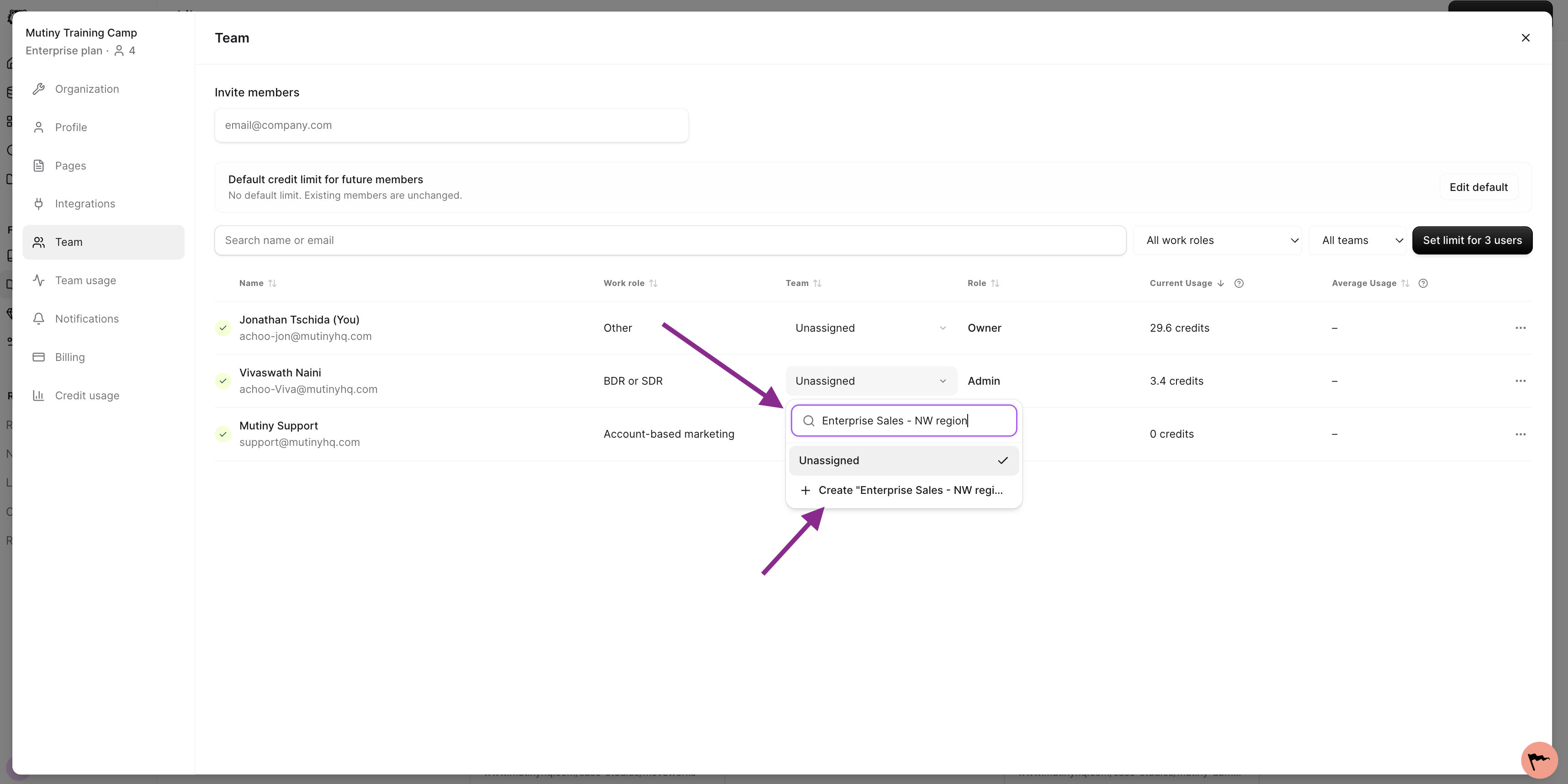
In Team settings, find the Team column. Click any dropdown in the Team column.
Start typing the Team name you want to create. As you type, you'll see the option to create a team. Click + Create to add it.
Assigning users to a Team
After you create a Team, it becomes available in the Team dropdown for other users in your Mutiny instance.
Open the dropdown for a user and select the Team you want to assign them to.
Setting credit limits for Teams
Once your Teams are created, you can set credit limits for specific Teams.
This is helpful when multiple groups, like marketing and sales, use the same Mutiny instance and you want to divide credits across Teams or subsets of Teams.
Need Help?
If you have questions or need help, the Mutiny Support team is here for you! You can submit a support ticket using the Submit a ticket button at the top of this page, or reach us at support@mutinyhq.com.