Asset Editor Layers Menu
Last updated: June 24, 2026
The Layers dropdown displays your page sections in a hierarchical list view with collapsible menus. This layout reveals the parent-child relationships between containers and elements, making it easier to understand how your page is organized.
Understanding the Layers view
To access the layers dropdown, in the asset editor, click the paint brush icon at the top of the thread panel
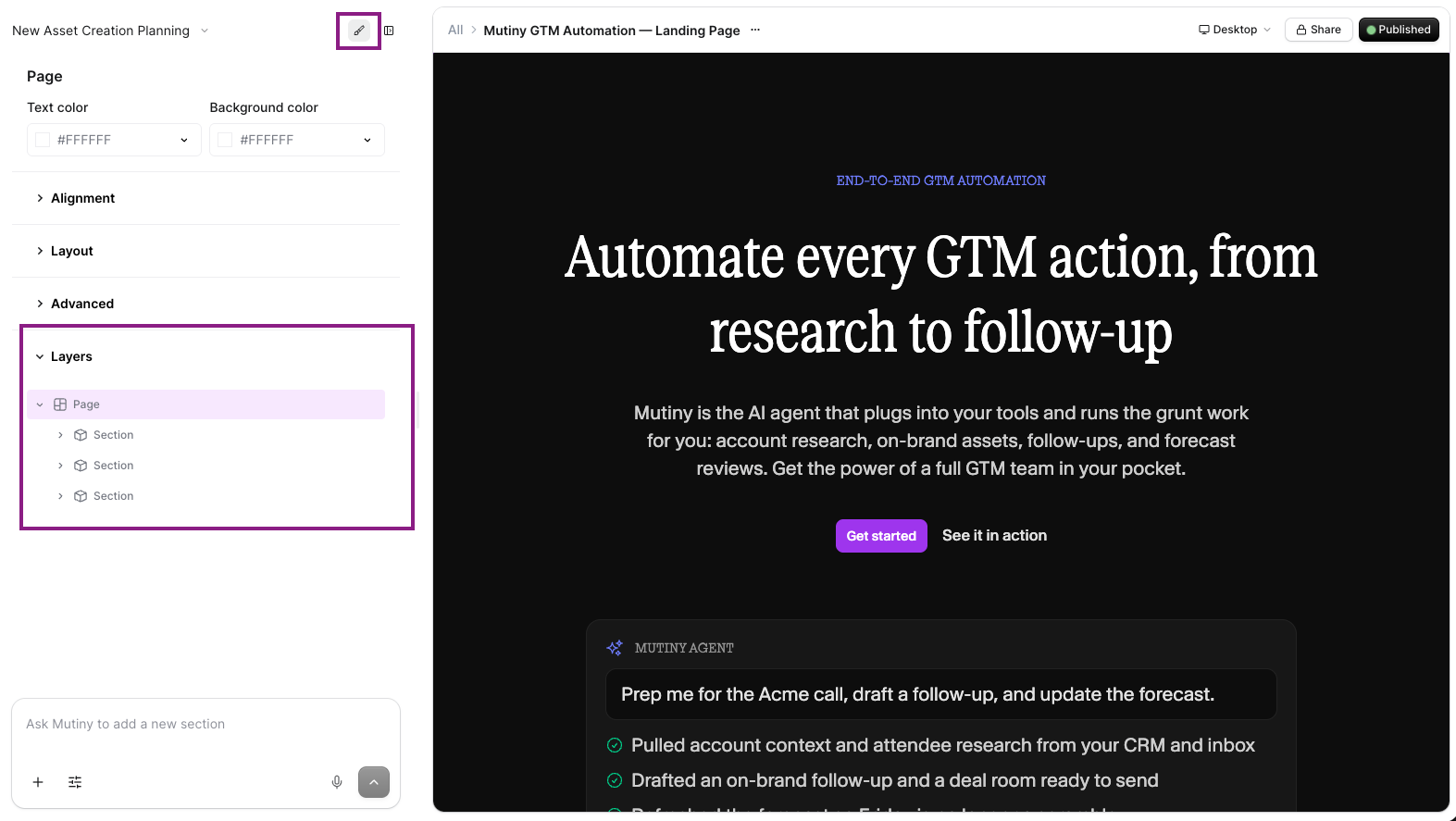
When selecting different elements in the list, they will be highlighted in the canvas so you know what you are targeting.
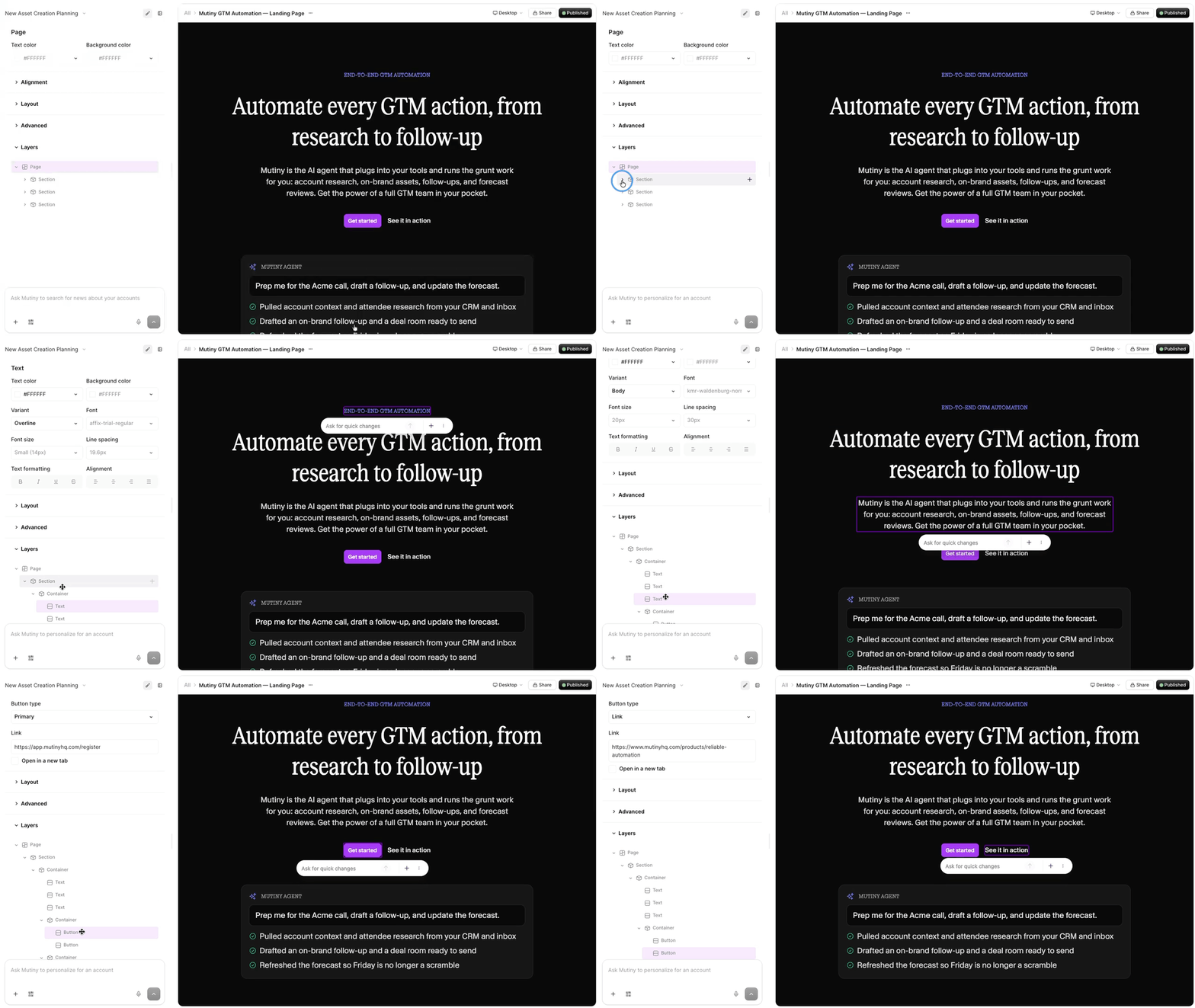
Utilizing the Layers Tab
Precise Element Selection
When working with complex page layouts, the Layers tab helps ensure you're selecting the correct element. Once you've identified and selected an element through the Layers tab, you can:
Switch to the Design tab to make detailed styling changes to that element
Switch to the Chat tab to ask the AI to make specific modifications to that element
Adding New Elements
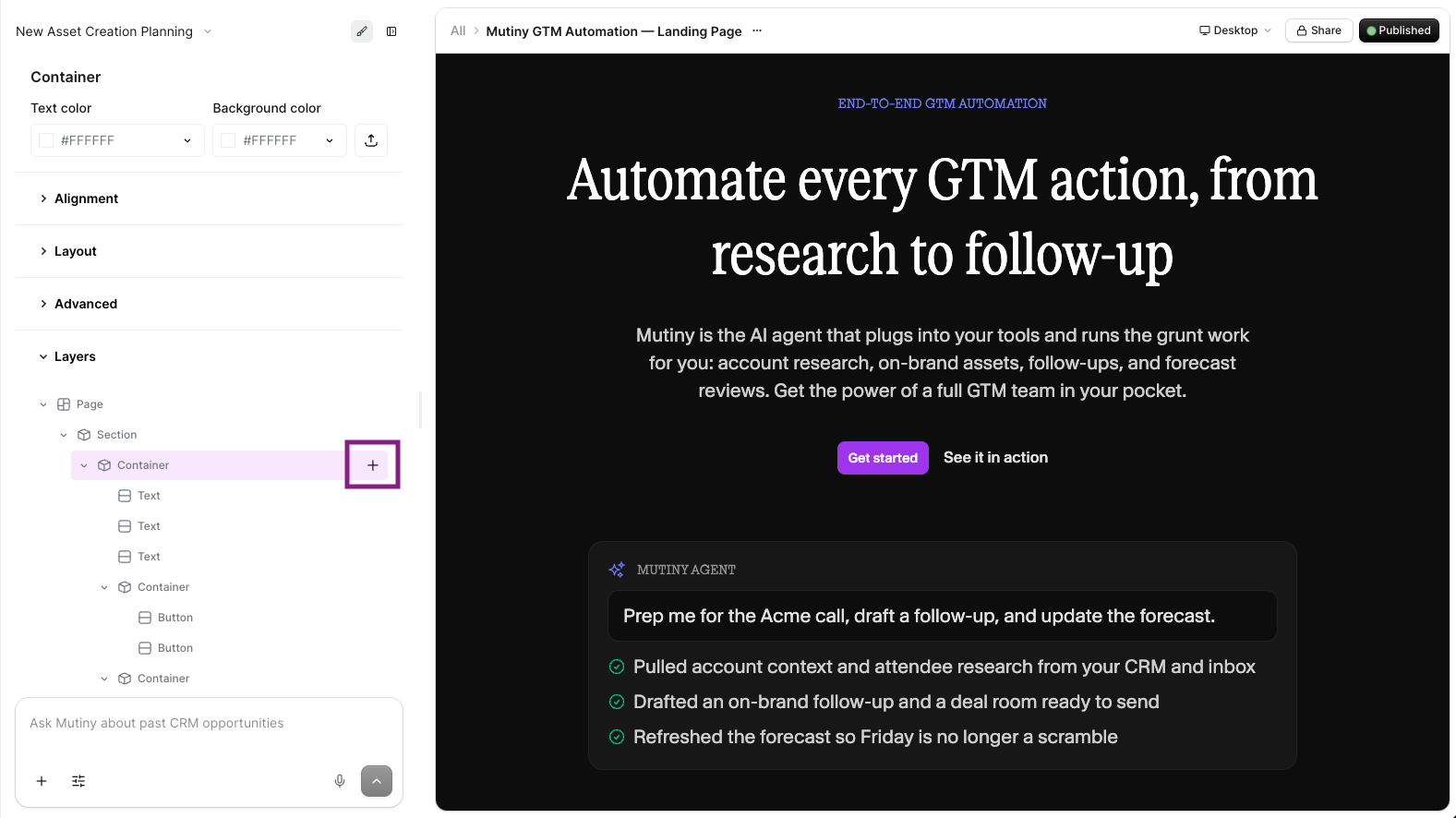
When you select a container element in the Layers tab, you can click the plus icon to add a child element directly to that container.
Moving elements
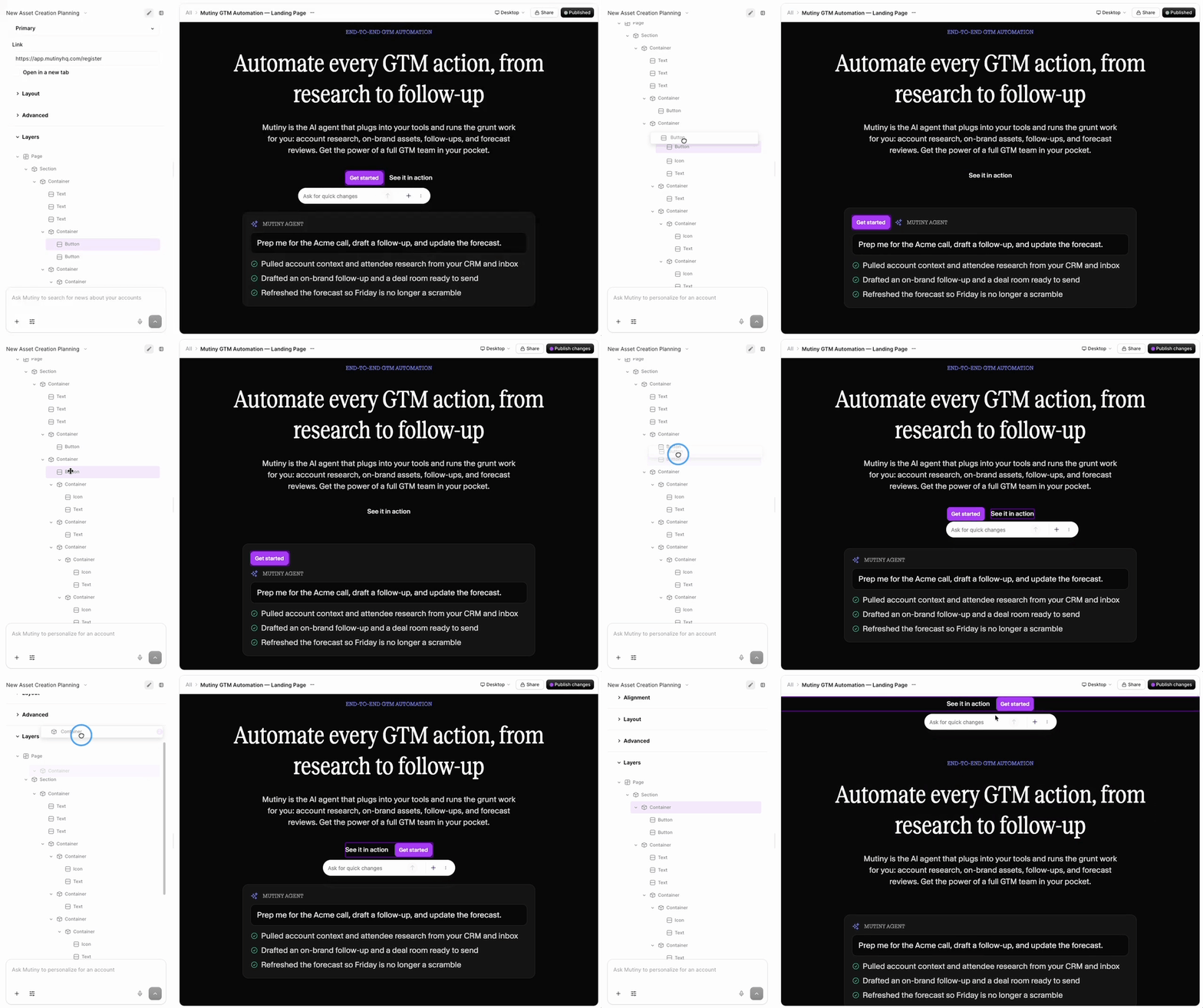
You can click and drag containers in the Layers tab to rearrange the content on the asset. This is particularly helpful when dealing with a large number of sections or moving sections farther up or down on the page.
Building Complex Layouts
The Layers tab is particularly powerful when creating unique and complex page layouts for your assets. It gives you the control needed to manage sophisticated page structures efficiently.
Need Help?
If you have questions or need help, the Mutiny Support team is here for you! You can submit a support ticket using the Submit a ticket button at the top of this page, or reach us at support@mutinyhq.com.