Assets Editor Design Menu
Last updated: June 24, 2026
The Design menu enables you to make fine adjustments to the elements in your asset. You can make edits to the margin, padding, width, and height, or change the way text is displayed in a section; and this only covers a small number of properties you can change.
Using the Layout
To get started, click the paintbrush icon at the top of the thread panel. This will open the design menu
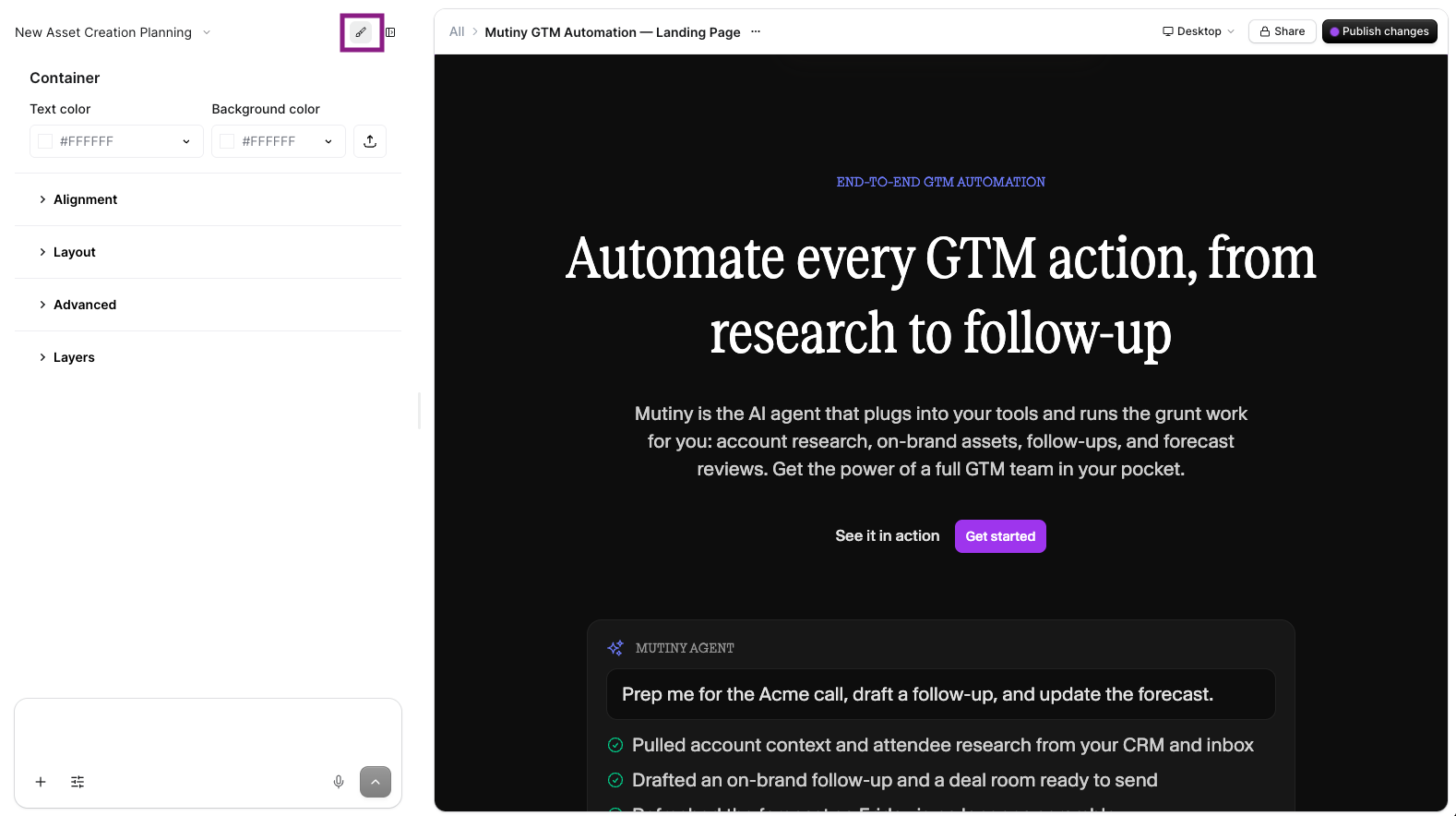
With the design menu open, select different elements on the page to make fine adjustments to their styles.
In this example, we will adjust the line height of the header text in our hero. We select the text, open the design menu, and edit the line-spacing attribute:
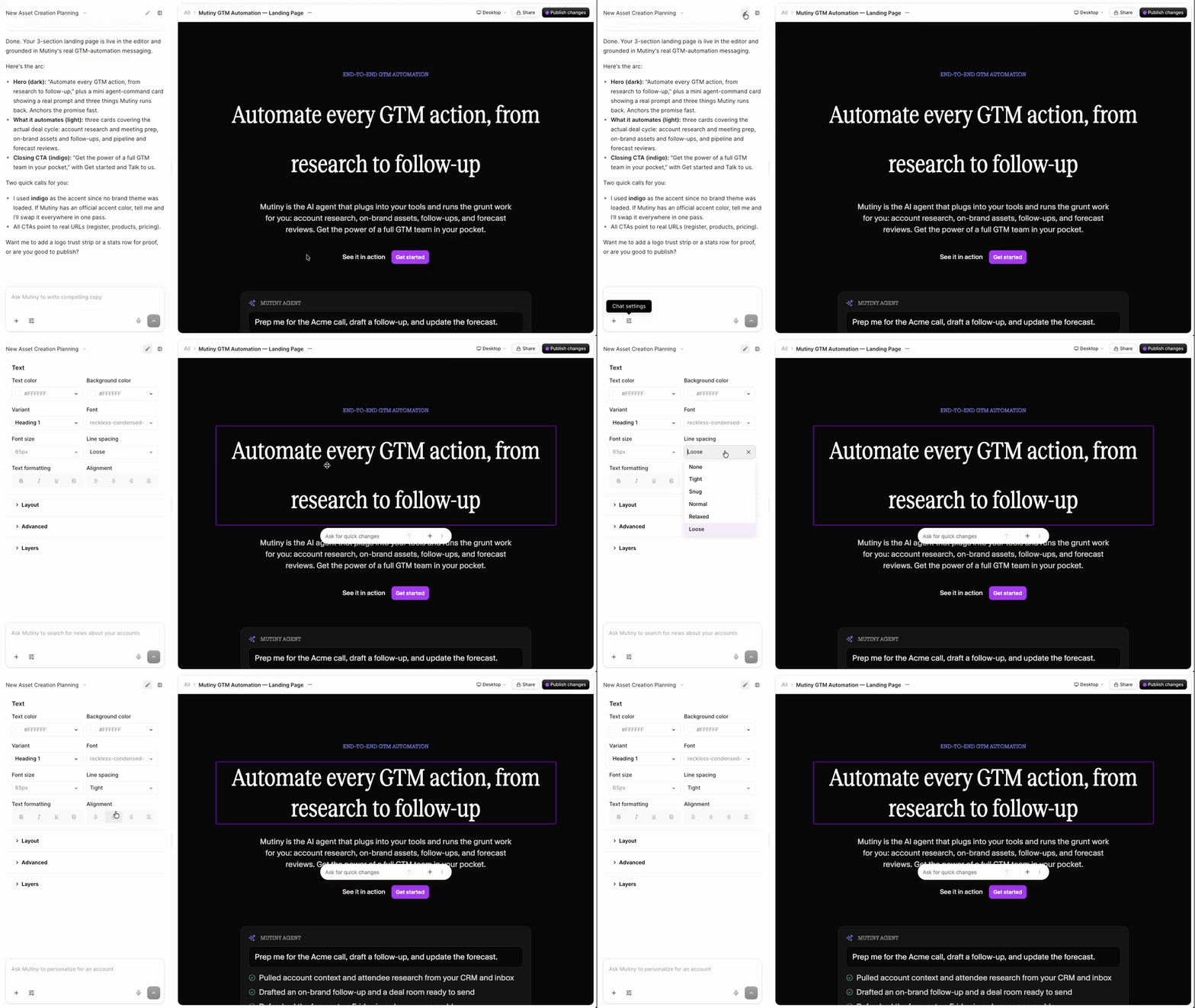
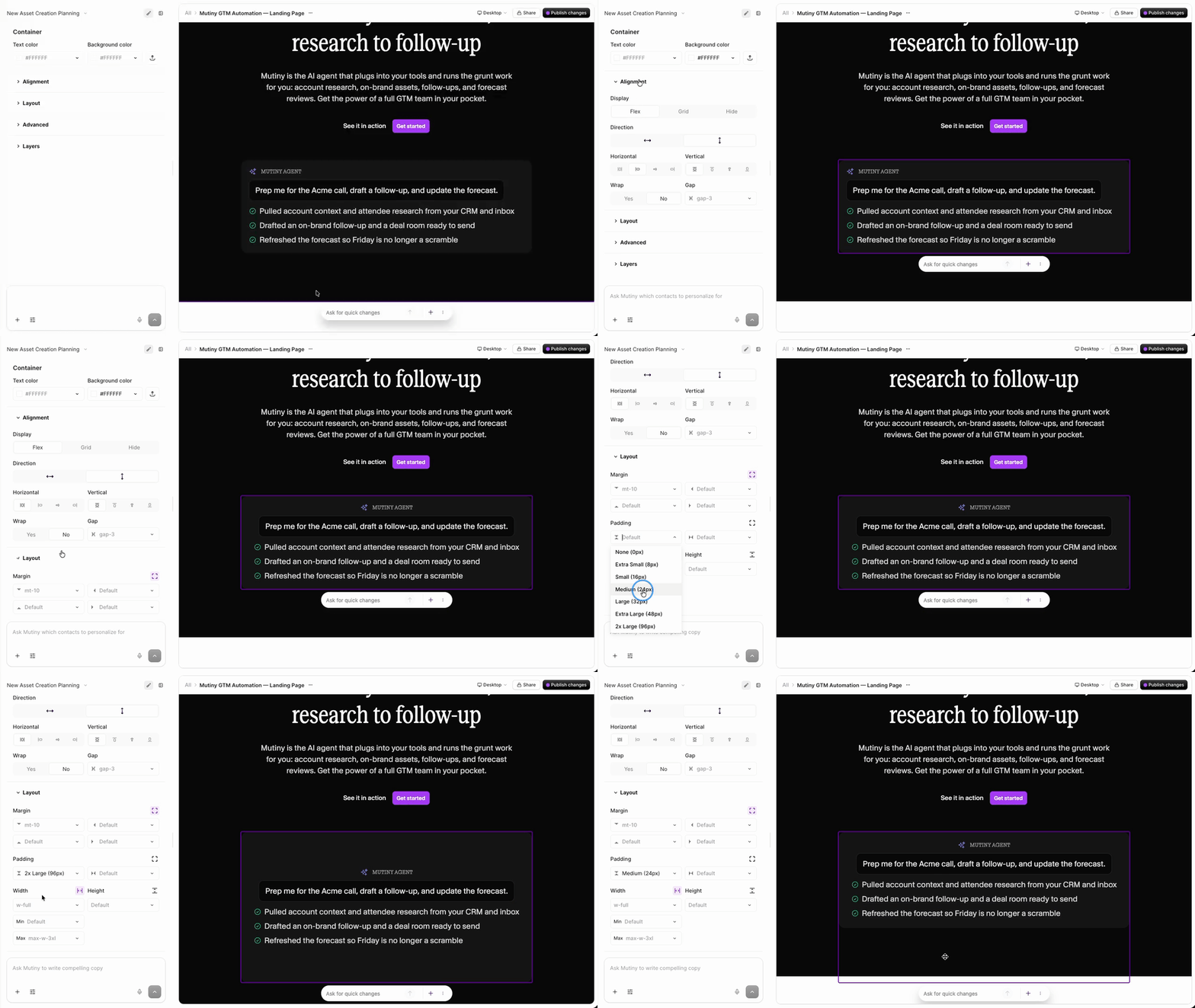
There are a plethora of properties that can be adjusted to get your page design just right. Depending on the element selected, you may also see Layout and Alignment dropdown menus.
These can be used to further fine-tune how elements and containers are displayed on your asset.
Need Help?
If you have questions or need help, the Mutiny Support team is here for you! You can submit a support ticket using the Submit a ticket button at the top of this page, or reach us at support@mutinyhq.com.