Assets Editor Deep Dive
Last updated: May 1, 2026
The Mutiny Asset Editor is a powerful interface that puts all your asset customization tools at your fingertips. With its intuitive layout and AI-powered features, you can efficiently create and personalize asset pages for all your target accounts.
For a full video guide, check out the Mutiny Training Camp: 📄 Using the Editor
Editing your Asset
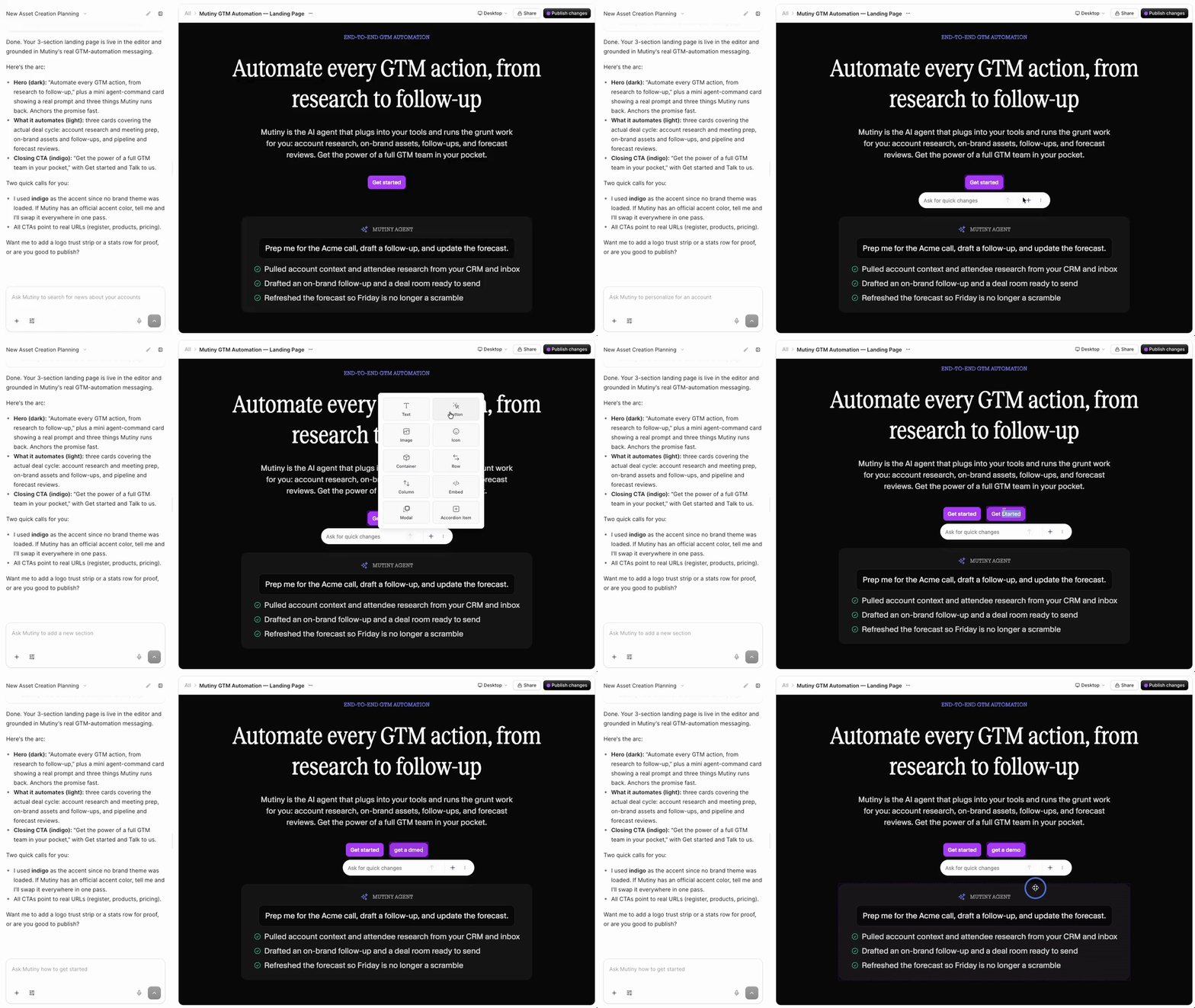
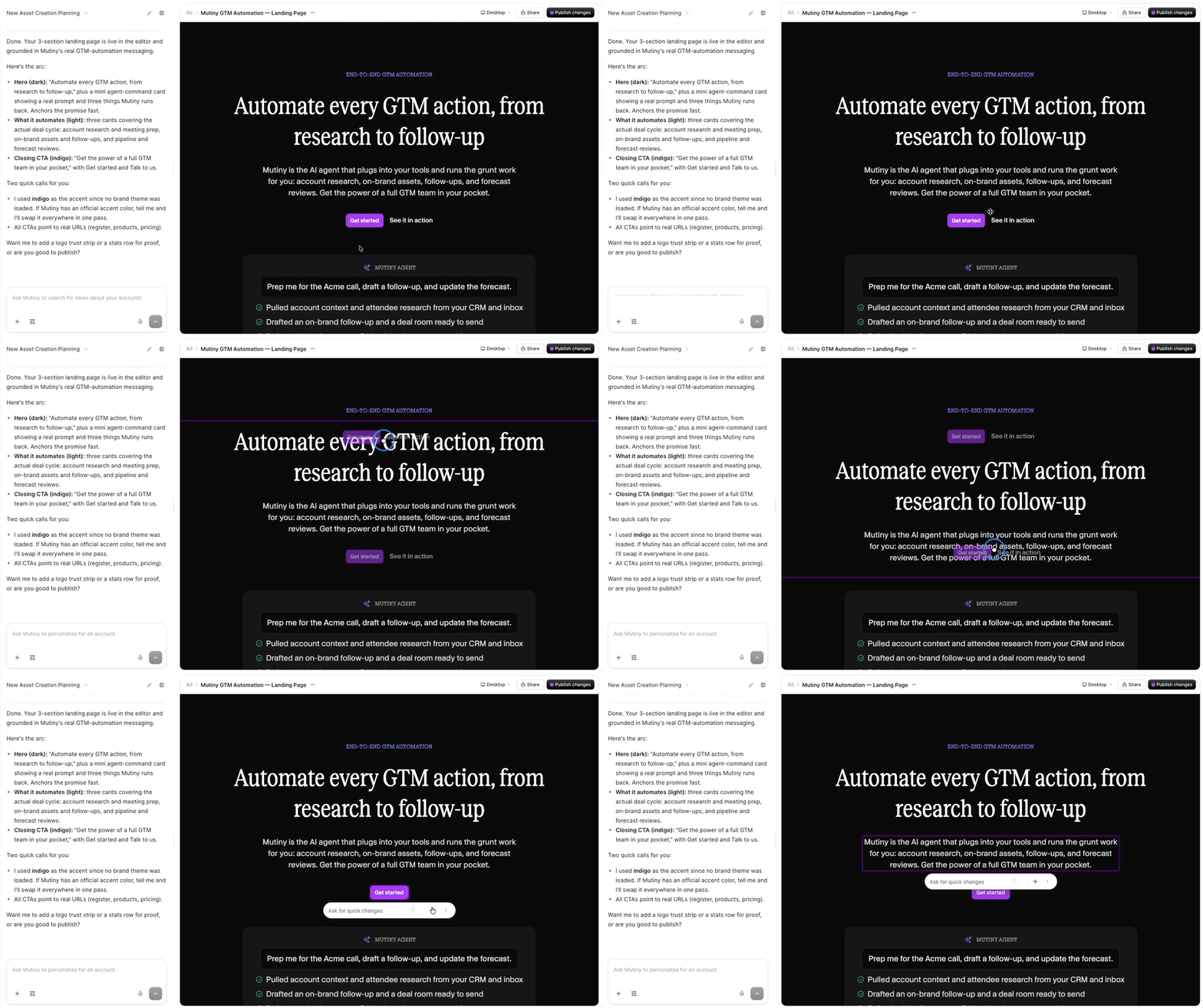
To make changes, click on any element or section in the asset. You can edit text, click and drag to move sections or elements around, and use keyboard shortcuts to copy, paste, or delete anything on the asset.
To fine-tune design, you can use the Design tab. This gives you granular control over details like padding, margin, sizing, colors, and more.
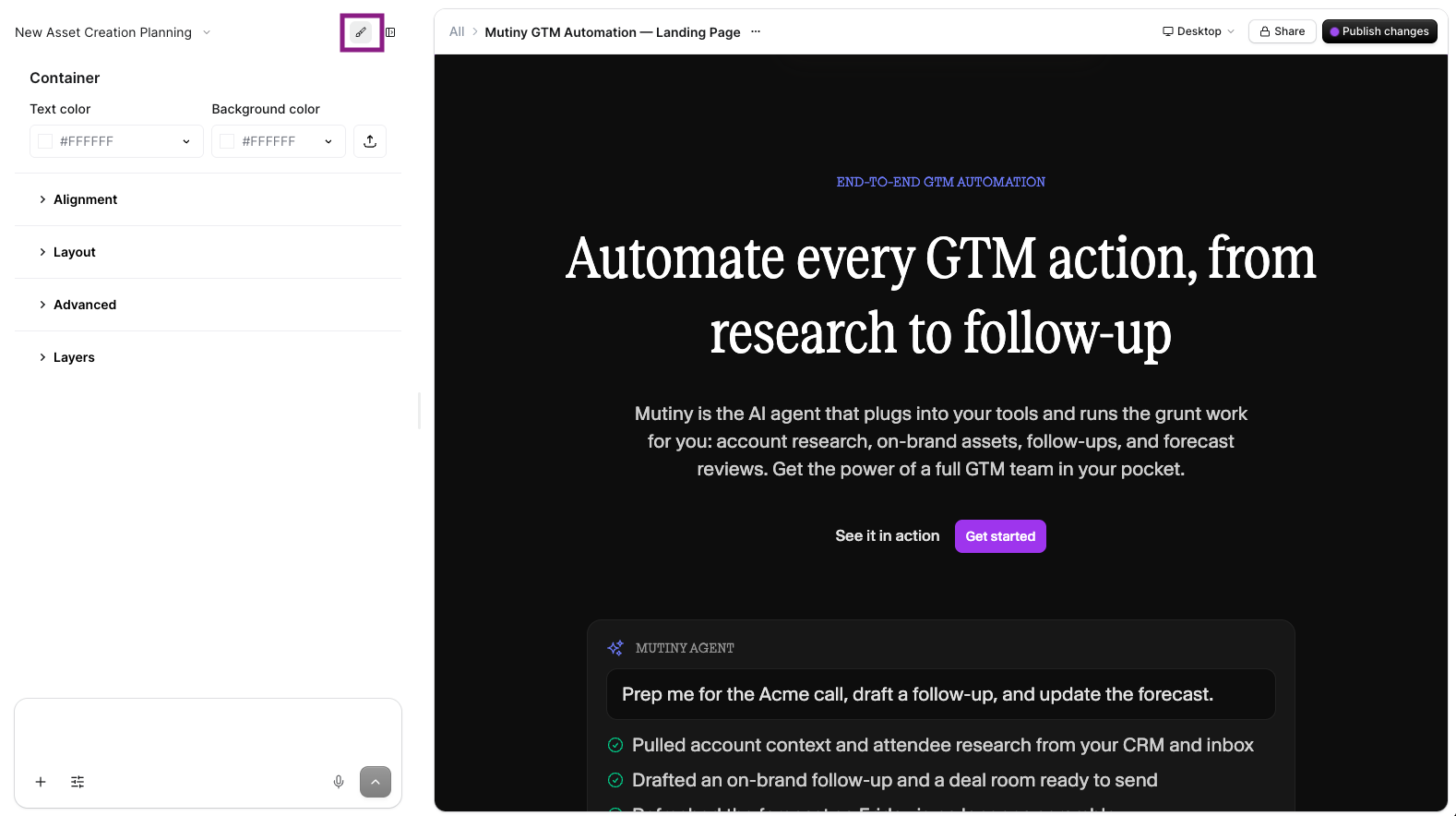
The quick changes menu appears anytime you select an element in the asset. From this menu, you can add new elements to the page using the "+" button

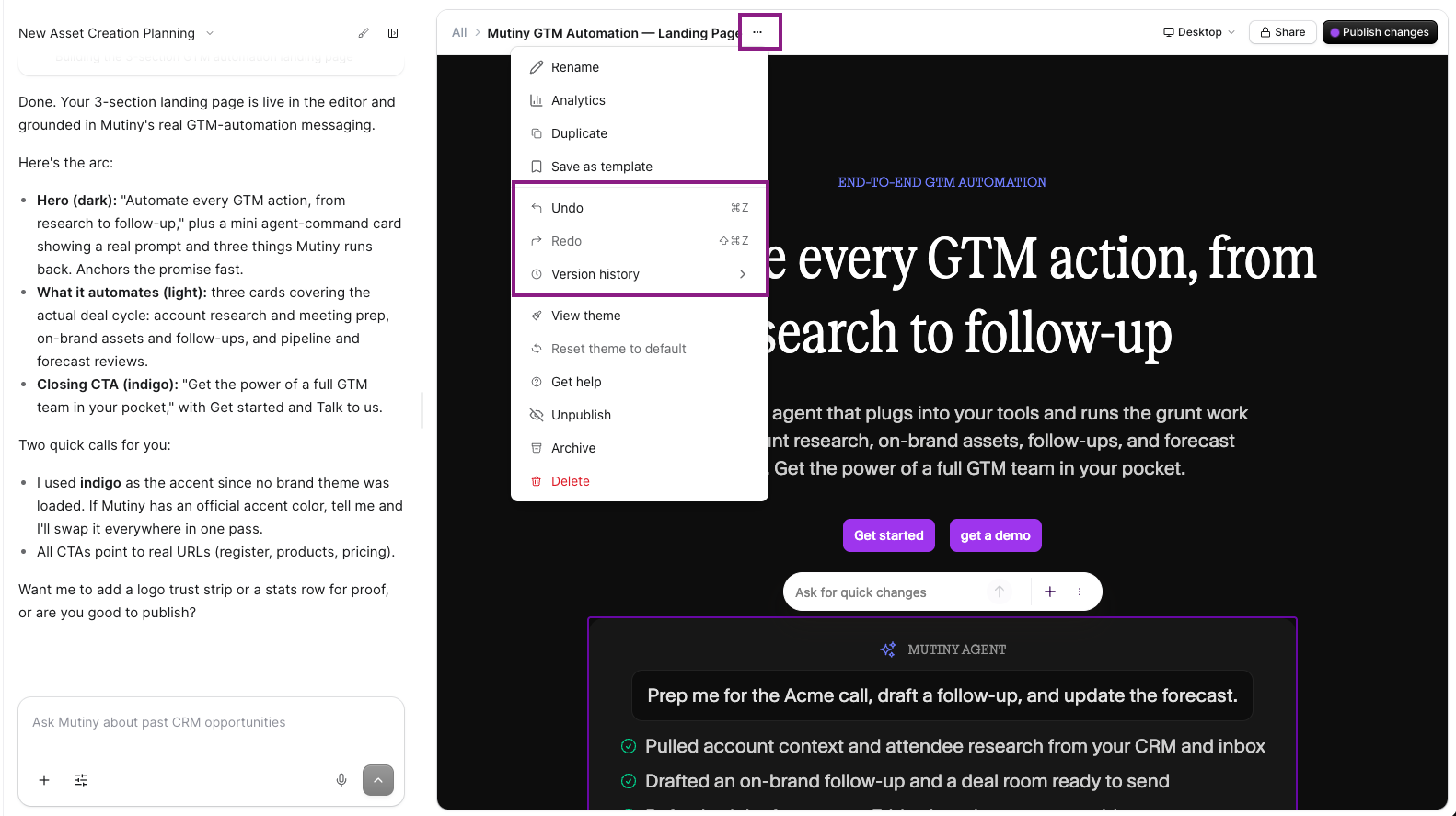
If you make any mistakes, you can undo or redo using keyboard shortcuts, or from the menu in the top right.

Previewing your Asset
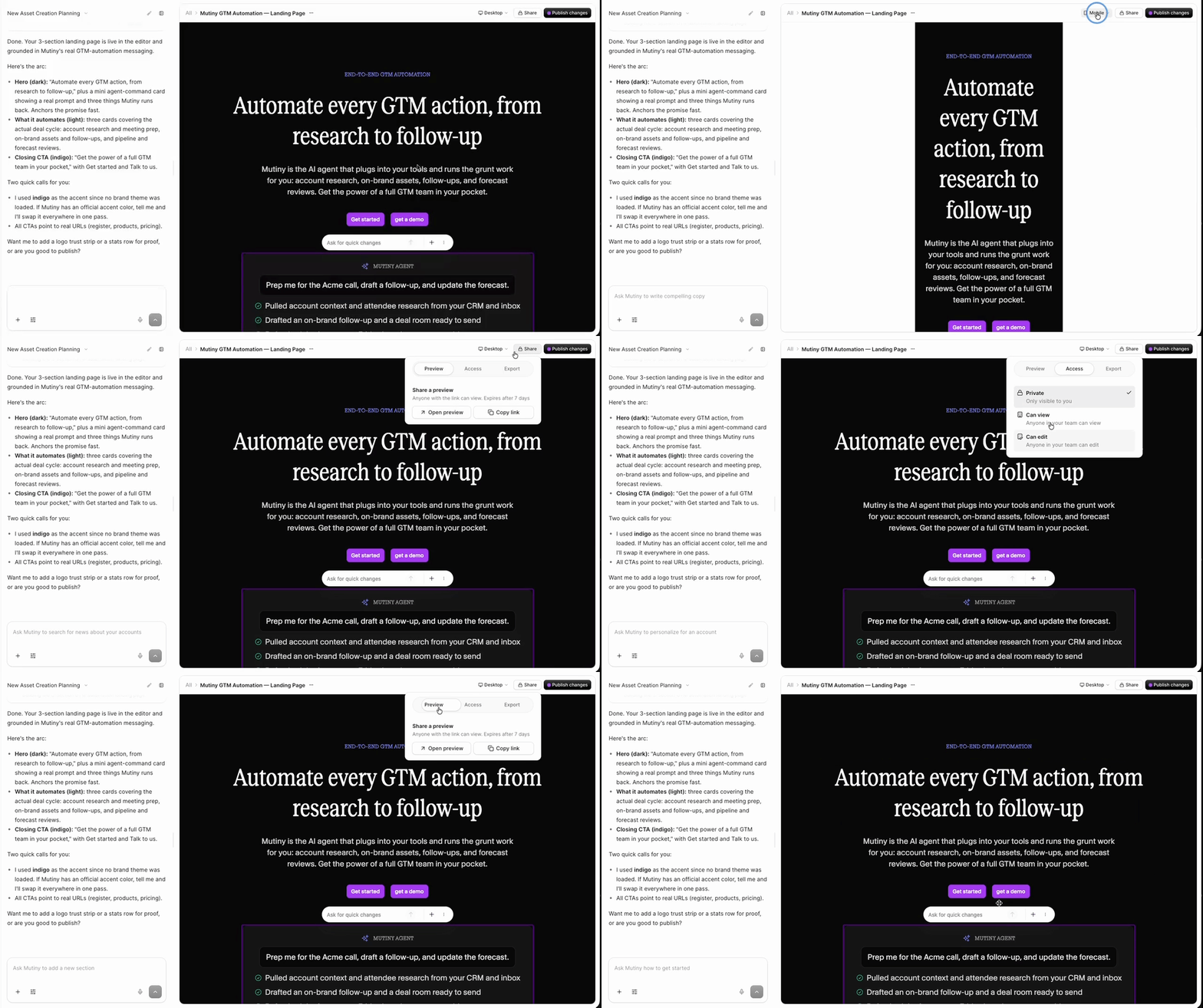
You can use the preview button at the top right to view a shareable preview link of your asset. You can see what your asset will look like across devices by toggling between Desktop, Mobile, and PDF view in the devices preview menu.

Navigating the Editor Interface
The Creative Agent Editor features four essential tabs in the left column: Pages, Chat, Design, and Layers. Each tab serves a specific purpose in helping you view and personalize your asset pages.

The Pages Tab
This is an enterprise-only feature. Interested in upgrading to an enterprise plan? Email the team at mutinylovesyou@mutinyhq.com to get plan upgrade information.
The Pages tab allows you to attach a list from Account Studio to create an individual asset for each account in the list.
Once connected, you can open each account page tied to your asset list. This gives you the flexibility to preview what your page will look like for specific accounts and make targeted changes.

The Chat Tab
The most powerful feature is the Chat tab, which provides a direct line to Mutiny's Creative Agent. You can use the Creative Agent to make multiple changes across the asset at once, research an account, build new sections, and that's just scratching the surface.
For more info on using the Creative Agent, check out this video guide:📄 Effectively Using the Creative Agent
Chat tab features
There are a few features available in the prompt box:
Use the + icon to attach images or files that the agent can use as context

Click the settings icon to adjust which AI model is being used, and clear the chat history

Use the lightning button for some pre-created quick actions for the agent

Use the mic button to enable dictation, and talk to the agent about what you want to build or change

The Design Tab
For more precise control, the Design tab lets you get granular with the styling of each element. Simply select an element in the canvas page, and you can modify specific details like text content, margin, padding, alignment, text decoration, and so much more to achieve the look that fits your brand. Â

By default, the styles from your Theme will be applied to the elements on the page. When you select an element, the design tab will show which theme style is being applied

 The Layers Tab
The Layers tab displays your page sections in a hierarchical list view with collapsible menus. This layout reveals the parent-child relationships between containers and elements, making it easier to understand how your page is organized.
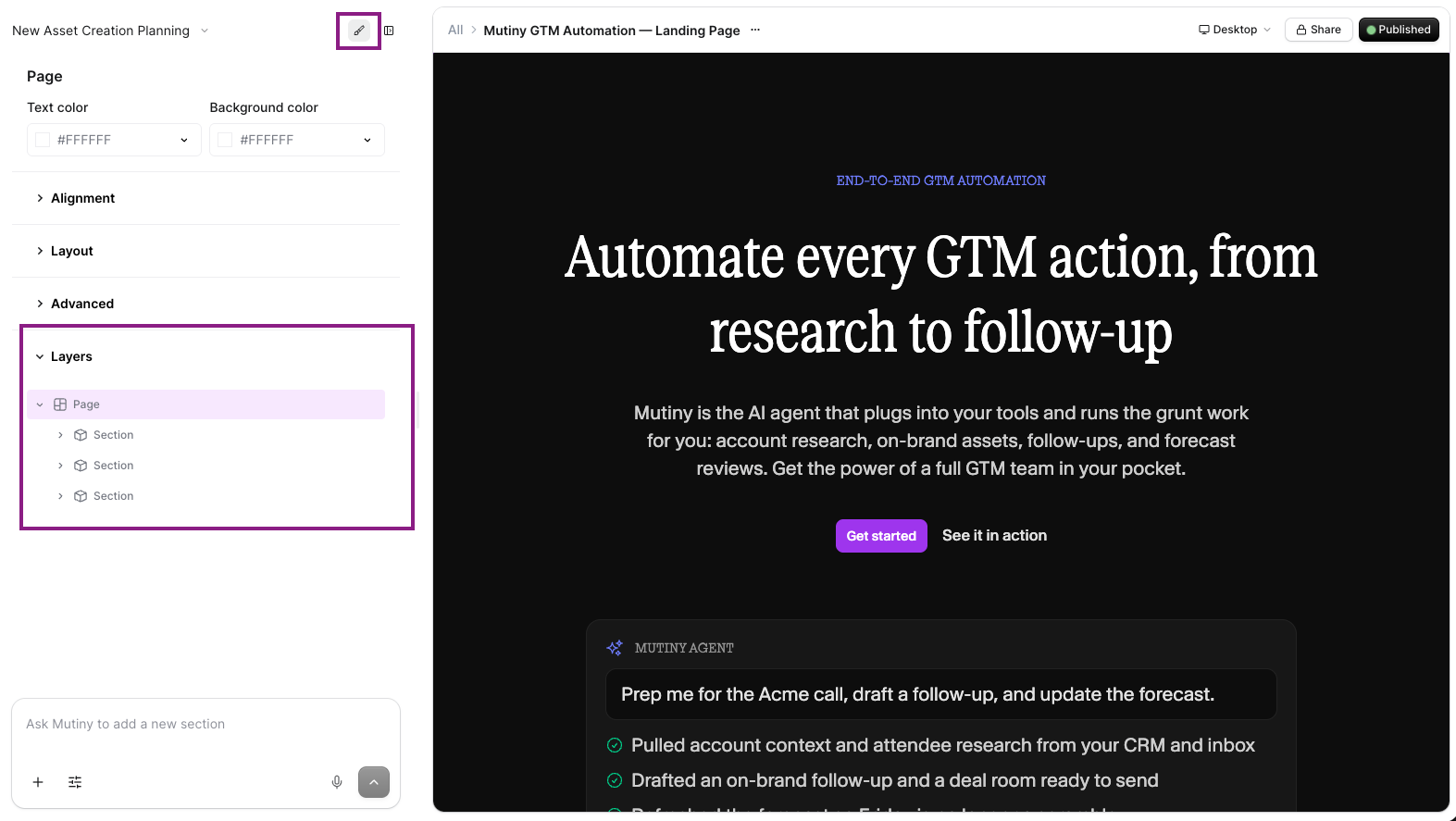
When selecting different elements in the list, they will be highlighted in the canvas so you know what you are targeting. Learn more about the Layers tab here:
Need Help?
If you have questions or need help, the Mutiny Support team is here for you! Â You can submit a support ticket using the Submit a ticket button at the top of this page, or reach us at support@mutinyhq.com.
Â