Tracking & Analyzing Mutiny Assets in Google Analytics 4 (GA4)
Last updated: April 27, 2026
Mutiny Assets can be tracked and analyzed in Google Analytics 4 just like any other page on your site. This guide walks through setup, key reports, and tips for analyzing performance by Asset and target account.
Setup
1. Add GA4 Tracking to Your Mutiny Pages
If your site already uses Google Tag Manager (GTM), simply add your GTM container snippet to your Mutiny Assets.
Alternatively, you can use a direct gtag.js install by placing the GA4 tag in the section.
Once installed, page views and engagement will automatically appear in GA4.
Resources:
2. Use UTM Parameters for Mutiny Asset Attribution
Include standard tracking parameters in your URLs (e.g. utm_source, utm_medium, utm_campaign).
These parameters populate GA4’s Source, Medium, and Campaign dimensions used in all attribution reports.
Analyze Performance
1. Page Views & Engagement
Use Reports → Engagement → Pages and screens
Change Primary Dimension to Page path and screen class
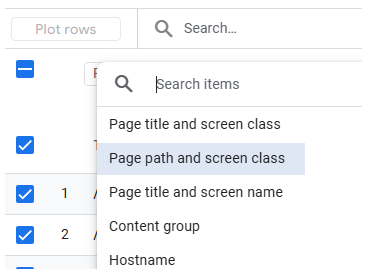
Use the search bar to filter by:
Target account → search for
account-nameAsset URL prefix → search for
q1-demoAll Assets → search by your custom subdomain (e.g.
discover.yoursite.com)
Metrics to monitor:
Views – total page views
Users – unique visitors
Average engagement time – time spent on page
Save filtered views as custom reports to quickly compare multiple assets or accounts.
Tips to View Page Performance in the ‘Pages and Screens’ Report for:
A Specific Target Account:
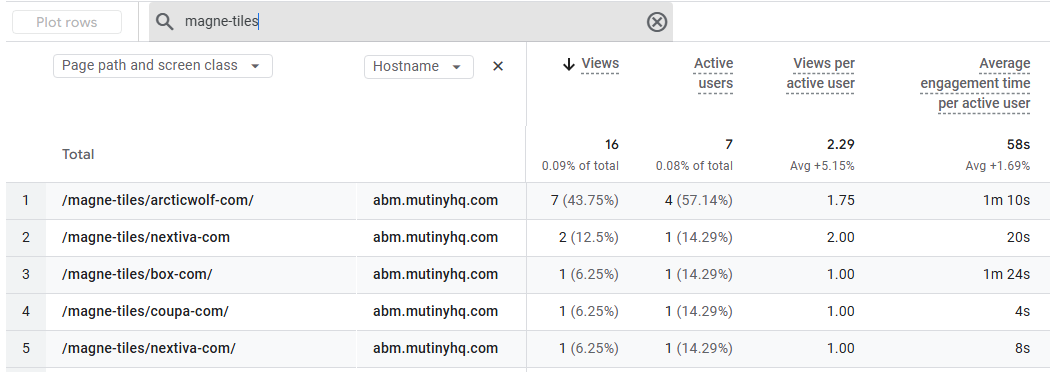
With Page path and screen class as the Primary Dimension, use the ‘Search’ box to filter for the account name that you used in your asset URLs. This will give you account-wide performance at the top of the report, and a breakdown by asset in the table.
A Specific asset:
With Page path and screen class as the Primary Dimension, use the ‘Search’ box to filter for the asset prefix that you used in your page URLs. This will give you asset-wide performance at the top of the report, and a breakdown by target account in the table.
All asset Pages combined:
Change the Primary Dimension to Hostname and use the ‘Search’ box to filter for your custom subdomain. You may also add Hostname as a Secondary Dimension and filter for that which will allow you both the site-wide performance for your asset pages at the top as well as the breakdown by asset and target account in the table.
2. Traffic Sources
Use Reports → Engagement → Landing page
or Acquisition → Traffic acquisition
Dimensions to use:
Landing page – shows which assets drive the most sessions
Session default channel group – see which channels (paid search, social, email) perform best
Session campaign – identify traffic by UTM campaign (e.g.
mutiny_q1-demo)
3. Event Tracking (On-page Engagement)
GA4 automatically tracks:
Scrolls
Outbound clicks
Video views
Form interactions
To measure additional actions (like CTA button clicks or custom form completions):
Create custom events in GTM or gtag.js
Register these events as Custom Dimensions in GA4
Mark key actions as Key Events (formerly “Conversions”) to appear in Attribution reports
Tips to View on-page Engagement in the Events report for:
A Specific Target Account:
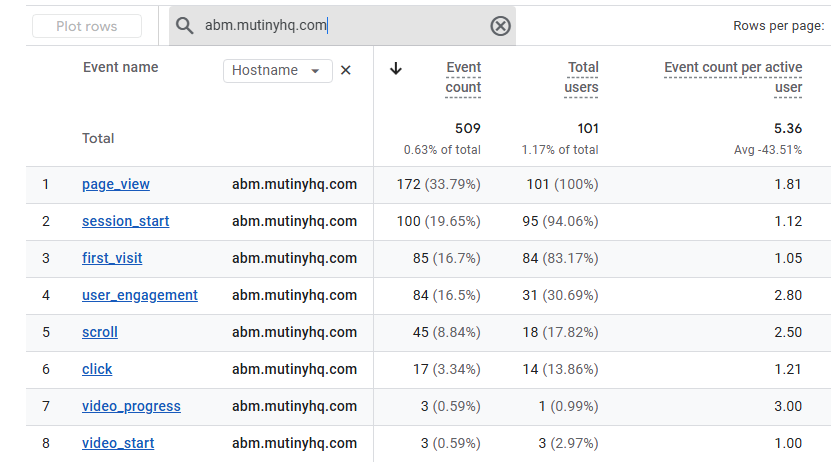
With Event Name as the Primary Dimension, add Page path and screen class as the Secondary Dimension, and use the ‘Search’ box to filter for the account name that you used in your asset URLs. This will give you account-wide performance at the top of the report, and a breakdown of actions by asset and event in the table.
A Specific asset:
With Event Name as the Primary Dimension, add Page path and screen class as the Secondary Dimension, and use the ‘Search’ box to filter for the asset prefix that you used in your asset URLs. This will give you asset-wide performance at the top of the report, and a breakdown of actions by target account in the table.
All assets Pages combined:
Event Name as the Primary Dimension, add Hostname as the Secondary Dimension, and use the ‘Search’ box to filter for your custom subdomain. This will give you site-wide performance at the top of the report, and a breakdown of actions in the table.
Resources:
4. Attribution & Conversions
Use Advertising → Attribution → Model Comparison
Compare how Mutiny asset visits contribute to conversions.
Filter by utm_campaign to view Mutiny-specific performance.
Use “Key Events” (form fills, scheduler, or primary CTA clicks) for accurate attribution.
Advanced Analysis (Optional)
Use Explorations → Blank report to build deeper insights.
Filter by “Page path” (your asset URL or subdomain)
Add dimensions like “Session source/medium” or “Event name”
Compare across assets or accounts
Resources: