Asset Visitor Notifications
Last updated: August 14, 2026
Asset visitor notifications keep you up to date on who's visiting your assets. When a prospect visits one of your assets, Mutiny tells you who visited and when, with a link to the full analytics. You can subscribe to notifications and choose how and how often you hear about them.
Managing your notification settings
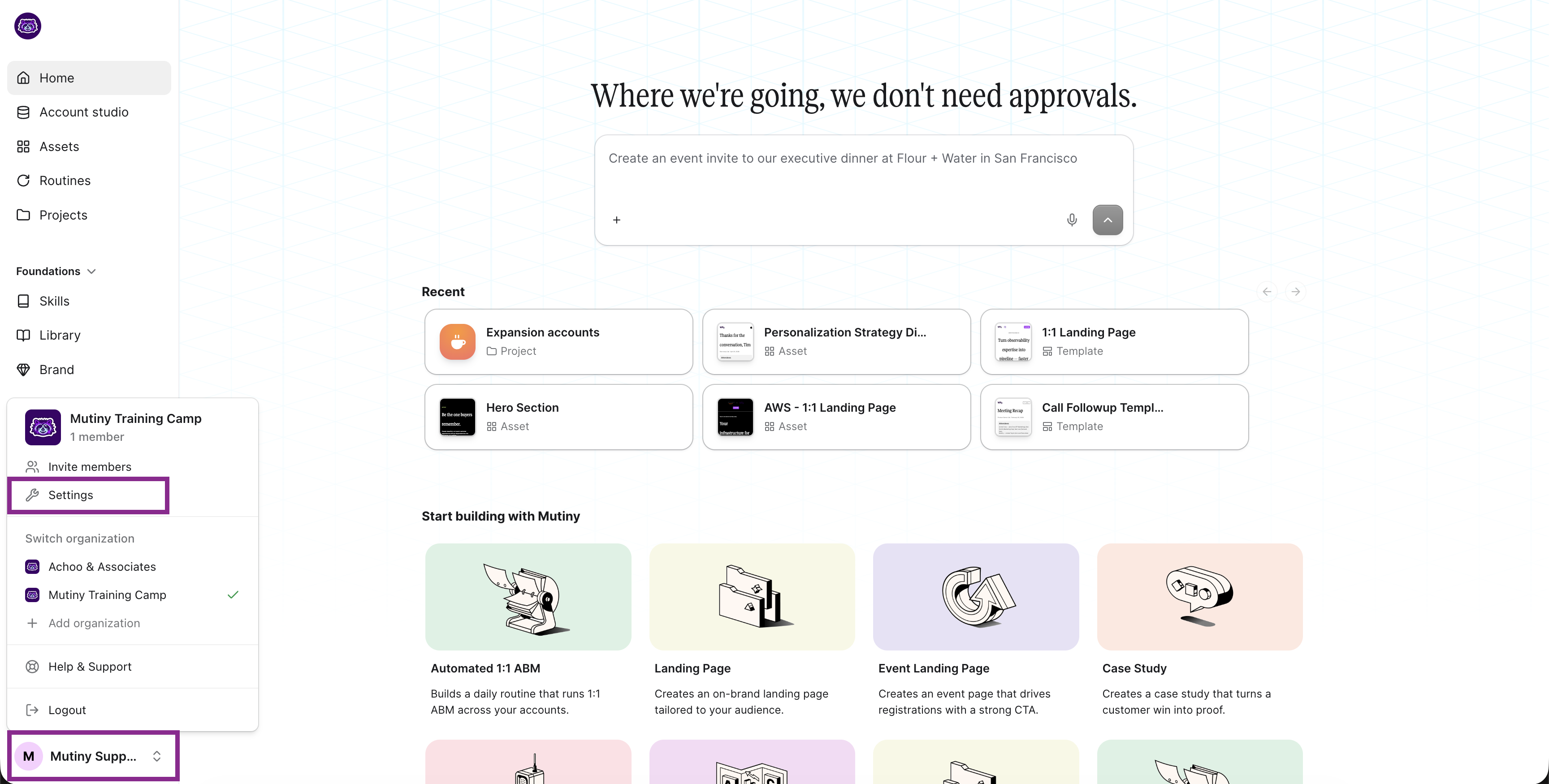
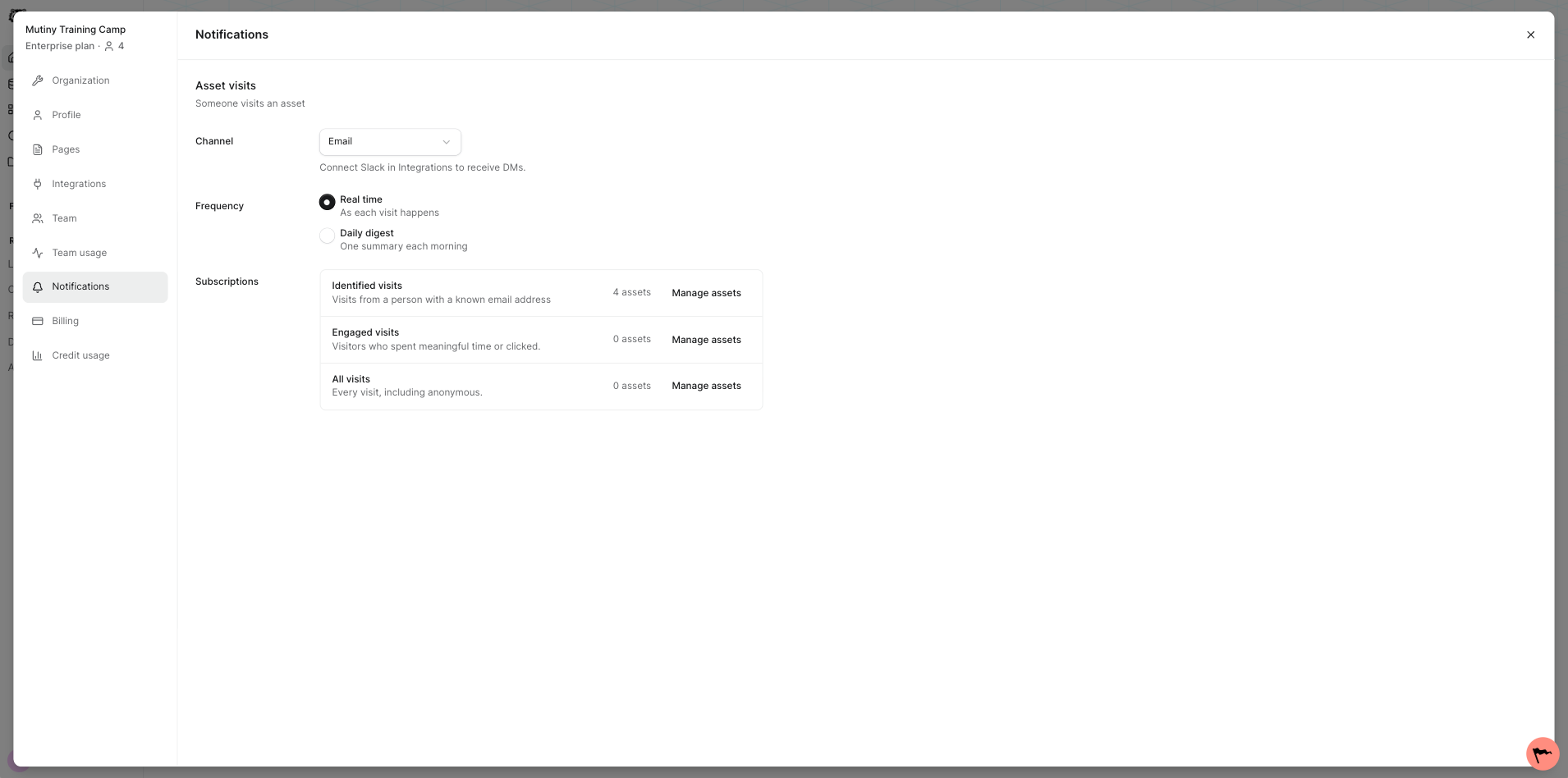
To get started, open the settings modal and go to notification settings.
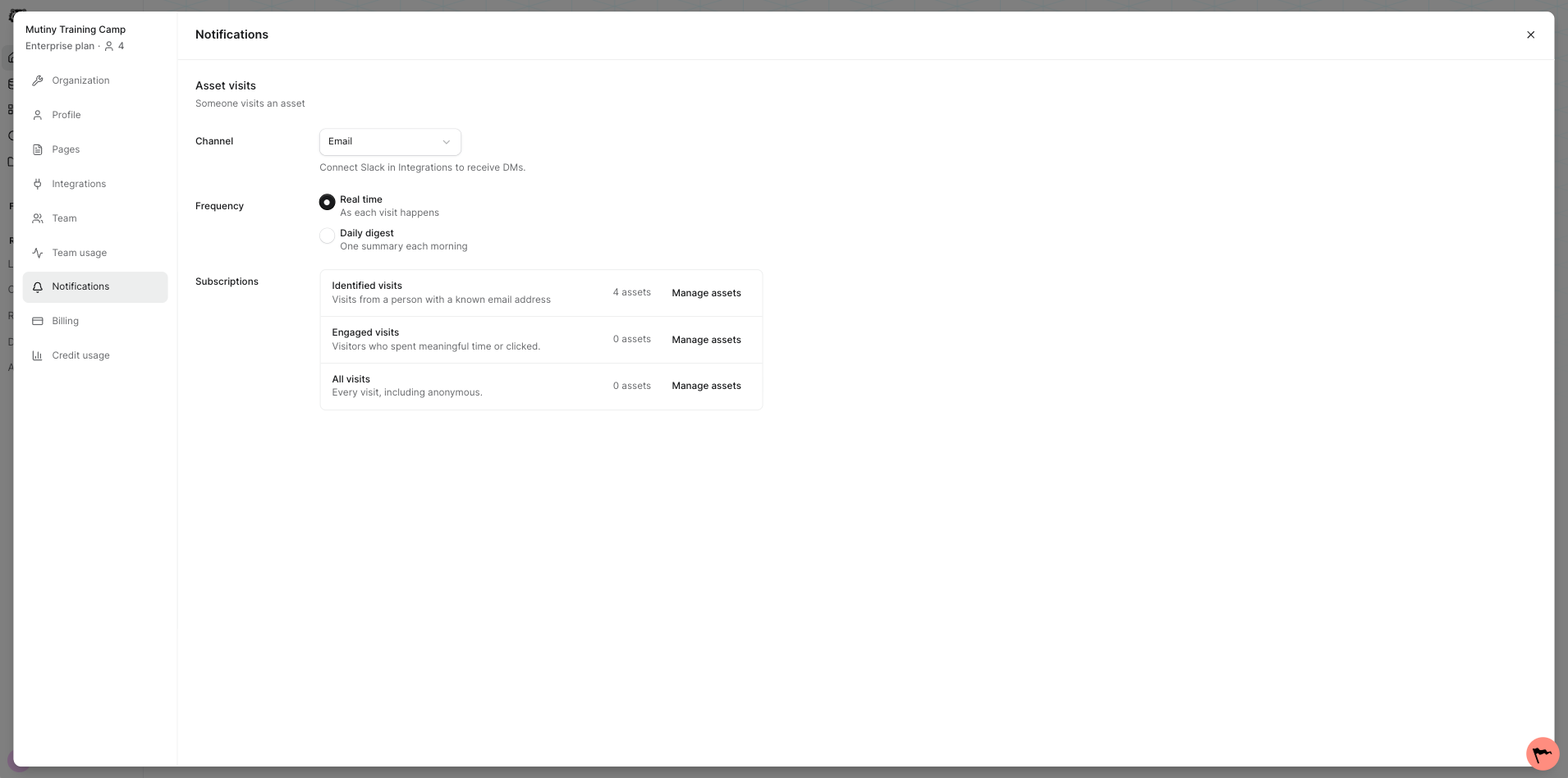
If Slack is connected, you can choose whether to receive notifications by email or through Slack. If Slack is not connected, notifications are sent by email.
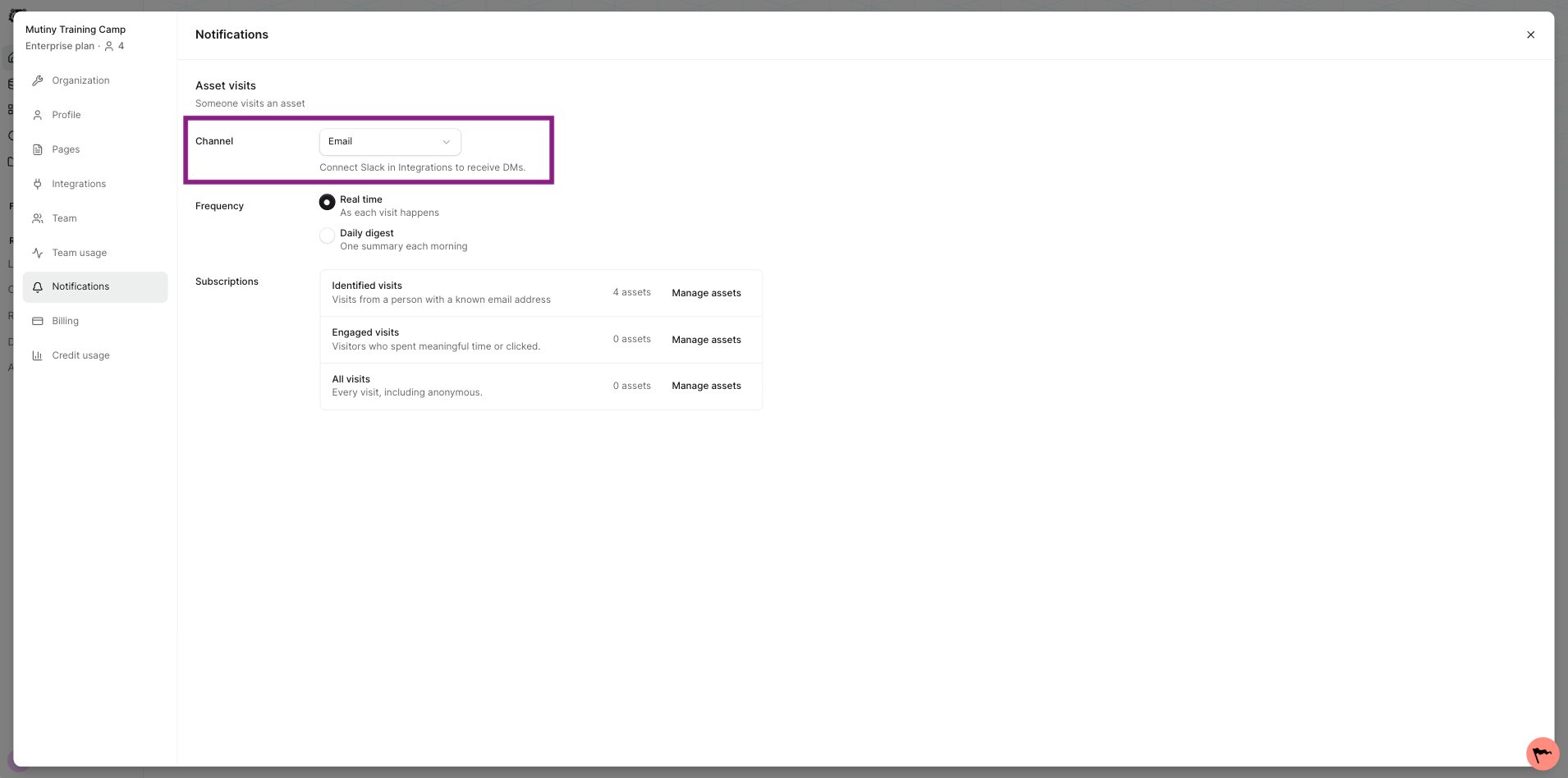
You can also choose your frequency. Select real time to get a notification for each visit as it happens, or select daily digest to get one summary of your asset notifications each morning.
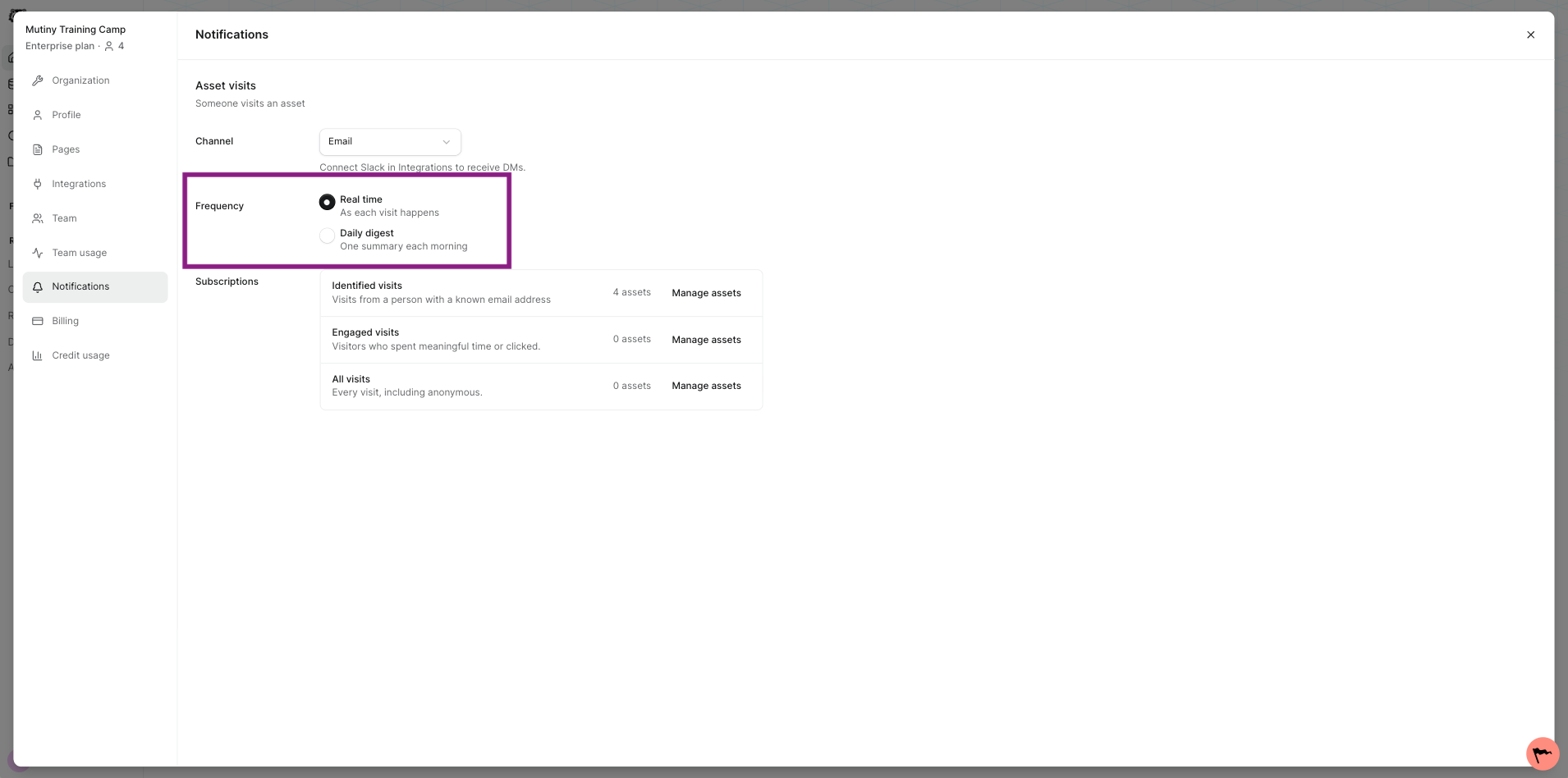
From this page you can also see which assets you're being notified on, and use the manage assets button to opt in to notifications for a specific subscription.
Subscribing to an asset
To turn on notifications for an asset, open the asset notifications page and use the manage assets button. You'll see a list of your assets where you can toggle on the ones you want to be notified about for that subscription.
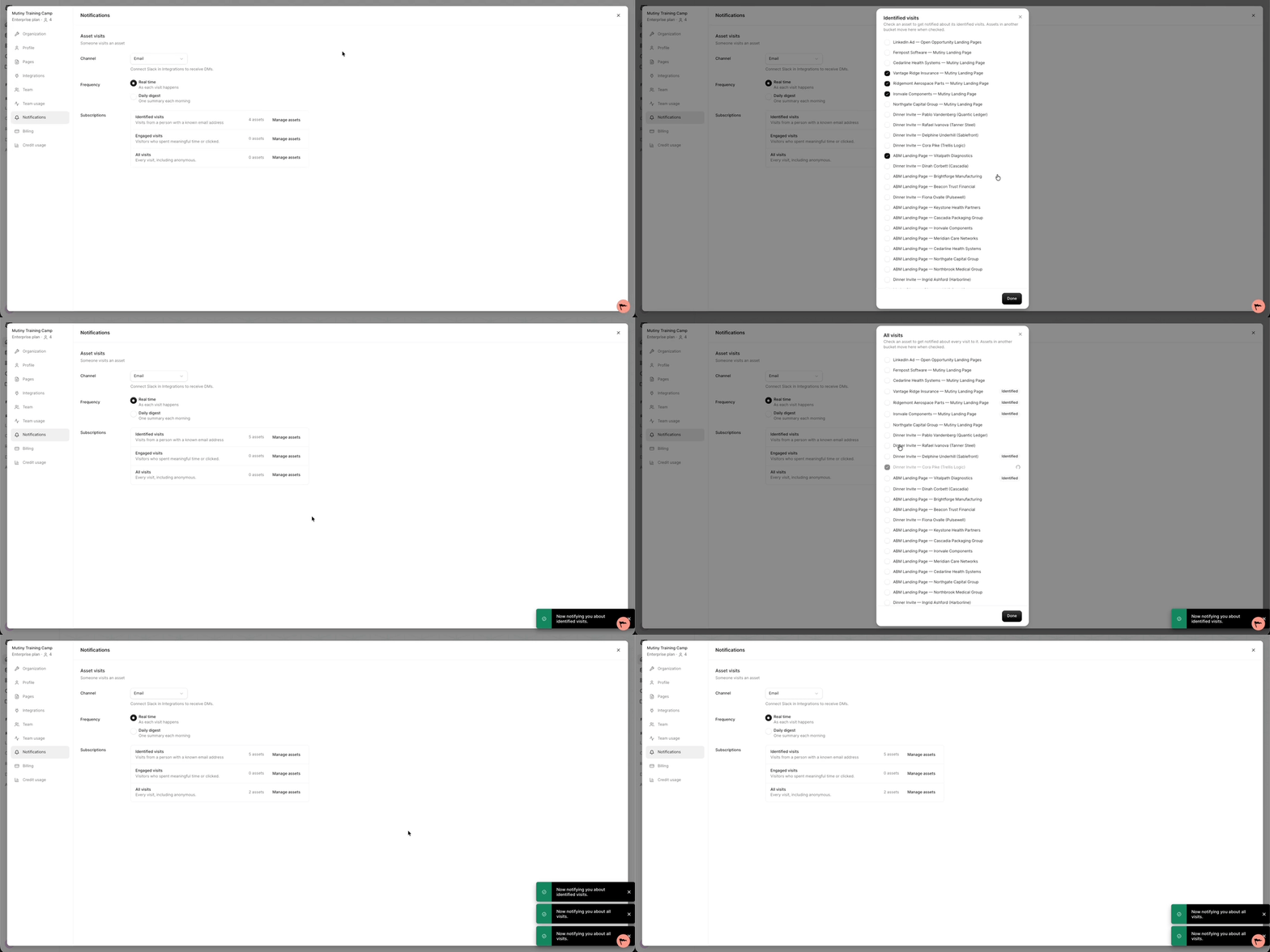
Once subscribed, the asset appears on your notifications page.
Subscribing from asset analytics
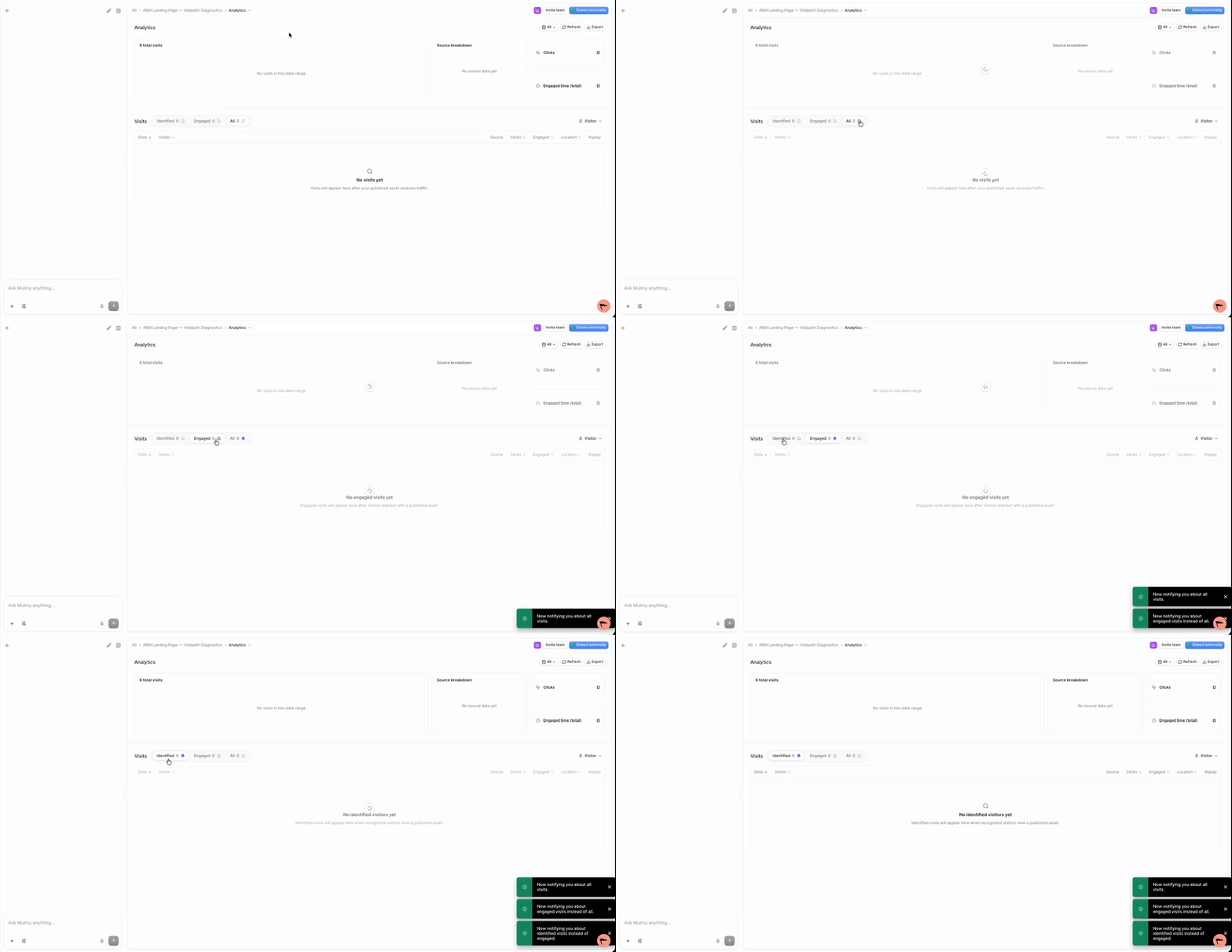
You can also opt in directly from an asset's analytics page. Open the asset analytics page and click the bell icon under all, engaged, or identified. This sends you notifications for any visits that fall into that category.
For example, if you turn on the bell for identified visits, you'll only get notifications about identified visits.
What you'll see
Once subscribed, you'll be notified of visits based on the frequency and channel you chose. Each notification tells you who visited and when, with a link to the full analytics so you can dig into the details.
Need Help?
If you have questions or need help, the Mutiny Support team is here for you! You can submit a support ticket using the Submit a ticket button at the top of this page, or reach us at support@mutinyhq.com.