Creating Popup Modals
Last updated: June 24, 2026
Pop-up modals let you layer interactive content on top of your page without navigating visitors away. A common use case is embedding a demo request or sign-up form inside a modal so visitors can take action without losing their place on the page.
Add a Modal via Chat
If you already have a CTA on the page that you want to trigger a modal, select it in the editor and ask the agent to make the button open a modal, and it will handle the setup for you.
Add a Modal manually
You can also add a modal manually using the "+" button in the quick change menu. Once a modal button is on the page, select it in the editor, and you'll see an Open Modal option. Click it to open the modal and begin making changes to its content.
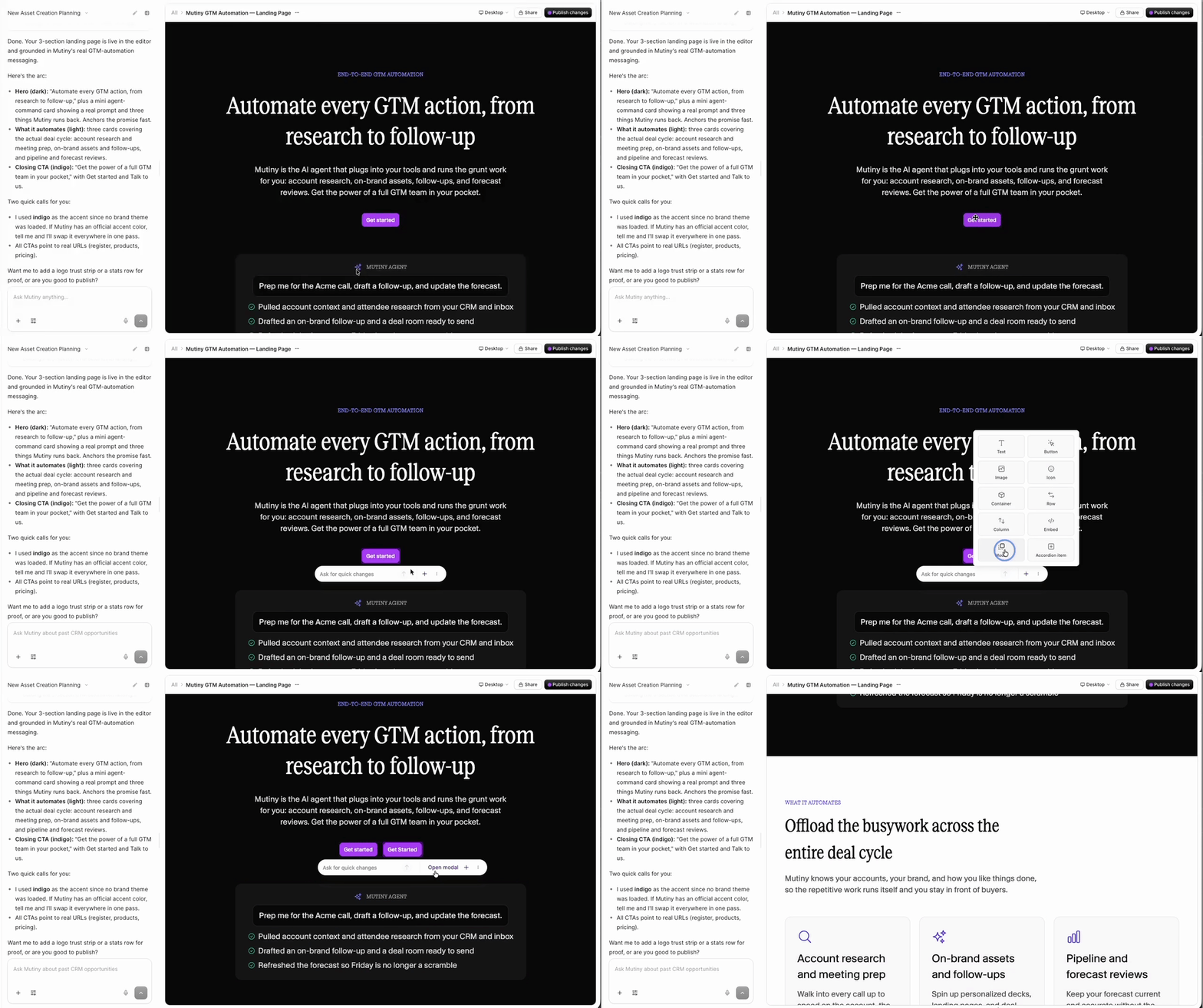
You can edit the modal's content the same way you'd edit any other element on the page. Using the Creative Agent via the Chat tab, making manual adjustments in the Design tab, or adding new elements from the quick change menu.
Embedding a Form in a Modal
A common next step after creating a modal is adding an embedded form for a demo request or sign-up. The form behaves the same way inside a modal as it would anywhere else on the page:📄 Add Forms to Mutiny Assets
Using the Layers Menu
When working inside a modal, the Layers tab is especially useful. Modals contain their own containers and sections, and the Layers tab makes it easy to confirm you're selecting and editing the right element rather than something on the underlying page.
Need Help?
If you have questions or need help, the Mutiny Support team is here for you! You can submit a support ticket using the Submit a ticket button at the top of this page, or reach us at support@mutinyhq.com.