Exporting CSVs in Account Studio
Last updated: April 6, 2026
This is an enterprise-only feature. Interested in upgrading to an enterprise plan? Email the team at mutinylovesyou@mutinyhq.com to get plan upgrade information.
With CSV exports, you can download your Account Studio lists for use outside of Mutiny. This makes it easy to share data, run offline analysis, or back up your work.
How CSV exports work
CSV exports are available on a list-by-list basis. You’ll only be able to export data from a specific list that you’ve created or saved in Account Studio.
The exported CSV will include the account priorities and any other columns that are currently visible in that list.
You can access a history of past CSV exports by clicking the gear icon at the top of the page. Hovering over an export in this list will show you which filters were applied.
How to export a list as CSV
Navigate to Account Studio and open the list you want to export.
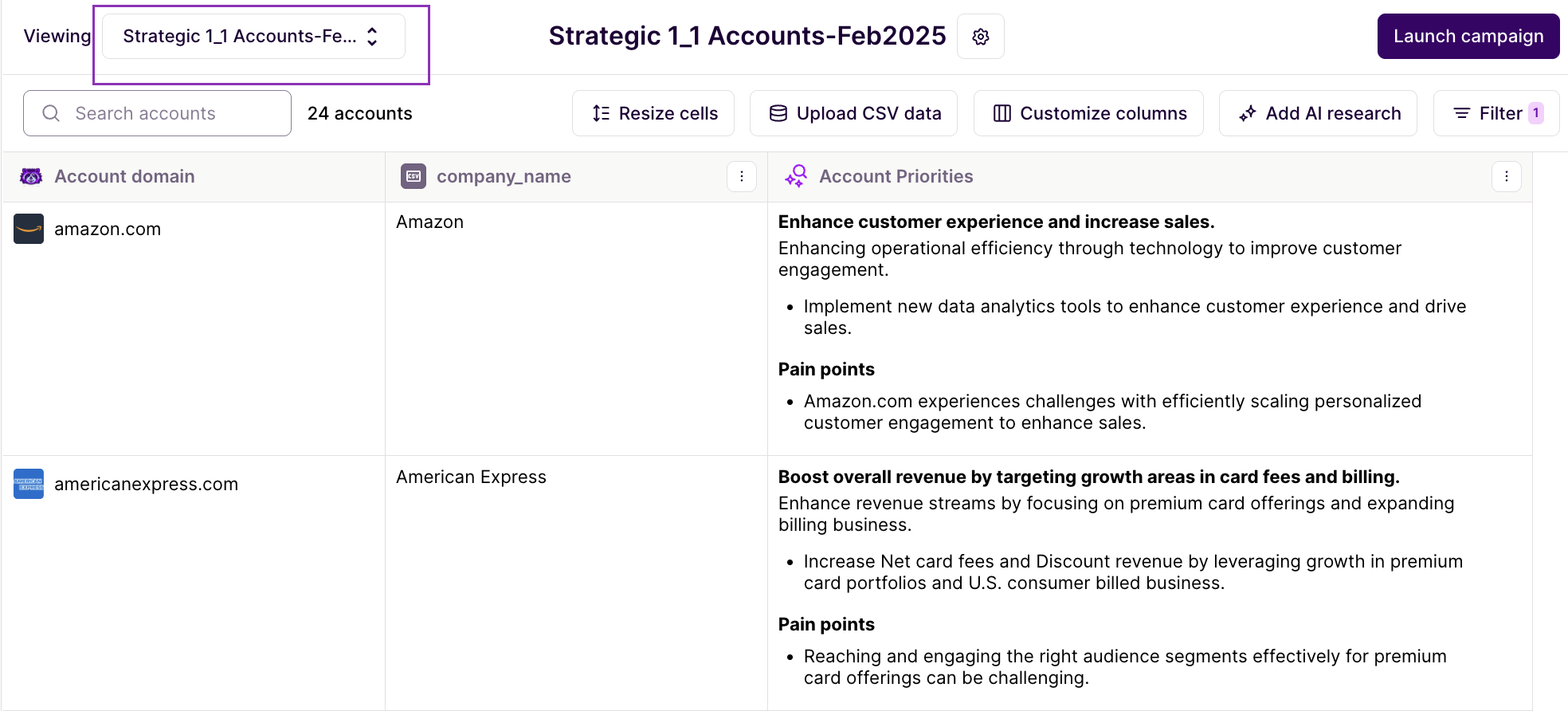
Confirm the columns and filters you’d like included. Only the visible selections will be exported.
Click the settings icon next to the list name, then click Export as CSV
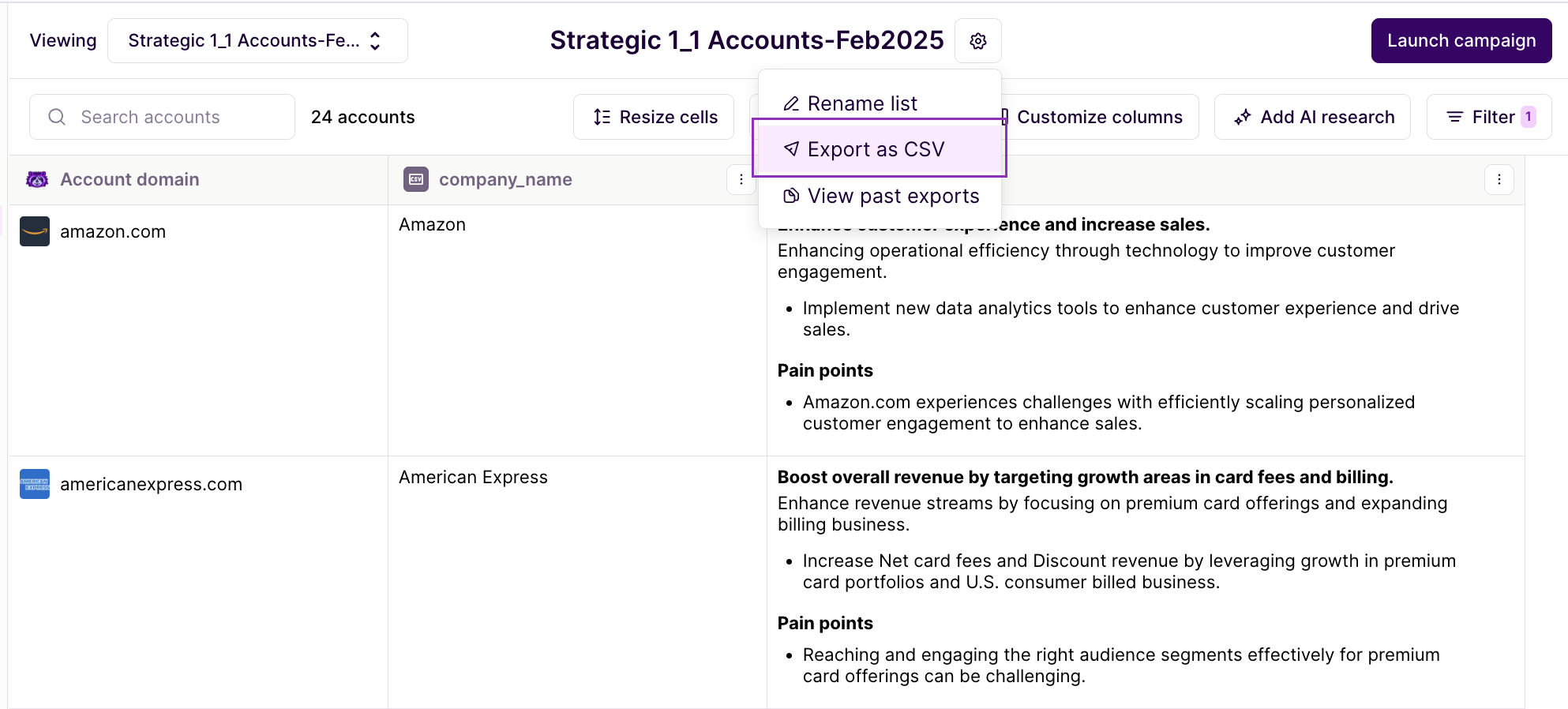
Your CSV file will download to your computer. It will contain all accounts in the list, along with their priorities and the selected columns.
Viewing past CSV exports
In Account Studio, click the settings icon next to the list name, select View past exports,
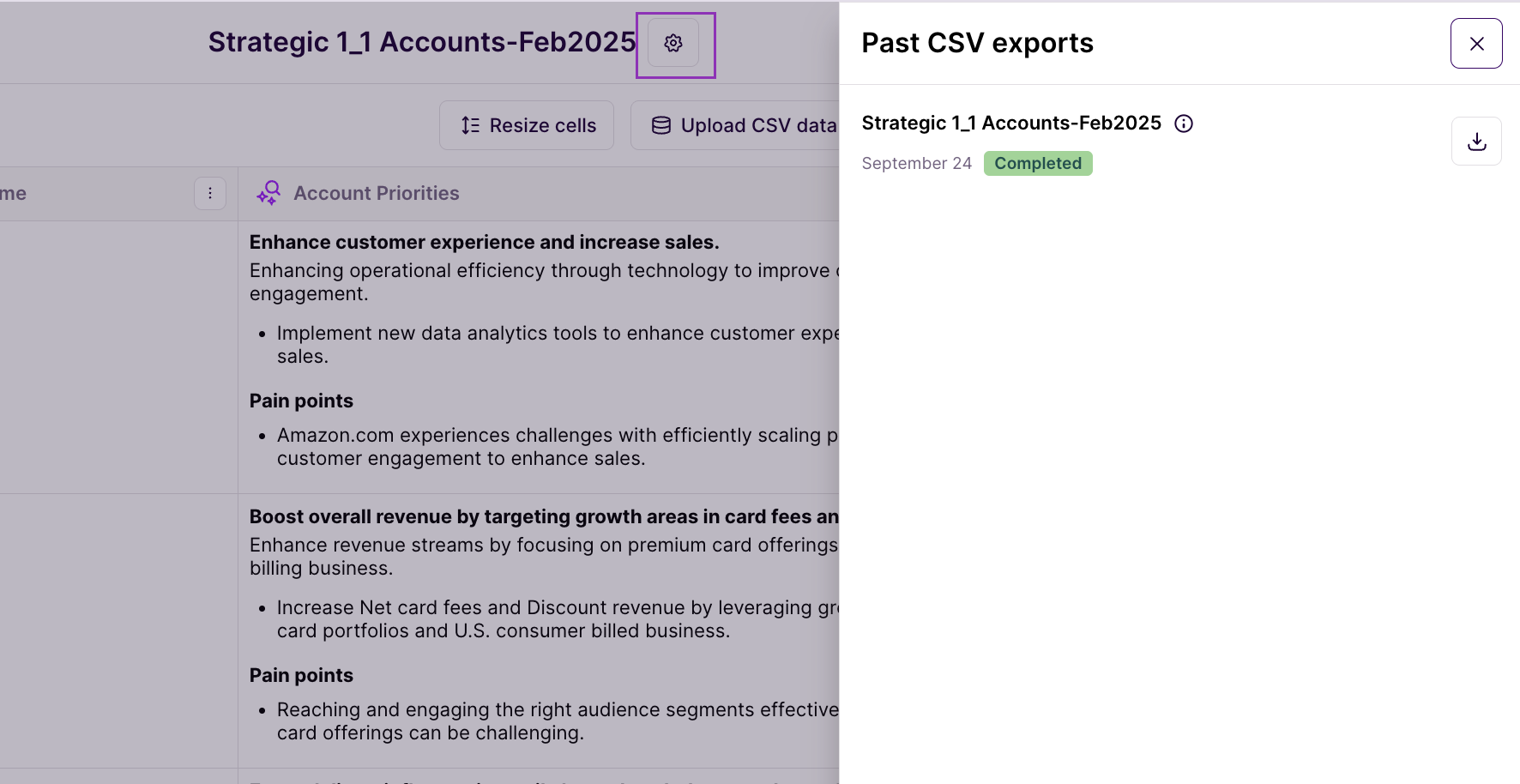
Here is where you’ll see a history of your previous exports and be able to download them again.
Each entry shows the export date and time.
Click on the info icon beside the export name to view the filters that were applied to that list.
This makes it easy to reference or re-download your past work.
FAQ
What happens to AI research if I edit the exported CSV, and then reupload it?
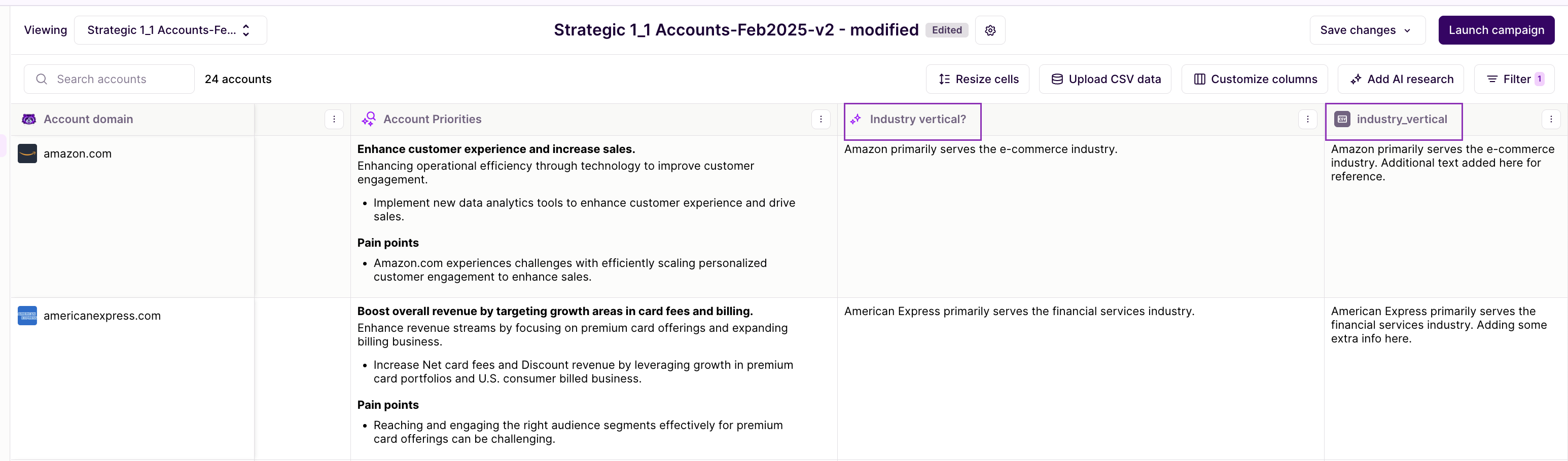
While this certainly is possible, it's important to note that any externally edited AI research columns will remain in their original form in Account Studio, and an additional column will be created with CSV as its source.
From the example below, we modified the Industry Vertical column in our CSV and then reuploaded it. Even though the columns have the same name, the data source is different.
More on how list data interacts here:
Need Help?
If you have questions or need help, the Mutiny Support team is here for you! You can submit a support ticket using the Submit a ticket button at the top of this page, or reach us at support@mutinyhq.com.