Assets Editor Overview
Last updated: April 6, 2026
Mutiny is the fastest, most flexible way to create personalized, on-brand assets across your entire go-to-market team. This guide will walk you through the main interface, templates, blueprints, and editor features to get you creating personalized experiences quickly.
For a full video walkthrough of editing assets, check out the Mutiny Training Camp:📄 Using the Editor
Getting Started
Create a New Asset
Once your brand is imported, it's time to create assets! You can create new assets from the Home page or by clicking + Create asset on the Assets page.
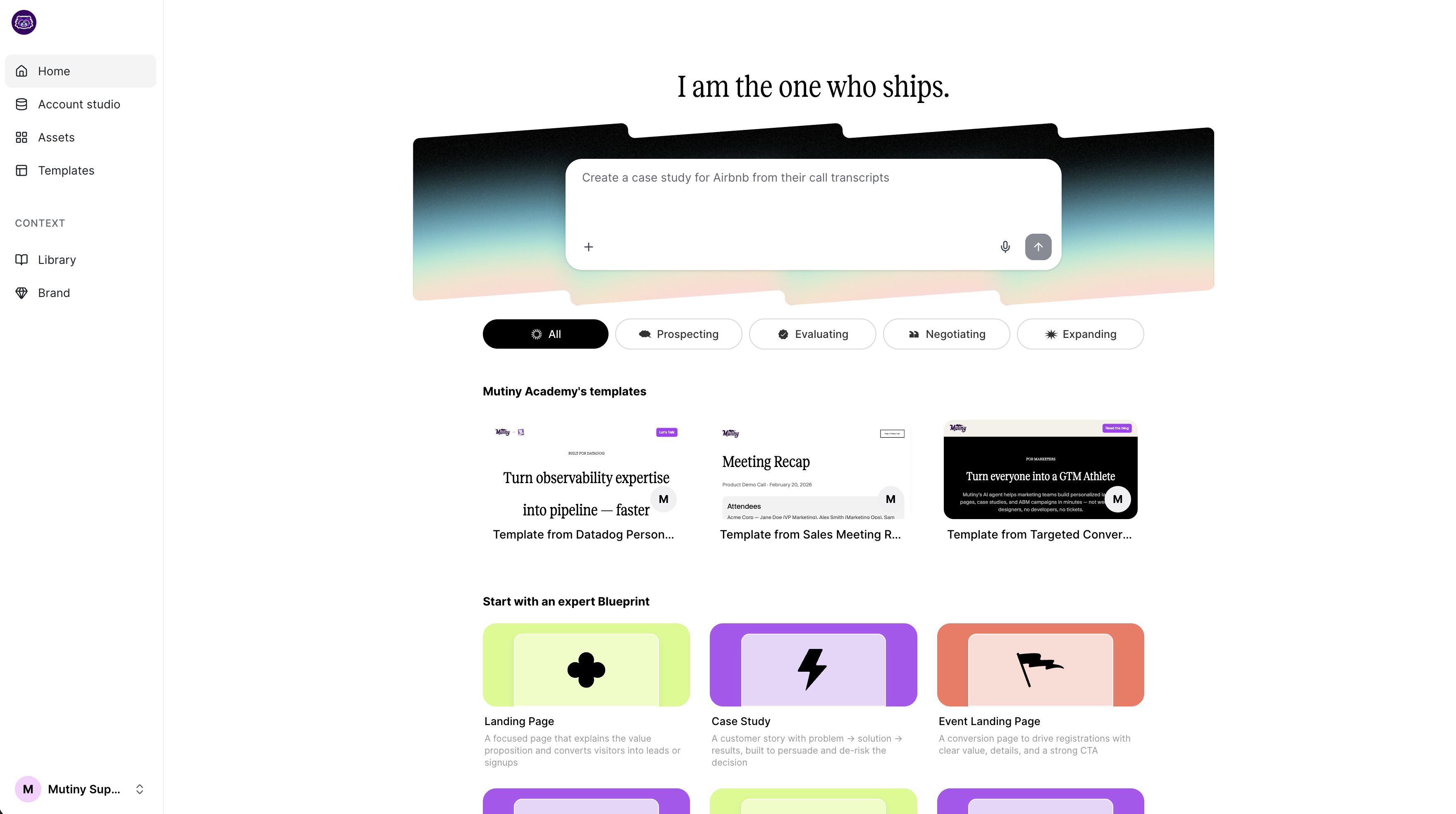
There are a few different methods for creating your asset:
Use Templates - Select from existing templates to gather inspiration and speed up creation
Use Blueprints - Blueprints are a way for you to create new assets that follow a specific structure or format.
Start from Scratch - Describe exactly what you want the Agent to build in the prompt box, and the agent will build the asset for you
When creating an asset, you can enhance the agent's work by adding resources such as design inspiration, screenshots, or messaging documents by clicking the + sign in the prompt box.
The Asset Editor
When you open an asset in Mutiny, you are working inside the editor. This is where you will spend most of your time building and refining your assets. The editor is organized around a central canvas and a set of sidebar tabs, each serving a distinct purpose.
The Canvas
The canvas is the main workspace that takes up most of your screen. It is a live preview of your asset where you can click directly into any section or element to start editing. In the top right corner you will find options to toggle between mobile and desktop views, a preview button to see how the page looks before it goes live, the Publish button, and a menu with version control options.
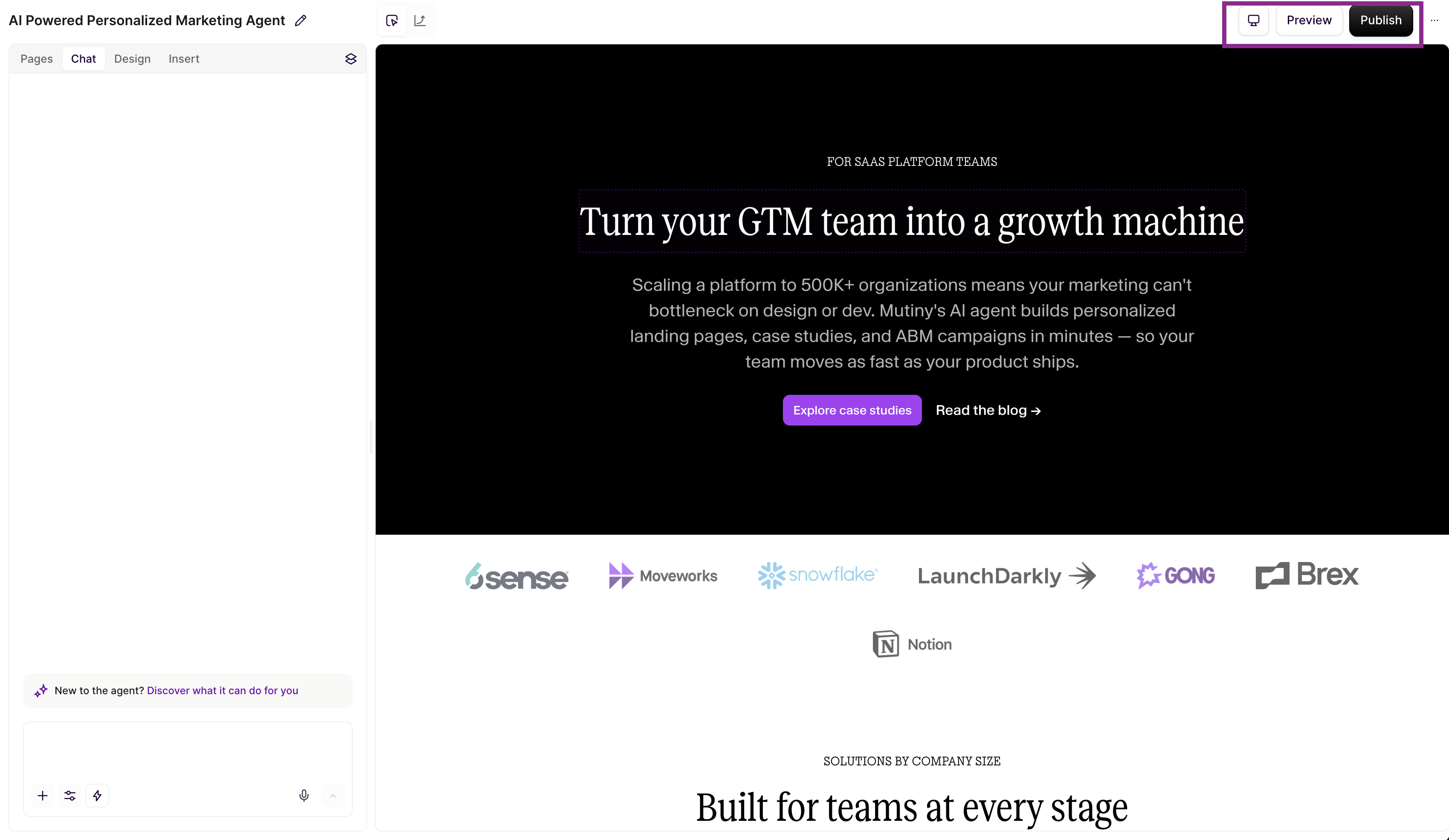
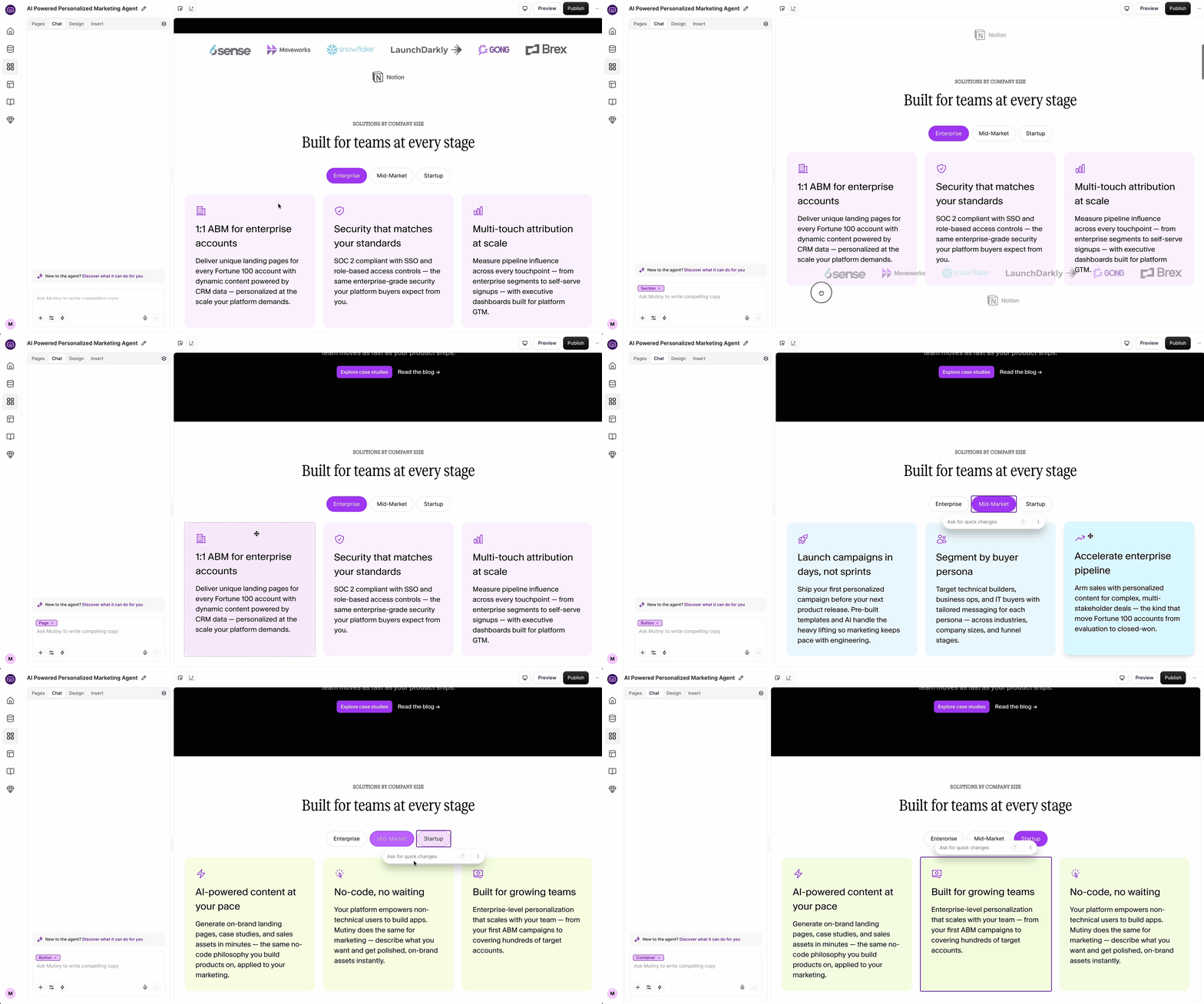
You can move sections or elements around the page by clicking and dragging. You can also select anything on the canvas and use standard copy and paste keyboard shortcuts to duplicate elements or entire sections.
Sidebar Tabs
Pages
The Pages tab is available on enterprise plans and allows you to attach a list of accounts to an asset. From here, you can switch between account pages to see what the asset looks like for each one. If you are building a personalized asset for a set of target accounts, you can click into any account's page to view or edit their specific version.
Chat
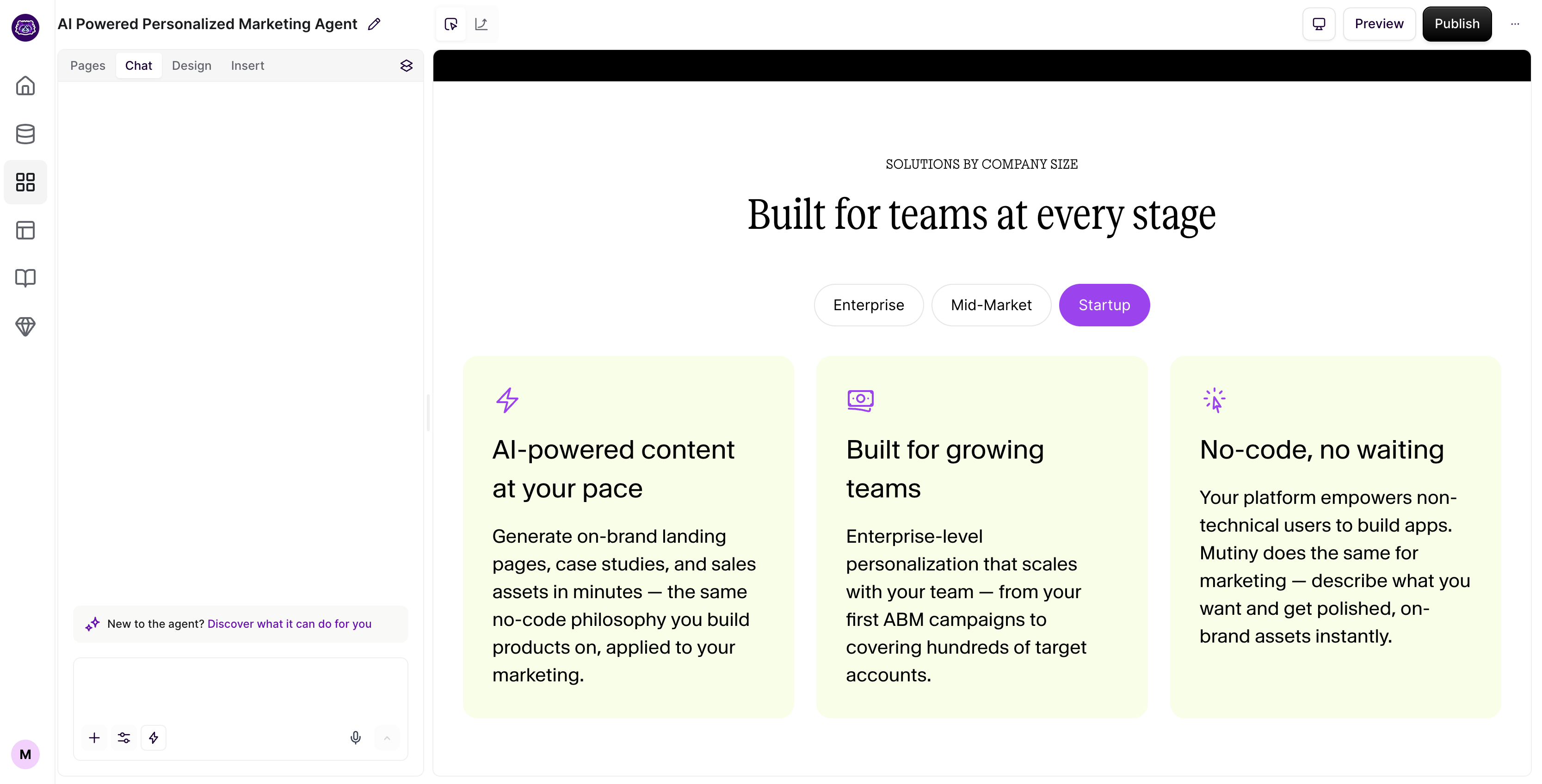
The Chat tab is where you interact with the Creative Agent. Think of the agent as a teammate you can describe work to in plain language. You can say things like "change the background color of the hero section to dark navy" or "make the subheader two sentences and focus it on reducing sales cycles" and the agent will handle it.
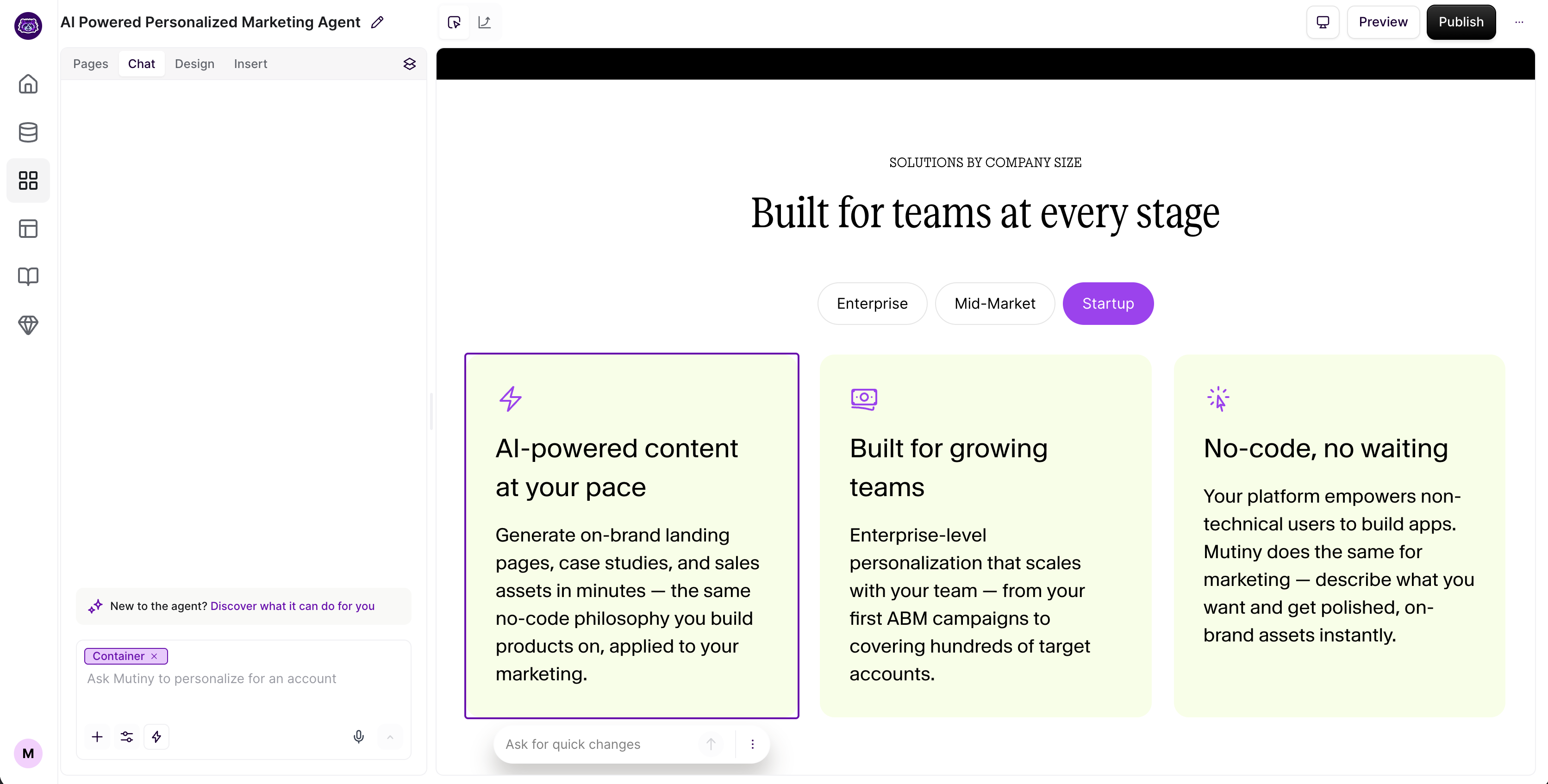
There is an important distinction worth knowing here. If you click on a section first and then open the Chat tab, the agent will work specifically within that section. If you open the Chat tab without selecting anything first, the agent operates on the full page. The approach you use depends on whether you want to make a targeted change to one element or a broader change across the entire asset.
Element-specific context:
Full page context:
Design
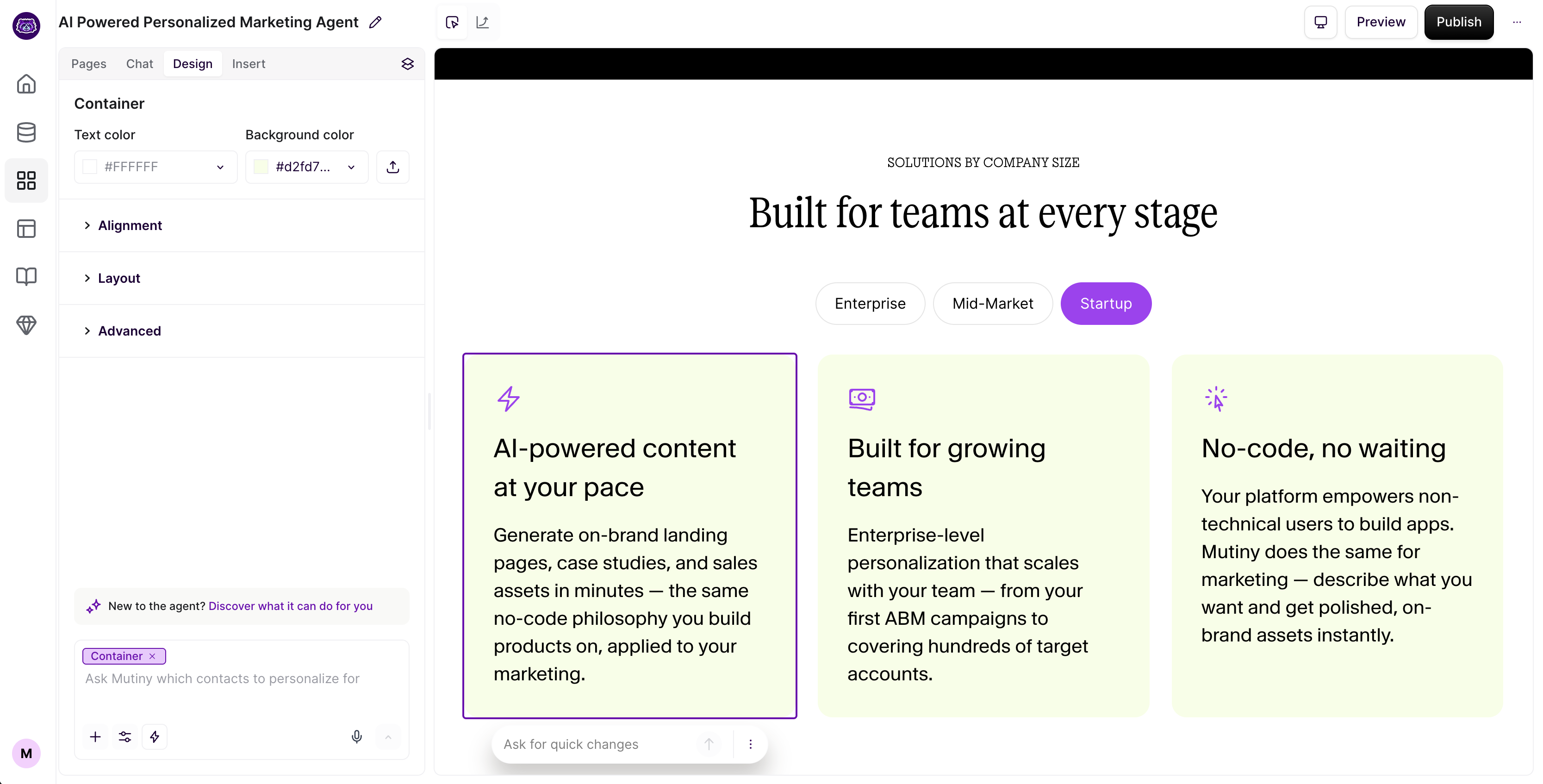
The Design tab is your manual control panel for precise styling adjustments. Select any element on the canvas and use this tab to adjust margin, padding, width, height, text size, weight, alignment, and more. If the Creative Agent gets you most of the way there on a design change and you just need to nudge something slightly, this is where you do that.
Insert
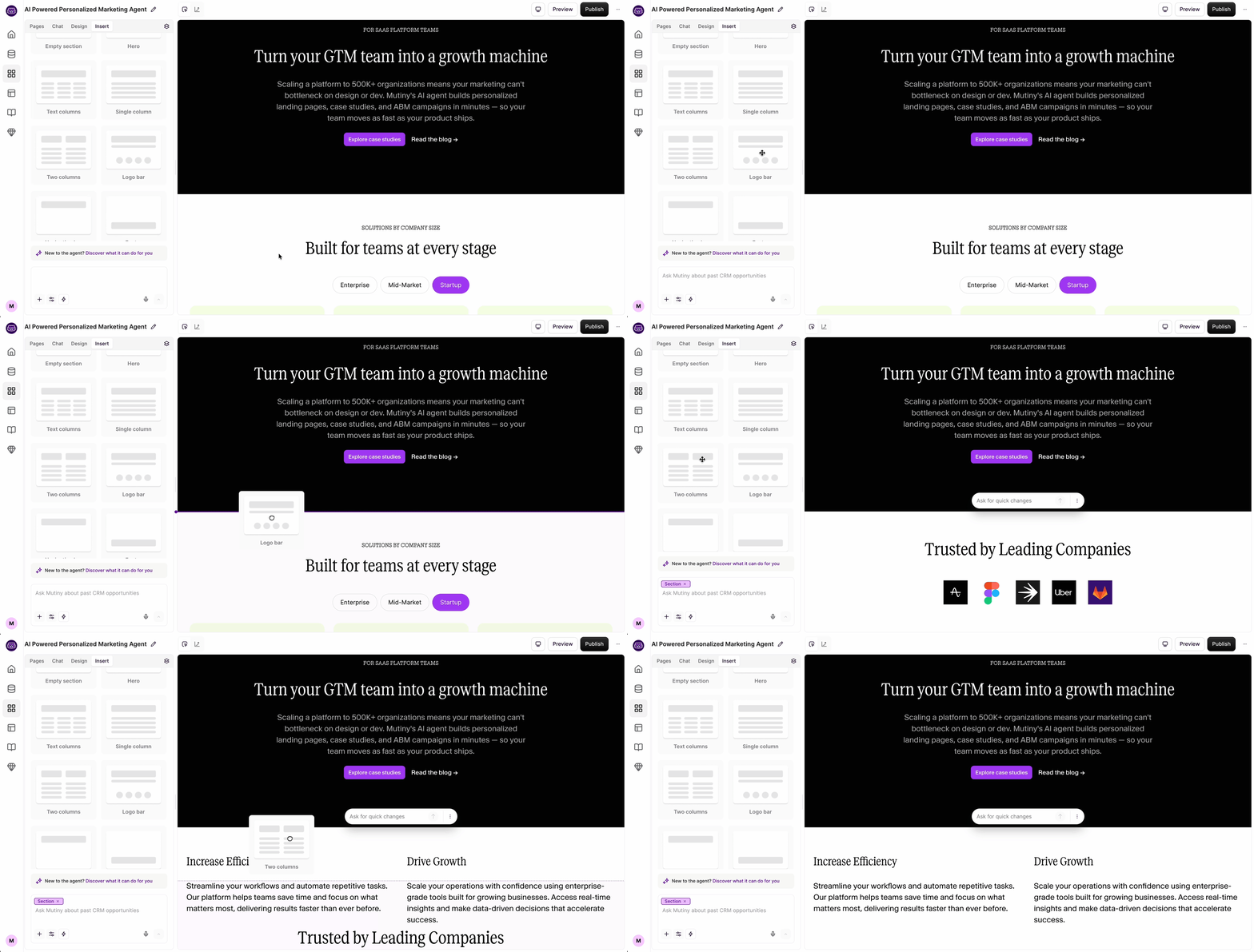
The Insert tab is where you add new content to your page. It contains a set of pre-built section templates such as testimonial blocks, logo bars, and CTA sections that you can drag and drop directly onto the canvas. These templates automatically inherit your brand styles, so they require little adjustment after you drop them in. You can also insert individual elements like buttons or images from here.
Layers
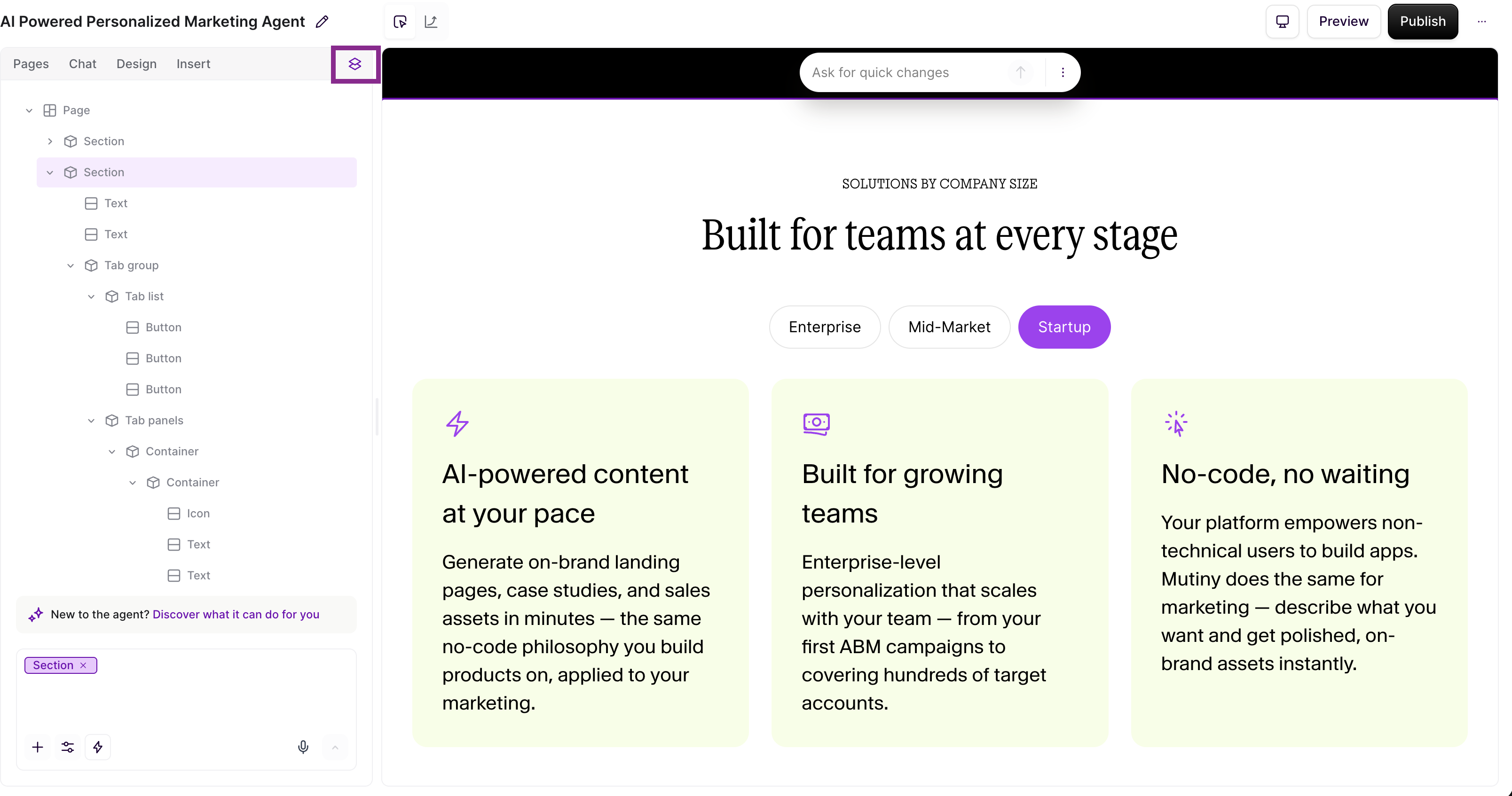
The Layers tab gives you a hierarchical view of everything on your page, showing all sections, containers, and elements nested inside each other. Most of the time you will not need it, but when your page gets complex and you are trying to select something that is difficult to click on in the canvas, the Layers tab lets you find and select it precisely. Once you have selected something through Layers, you can switch to the Design or Chat tab to make changes to it.
The Data Tab
When a list is connected to your asset, a Data tab appears at the top of the editor. This gives you access to all the account data and AI research for your list without having to leave the editor. You can browse what you already know about each account or kick off new AI research directly from here and use it to inform your personalizations. It functions as a lightweight version of Account Studio built into your creative workflow.
Need Help?
If you have questions or need help, the Mutiny Support team is here for you! You can submit a support ticket using the Submit a ticket button at the top of this page, or reach us at support@mutinyhq.com.