Create a Book-a-Meeting Banner
Last updated: April 7, 2026
Some features here are enterprise-only features. Interested in upgrading to an enterprise plan? Email the team at mutinylovesyou@mutinyhq.com to get plan upgrade information.
The Creative Agent can create personalized booking blocks that pull data directly from your account list, including owner information, headshots, and booking links. This allows you to build customized scheduling sections tailored to each account's assigned sales representative.
Learn how to create and manage lists in the following help doc: 📄 Creating and Managing Lists in Account Studio
Book-a-meeting Banner with a List Attached
To attach a list of accounts to your asset, navigate to the Pages tab in the editor, and click Create pages for every account in a list
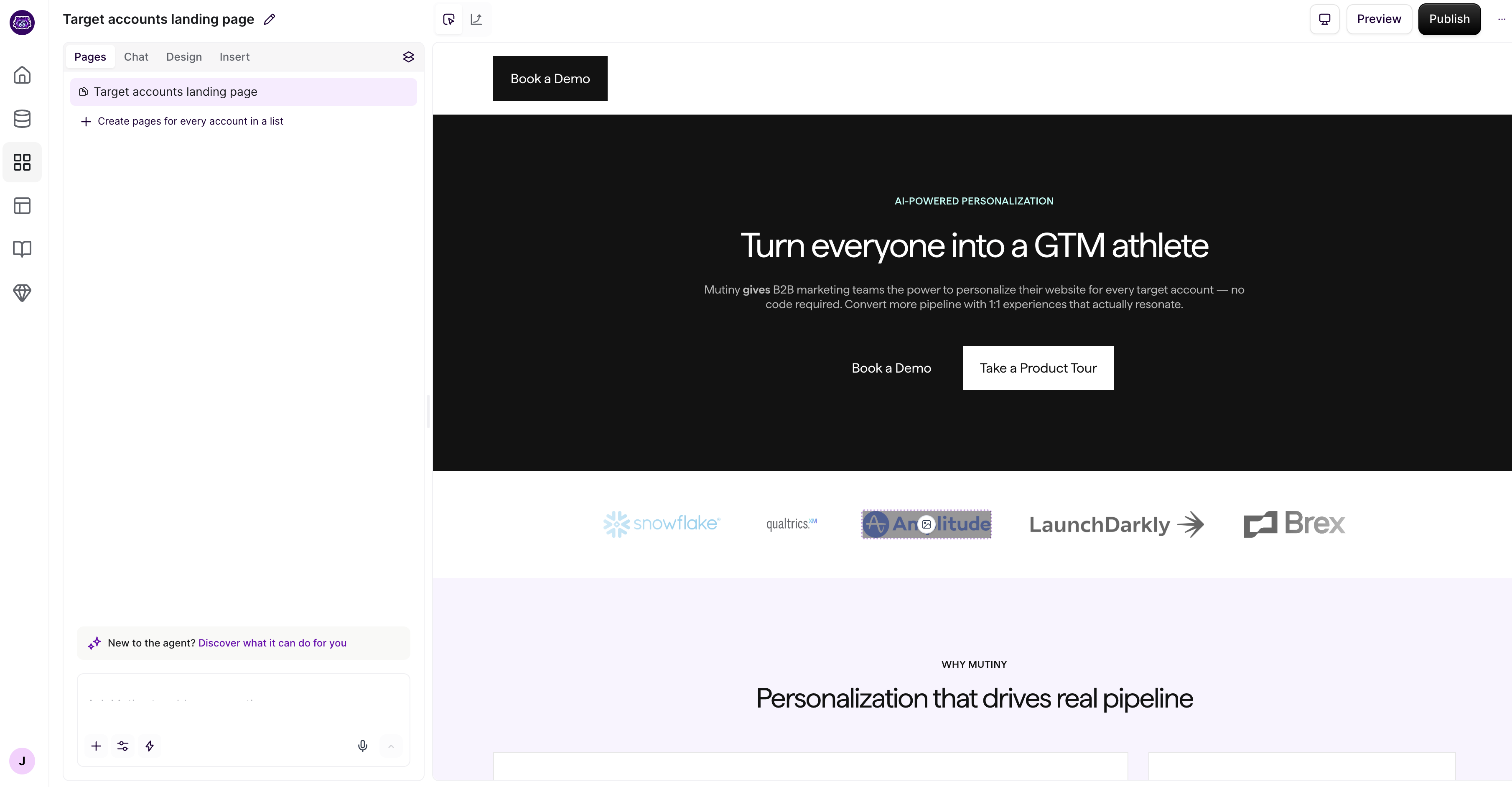
This will give the agent all the context of the data in the attached list. Be sure to include an account owner and booking link columns in your list.
Prompting the Agent
Select the section where you want to place the booking block, then open the Chat tab. In your prompt, specify the data fields you want to use by referencing your list variables directly, such as owner first name, booking link, and headshot URL. You can also include design guidance in the same prompt, for example:
Create a book-a-meeting banner near the bottom of the page with the account owner and meeting link from the attached list. This should look like a banner and not a very tall block.
The more context you give the agent upfront, the closer the initial output will be to what you have in mind.
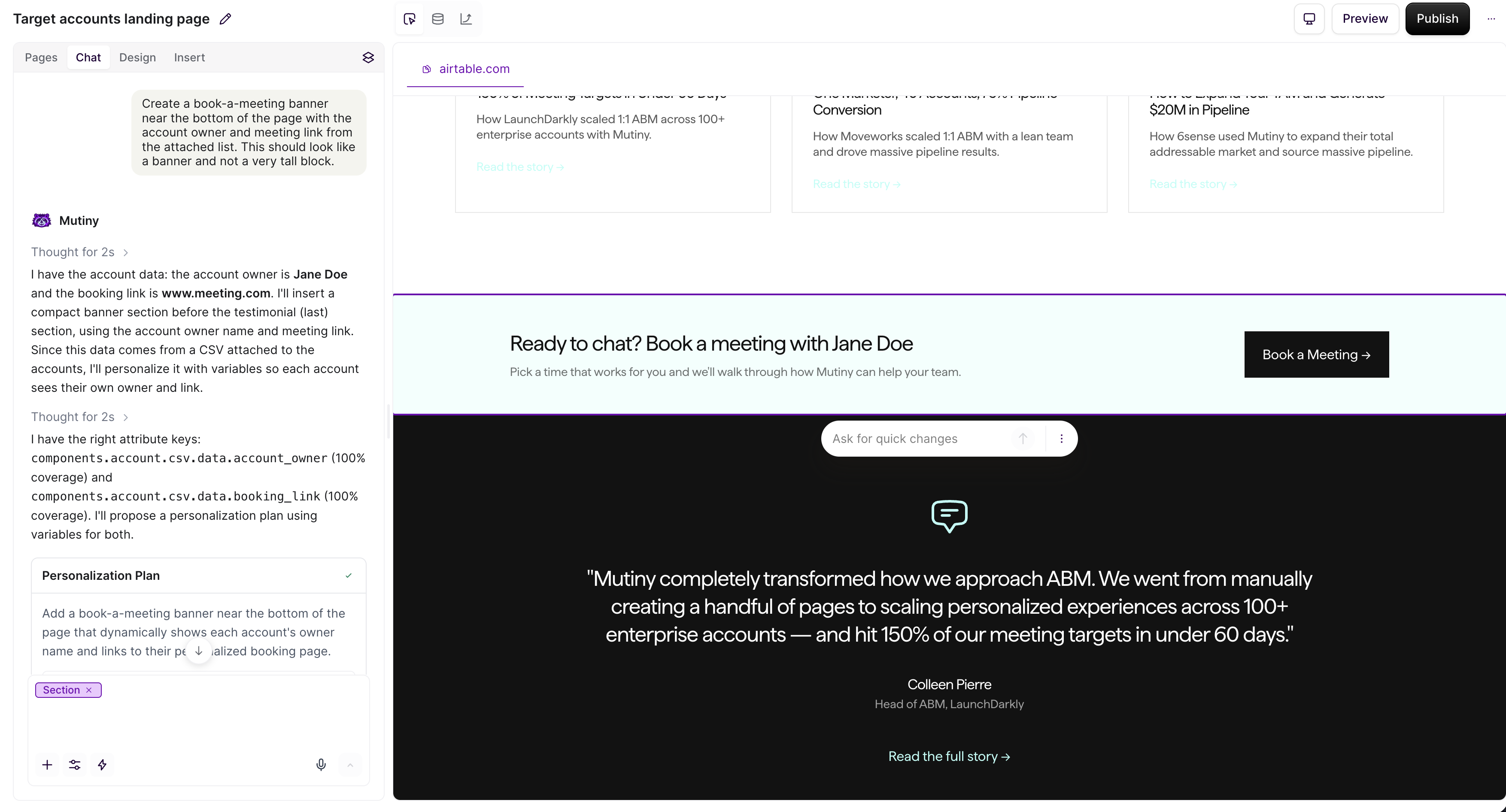
Previewing Across Accounts
Use the Pages tab to verify that the booking block displays correctly for each account in your list. This lets you confirm that each account is showing the right owner information and that the layout holds up across all account pages.
Refining the Design
If anything needs adjusting after the block is created, you can use the Design tab for precise styling changes or send a follow-up prompt in the Chat tab to ask the agent to refine the styling further.
Book-a-meeting banner without a list
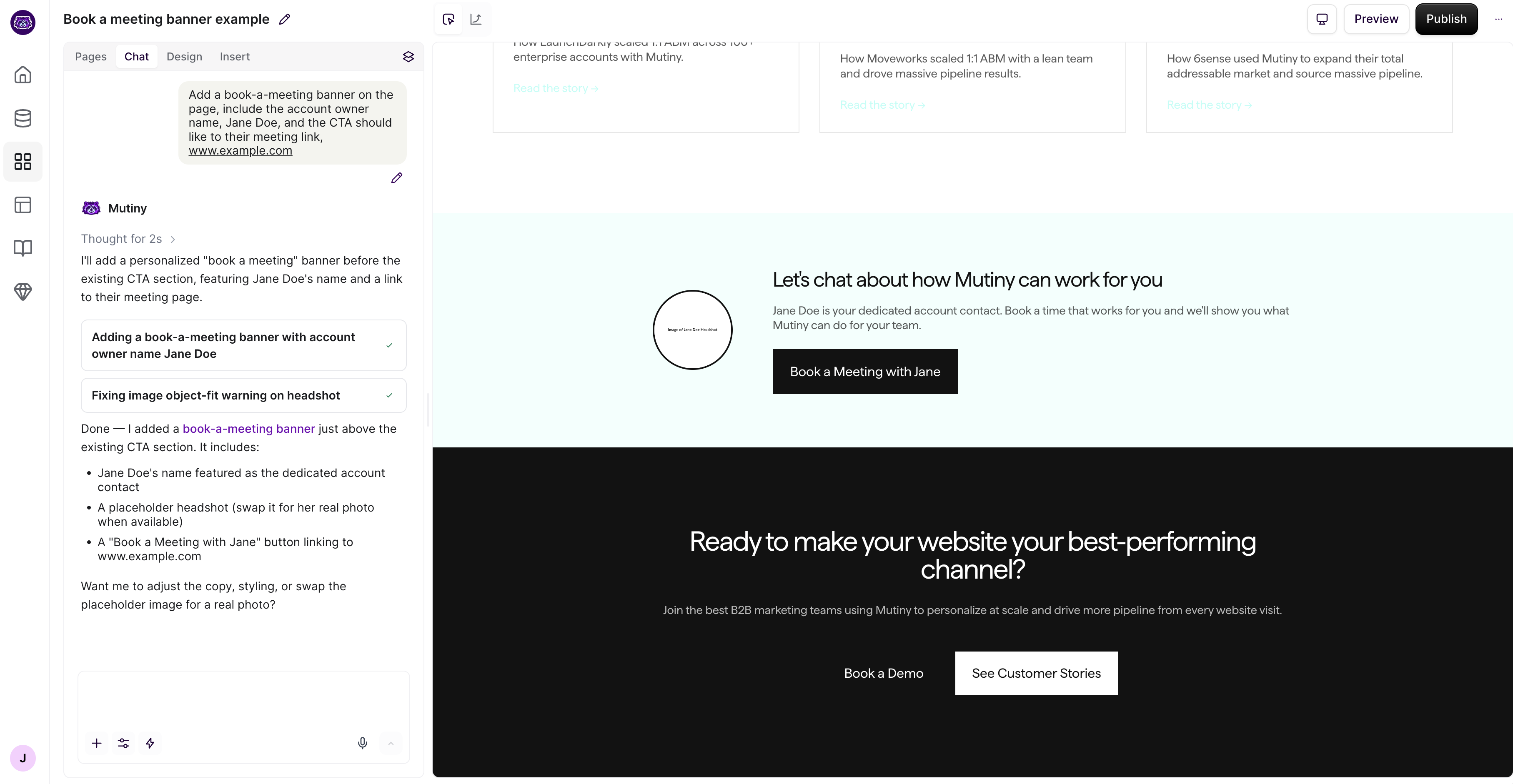
You can also create a book-a-meeting banner without a list attached. To do this, ask the agent to create this banner, and provide any info you'd like the banner to include, such as the account owner's name, booking link, etc.
Add a book-a-meeting banner on the page, include the account owner name, Jane Doe, and the CTA should like to their meeting link, www.example.com
Need Help?
If you have questions or need help, the Mutiny Support team is here for you! You can submit a support ticket at the bottom of this page or reach us at support@mutinyhq.com.