Add Company Logos to your Mutiny asset
Last updated: June 24, 2026
There are multiple ways to get account logos into your assets. You can empower the mutiny agent to insert logos into Mutiny assets or manually upload them into the desired section. This guide will go through the setup and process for each method
Add Logos with the Creative Agent
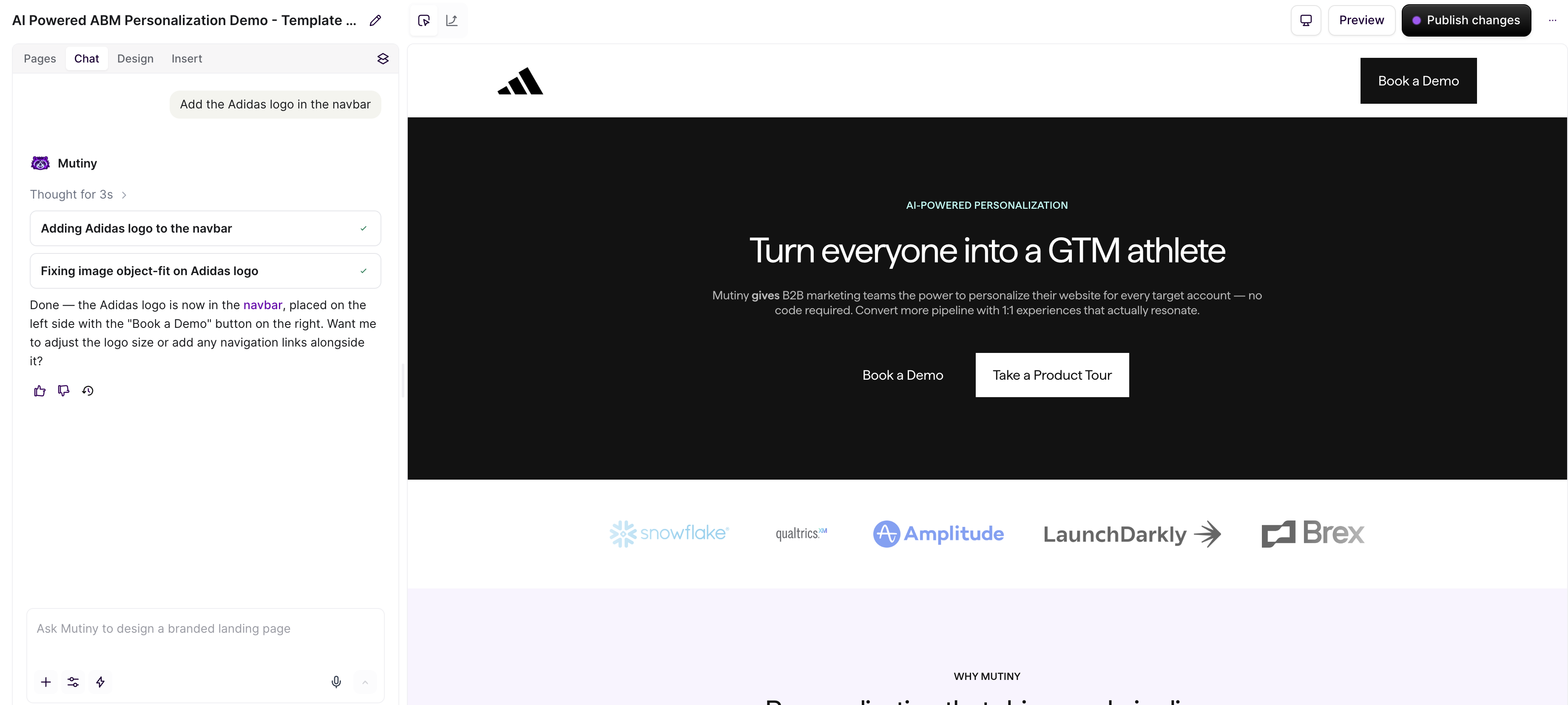
You can add logos to your assets by asking the creative agent to add the desired company logo to the page. In the example below, we asked the agent to add the Adidas logo to the nav bar:
Adding Logos to the Library
If you already have logo images handy, you can upload them directly to the Library. Once uploaded, the agent will have access to these logos to use in your assets.
To get started, navigate to the Library and click Add Content
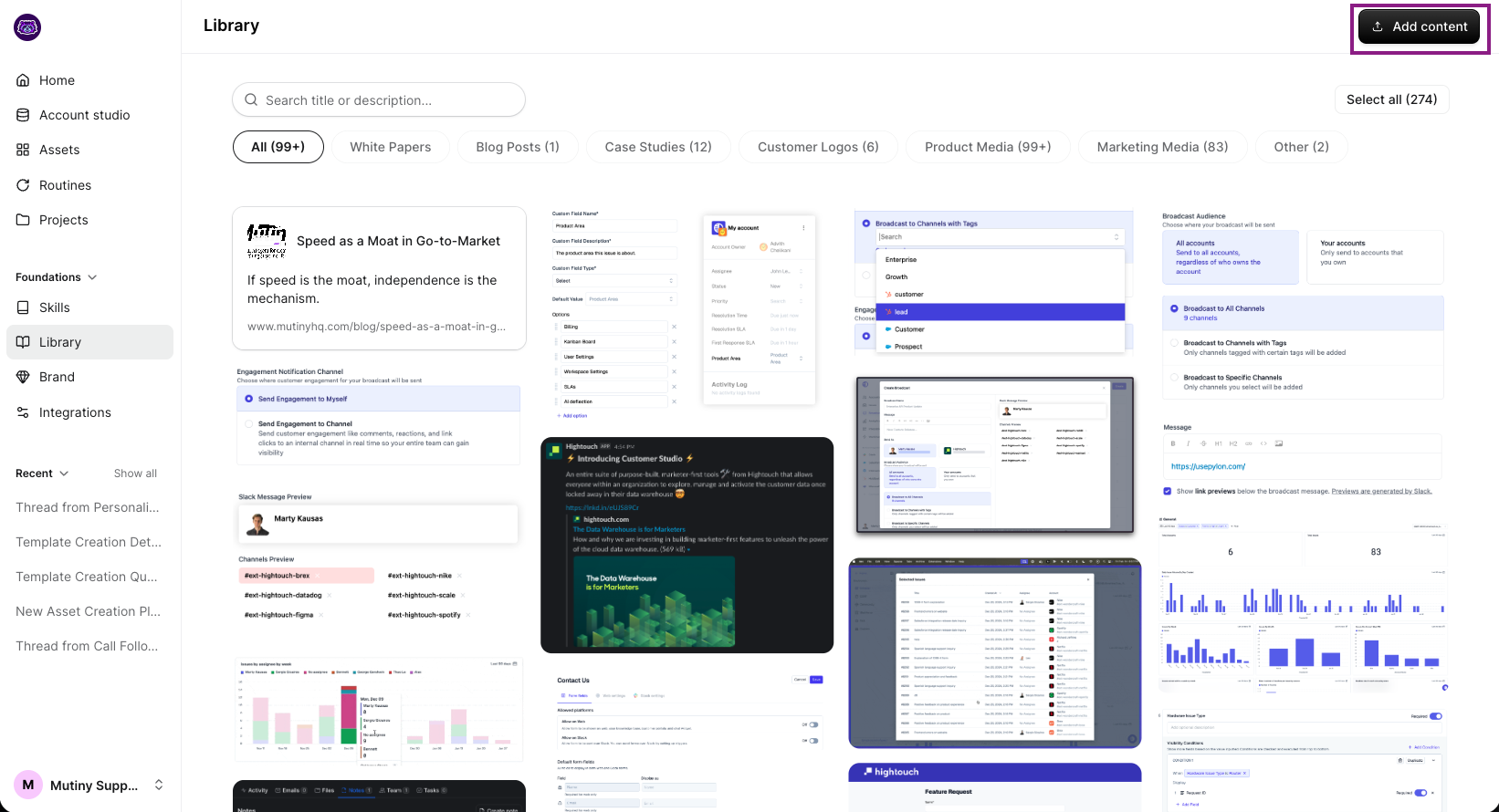
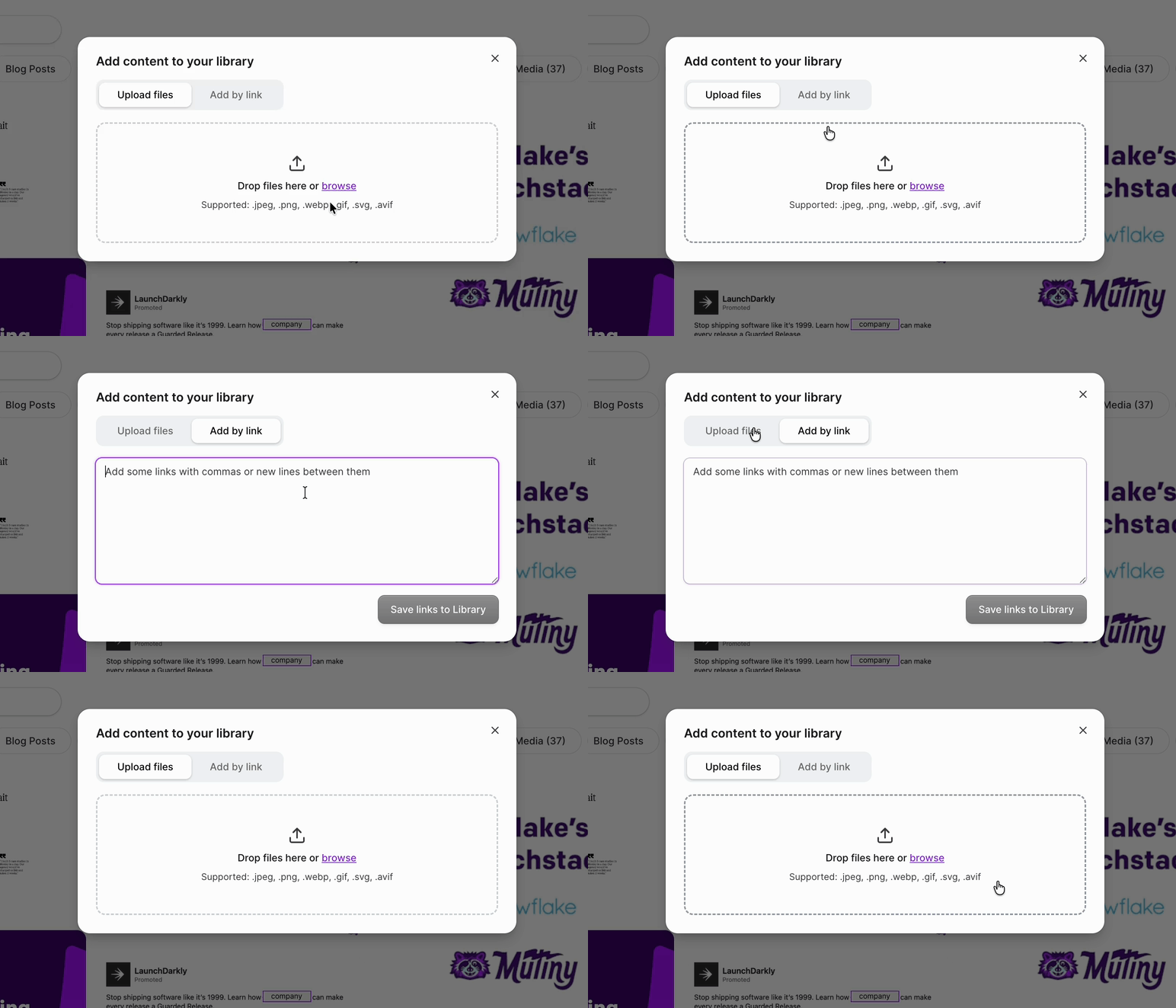
This will open up a modal where you can then upload your images
Once uploaded, click into one of the images, and you will be able to crop the image, add a description, and give it a title. If you uploaded the wrong file, this is also where you can delete the image from the Library.
Manually Upload/Replace Images
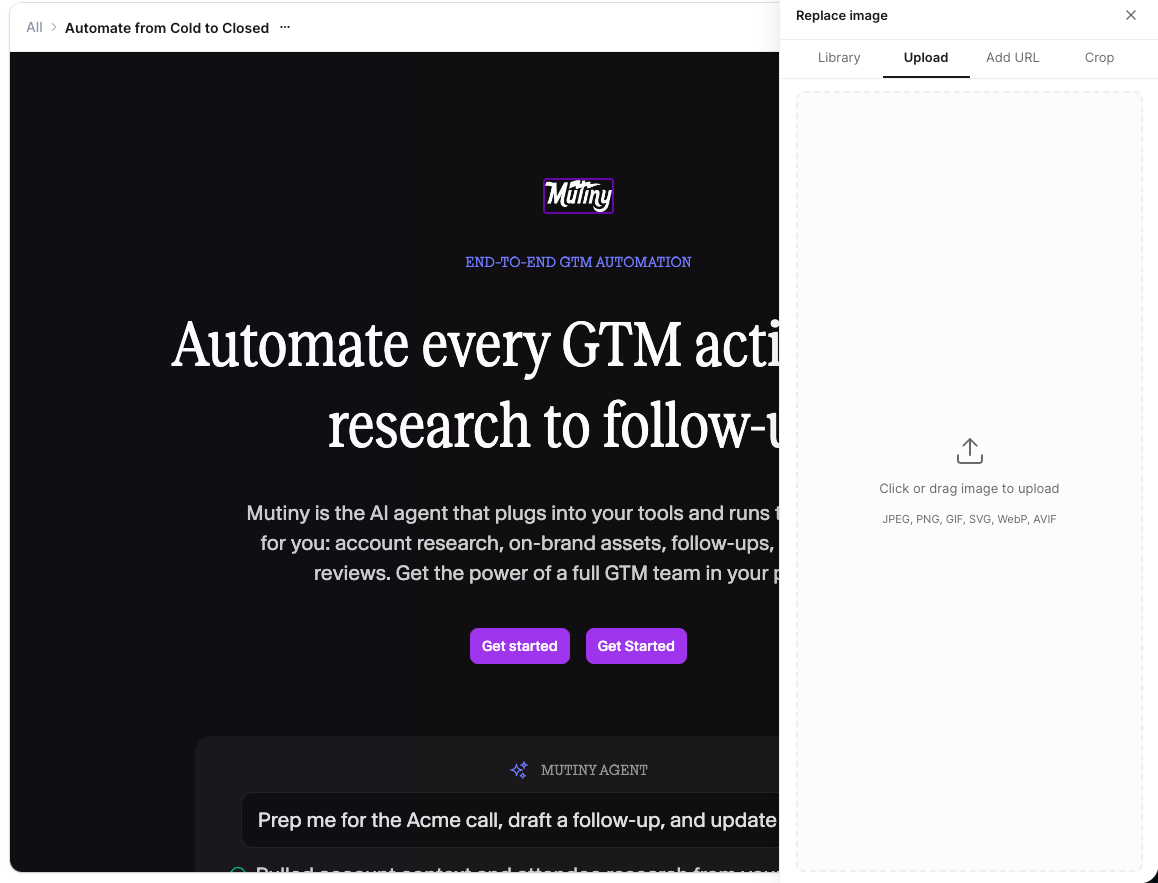
If you would like to provide your own logo images, you can click one of the images in the asset, and this will open a side panel where you can choose another image, or upload a new one
Need Help?
If you have questions or need help, the Mutiny Support team is here for you! You can submit a support ticket using the Submit a ticket button at the top of this page, or reach us at support@mutinyhq.com.