Integrating with Google Calendar
Last updated: May 15, 2026
Mutiny integrations are connected via Pipedream. You can learn more about Pipedream here:
The Google Calendar integration allows you to connect your Google Calendar to the Mutiny agent to pull context that the agent can use while working in Mutiny. Such as pulling an upcoming meeting's attendees, company, and agenda to tailor a one-pager, deck, or email for that specific account.
Connecting to Google Calendar
To get started, head to the integrations page in Mutiny
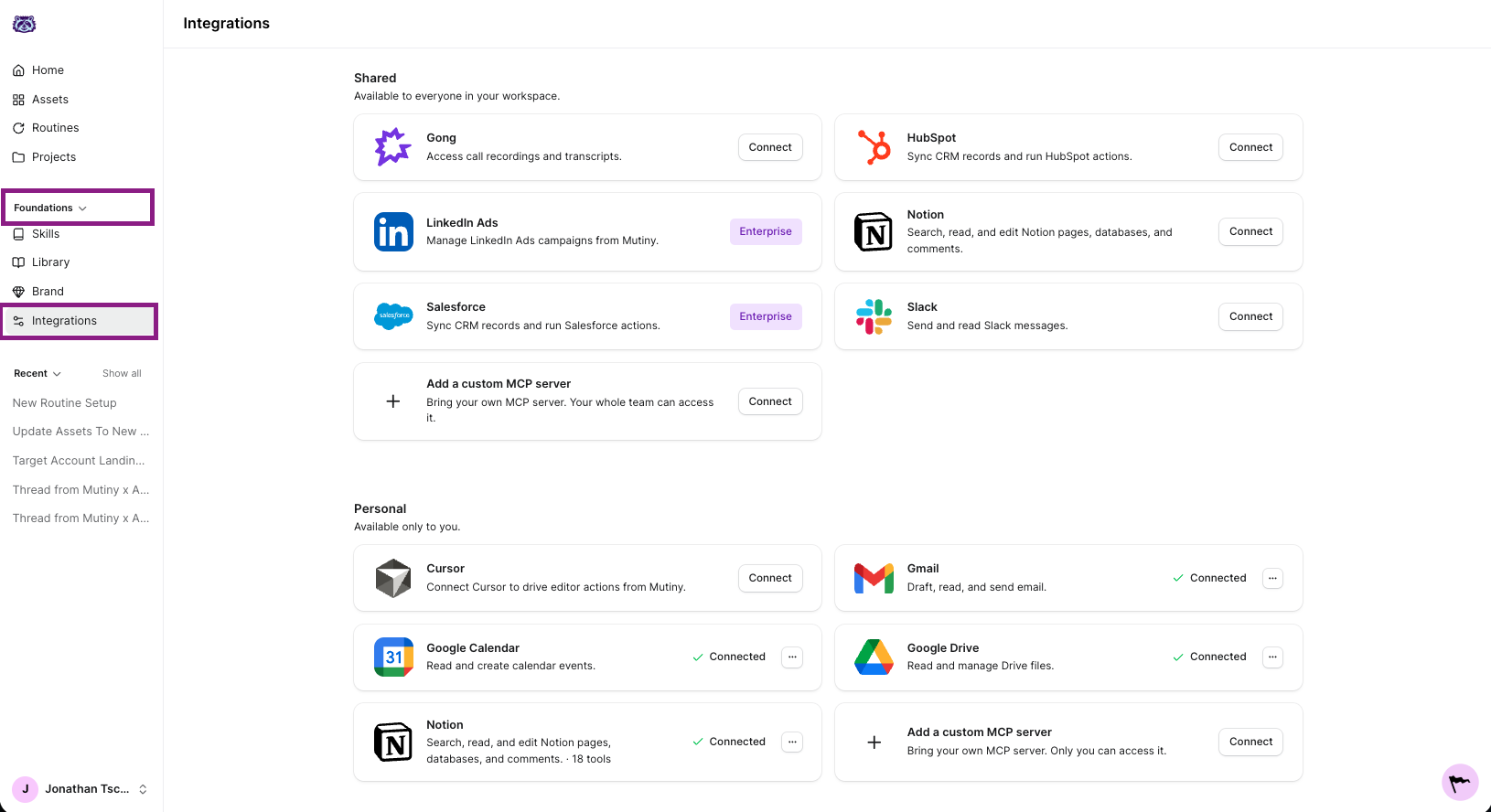
On the Google Calendar integration card, click Connect - This will launch the Pipedream connection modal. Complete the connection steps through this Modal to connect to Mutiny
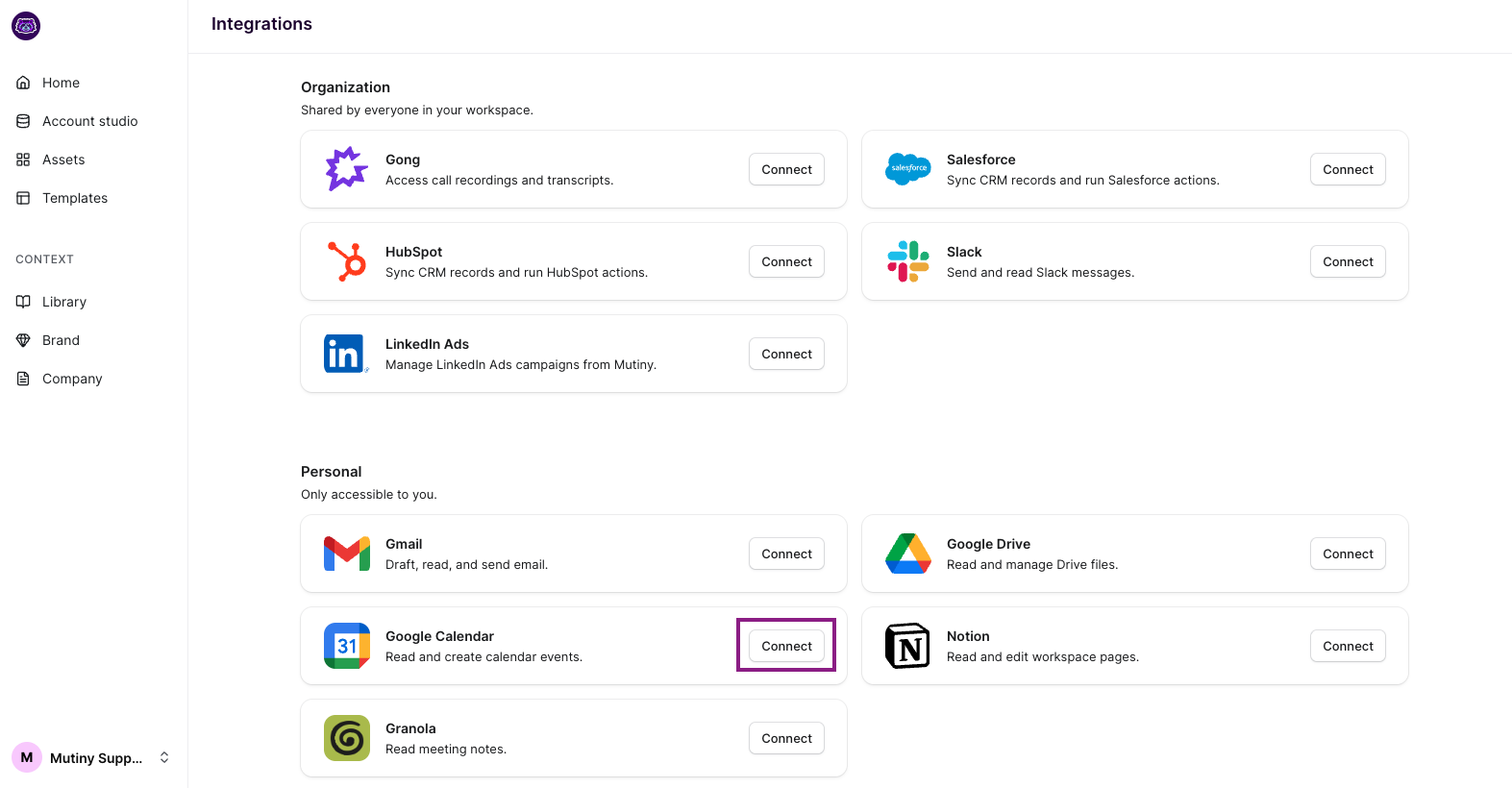
After going through the steps, you will see the integration card now says Connected
Using the Integration
Once connected, the agent can then use upcoming or past meetings to create one-pagers, decks, or follow-ups from recent meetings. You can use a prompt like:
Create a pre-meeting exev brief with for my upcoming meeting, create this as a PDF export
The agent will then pull in the relevant details from Google Calendar and create an asset ready to be exported to PDF.
Disconnecting
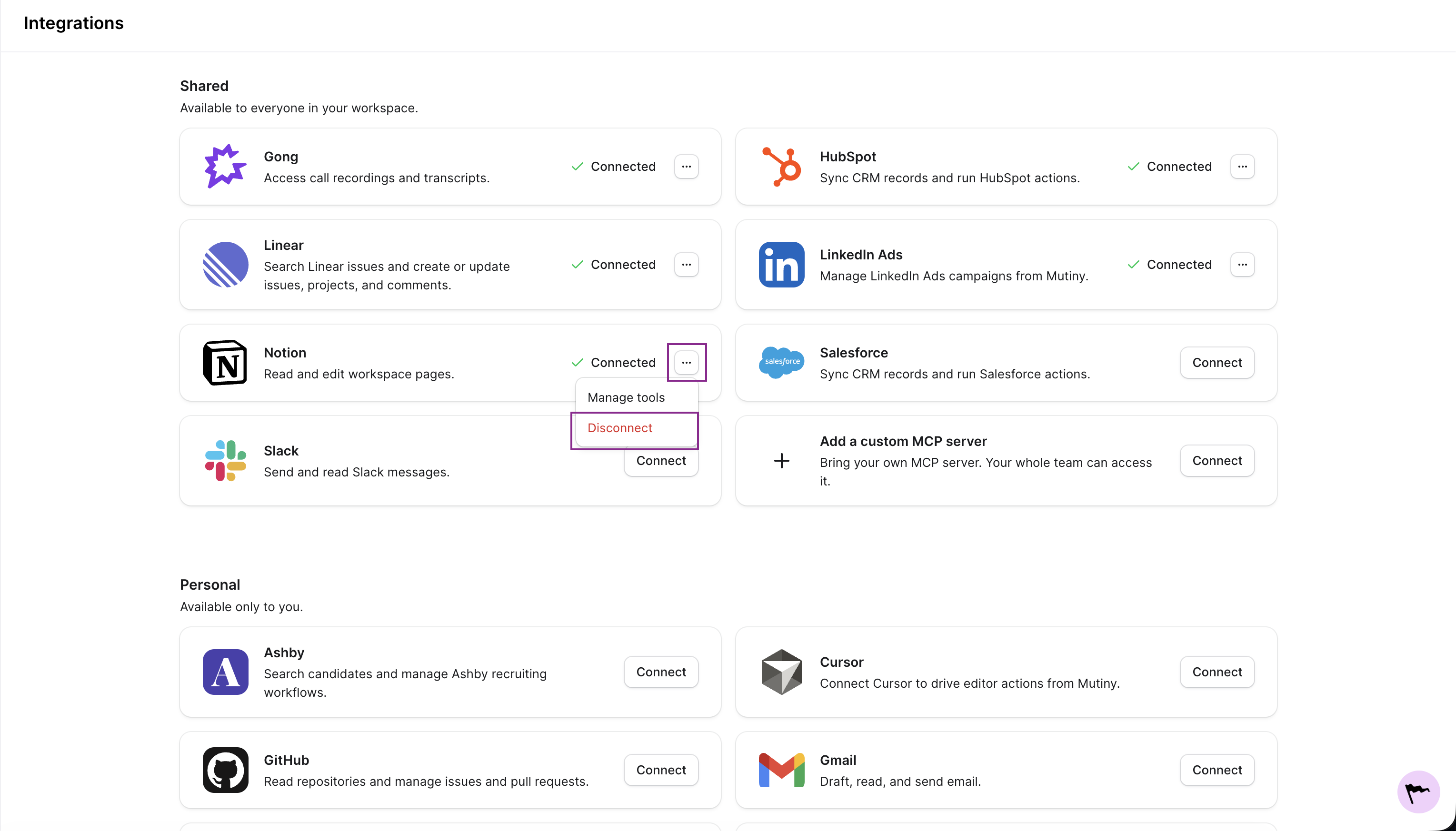
You can disconnect any integration from the three-dot menu on the integration card
Need Help?
If you have questions or need help, the Mutiny Support team is here for you! You can submit a support ticket using the Submit a ticket button at the top of this page, or reach us at support@mutinyhq.com.