Assets Editor Deep Dive
Last updated: July 9, 2026
The Mutiny Asset Editor is a powerful interface that puts all your asset customization tools at your fingertips. With its intuitive layout and AI-powered features, you can efficiently create and personalize asset pages for all your target accounts.
Editing your Asset
Editing in the canvas
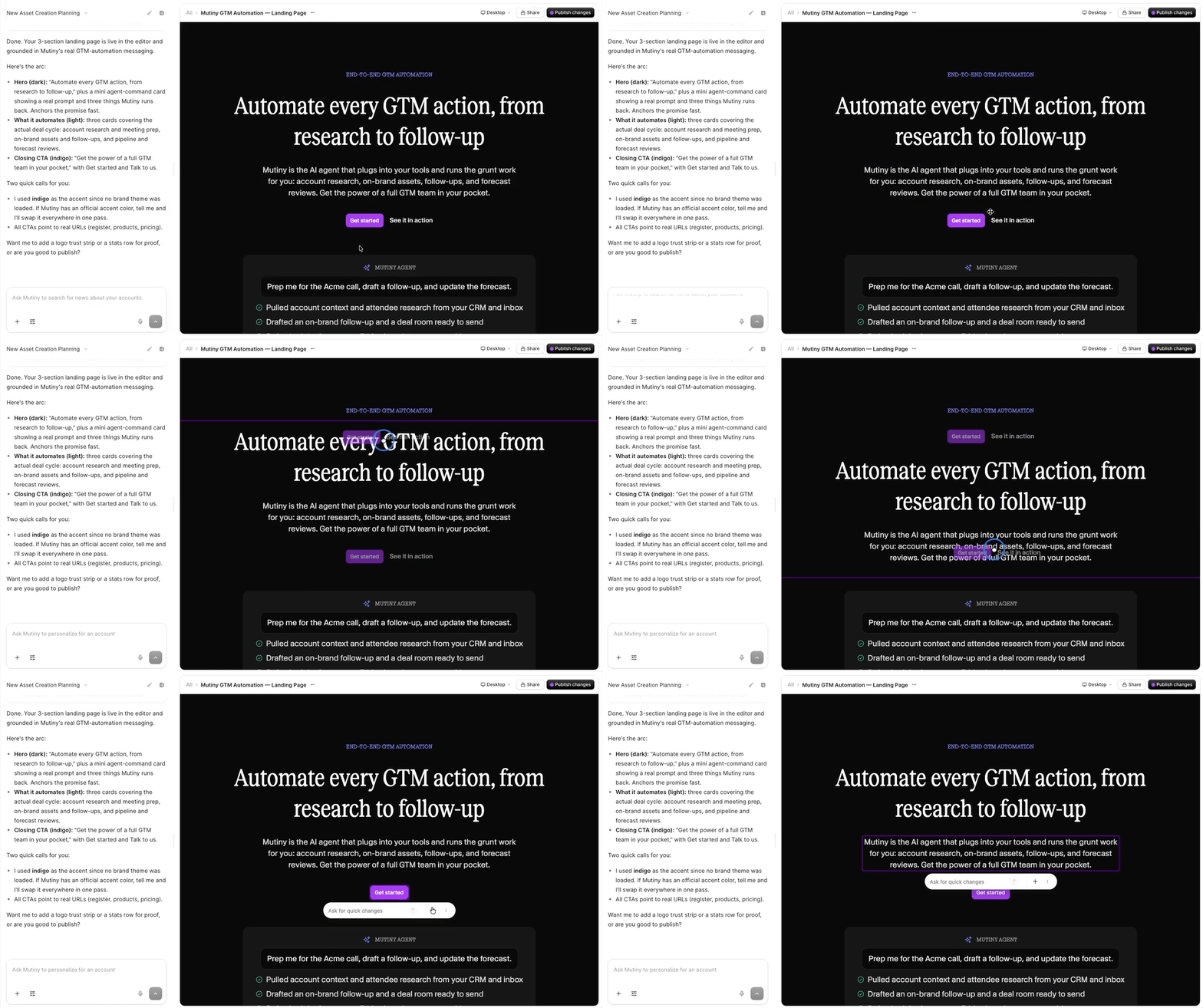
To make changes, click on any element or section in the asset. You can edit text, click and drag to move sections or elements around, and use keyboard shortcuts to copy, paste, or delete anything on the asset.
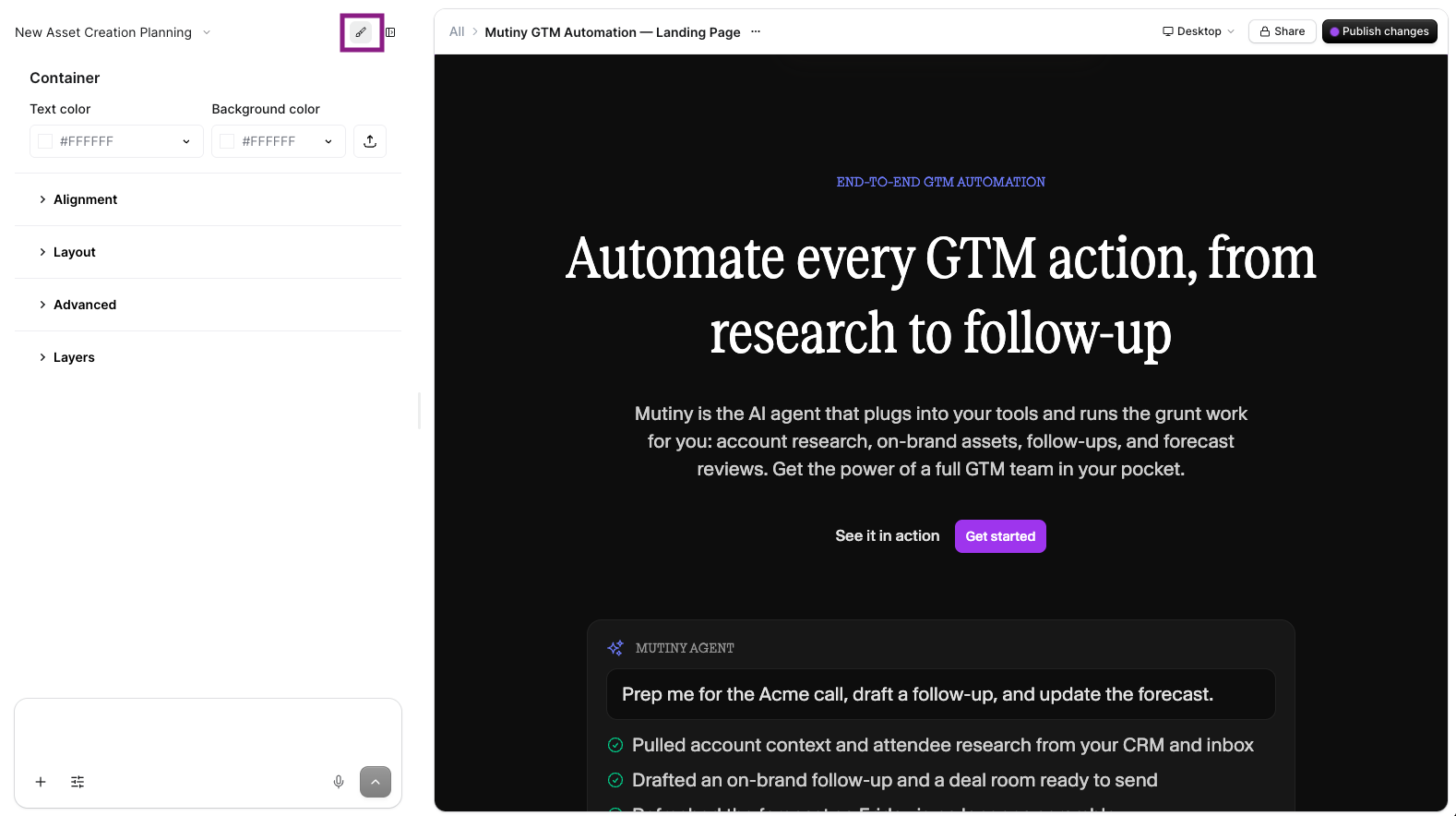
The design menu
To fine-tune design, you can use the Design menu. This gives you granular control over details like padding, margin, sizing, colors, and more.
The Layers Menu
The Layers menu displays your page sections in a hierarchical list view with collapsible menus. This layout reveals the parent-child relationships between containers and elements, making it easier to understand how your page is organized.
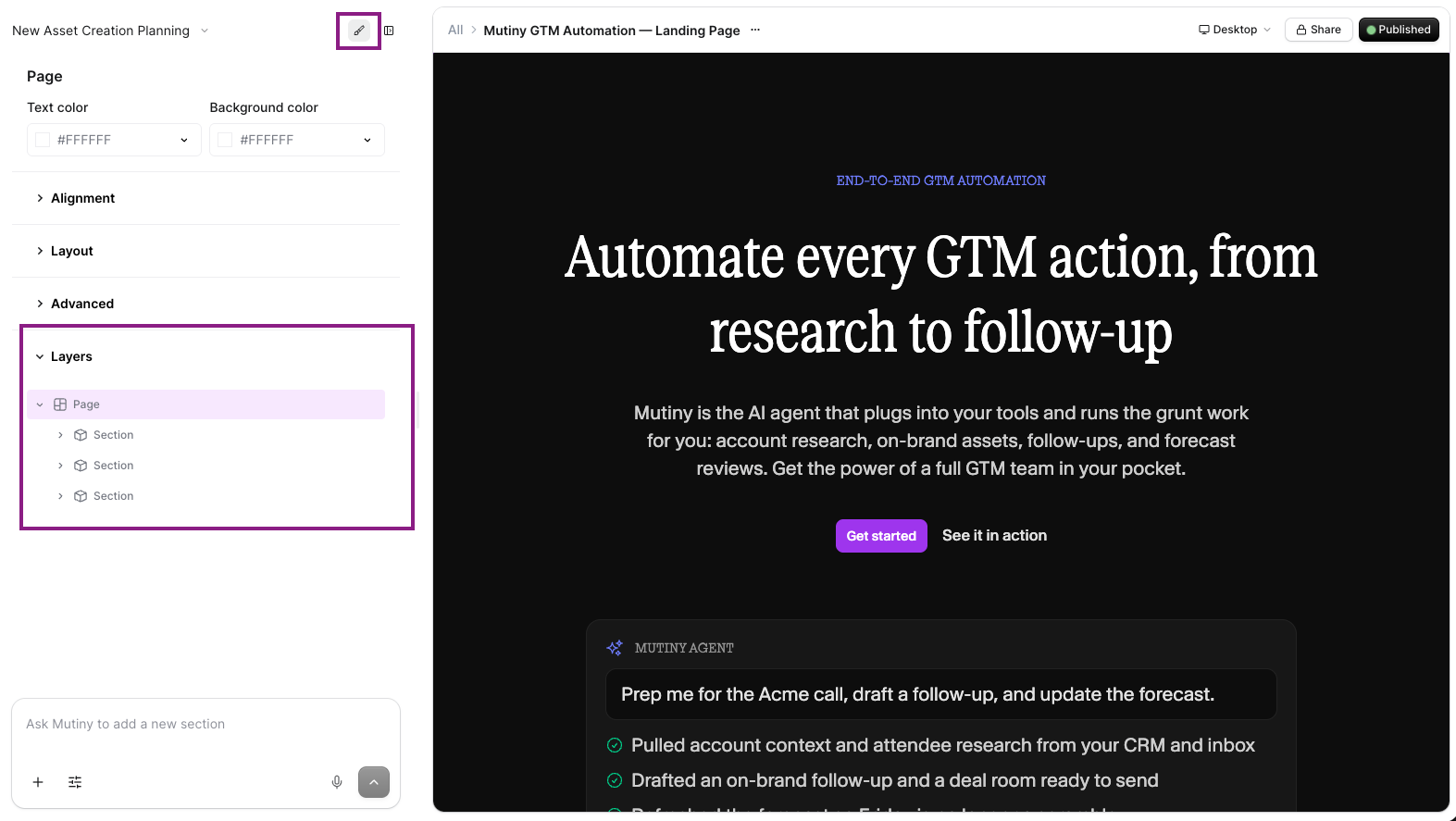
When selecting different elements in the list, they will be highlighted in the canvas so you know what you are targeting. Learn more about the Layers tab here:
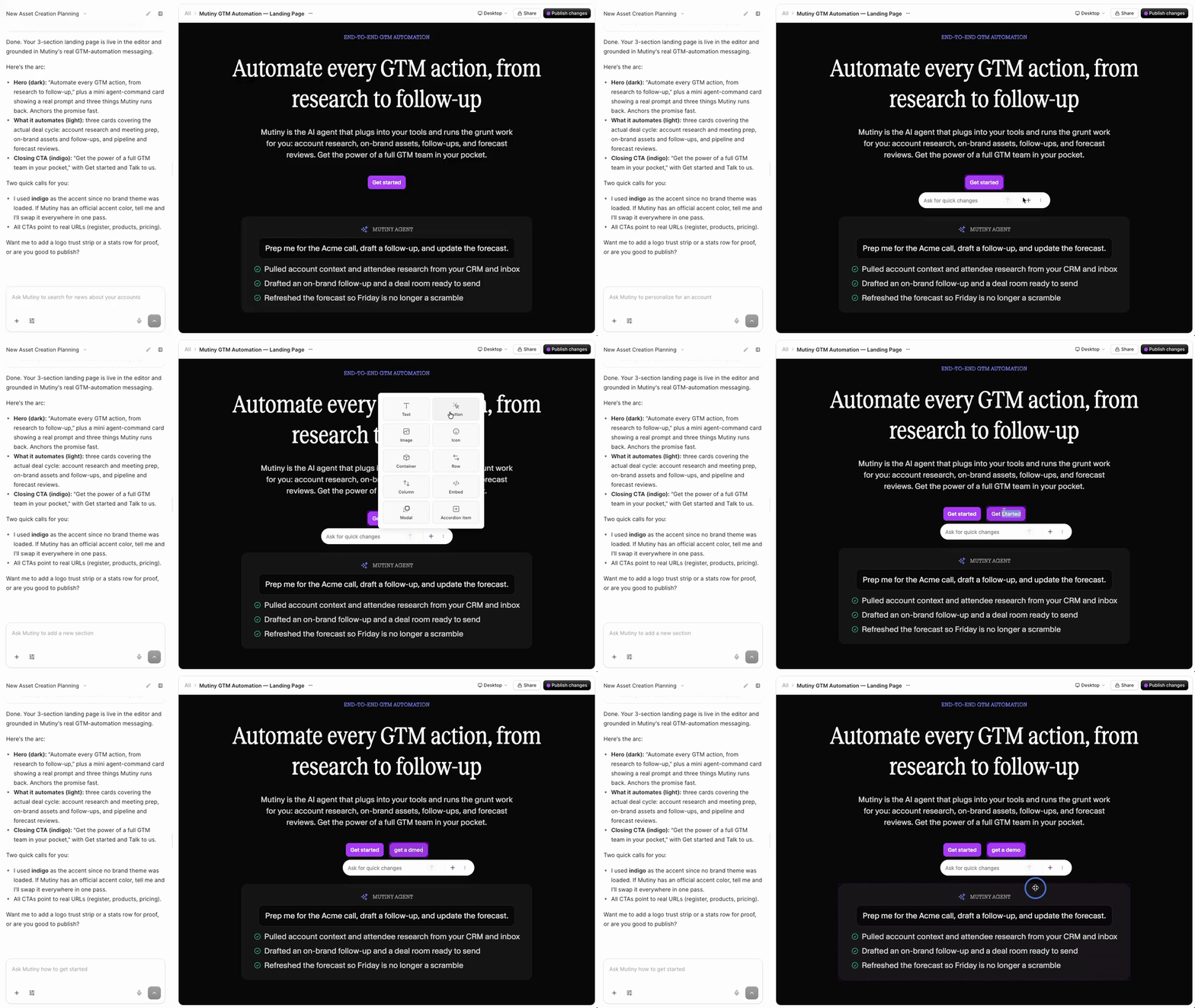
Quick changes menu
The quick changes menu appears anytime you select an element in the asset. From this menu, you can add new elements to the page using the "+" button
Asset versioning
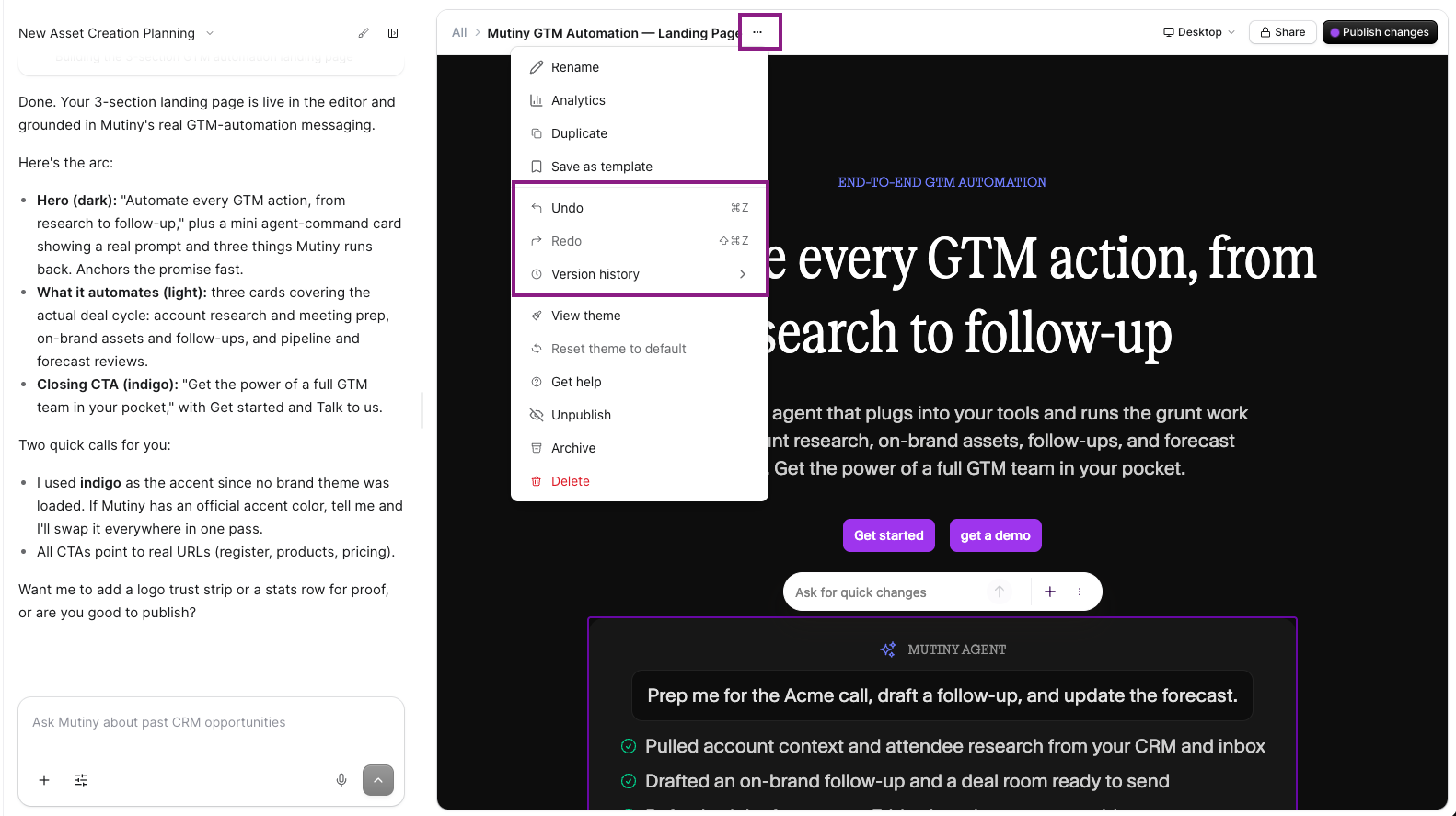
If you make any mistakes, you can undo or redo using keyboard shortcuts, or from the three-dot menu in the top bar. More about asset versioning here: 📄 Asset Versioning
Previewing your Asset
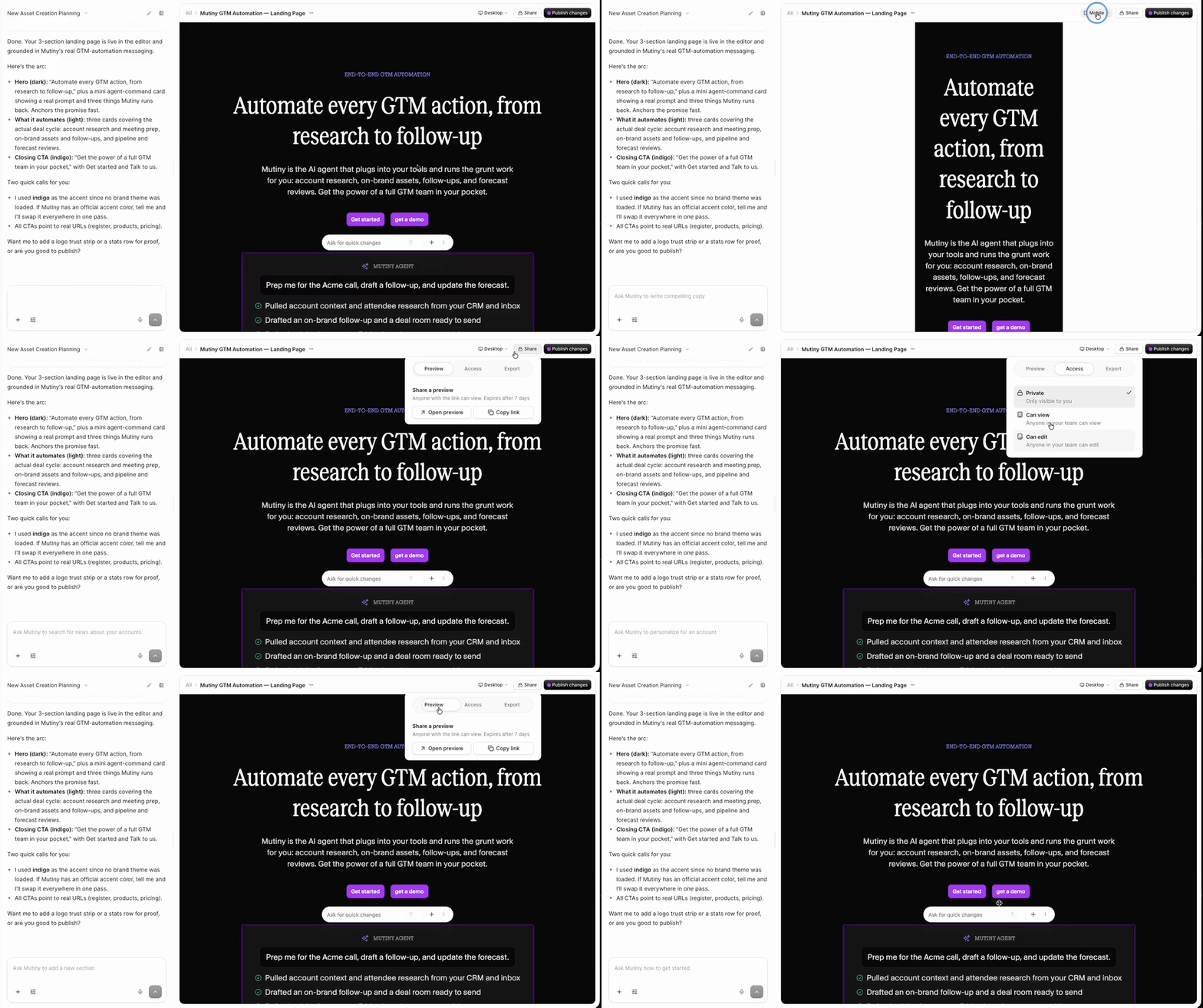
You can use the preview button at the top right to view a shareable preview link of your asset. You can see what your asset will look like across devices by toggling between Desktop, Mobile, and PDF view in the devices preview menu.
Need Help?
If you have questions or need help, the Mutiny Support team is here for you! You can submit a support ticket using the Submit a ticket button at the top of this page, or reach us at support@mutinyhq.com.