Templates Deep Dive
Last updated: July 27, 2026
You can create templates to help you maintain a consistent look and feel across all your assets. You can create new templates from scratch, save existing assets as templates, or use assets built from Blueprints to get started quickly.
Template organization
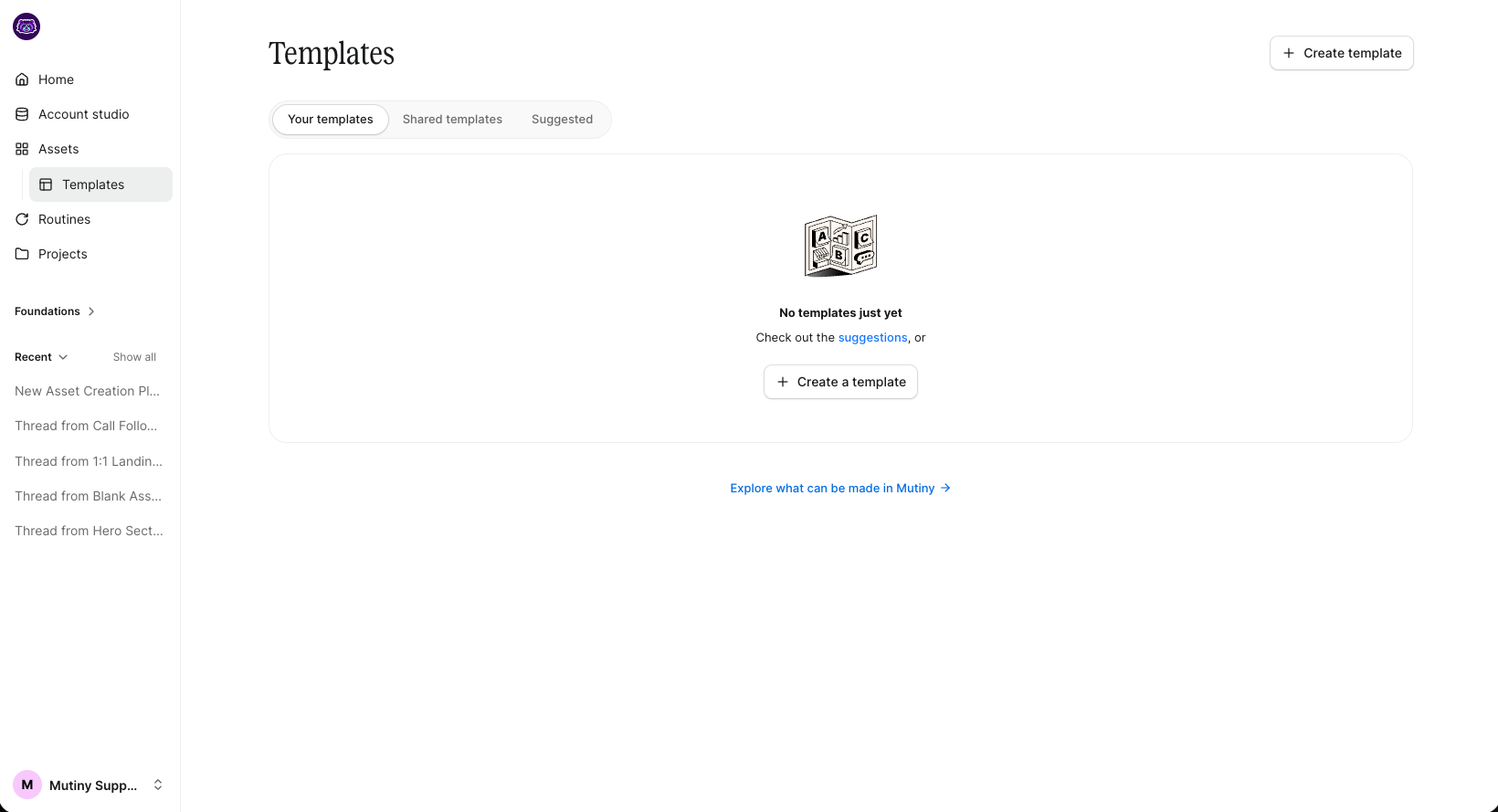
Navigate to the Templates page. Here you will see any templates that you have created, templates shared by your organization, and template blueprints
Creating Templates
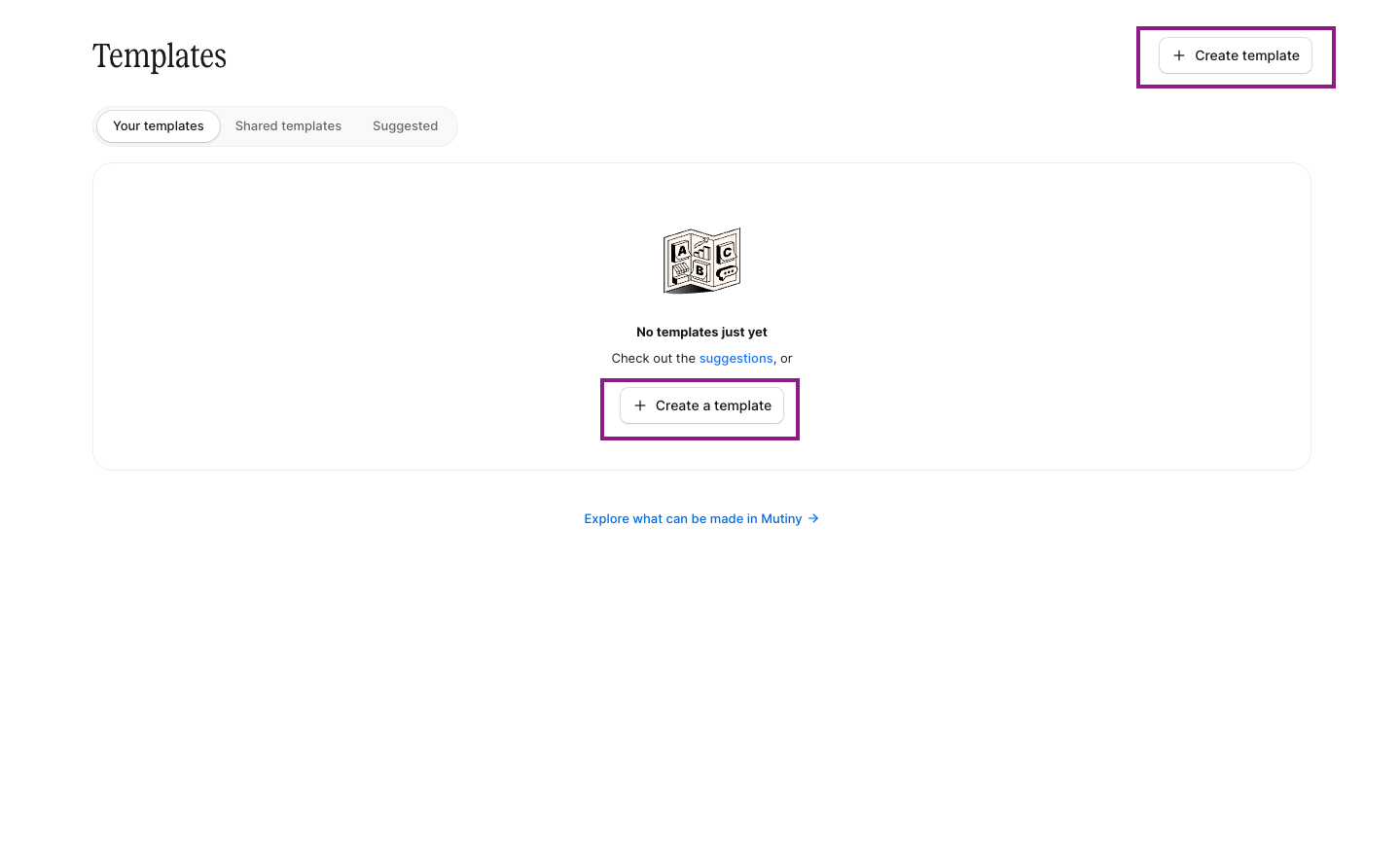
Create a new template directly from the Templates page by selecting + Create template. From here, you will be launched into a new thread to create your template.
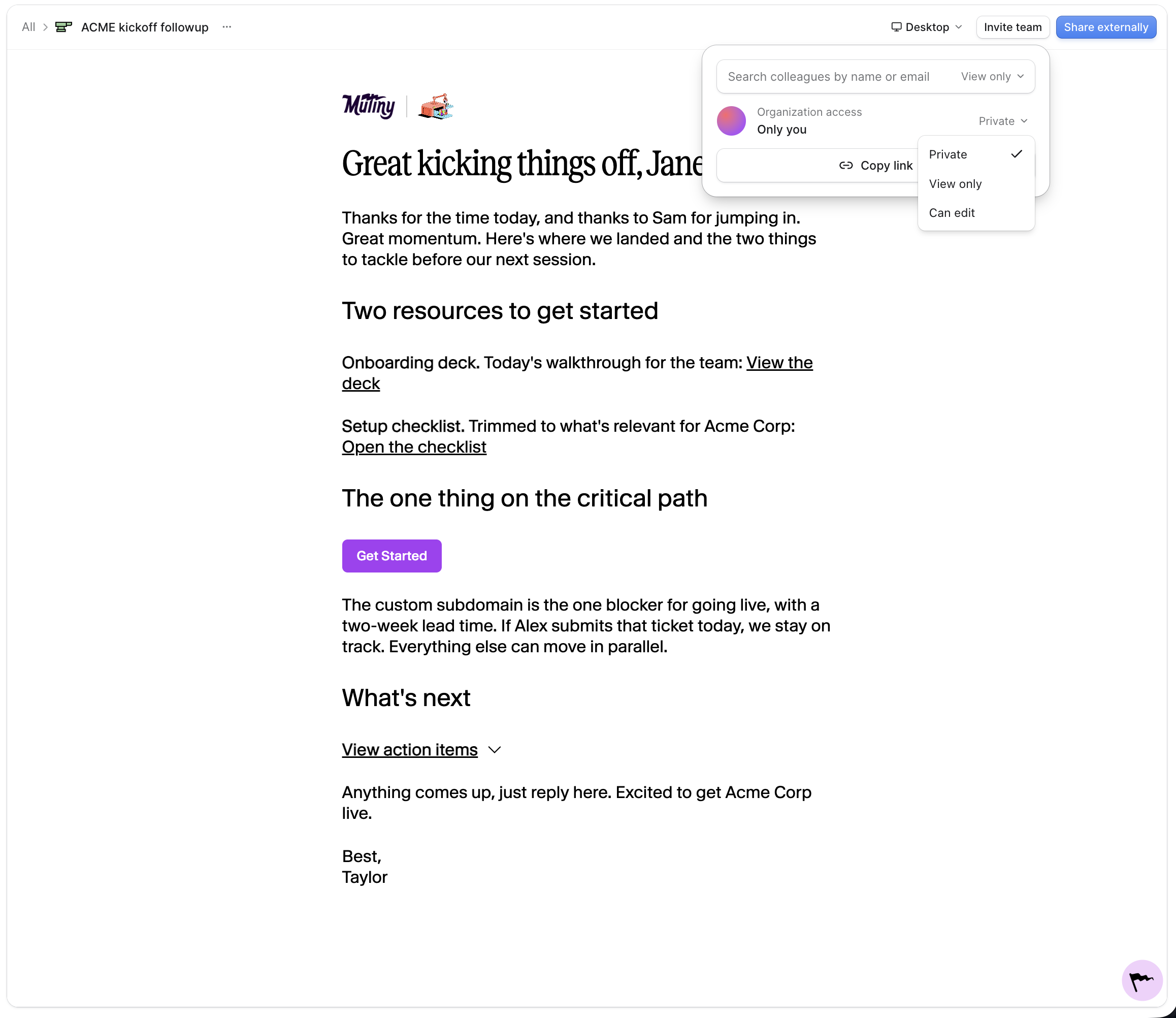
Once created, you can work with the agent to refine asset design or make changes manually.
Once the template is in a good spot, you can preview how it will look as a published asset, as well as adjust sharing and access details from the Share button on the top right.
Converting Existing Assets into Templates
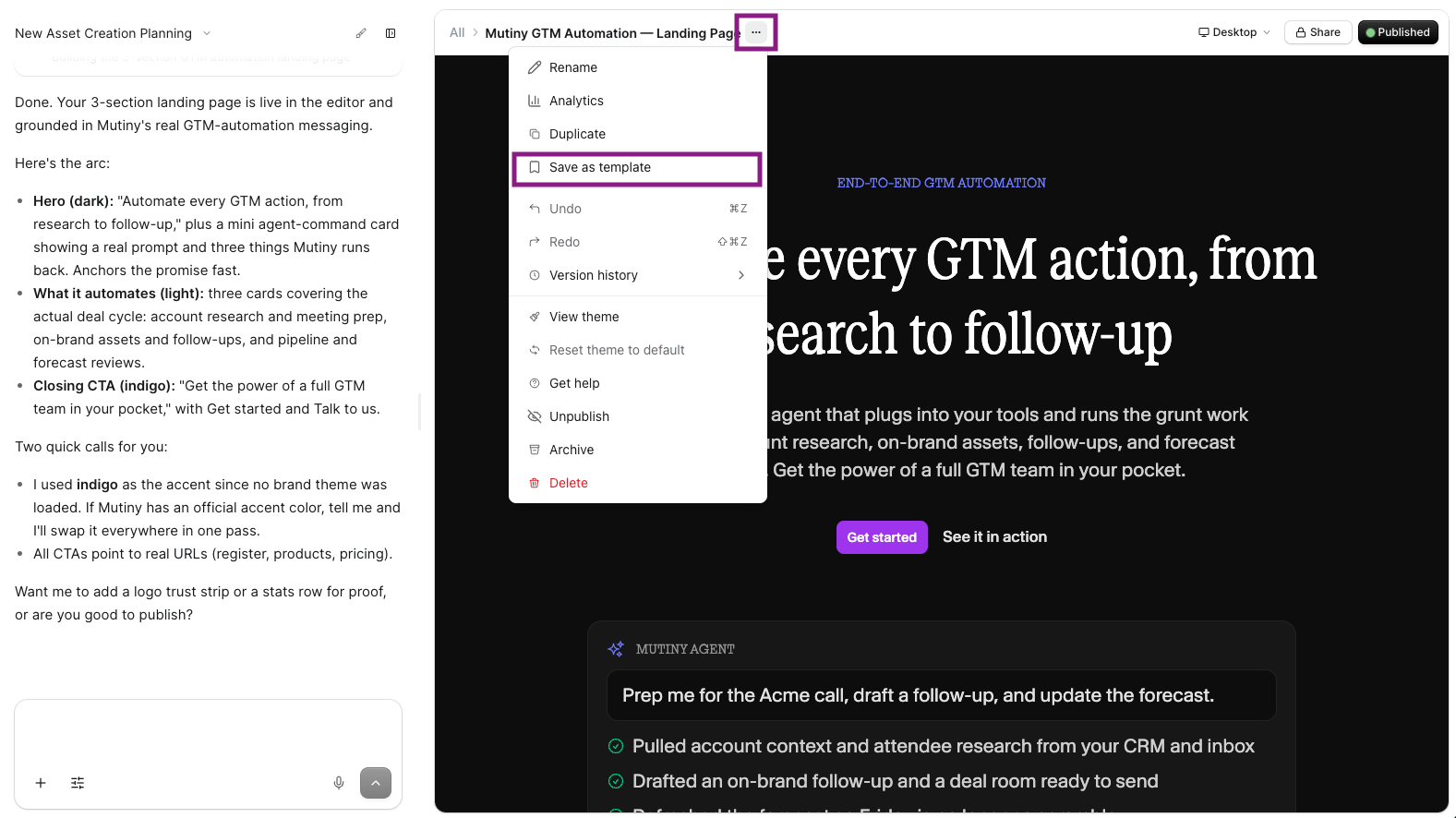
Transform any existing asset into a reusable template by opening the asset editor. Click the three-dot menu in the editor, and select Save as template from the options.
Your template will be successfully created and immediately available in the templates tab for future assets, allowing you to leverage proven designs across multiple initiatives.
Managing Templates
Archiving & Deleting Templates
If you no longer need a template, you can either archive or delete it from the three-dot menu on the template's card
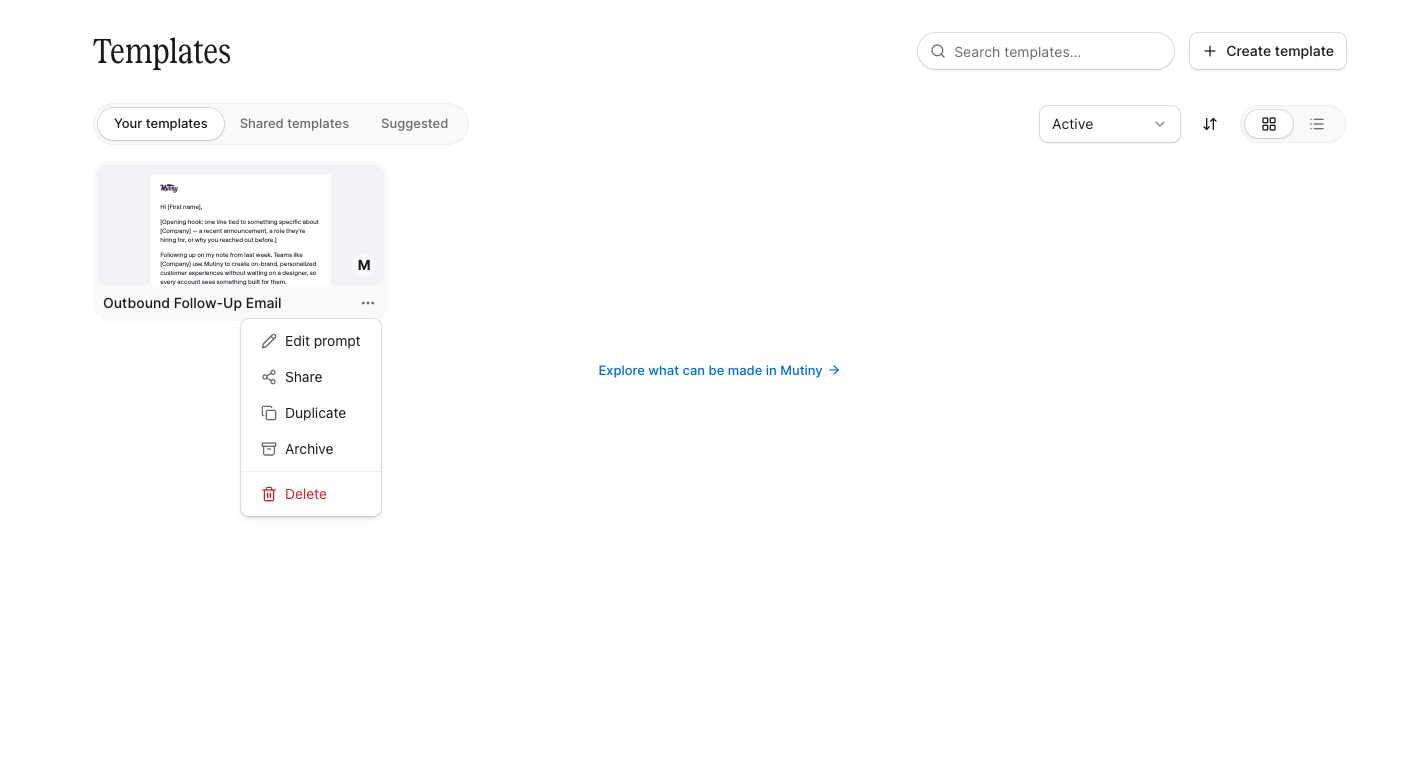
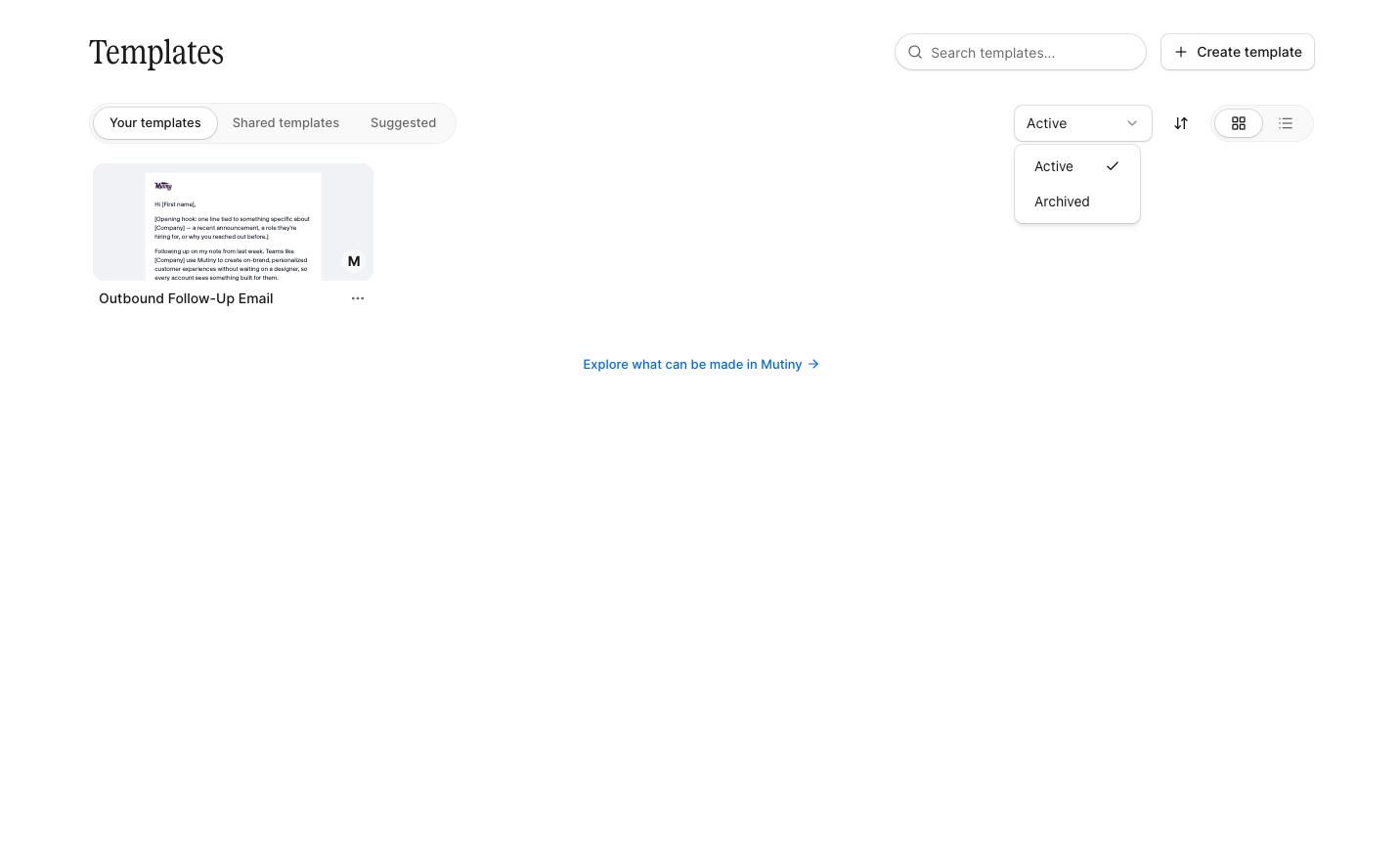
You can also view any archived assets by switching between the Active and Archived view with the dropdown in the top right
Active - Shows you active templates; these are templates that can be chosen during asset creation.
Archived - stores templates you've archived to reduce clutter while keeping them recoverable for future use.
Deleted templates cannot be recovered!
Sharing templates
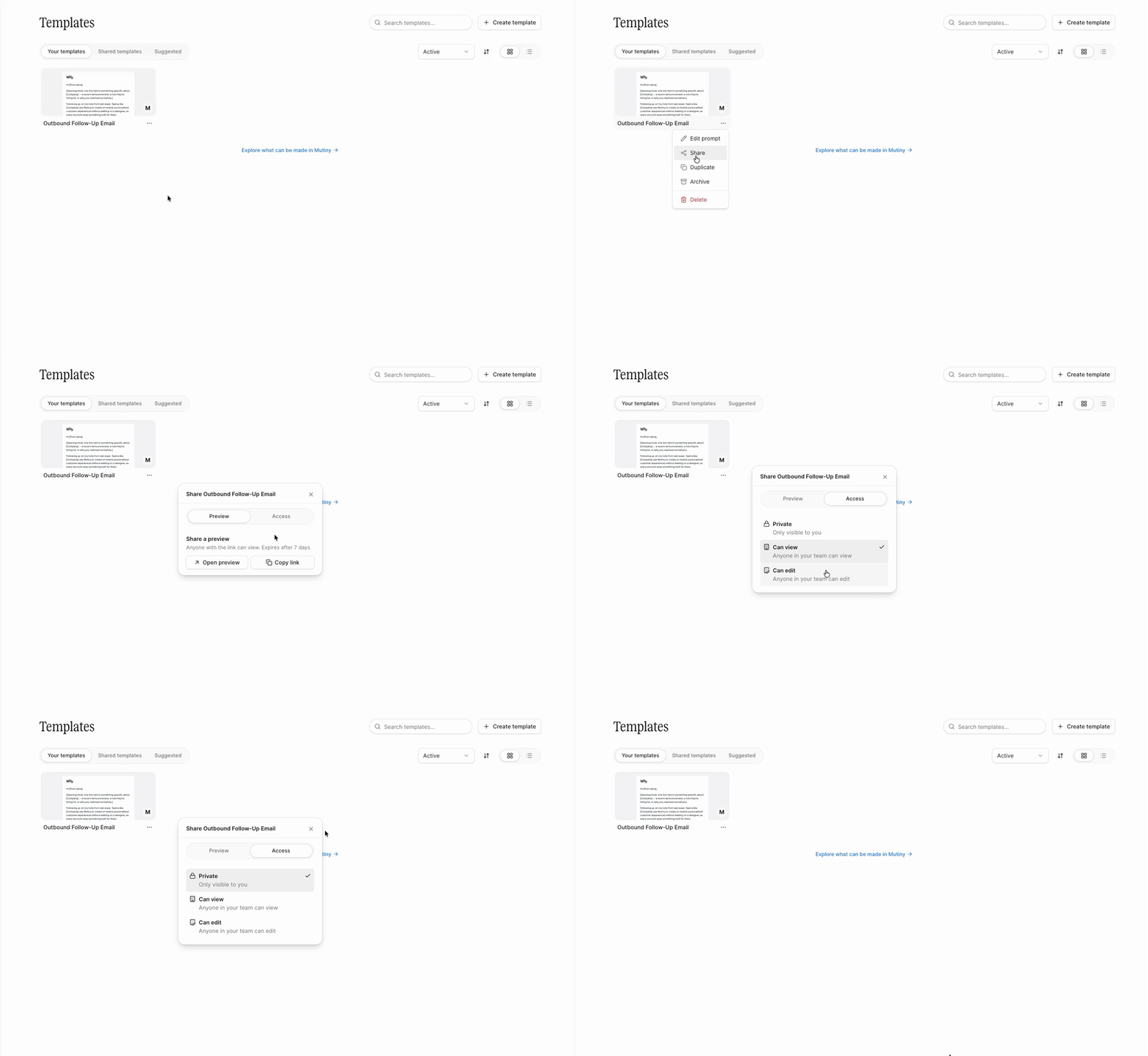
You can adjust the sharing settings for a template using the three-dot menu on the desired template. Open the three-dot menu and select Share. This will open a modal where you can set sharing settings
Template Prompts
Template Prompts let you add custom instructions that guide how the creative agent behaves whenever someone uses your template. These instructions run behind the scenes, so every use of the template produces output that matches your expectations without requiring the user to figure out the right inputs on their own.
Only users with an Admin or Owner role can do this
To add prompts, click the three-dot menu on the template card and select Edit Prompt
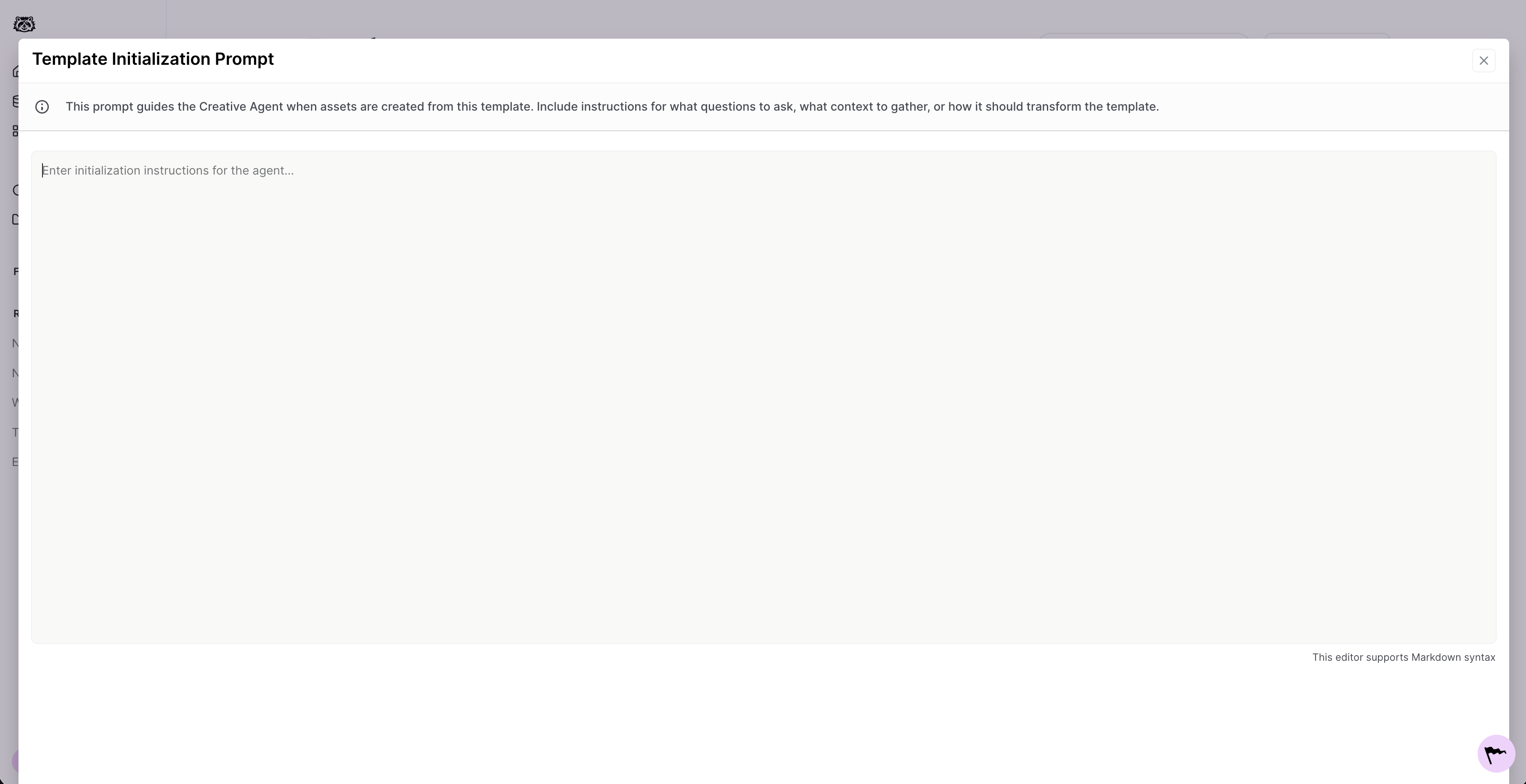
Instructions can cover a range of behaviors, including:
Clarifying questions. You can tell the agent to ask specific questions before generating content. For example, asking the user to confirm who the rep is and which account the template is being created for. This is especially useful for templates shared across a team, where the agent needs context it can't infer on its own.
Asset and library references. You can instruct the agent to pull specific assets based on the answers it receives, such as grabbing a rep's headshot from the asset library based on their name.
Tone and language. Instructions can specify how the content should sound, like using informal language to make the page feel like a one-to-one message from a rep rather than a generic broadcast.
Structural rules. You can lock down layout expectations, such as keeping the page structure intact and limiting content to a single product update section.
How it works for template users
When someone opens a template that has custom prompts configured, the agent starts by asking any clarifying questions you've defined before generating content.
The rest of your instructions are applied automatically in the background. This means the template can produce accurate, on-brand output in a single pass, without the user needing to know how it was set up.
Using templates
Once you have some templates created, you can use these to create assets. From the Home tab, you will see any active templates available for asset creation.
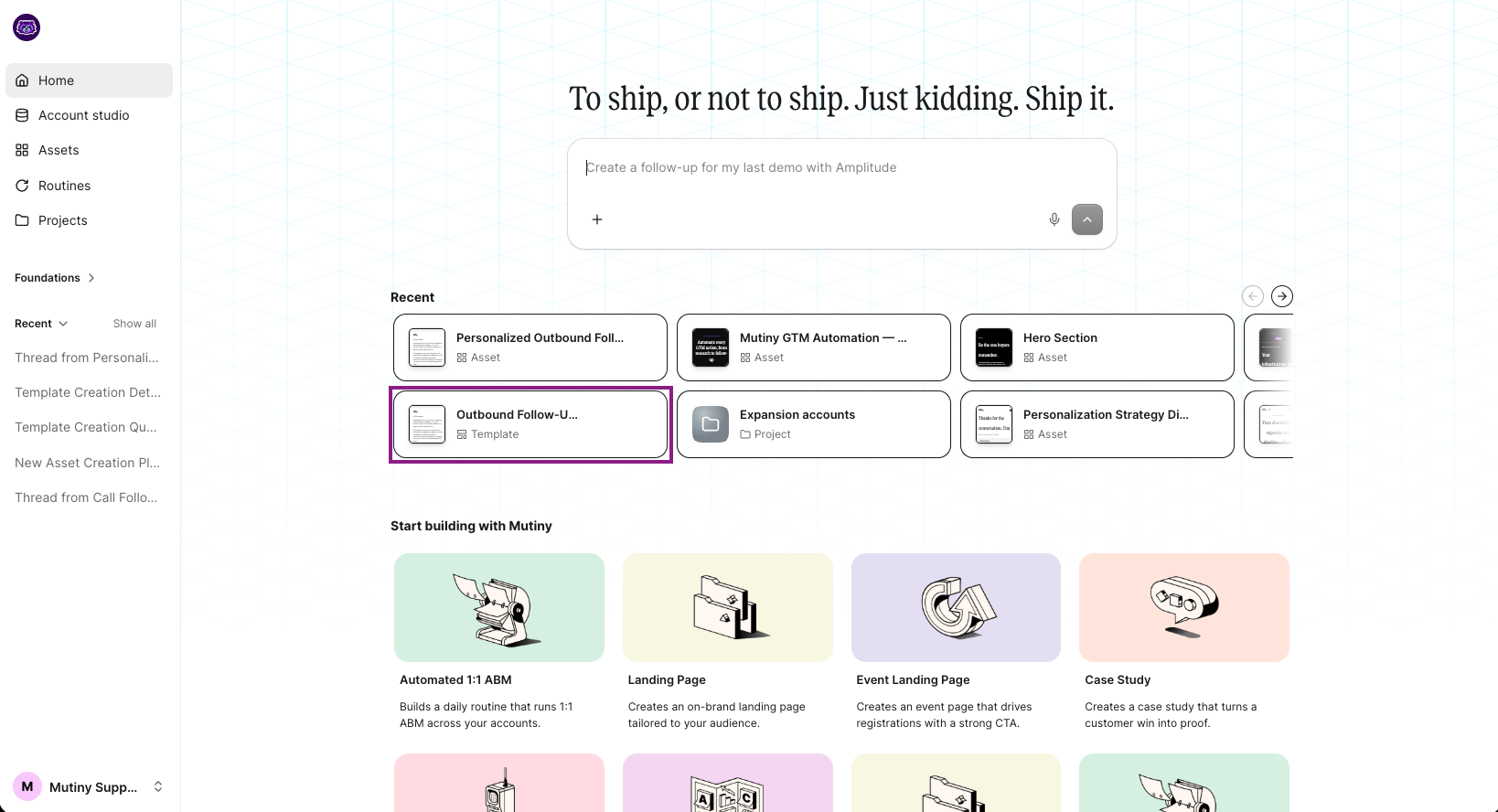
Click on the desired template. This will then create a new asset from this template and open up the editor where you can begin editing your new asset.
Need Help?
If you have questions or need help, the Mutiny Support team is here for you! You can submit a support ticket using the Submit a ticket button at the top of this page, or reach us at support@mutinyhq.com.