Export Scaled 1:1 Asset Links
Last updated: April 6, 2026
This is an enterprise-only feature. Interested in upgrading to an enterprise plan? Email the team at mutinylovesyou@mutinyhq.com to get plan upgrade information.
Once you have created and published your assets, you'll be able to export the production and preview links to be shared for distribution. You can export as a CSV or export the links straight to Salesforce.
Please note, you must publish the Assets before you can export the links
Export to SFDC
Exporting to SFDC from the Assets page
From the editor, click Published on the top right
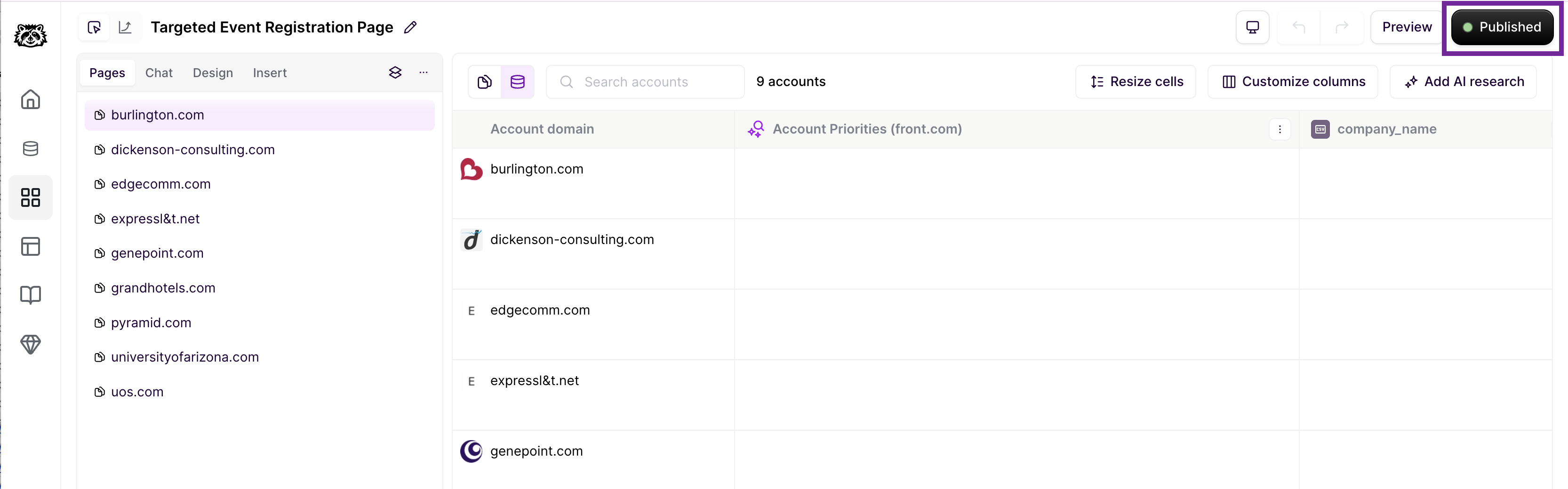
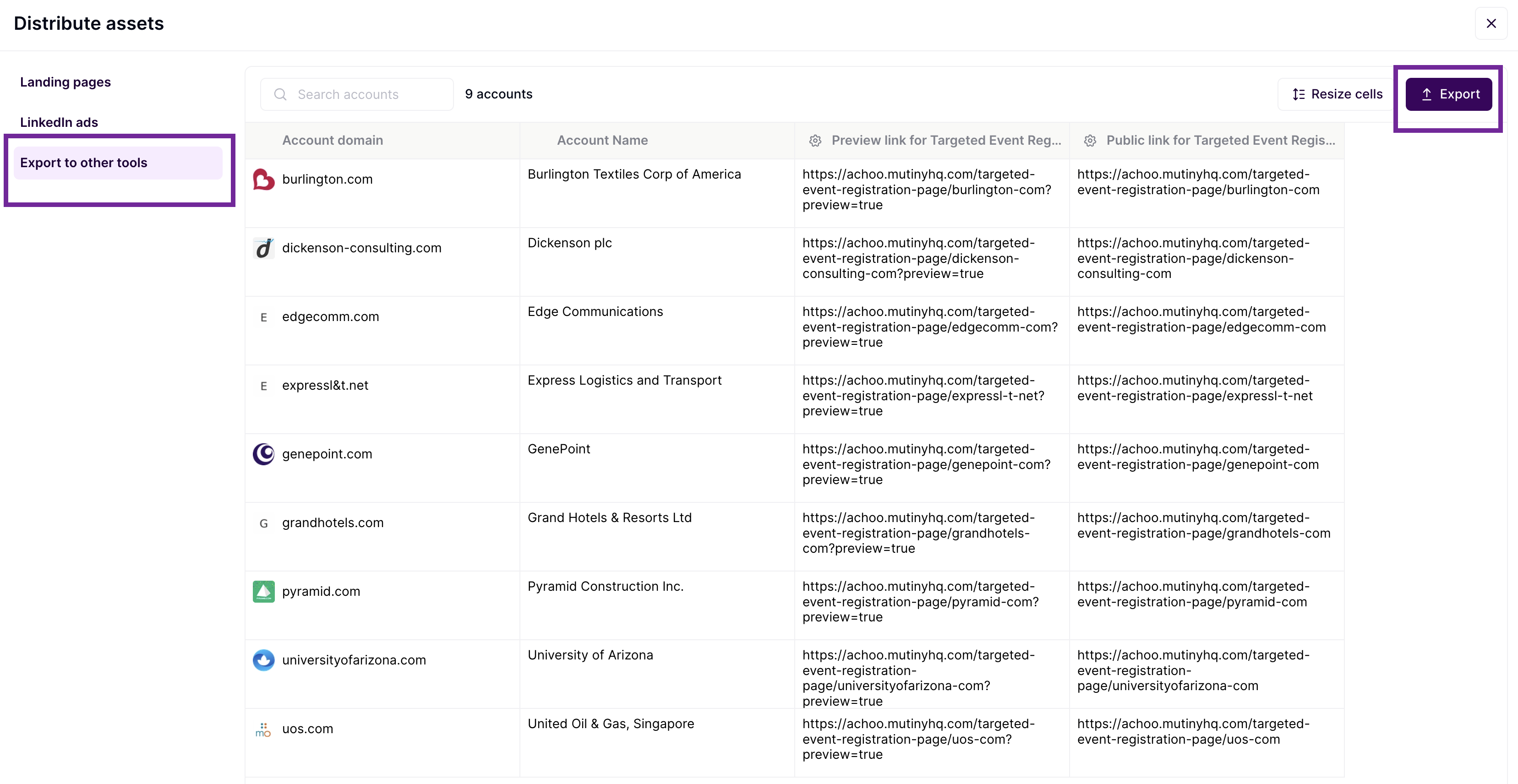
Then, click Export to other tools -> Export -> select Salesforce
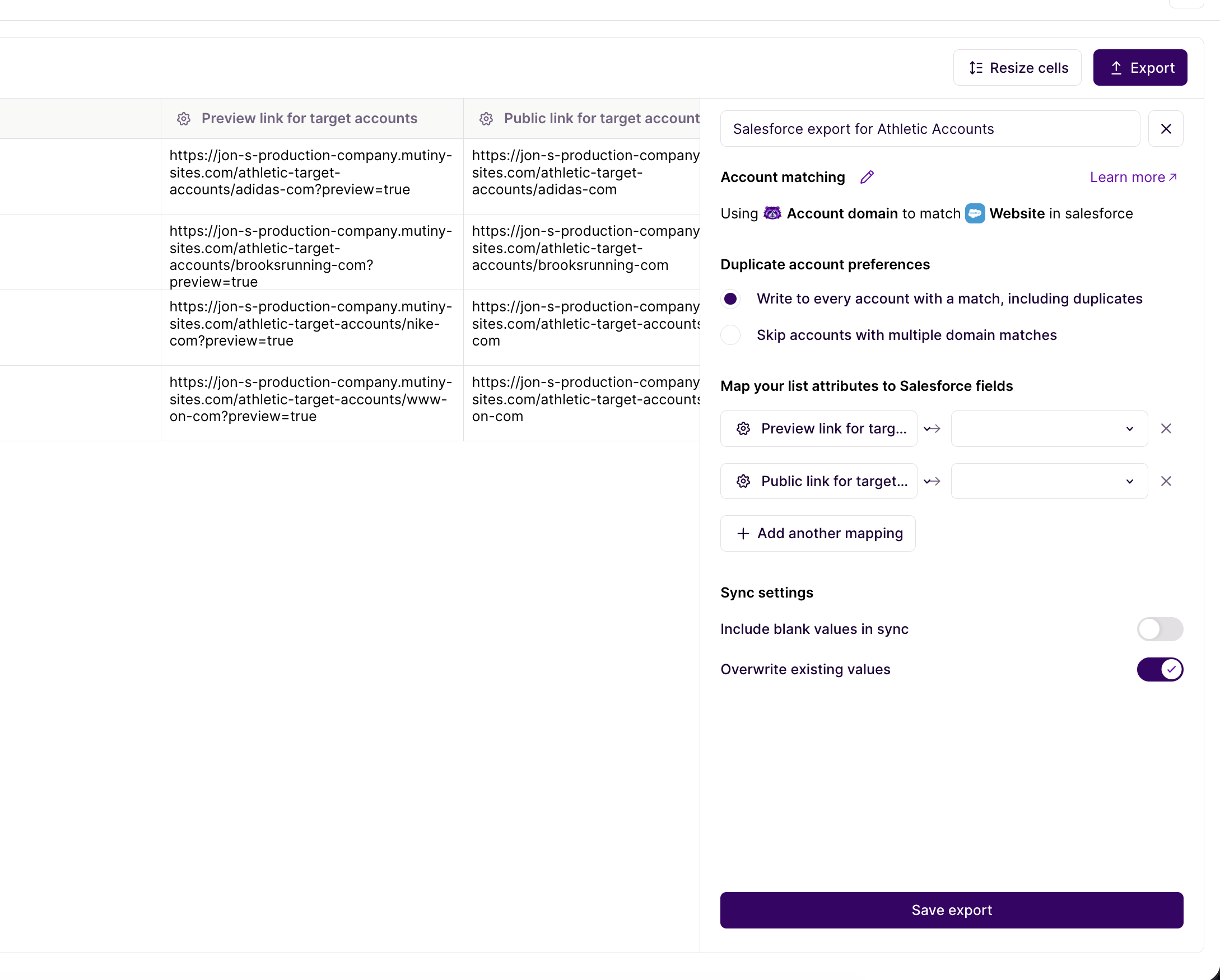
This will bring up the export settings, and from here, you can select which fields to map the Asset preview and production links to in SFDC. Once the export settings are selected, click the Save export button, and then Export
Export to CSV
From the editor, click Published on the top right
Then, click Export to other tools -> Export -> select CSV. This will then trigger a download of the CSV.
Exporting Links with Additional Data
Currently, the CSV and SFDC export methods listed above will only export the preview and production links.
If you would like to export additional data along with those links (ie, account owner), you can upload the exported links to the Account Studio list tied to the Asset, and then export the list with any additional data.
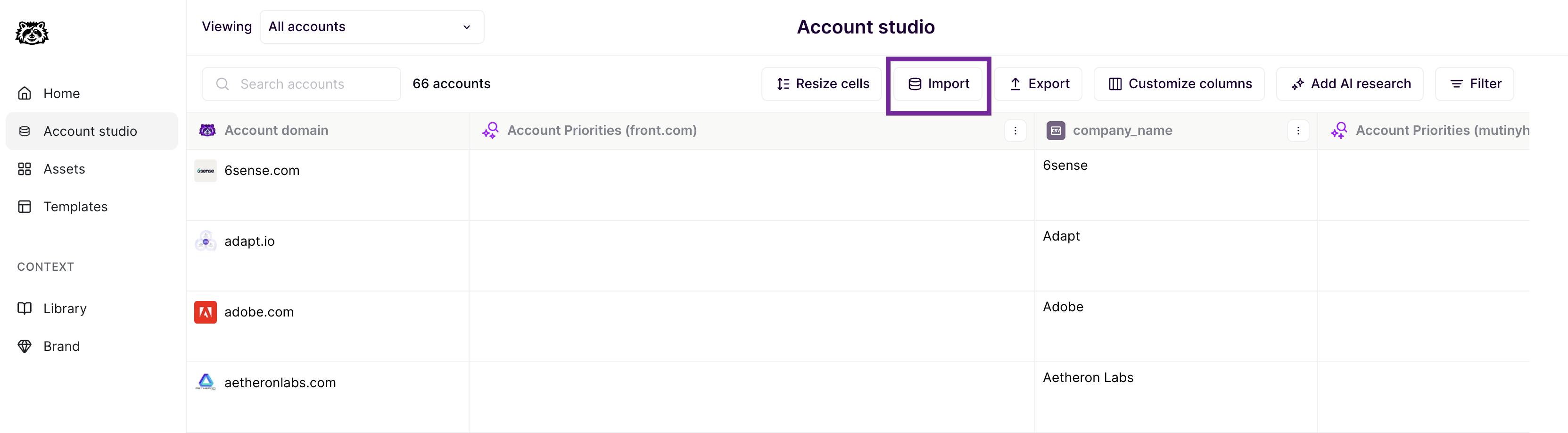
Once you have exported the Asset links to a CSV (using either method listed above), head into Account Studio and select the list used to build the Asset, then click Import
This will open up the upload modal, where you can either drag-and-drop the exported links list or click to select the list from your computer
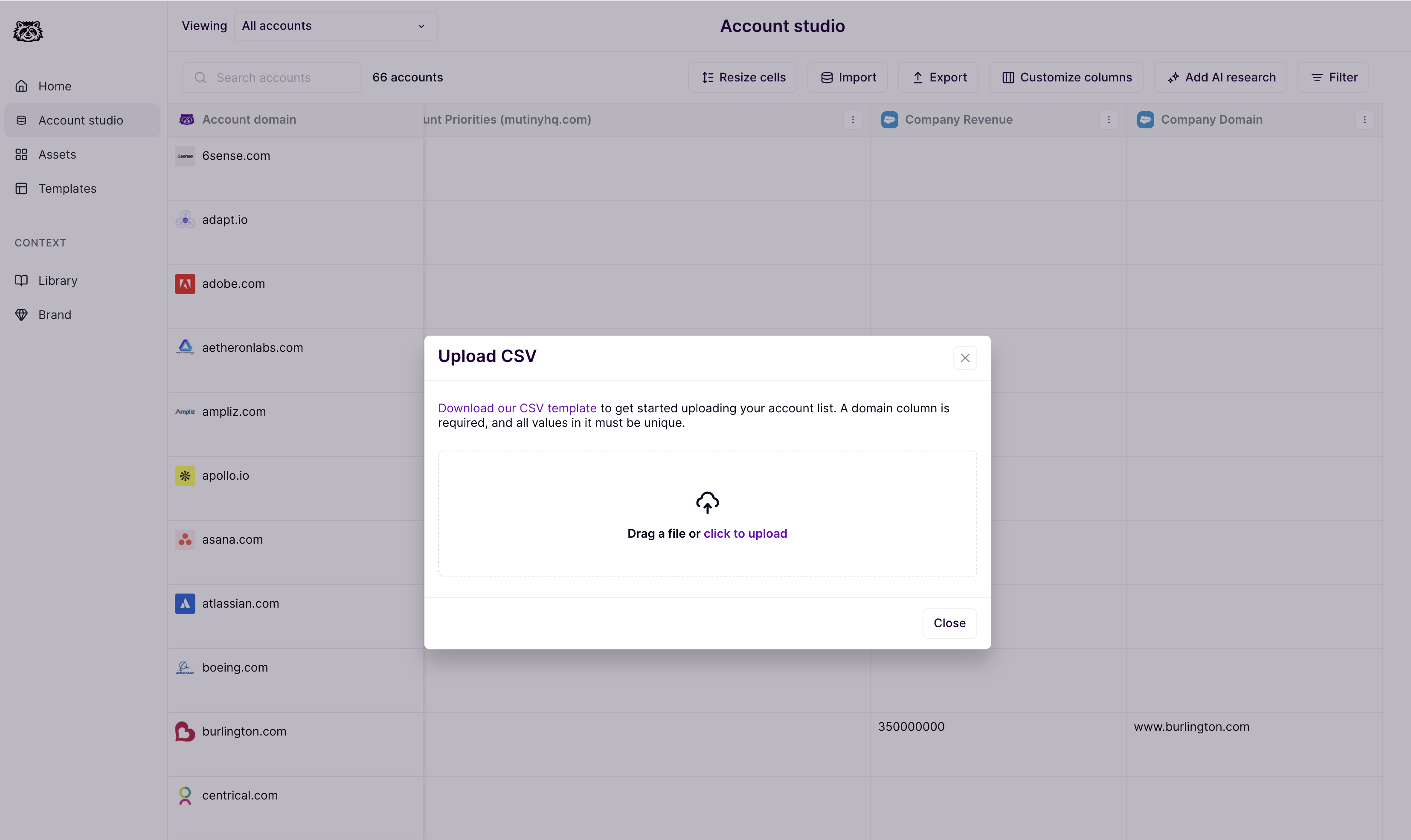
Once the list is selected, you will be brought to the CSV upload page, where you can review and import the list
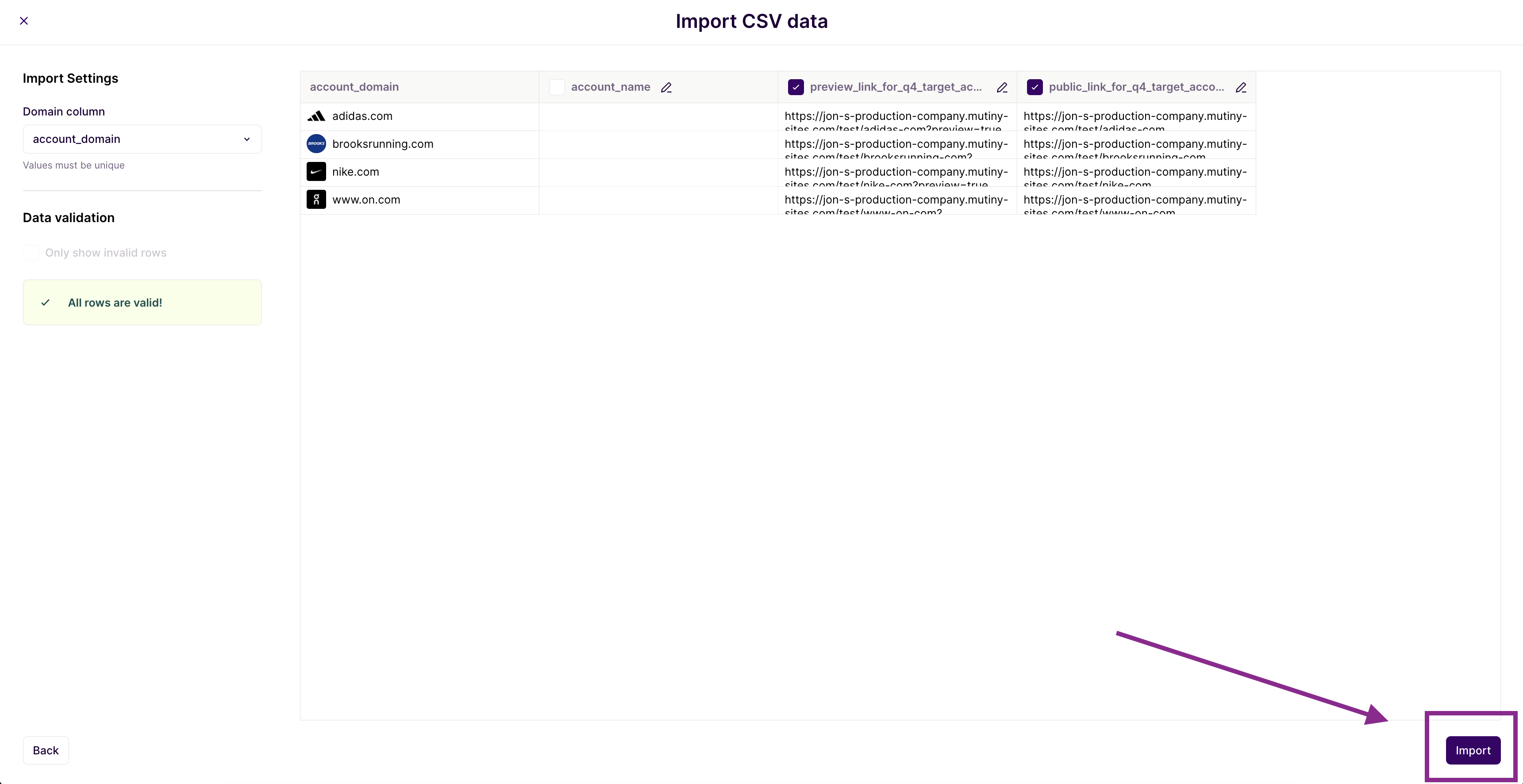
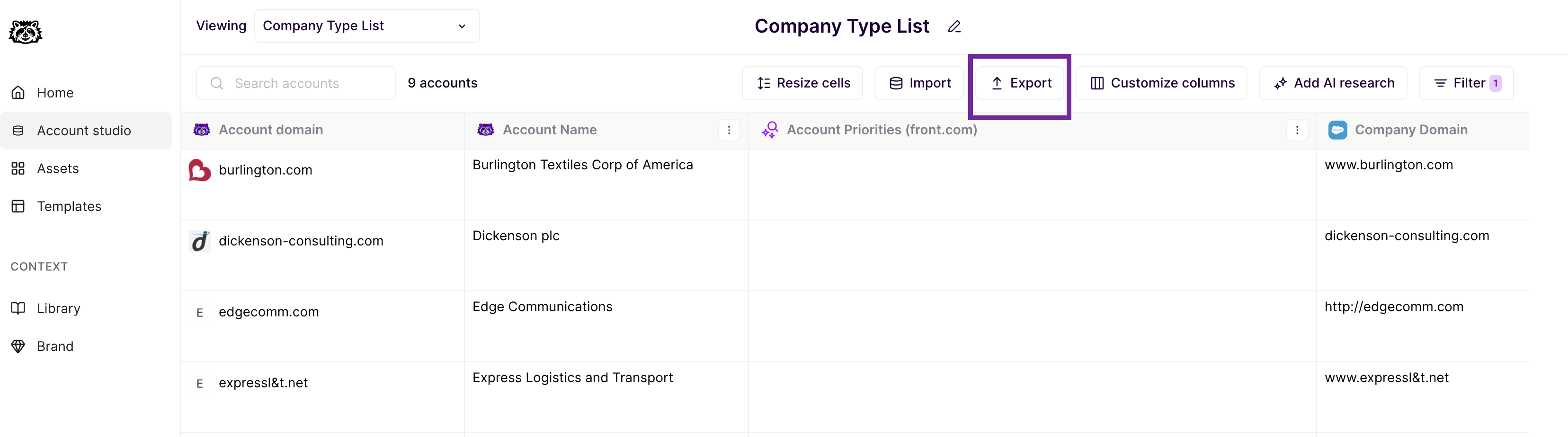
After the Asset links are imported, select Export -> Export to CSV - This will then give you a list with any additional info from Account studio, as well as the Asset preview and production links.
Need Help?
If you have questions or need help, the Mutiny Support team is here for you! You can submit a support ticket using the Submit a ticket button at the top of this page, or reach us at support@mutinyhq.com.