Add Forms to Mutiny Assets
Last updated: April 30, 2026
You can add forms to your Mutiny assets from any form provider that provides an embed link. This guide will walk you through how to get these forms onto your Mutiny Assets
How to Embed a Form
Before you can add your form to your Mutiny Asset, you will have to retrieve the form embed code. Below are some resources for how to retrieve your form's embed code on some popular form providers:
Ask the creative agent to add a form
You can ask the creative agent using the Chat tab to add a form to the site. To do this, tell the creative agent where you would like the form, and then paste your embed code in the prompt. For example:
Add a form below the hero section using this embed code:
[embed code here]
The agent has full context of your page and will be able to embed the form wherever you ask.
Manually add form
To add a form to a Mutiny Asset, you will want to use the Embed element. You can add
this to your asset from the Quick Change menu

Once added, you can embed your code with a link or via an embed code using the Design tab. We recommend using an embed code, as this will give you more control over the section styling and spacing.
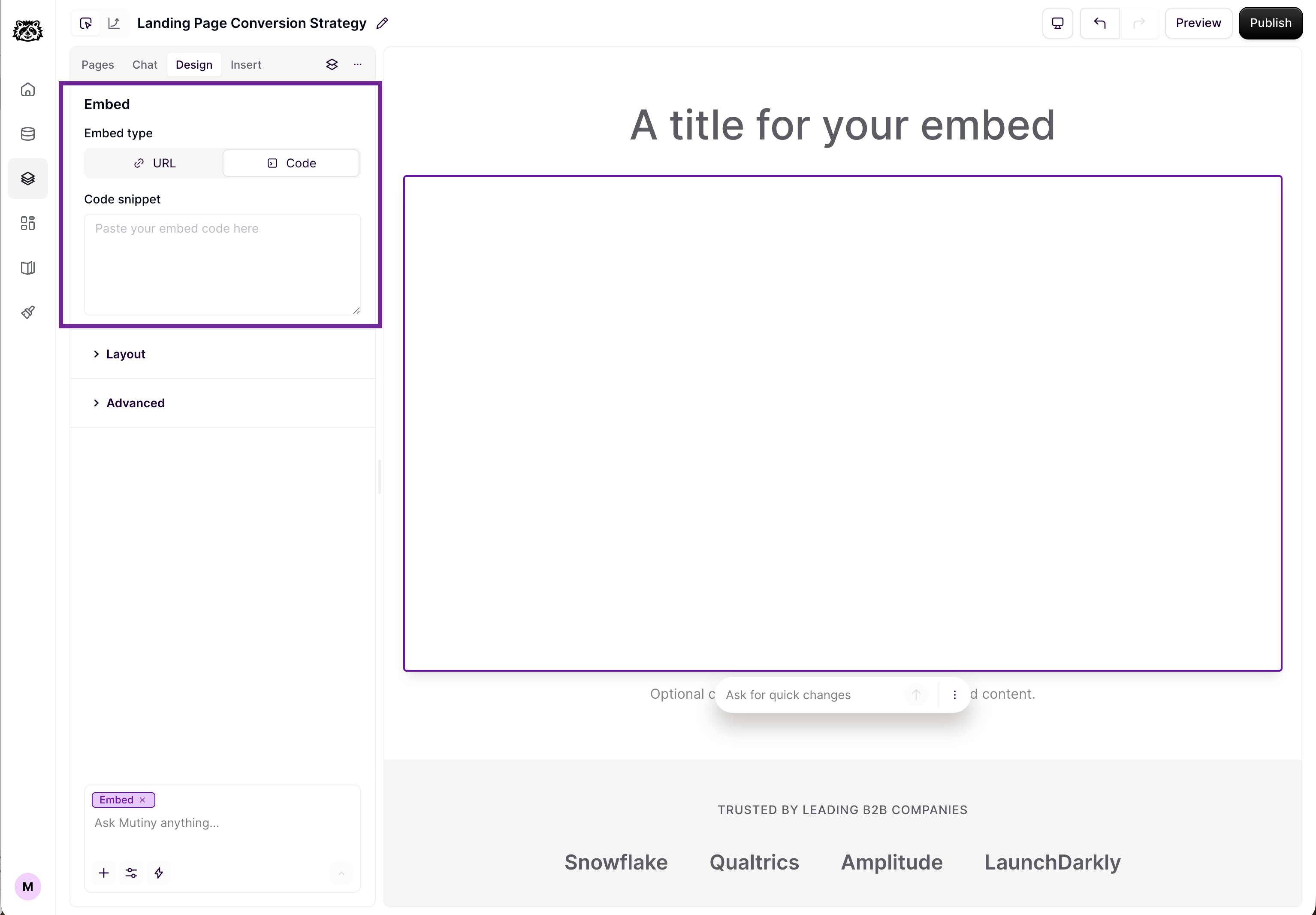
Once the embed code is added, your embedded form will display in the block. You can then adjust the embed block styling via the Design tab or prompt the agent via the Chat tab to make design changes.
Need Help?
If you have questions or need help, the Mutiny Support team is here for you! You can submit a support ticket using the Submit a ticket button at the top of this page, or reach us at support@mutinyhq.com.